Quick Start

This guide walks you through the first deployment of the NE503: unboxing and installation β†’ connection and configuration β†’ camera verification β†’ application deployment β†’ system integration β†’ device management β†’ device maintenance. The entire process takes approximately 30 minutes.

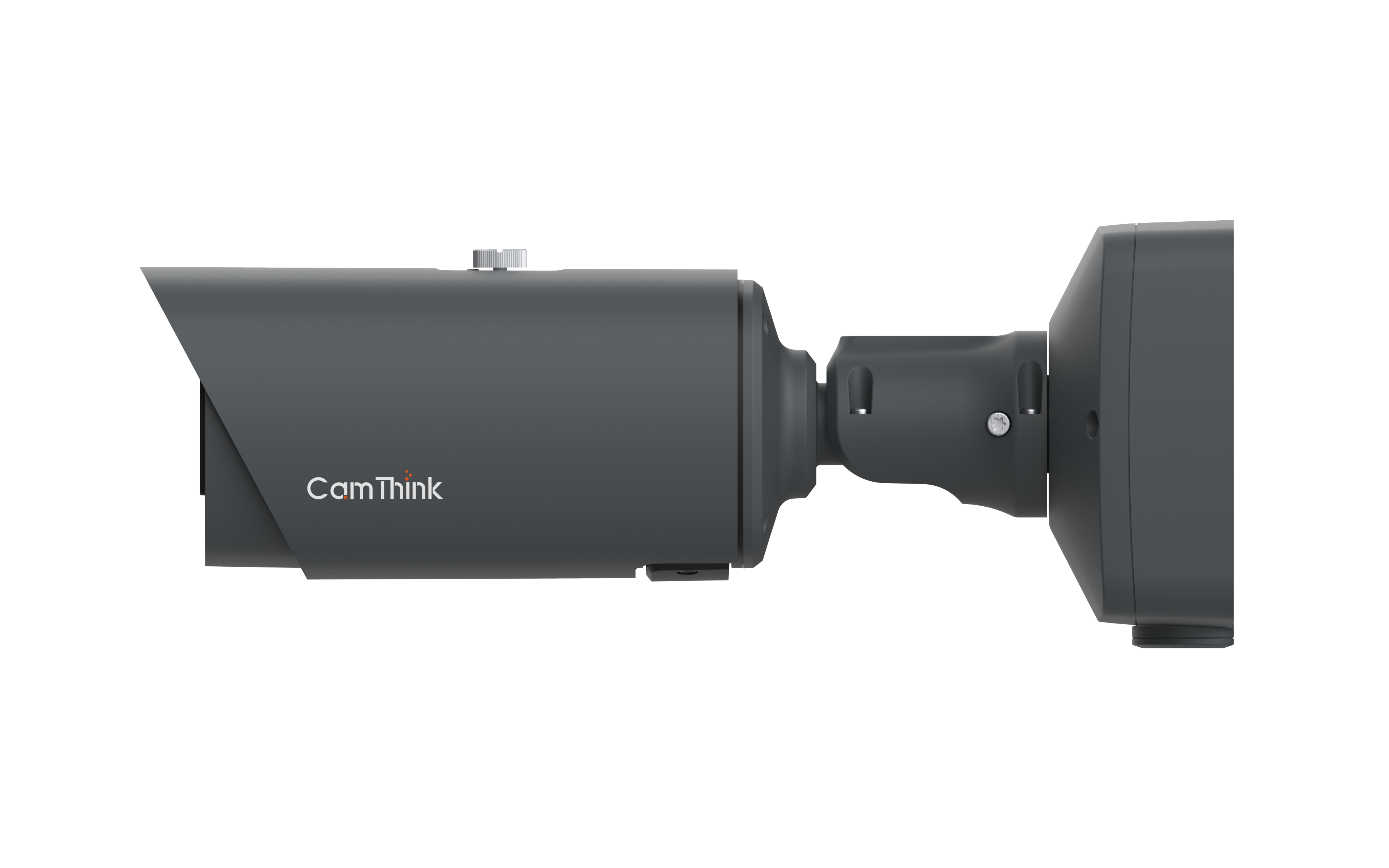
NeoEyes NE503

Overview​

Kit Contents​

ComponentQtyDescription
NE503 main unit1Core processing board and interface board, IP66 rated
Wall-mount screw pack1Mounting screws and hardware

Prerequisites​

The following items must be provided by the user:

  • PoE switch (802.3AT, recommended) + Ethernet cable: a single cable provides both power and network connectivity
  • Or DC 12V power adapter + standard switch + Ethernet cable: for environments without a PoE switch
  • Computer: equipped with an Ethernet port, running Windows / macOS / Linux, with a modern browser (Chrome / Edge / Firefox / Safari)

Device Installation and Power-On​

1. Choose Installation Location​

The NE503 serves as both a smart IPC and an edge computing platform. Consider both surveillance coverage and AI inference performance when choosing the installation spot:

  • Surveillance coverage: Select a position that covers the target area. Note the lens field of view (wide-angle: 44.5Β° horizontal, telephoto: 14.5Β°)
  • Environmental requirements: IP66 rated, supports -30Β°C to +60Β°C operating temperature, suitable for outdoor installation
  • Cable planning: Ensure the Ethernet cable from the PoE switch or router reaches the installation location

2. Wall-Mount Installation​

  1. Secure the wall-mount bracket to the mounting surface (wall / pole / ceiling) using the included screw pack
  2. Align the NE503 with the bracket and tighten the mounting screws

3. Power Supply and Boot​

The NE503 supports two power supply methods, with power consumption < 8W (typical load):

MethodConnectionUse Case
PoE (recommended)Connect Ethernet cable to a PoE switch (802.3AT) β€” single cable for power and networkMost deployment scenarios
DC adapterConnect 12V adapter to DC port, Ethernet cable to standard switchEnvironments without a PoE switch

After powering on, the device indicator blinks during startup. Once it stays solid, the device is ready (approximately 30-60 seconds).


First-Time Connection and Initial Configuration​

The NE503 ships with a default IP of 10.0.0.1. This section guides you through the first login, password change, network configuration, and time zone setup.

1. Configure Computer IP​

For first-time access, set your computer's Ethernet IP to the 10.0.0.x subnet (e.g., 10.0.0.100, subnet mask 255.255.255.0), then run ping 10.0.0.1 to confirm connectivity.

2. Log In to the Web Console​

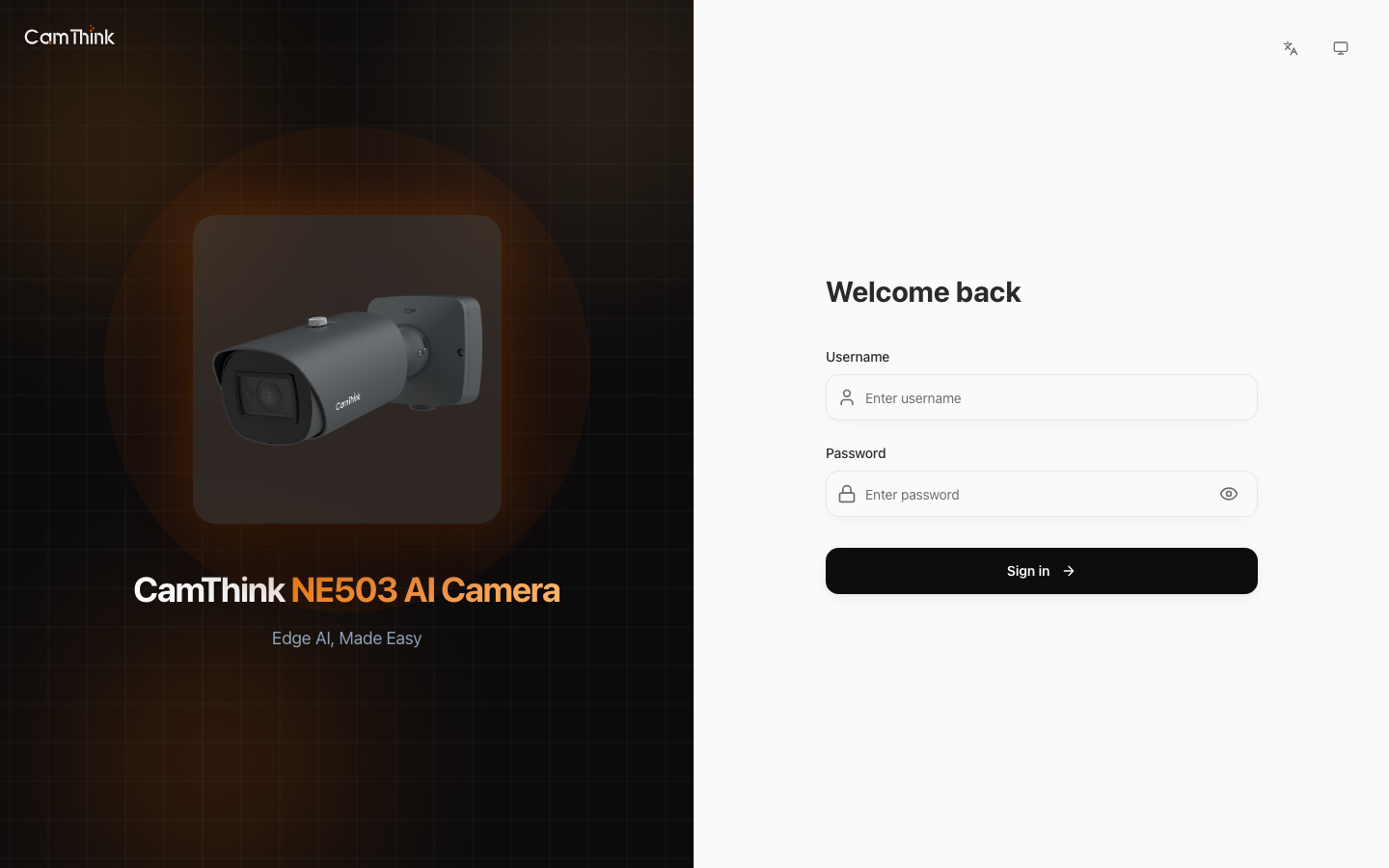
Open a browser and navigate to http://10.0.0.1:8080:

Log in with the default credentials: username admin, password password.

After logging in, you will see the Dashboard with CPU / memory usage, network traffic, storage space, AI inference status, and a live camera preview.

Click the expand icon in the top-left corner to show the navigation bar labels for easier page navigation.

3. Change the Default Password​

Change the default password immediately after your first login to prevent unauthorized access. Expand the navigation bar and go to Settings β†’ Device Info, find the password change section, enter the current and new passwords, then save.

4. Configure Network​

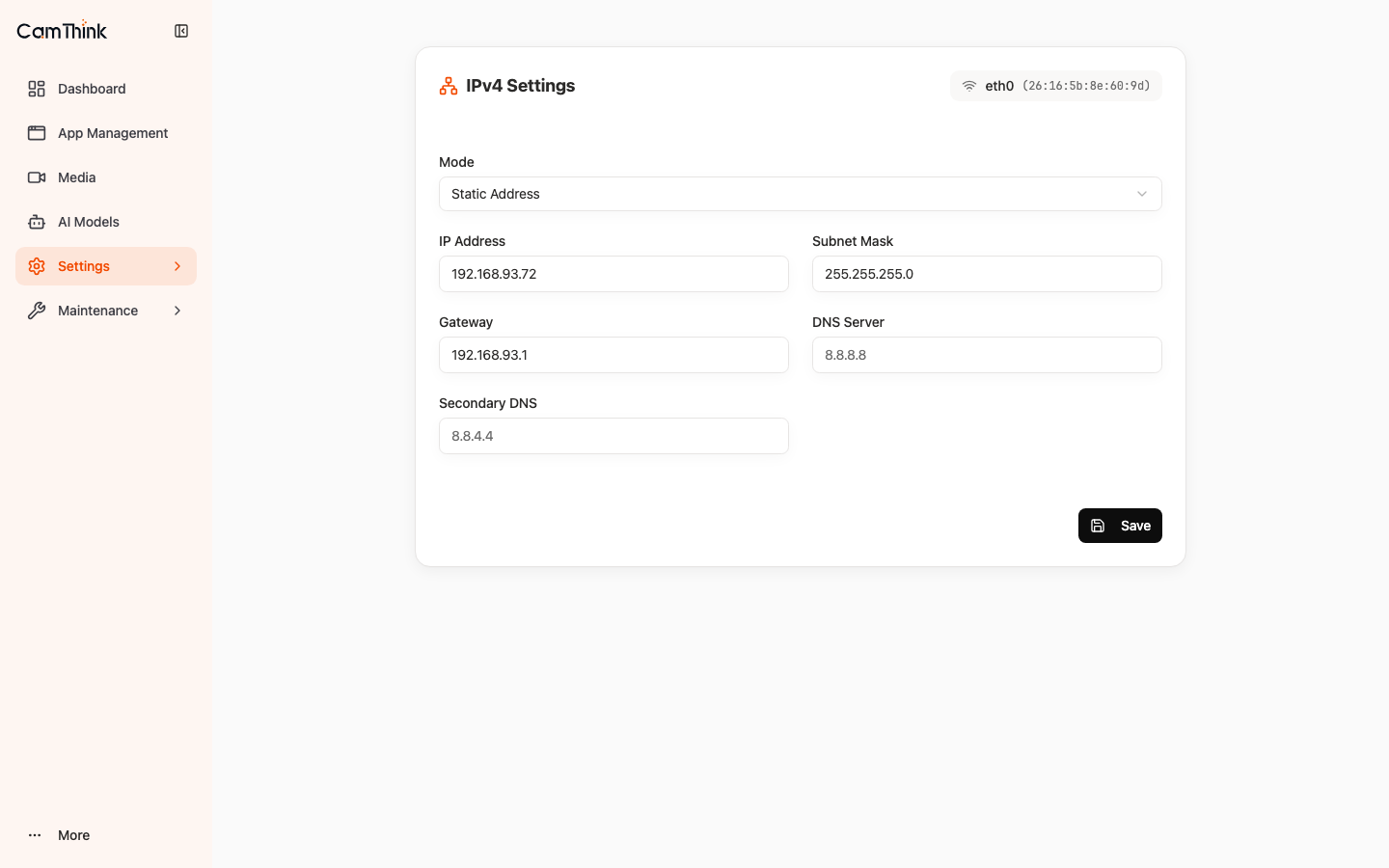
The factory IP 10.0.0.1 is for initial configuration only. After connecting the device to your actual LAN, switch to DHCP or assign a static IP so other devices can reach it.

Go to Settings β†’ Network:

ModeUse CaseAction
DHCPAutomatic IP from routerEnable directly; consider binding the MAC address in the router to prevent IP changes
Static IPProduction environments requiring a fixed IPManually enter IP, subnet mask, gateway, and DNS

5. Set Time Zone​

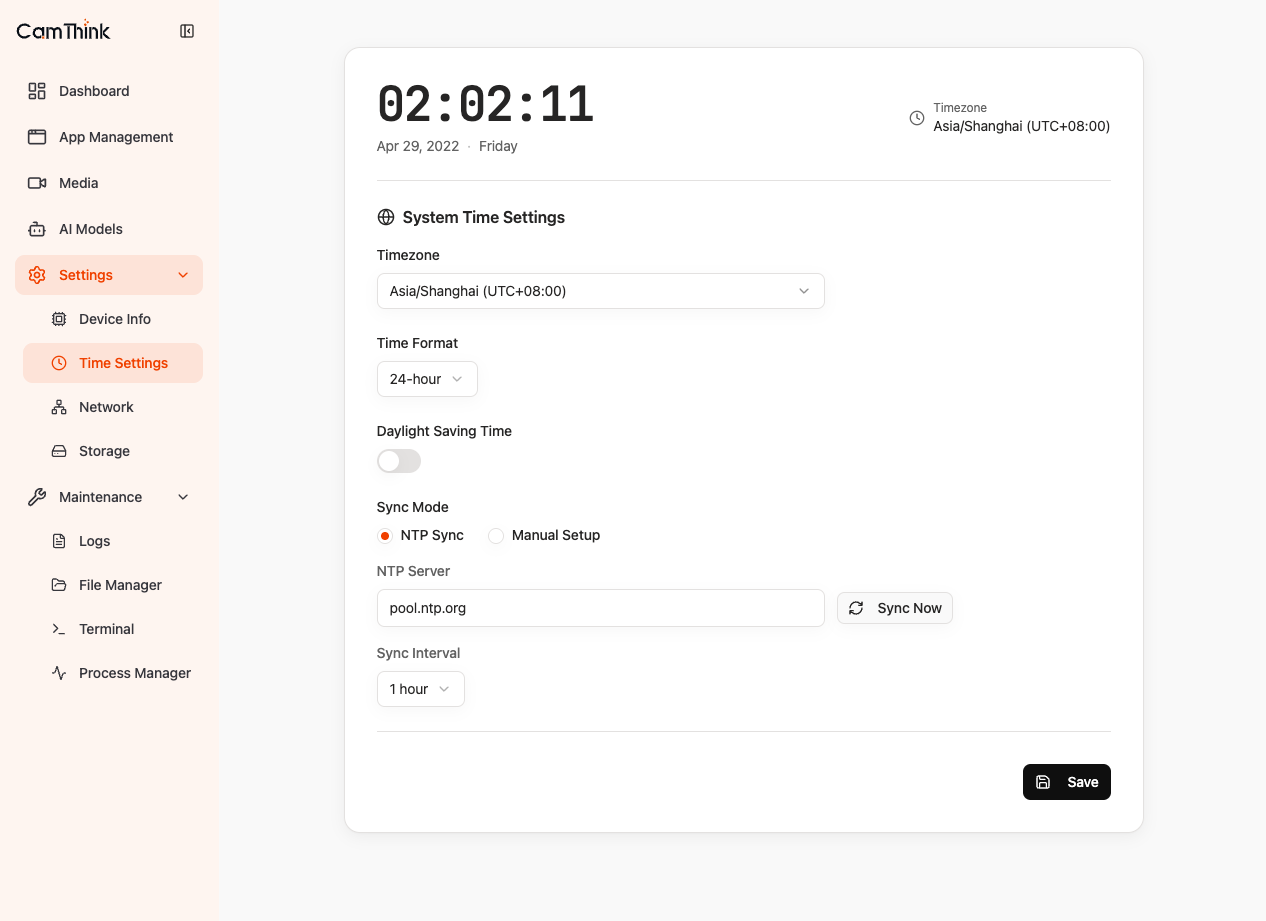
Go to Settings β†’ Time Settings and select the correct time zone and configure an NTP server. Time zone settings directly affect video stream OSD timestamps and recording file names β€” ensure they match your deployment location.


Verifying Camera Operation​

After completing the initial configuration, verify that the camera feed and video stream output are working before proceeding with application deployment.

1. Live View and Lens Control​

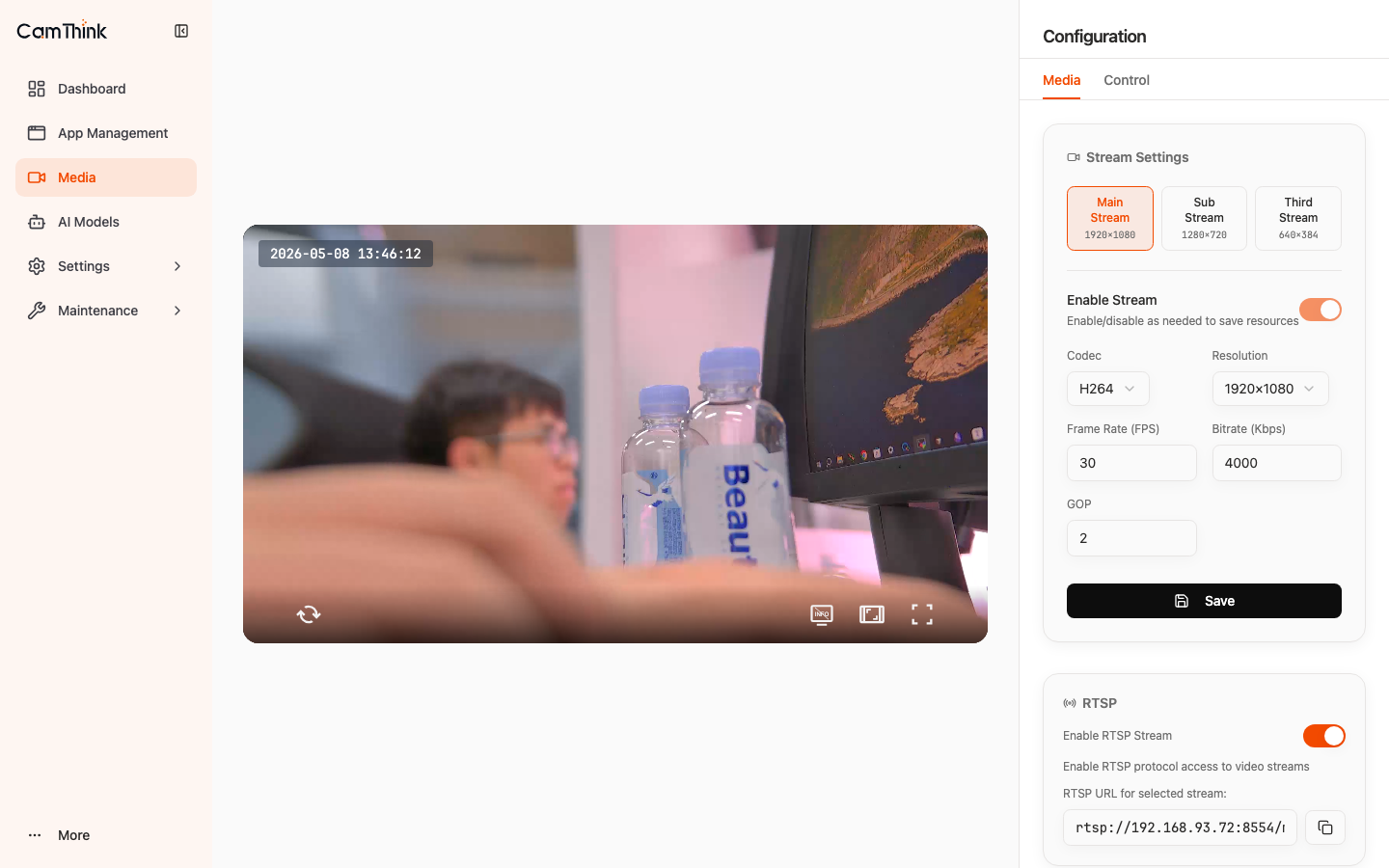
Go to the Media page, which has two tabs: Media and Control.

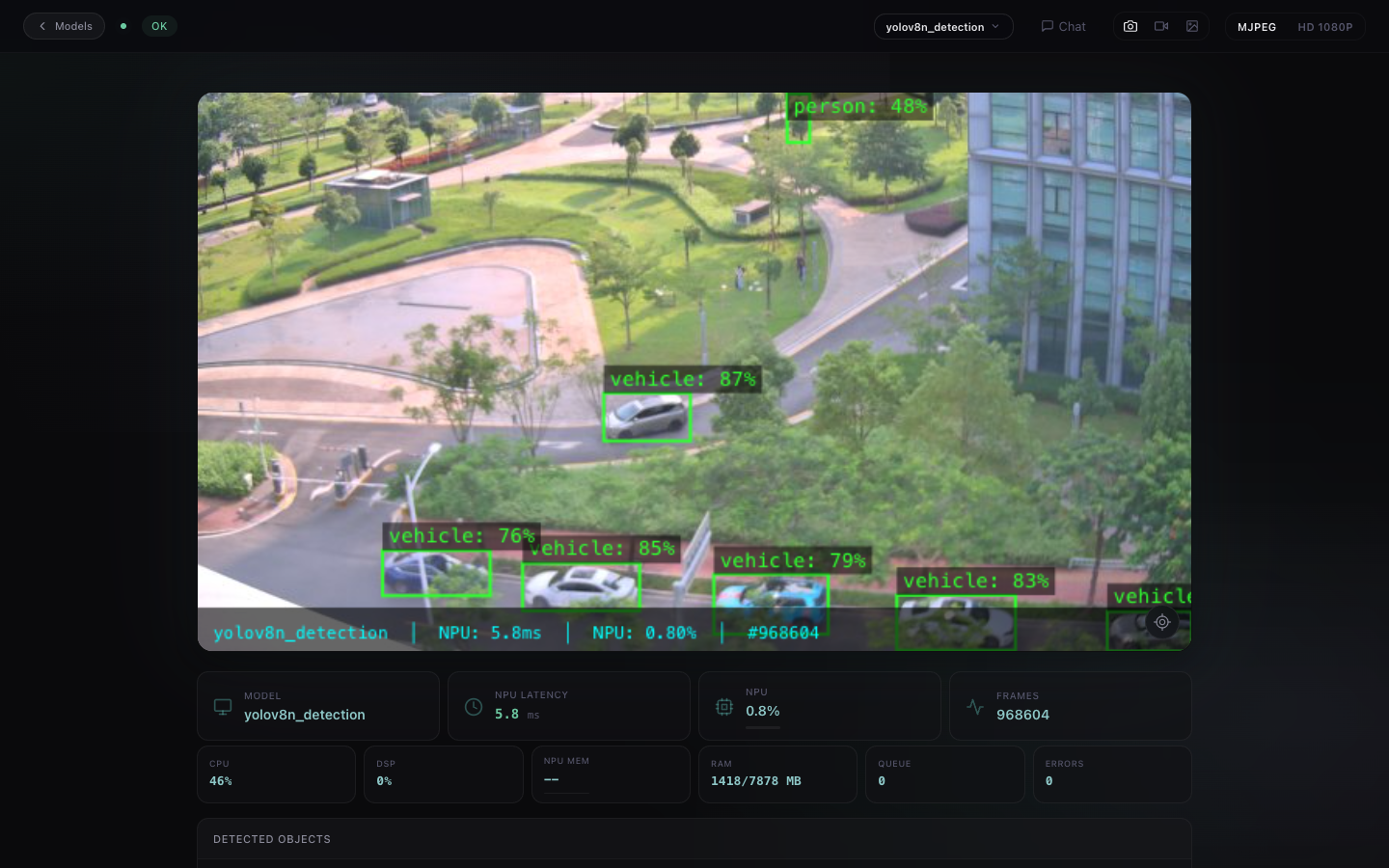
Media tab: Displays the live camera preview. AI detection results are overlaid directly on the image.

Control tab: Provides the lens control panel, including optical zoom (1x – 2.88x), manual/auto focus, IR-CUT filter switching (auto/day/night), and fill light control. After zooming, click auto focus to ensure a sharp image.

Wide-angle (10.2mm) is for panoramic surveillance; telephoto (29.5mm) is for long-range identification (e.g., license plates, faces).

2. RTSP Stream Verification​

RTSP is the primary video protocol for integrating NE503 with external systems. The device provides three streams:

StreamAddressUse Case
Main streamrtsp://<device-ip>:8554/main4K high-definition recording
Sub streamrtsp://<device-ip>:8554/subLow-bandwidth preview
Third streamrtsp://<device-ip>:8554/thirdAI analysis / mobile

Verifying with VLC:

  1. Open VLC β†’ Media β†’ Open Network Stream, enter the RTSP address
VLC Open Network StreamVLC Enter RTSP Address
  1. Click Play and confirm smooth playback without artifacts
VLC Playback VerificationVLC Playback Successful

The default RTSP port is 8554. If you cannot pull the stream, verify stream status with aipc-cli stream list.


Deploying Your First AI Application​

The NE503 deploys third-party AI applications through a container runtime. Users can develop and install applications to meet various business needs. This section demonstrates the complete installation wizard workflow using NX Witness Video Management System as an example.

1. Access Application Management​

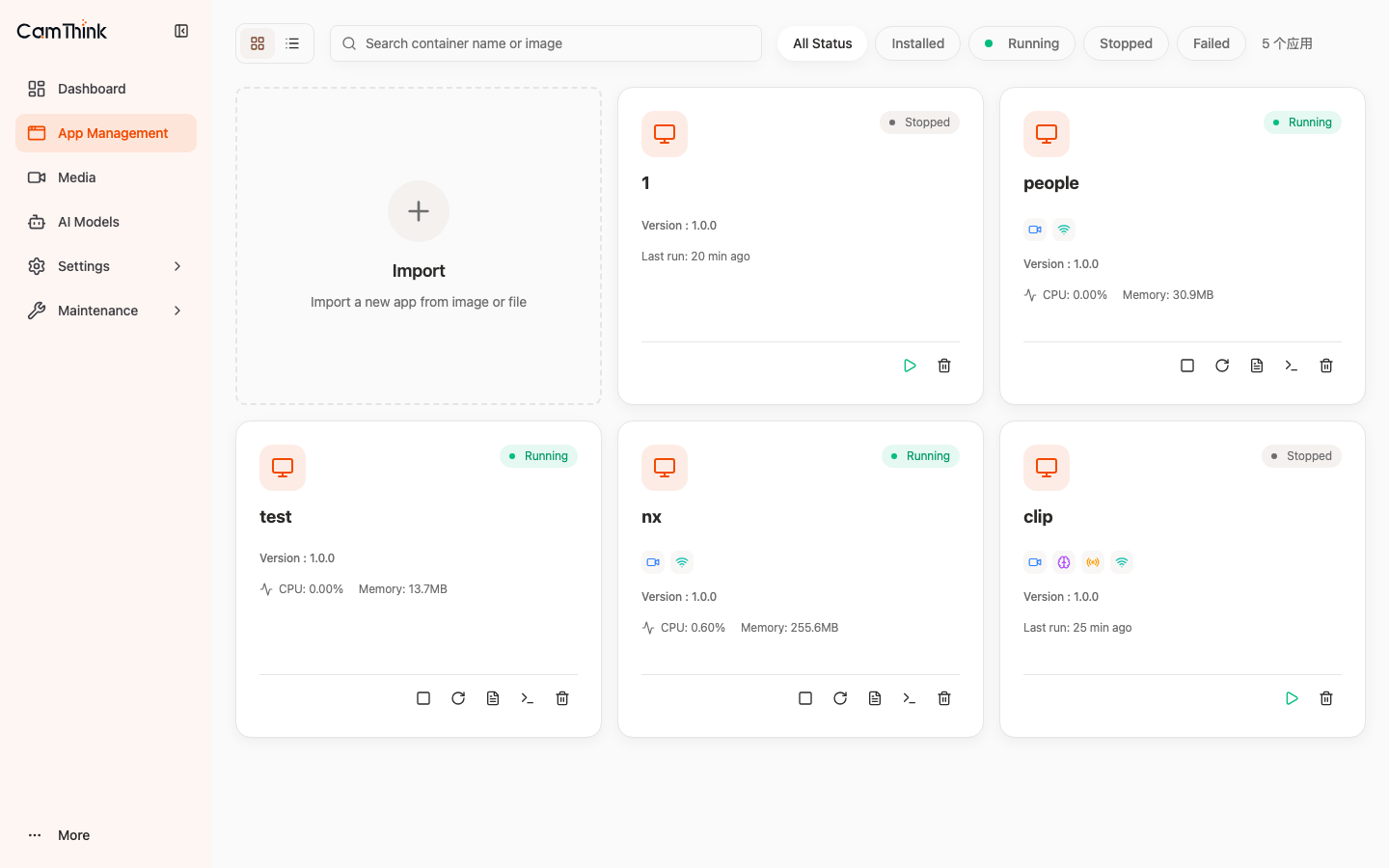
Select App Management in the navigation bar. Click the Import card at the top of the page to start the installation wizard.

2. Installation Wizard​

Clicking the Import card opens the Application Setup Wizard with 6 steps:

Step 1 Β· Source β€” Select the image source and enter the address. Supports Registry Image (pull from Docker Hub or private registry) and Upload Archive (upload a local .tar / .tar.gz file). For NX Witness, select Registry Image and enter ptr727/nxwitness:6.1.1.42624, then click Continue.

Step 2 Β· Basic Info β€” Enter Application ID (nx, cannot be changed after creation), name (NX Witness), version, and description (optional).

Step 3 Β· Resources β€” Configure resource limits and runtime policies. Adjust CPU Limit and Memory Limit as needed (defaults: 50% / 256Mi). Enable Auto-start on boot and Restart on Failure.

Step 4 Β· Permissions β€” Configure application access: select available AI models and video streams (main / sub / third), set Event Bus publish/subscribe topics. Network defaults to Isolated Mode; disable it for NX Witness to use Host networking.

Step 5 Β· Advanced β€” Add environment variables and volume mounts (optional).

Step 6 Β· Review β€” Confirm the configuration and click Install. Wait for the image download to complete.

Review ConfigurationInstallation Progress

3. Verification and Operation​

After installation, the application appears in the App Management list. Click the application card to view its running status, resource usage, and perform start / stop / restart / uninstall operations.

NX Witness verification:

ServiceAddress
NX Witness management interfacehttps://<device-ip>:7001
RTSP streamrtsp://<device-ip>:554/

Open https://<device-ip>:7001 in a browser. On first access, the NX Witness setup wizard appears:

Select Setup New Site, follow the wizard to create an admin account, and add the NE503 RTSP stream (rtsp://<device-ip>:8554/main) to get started.

NX Witness Troubleshooting:

SymptomCauseSolution
Container STOPPED with no new privileges in logsSecurity policy blocking privilege escalationConfirm container security settings allow privilege escalation
Web interface inaccessibleNetwork mode is not HostDisable Isolated Mode during installation
Image download fails or is slowNo internet connection or DNS issuesCheck device network connectivity
Container restarts repeatedlyInsufficient memoryMemory Limit should be at least 1GB

4. AI Model Management​

Go to the AI Models page to view loaded model running status and inference frame rate. Click a model card for detailed information (ID, version, load time, model path, associated applications).

The NE503 comes with a pre-installed person detection model (YOLOv8n) ready to use. To load a custom model, click the Import card at the top of the page, upload a .hef file, and fill in Model ID, Model Type, Threshold, and other parameters:

After import, the model loads automatically and inference results are output via Event Bus. You can also register models via command line with aipc-cli model register <.hef>.


System Integration​

1. Video Stream Integration​

The NE503 RTSP streams follow standard protocols and can be connected directly to mainstream NVR / VMS platforms (NX Witness / Milestone / Genetec) or pulled using FFmpeg / GStreamer. Recommendation: use the main stream for recording, the sub stream for live preview, and the third stream for AI analysis.

2. API Integration​

The NE503 provides a RESTful API for programmatic management and data retrieval. All endpoints require Bearer Token authentication:

# Login to get Token
curl -X POST http://<device-ip>:8080/api/v1/auth/login \
-H "Content-Type: application/json" \
-d '{"username":"admin","password":"<your-password>"}'

# Query device information
curl http://<device-ip>:8080/api/v1/system/info \
-H "Authorization: Bearer <token>"
ModulePath PrefixPurpose
System/api/v1/systemDevice info, reboot, OTA upgrade
Media/api/v1/mediaVideo parameters, OSD, AI overlay
Device/api/v1/devicePTZ, lens, GPIO control
Applications/api/v1/appsApplication lifecycle management
Storage/api/v1/storageDisk management

3. Event Bus Integration​

AI inference results and device alerts are output as structured events through the Event Bus, supporting MQTT subscription and publish/subscribe patterns for real-time integration with business systems.


Device Management​

1. Device Information and Firmware Upgrade​

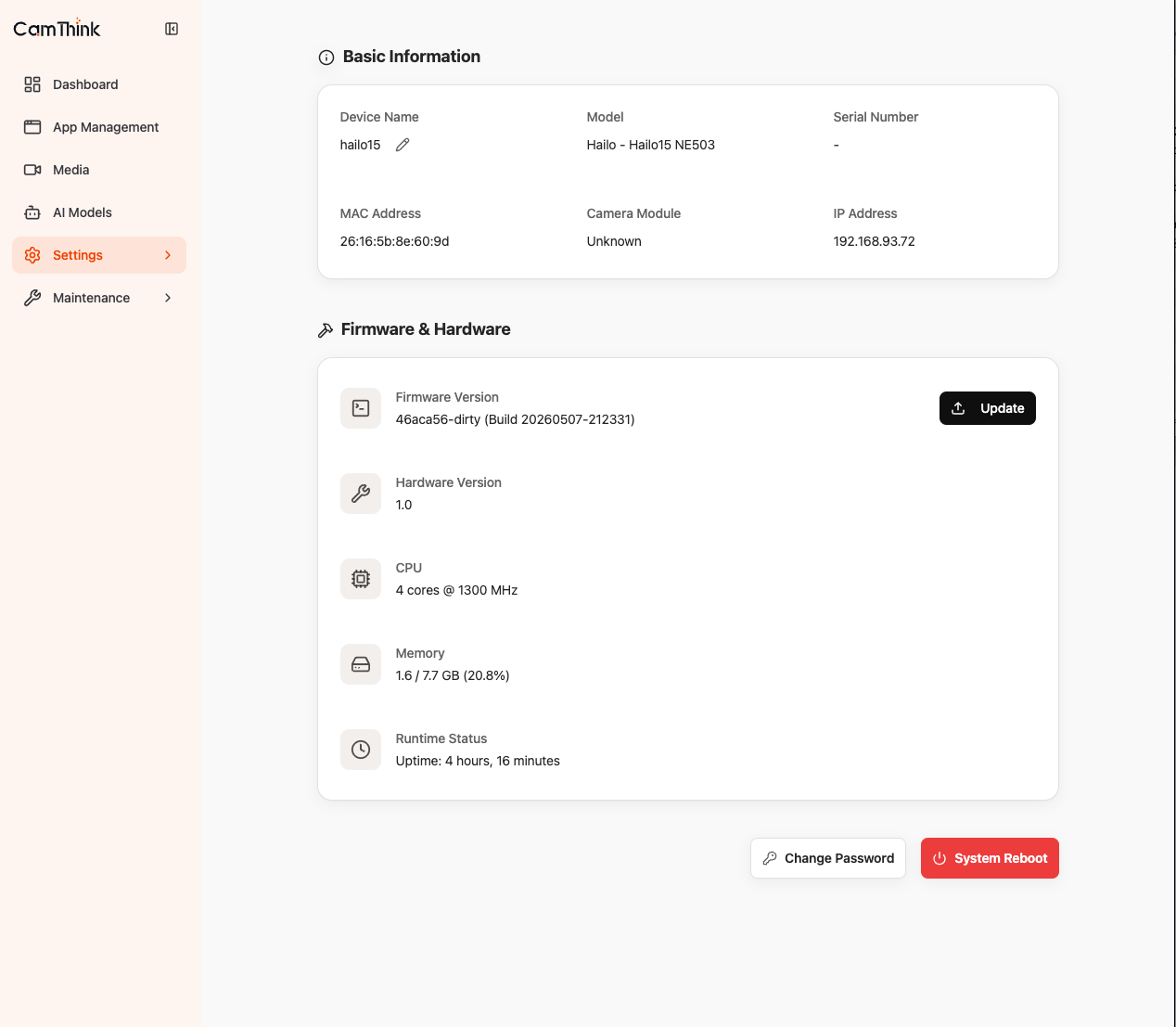
Go to Settings β†’ Device Info to view hardware model, firmware version, and system uptime. To upgrade firmware, click Update next to Firmware Version, upload the firmware package, and the system will automatically parse, verify, and begin writing. The device reboots automatically when complete.

The upgrade process takes approximately 2-5 minutes. Do not power off or operate the device during this time. Perform upgrades during off-peak hours.

2. Storage Management​

Go to Settings β†’ Storage:

The NE503 has built-in 64GB eMMC for system and application data. To expand storage, use a TF card (UHS-I supported) or M.2 SSD (PCIe 3.0 x 2 Lanes). Clean up or expand when storage usage exceeds 80%.


Device Maintenance​

Select Maintenance in the navigation bar to access four maintenance tools:

1. Log Viewer​

The log page provides three views: Operation Logs, System Logs, and Developer Logs. Filter by time range and severity level to view user logins, application start/stop events, and system events.

2. File Manager​

The file manager provides web-based file browsing. View the device file system directory structure with support for file preview, download, and delete operations.

3. Web Terminal​

A built-in web SSH terminal lets you access the device command line directly in the browser without additional tools. Click SSH Settings to configure terminal parameters.

4. Process Manager​

The process manager lists all running processes on the device, displaying PID, name, user, CPU / memory usage, and start command. Supports viewing process details and terminating abnormal processes.


Reference Card​

Quick Reference​

ItemValueItemValue
Web Consolehttp://<device-ip>:8080Web Loginadmin / password
SSH Loginroot / rootDefault IP10.0.0.1
RTSP Main Streamrtsp://<device-ip>:8554/mainRTSP Sub Streamrtsp://<device-ip>:8554/sub
RTSP Third Streamrtsp://<device-ip>:8554/thirdPower SupplyPoE 802.3AT or DC 12V, < 8W

aipc-cli Command Reference​

aipc-cli system info / health          # System info / health check
aipc-cli app list / start / stop <id> # Application management
aipc-cli app logs <id> -f # View application logs in real time
aipc-cli device zoom in 5 # Zoom (in/out/stop, speed 1-10)
aipc-cli device focus auto # Auto focus
aipc-cli stream list / url <id> # Stream management
aipc-cli model list / register <.hef> # AI model management

Output format: -o table (default) / -o json / -o yaml

Troubleshooting​

IssueTroubleshooting Steps
Cannot access Web ConsoleVerify computer IP is in 10.0.0.x subnet β†’ ping 10.0.0.1 β†’ If DHCP, find IP via router
RTSP stream won't playConfirm same network β†’ Check if IP changed β†’ aipc-cli stream list to verify stream status
Container fails to startaipc-cli app logs <id> for logs β†’ Check memory and internet connectivity
Forgot Web passwordSSH login (root/root) β†’ Reset password with aipc-cli