Training and Deploying AI Models with AI Tool Stack

Main Tools and Products
This tutorial will primarily use AI Tool Stack in combination with NeoEyes NE301 to complete the process from model data collection to deployment. AI Tool Stack is an end-to-end edge AI tool built by CamThink for NeoEyes NE301, covering data collection, annotation, training, quantization, and deployment. It supports user self-deployment and management. The underlying support for AI Tool Stack's training and quantization comes from the Ultralytics project library. Thanks to the excellent contributions from the Ultralytics team.
AI Tool Stack
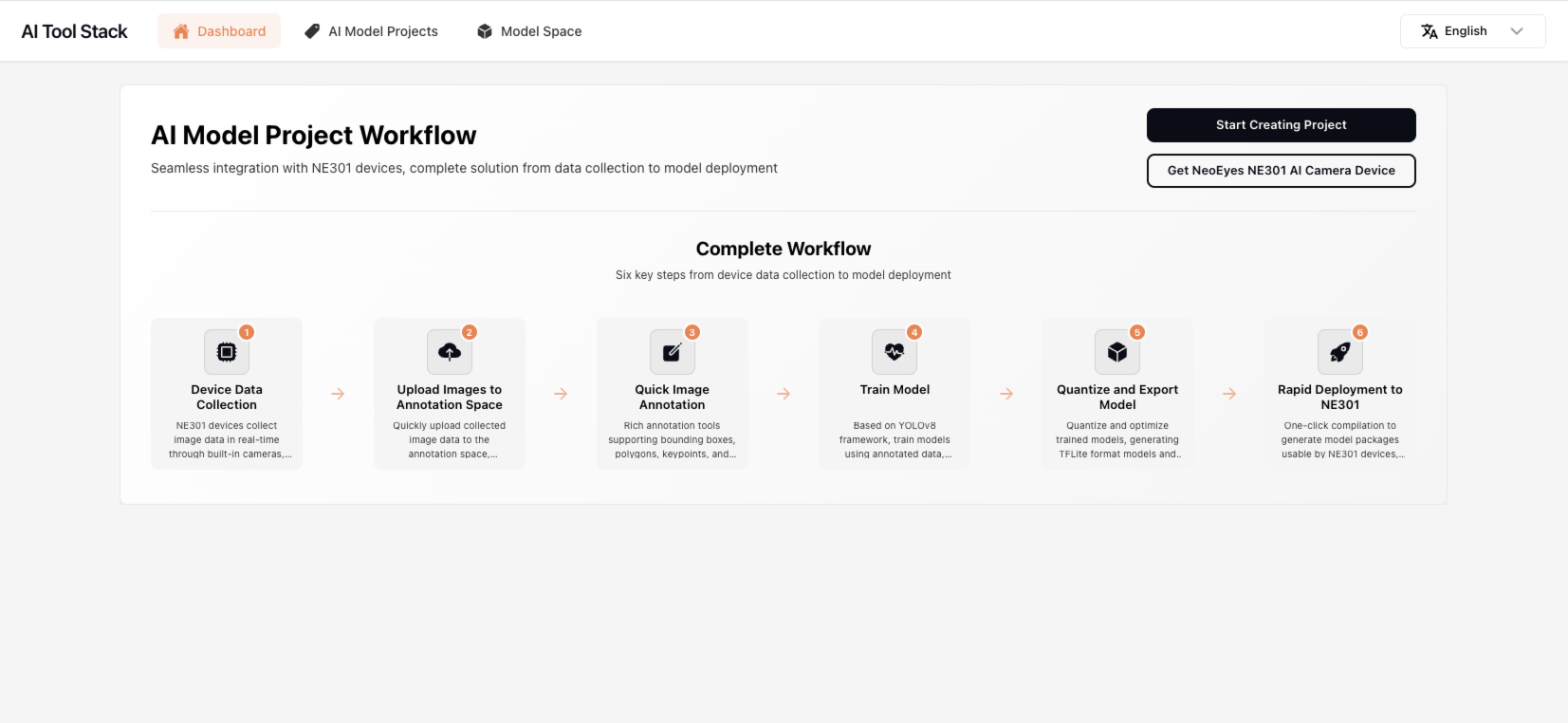
AI Tool Stack provides the following core functional modules:
- AI Model Projects: Project creation and data management
- Annotation Workbench: Data annotation tools
- Model Training: Model training and testing
- Quantization & Deployment: Model quantization and one-click export of NE301 model packages
- Model Management: Simple model management and testing
AI Tool Stack is completely open source and hosted on GitHub. You can find the code repository here: AI Tool Stack
NeoEyes NE301
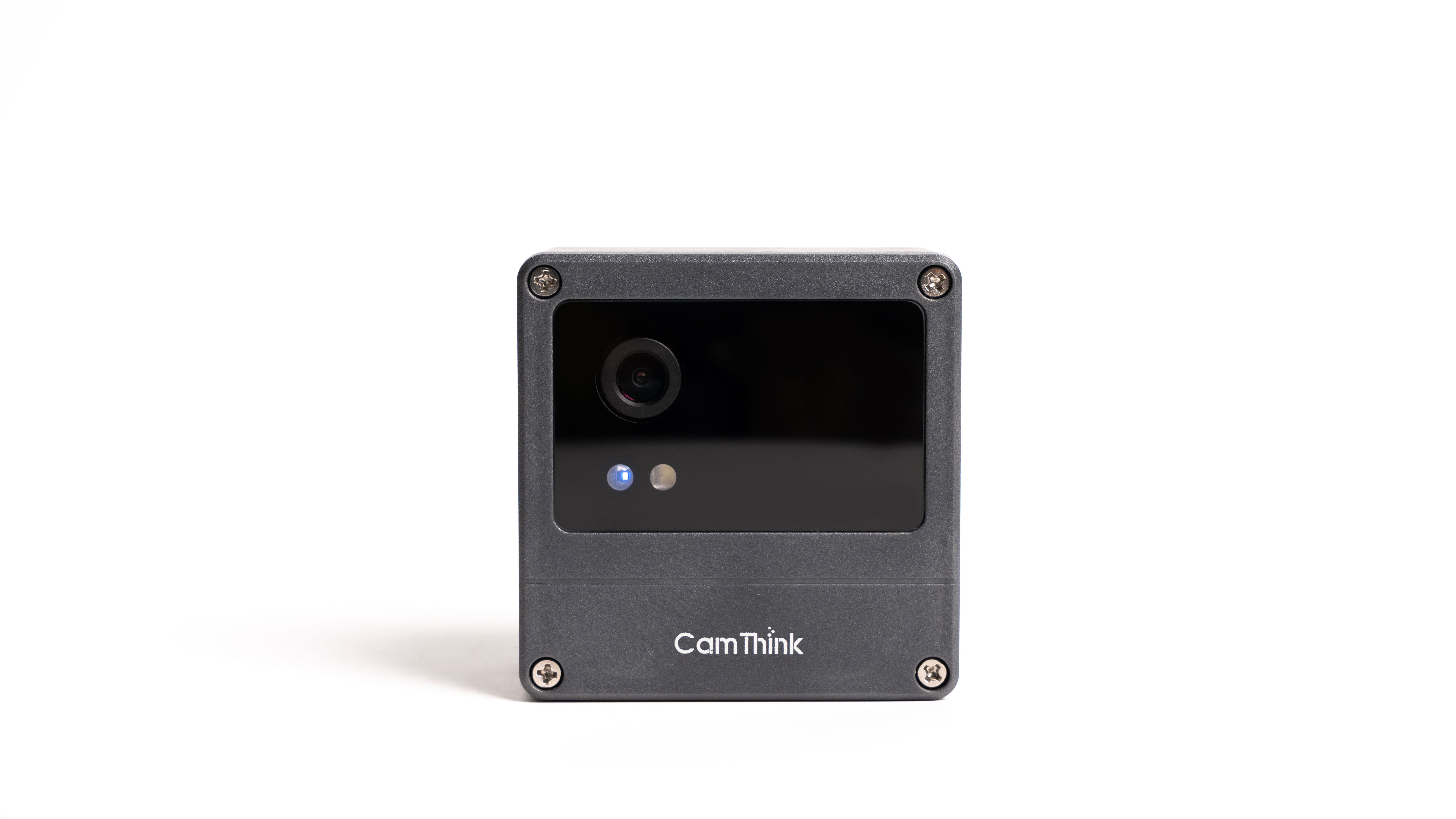
CamThink AI Camera NeoEyes NE301 supports dynamic deployment of AI models. Therefore, models trained in this tutorial can be exported as NE301-usable resource packages for model updates on the device's WebUI, enabling edge deployment of models and allowing NeoEyes NE301 to possess the detection capabilities of our trained models for continuous edge AI operation. Click to view the hardware-related features of NE301
Server or Personal Computer
AI Tool Stack is open source, and if you need to train models, you will need a powerful personal computer or server, preferably with an NVIDIA GPU or Mac's M-series chips. Even though we won't use extremely large datasets to train models, to ensure efficiency, it's best to choose a device with appropriate performance to complete this work, or use a GPU server for deployment.
Network Topology
Ensure that NE301 and the server or PC deploying AI Tool Stack are on the same network, for example, they are all connected to the same router, or the server has an open IP and domain name
To enable connection between NE301 cameras and AI Tool Stack applications, since AI Tool Stack has a built-in MQTT service, we will connect through NE301's built-in MQTT functionality with AI Tool Stack's MQTT service to implement NE301 data collection upload. Remote model updates will be supported in the future. Therefore, before starting, you need to ensure that NE301 can access the AI Tool Stack service, and the MQTT service within the AI Tool Stack service must be accessible externally. The network topology is as follows:

Installation Instructions
Prerequisites
Docker & docker-compose: Please refer to the Docker official installation guide and docker-compose installation documentation for installation. Ensure that the server or computer deploying AI Tool Stack has a basic Docker environment.
AI Tool Stack Installation
1. Clone Repository
git clone https://github.com/camthink-ai/AIToolStack.git
cd AIToolStack
2. Deploy with Docker
Note: To modify parameters such as
MQTT_BROKER_HOST, please edit the environment variables indocker-compose.yml. Ensure that the MQTT service address can be accessed by NE301 devices, usually using the host's actual accessible IP address instead of localhost.
docker-compose build
docker-compose up
NE301 Development Environment Installation
To generate NE301-usable quantized model packages, AI Tool Stack must reference the NE301 project compilation environment. Please pull the image in advance:
docker pull camthink/ne301-dev:latest
Installation Verification
AI Tool Stack Installation Verification
After installation, you can verify whether the AI Tool Stack service has started successfully through the following methods:
Check Service Status
Use the command below to ensure you can see services such as camthink/aitoolstack:latest running.
docker ps
Access Frontend Webpage
Enter the deployment server's IP address and corresponding port in the browser, default is http://<your_server_ip>:8000 or http://localhost:8000. If you can access the AI Tool Stack Web interface, the deployment is successful.
NE301 Development Environment Installation Verification
Check Service Status
Use the command below to ensure you can see services related to camthink/ne301-dev:latest running.
docker ps
Your Requirements
Before starting work, you can first assess whether you currently have an available model. If you are considering deploying an existing model to NE301, you can jump to this location to read "Deploy Existing Models to NE301"
If you haven't trained any models and want to complete model training and model deployment from scratch, please start reading from here "From Training to Deployment"
Complete Workflow Guide
Create Project
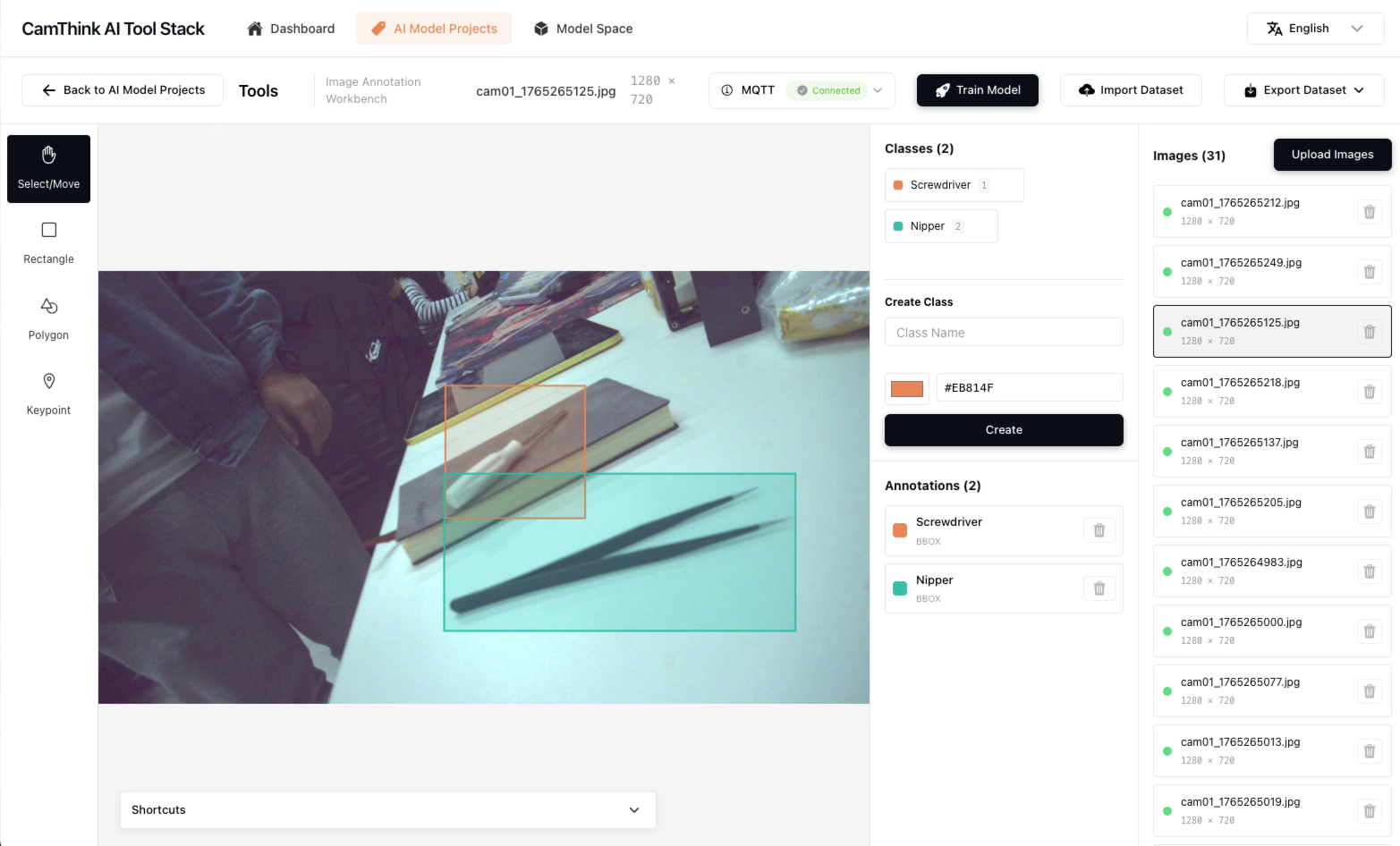
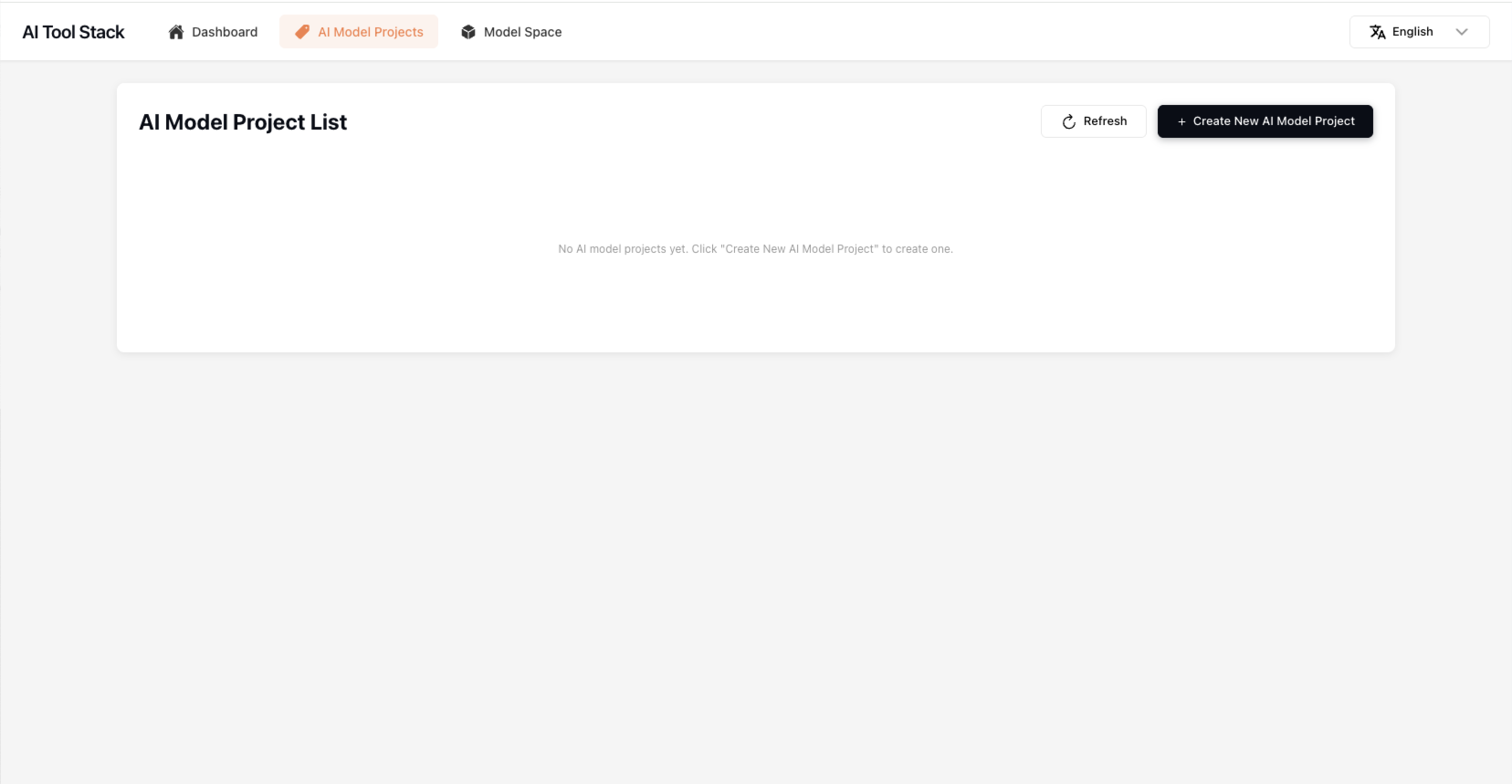
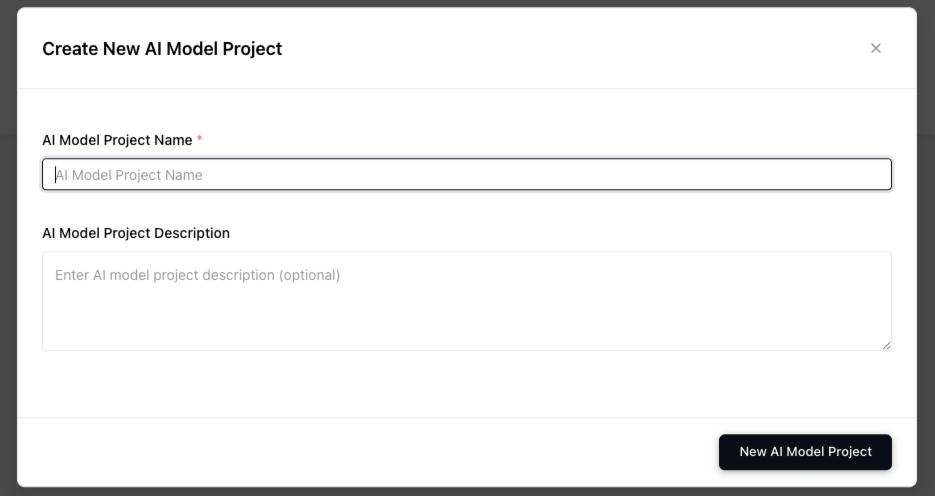
After entering the Web page, click the "Start Creating Project" button or "AI Model Projects" menu to enter the project management page. Build a project according to your needs to annotate data and train models. After entering the AI Model Projects page, click the "Create New AI Model Project" button to create a project. Enter your project name and project description, click save to create the project. After the project is successfully created, click the card to enter the project workbench.
Build Dataset
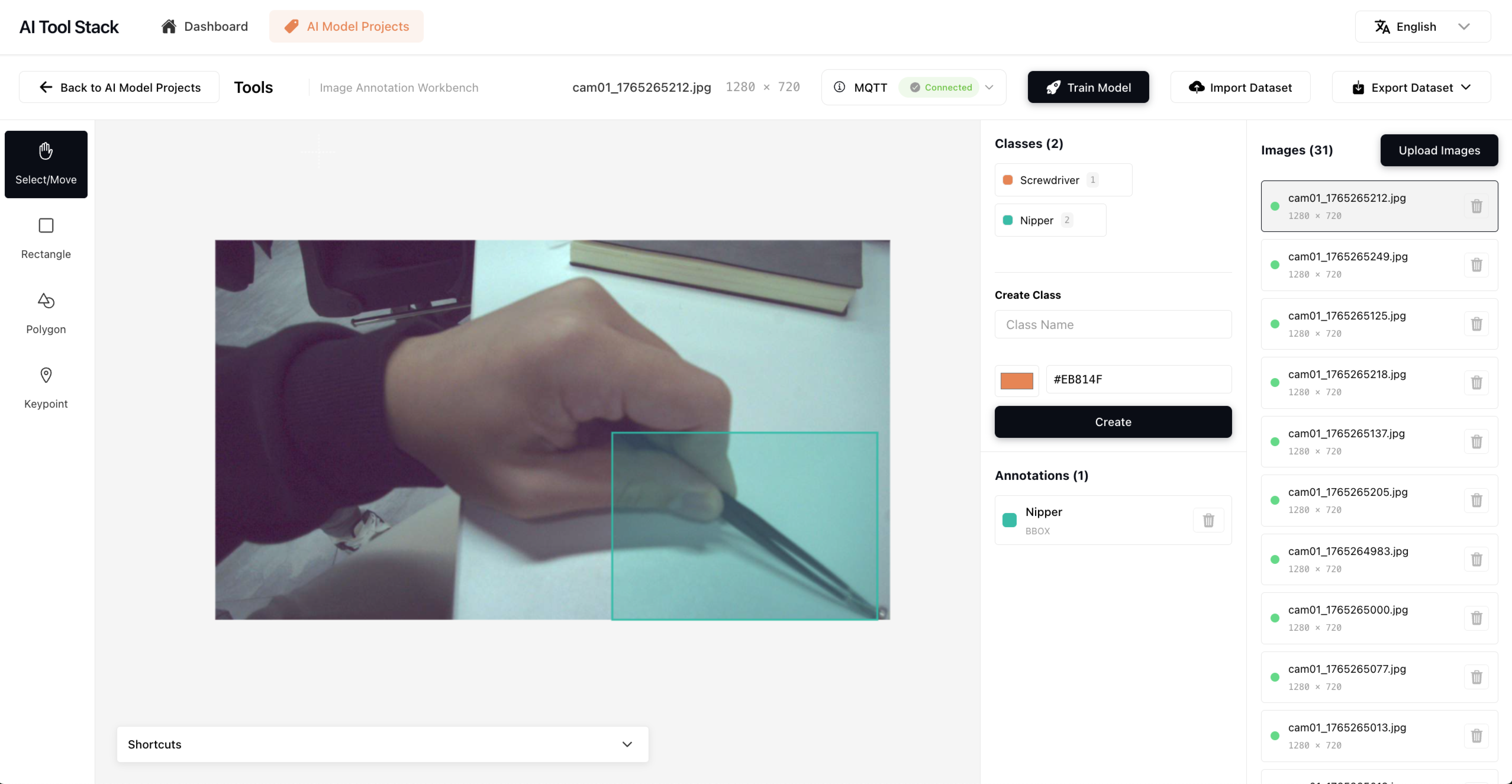
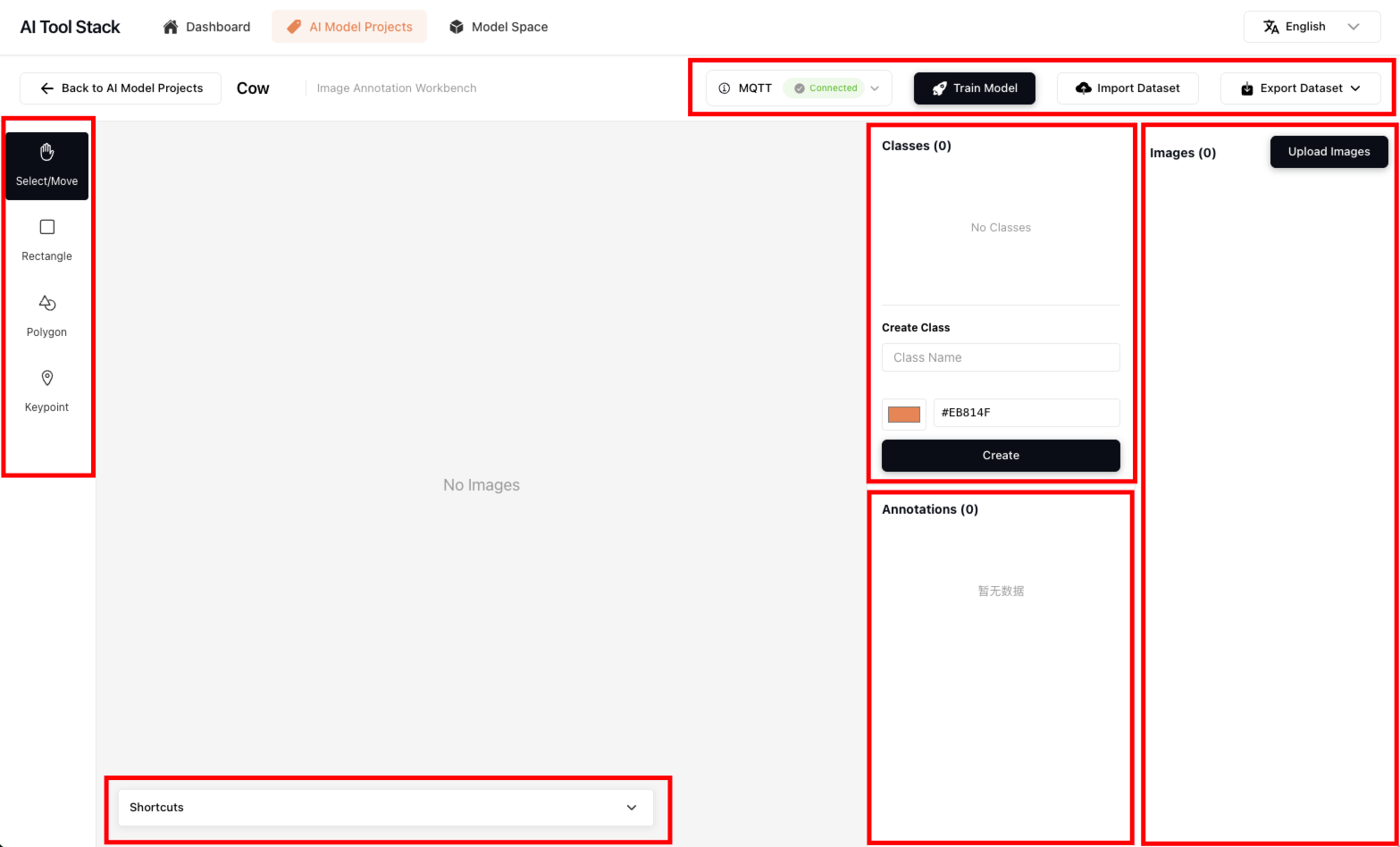
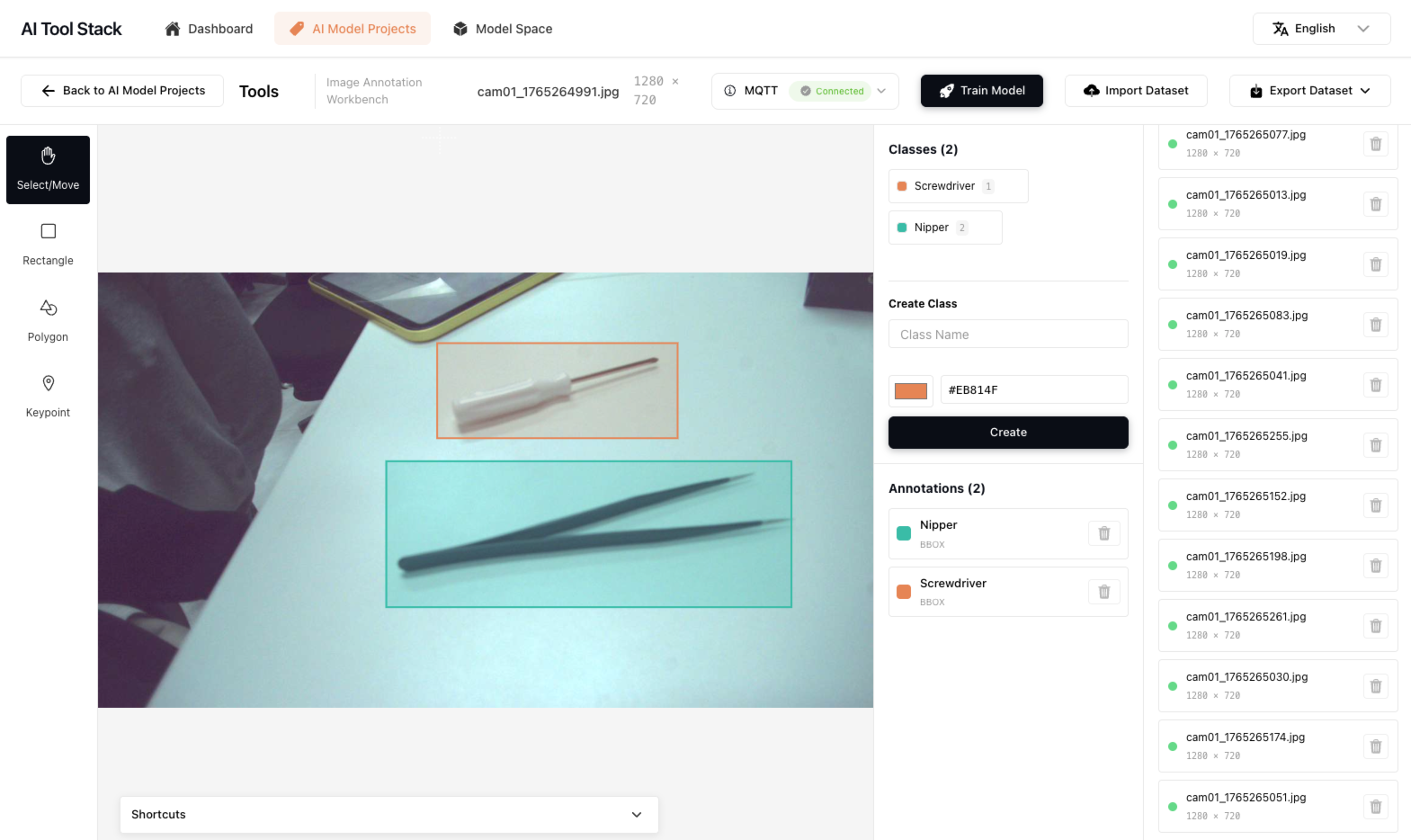
Click the project to enter the project workbench. The workbench is divided into left-side tools, bottom shortcut key hints, and right-side class management, annotated data list, and dataset image management.
1. Upload/Import Dataset
Currently supports the following methods to build image datasets for projects:
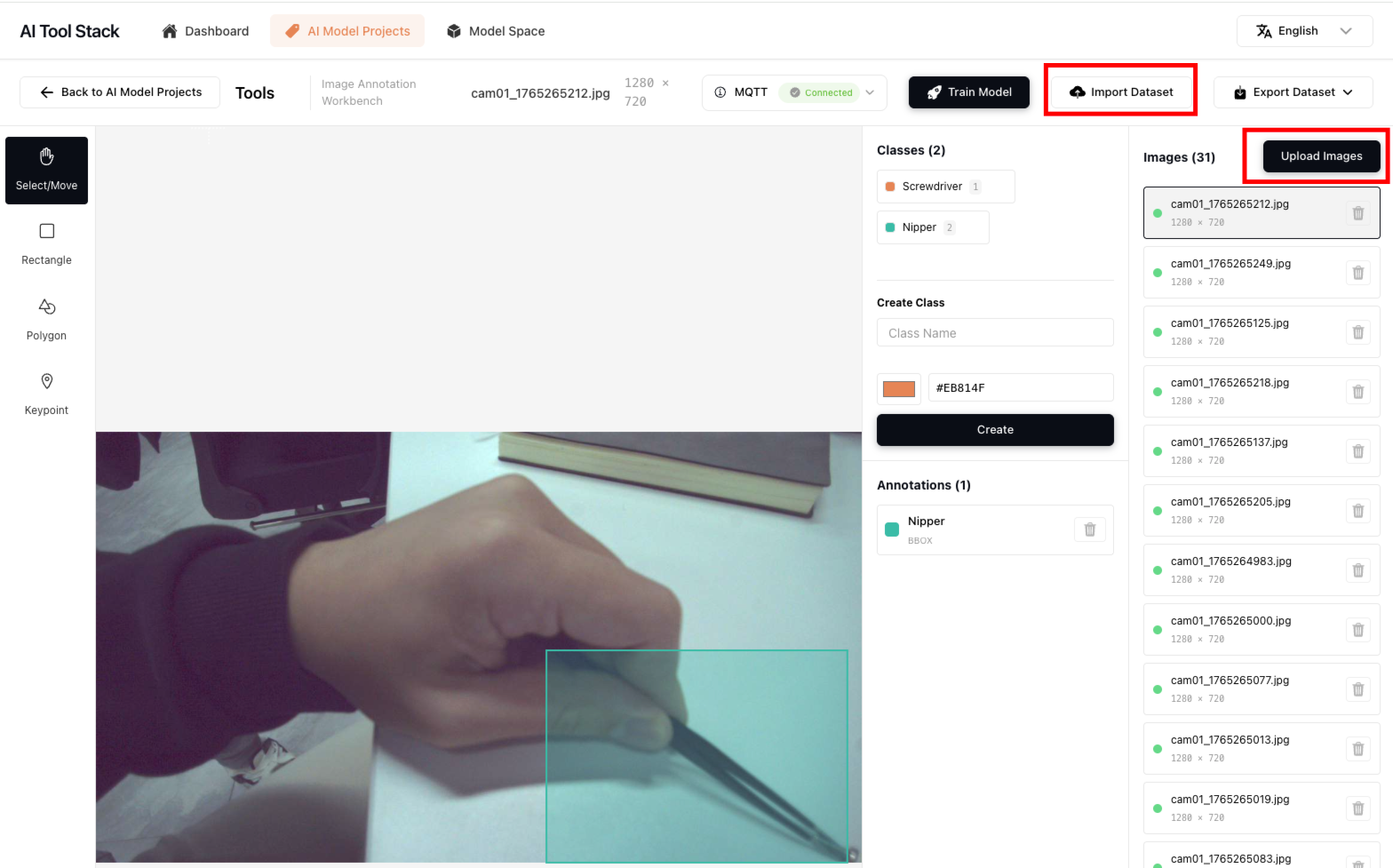
a. You can upload local files through the "Upload Images" on the right side
b. You can upload dataset files through "Import Dataset" in the upper right corner, supporting COCO dataset and Ultralytics YOLO dataset formats. If you need to understand the supported dataset formats in detail, you can export files through "Export Dataset" to view the data structure. This tool annotates source data in the following format:
├── images/
├── annotations/
│   ├── *.json
└── classes.json   # id/name/color
2. Let NE301 Collect Images
You need to have an NE301 device and configure it in the device according to the order below. For NE301 operation guide, please refer to "Quick-Start"
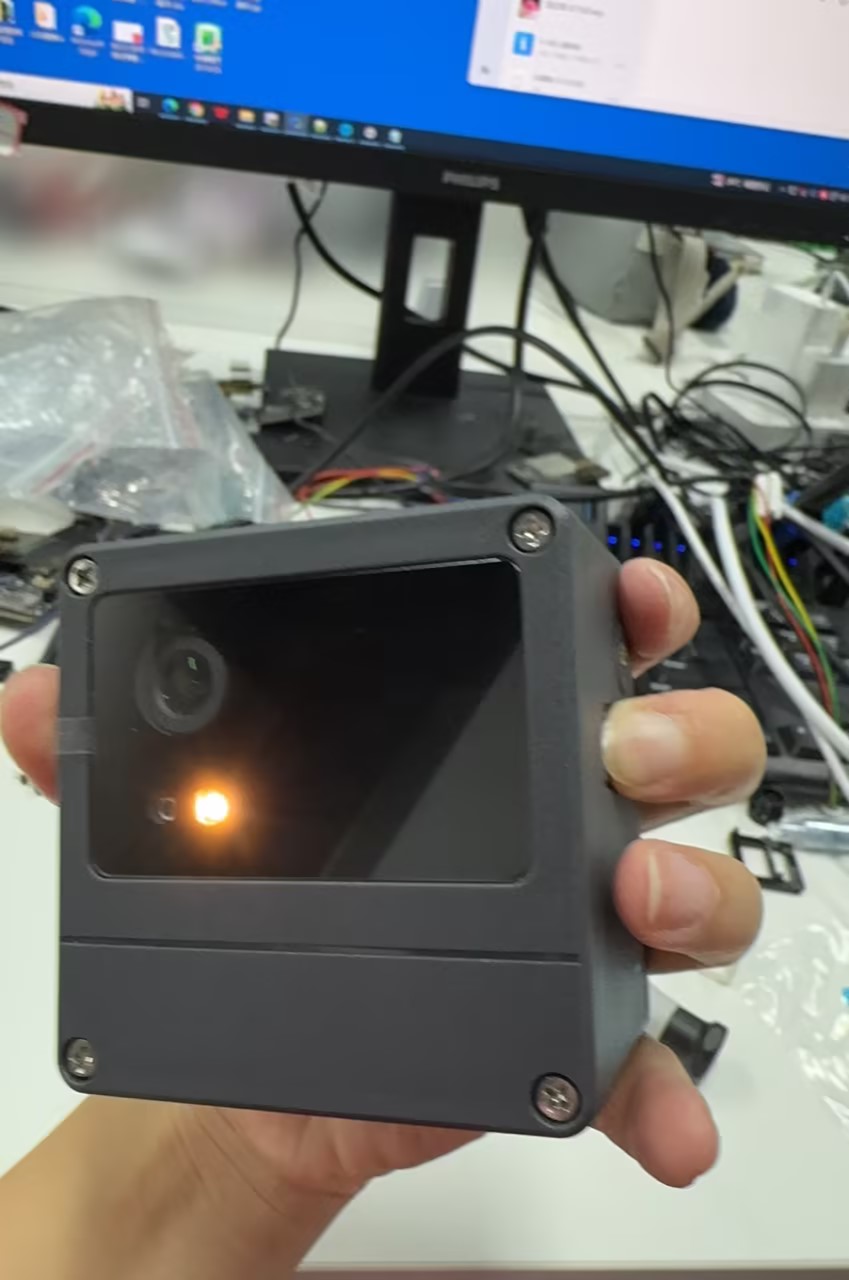
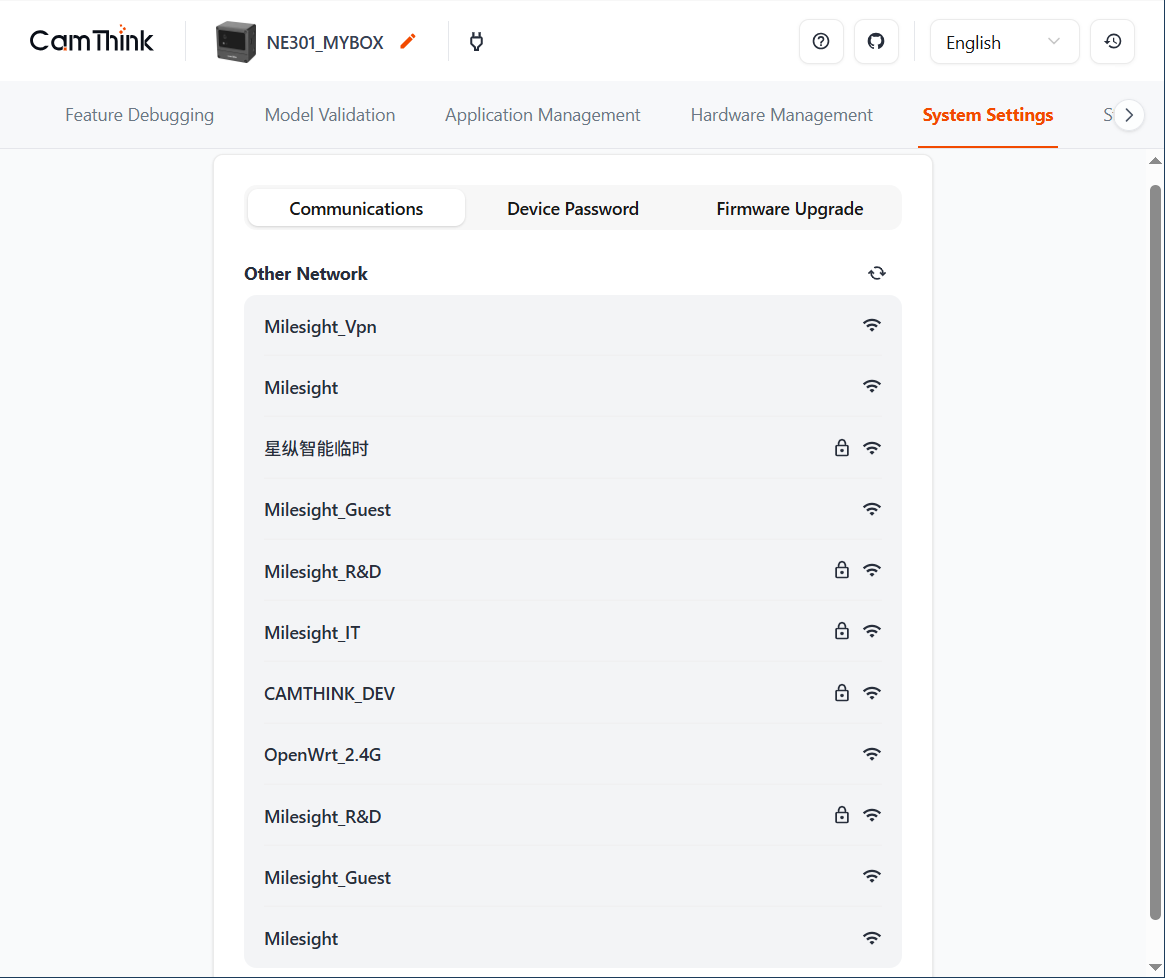
a. Power on NE301, long press the photo button for 2s to enable device WiFi AP. Use a personal computer or mobile phone to connect to NE301's WiFi AP, use 192.168.10.10 to enter the NE301 Web UI page. Enter the "System Settings" page and select the router WiFi AP that the current device can connect to in the "Communications" menu. Ensure that the NE301 device can normally access the deployed AI Tool Stack service using this WiFi, for example, the router can access external networks and connect to locally deployed AI Tool Stack services through IP.
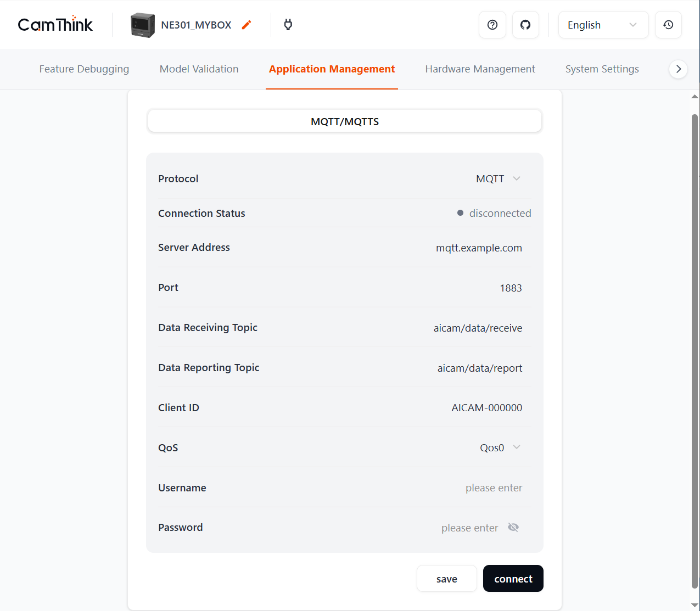
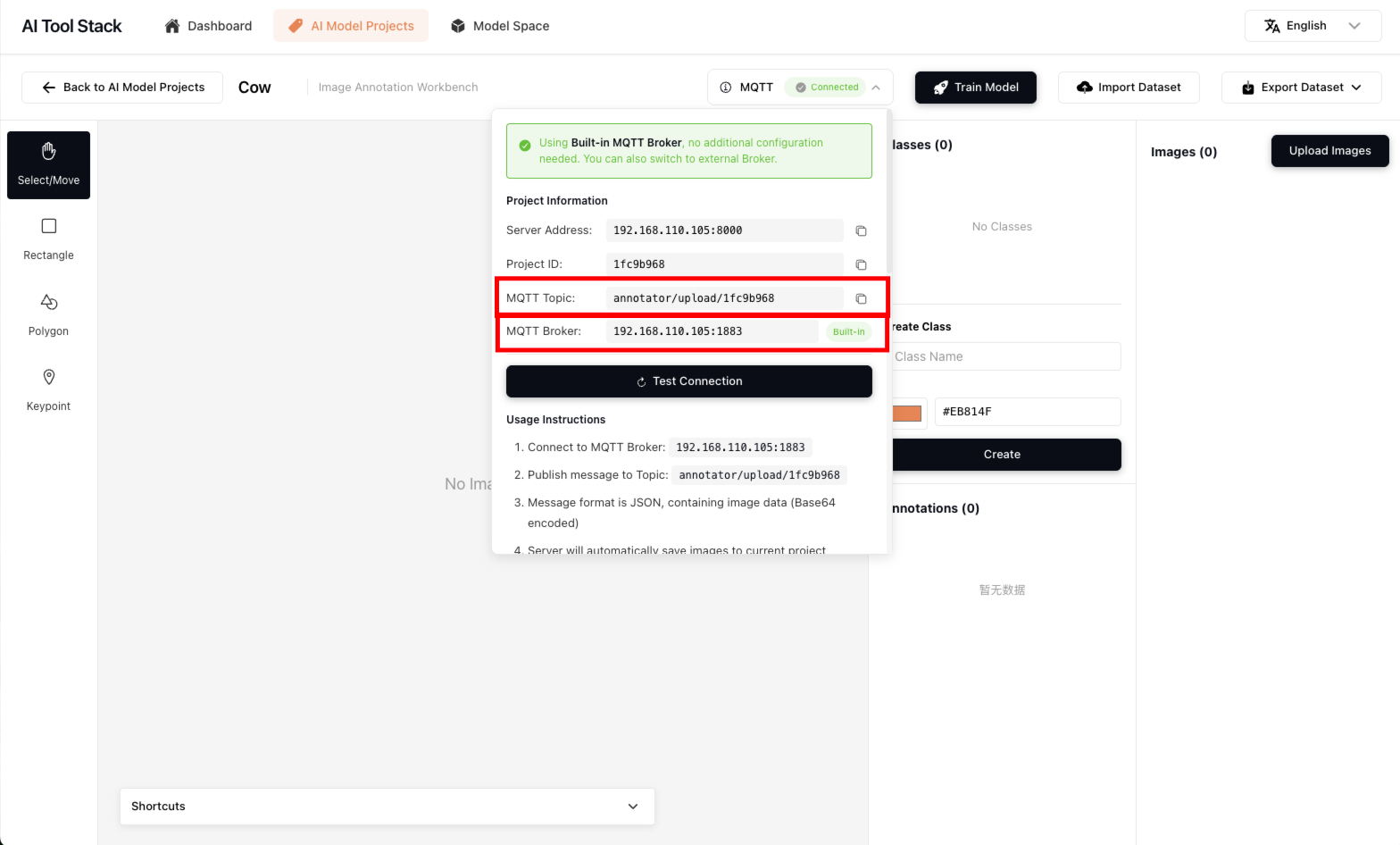
b. Configure NE301's MQTT service to enable NE301 to report currently collected image data to AI Tool Stack projects through MQTT. Enter NE301's "Application Management" menu, enter Data Reporting Topic and Server Address information to connect with AI Tool Stack's built-in MQTT service. AI Tool Stack can be obtained in the MQTT at the top of the project workbench, as shown in the figure below. After confirming the information is correct, you can click "connect" to connect NE301 to AI Tool Stack's specified model training project.
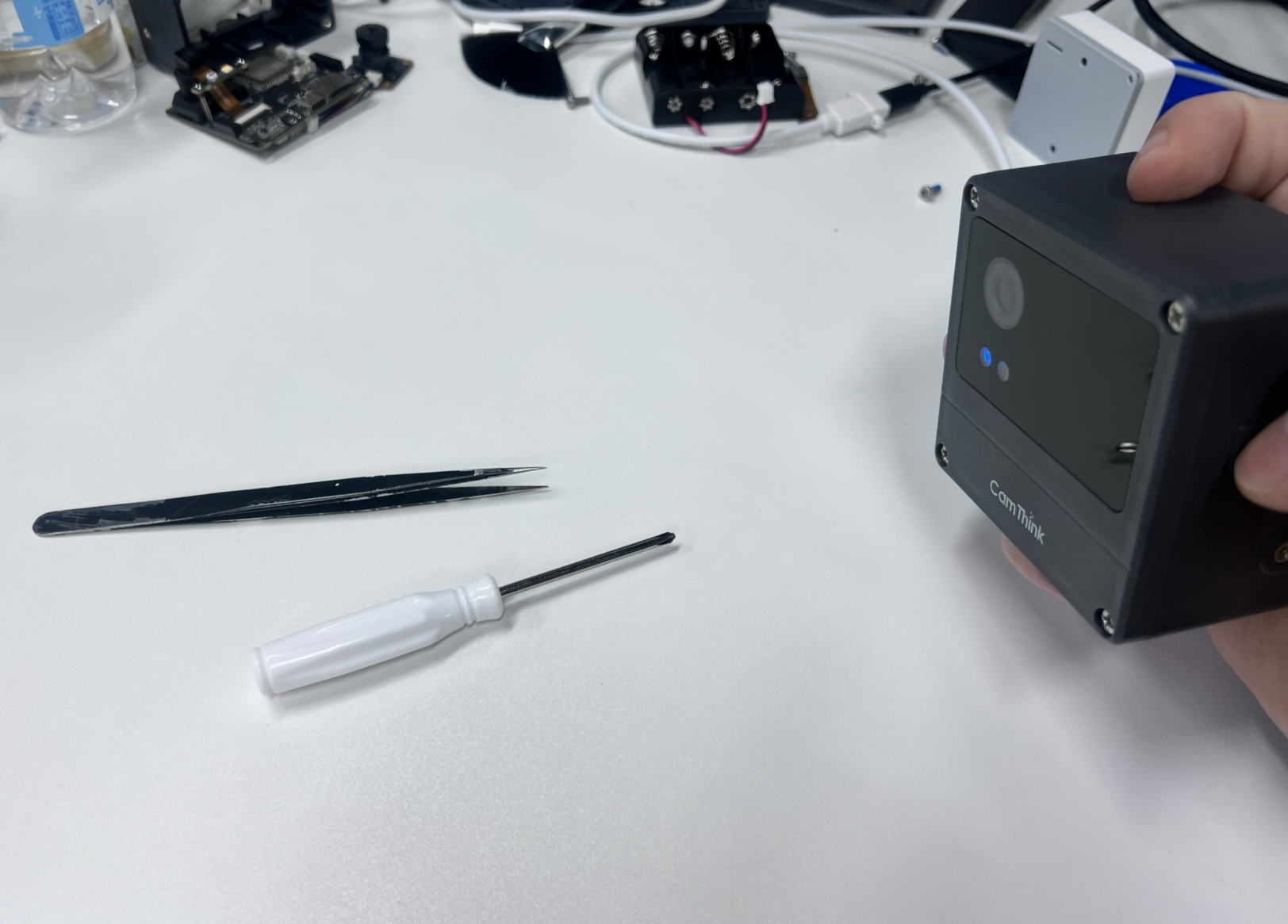
c. Now you only need to manually operate the shooting button on the side of NE301 to capture images. After capture, the images will automatically upload to the project space. You can manually hold NE301 to collect data within the network range, or fix NE301 for data collection. After collecting images, you can proceed with the next step of annotation work on the images.
Data Annotation
Currently, NE301 mainly adapts to object detection models. We recommend building datasets with object detection datasets first.
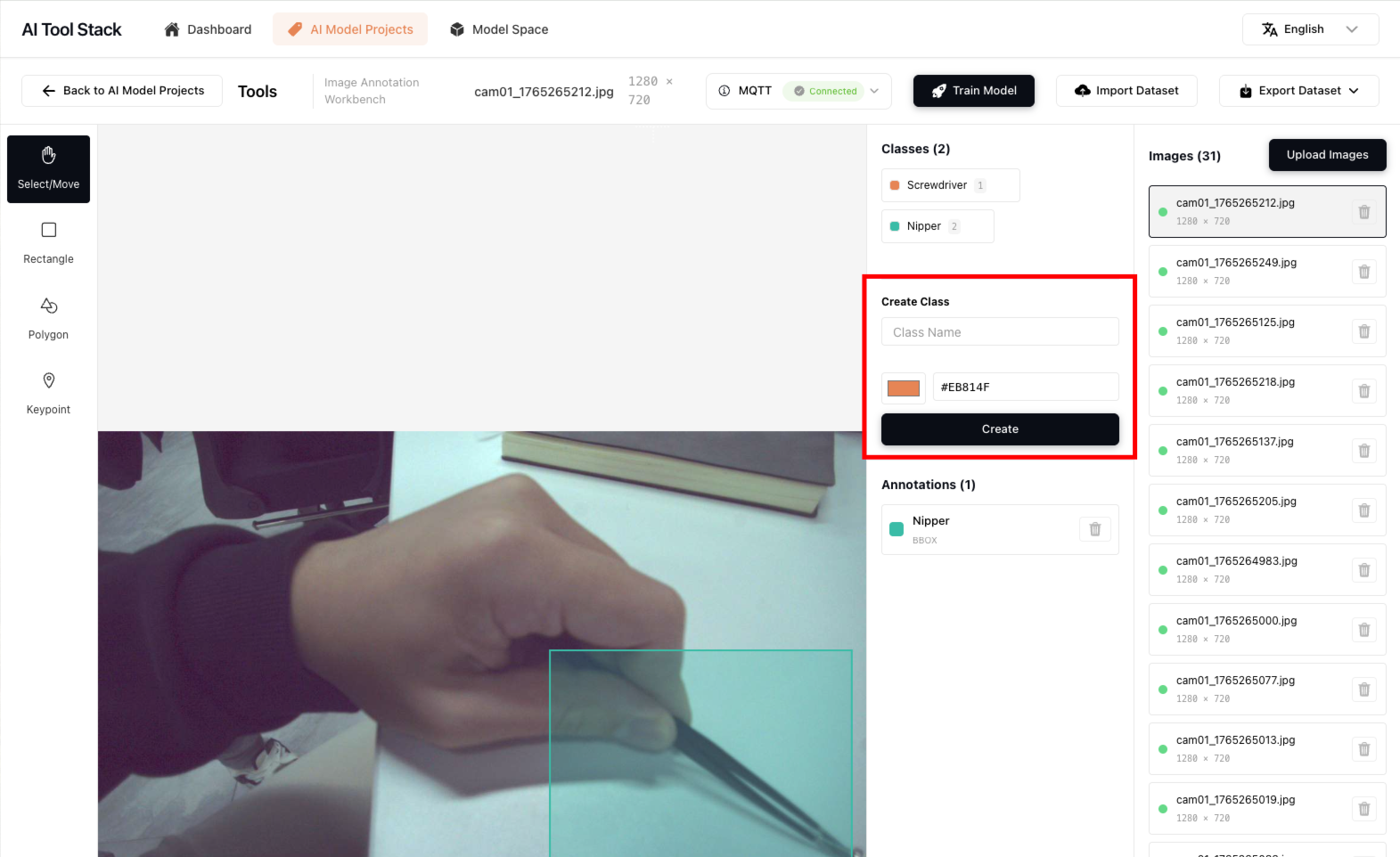
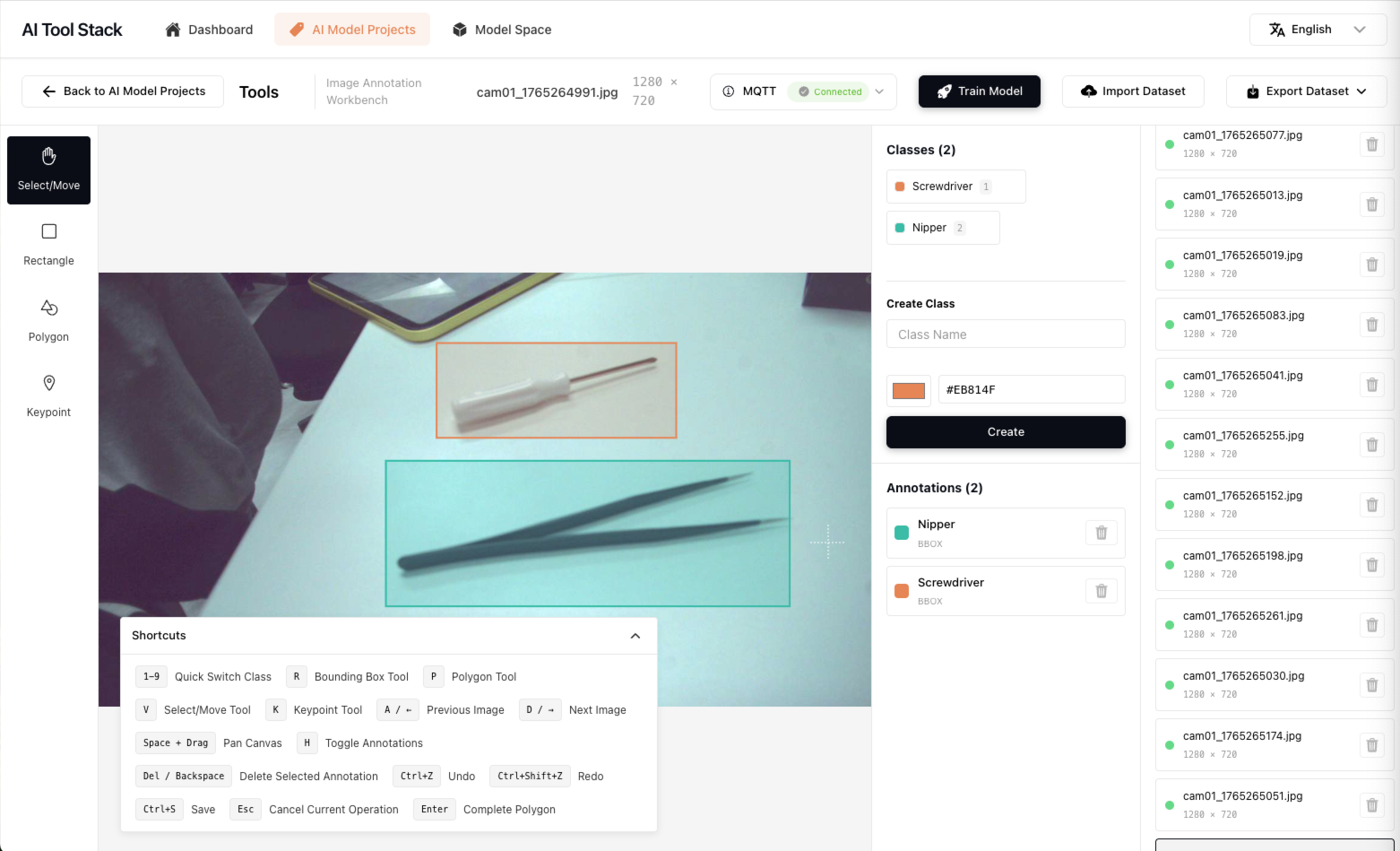
Before starting to annotate data, you need to add the annotation class text you need in the class input box on the right side, select the annotation box color for this class, and click save to create the annotation class. The annotation shortcuts are the same as conventional annotation tools. For details, please refer to the shortcut key hints in the annotation workbench. Click "Shortcuts" at the bottom to expand the instructions. Other functions such as deleting classes, deleting annotation data, deleting images, changing functions, etc. can be operated according to the interface instructions.
Model Training
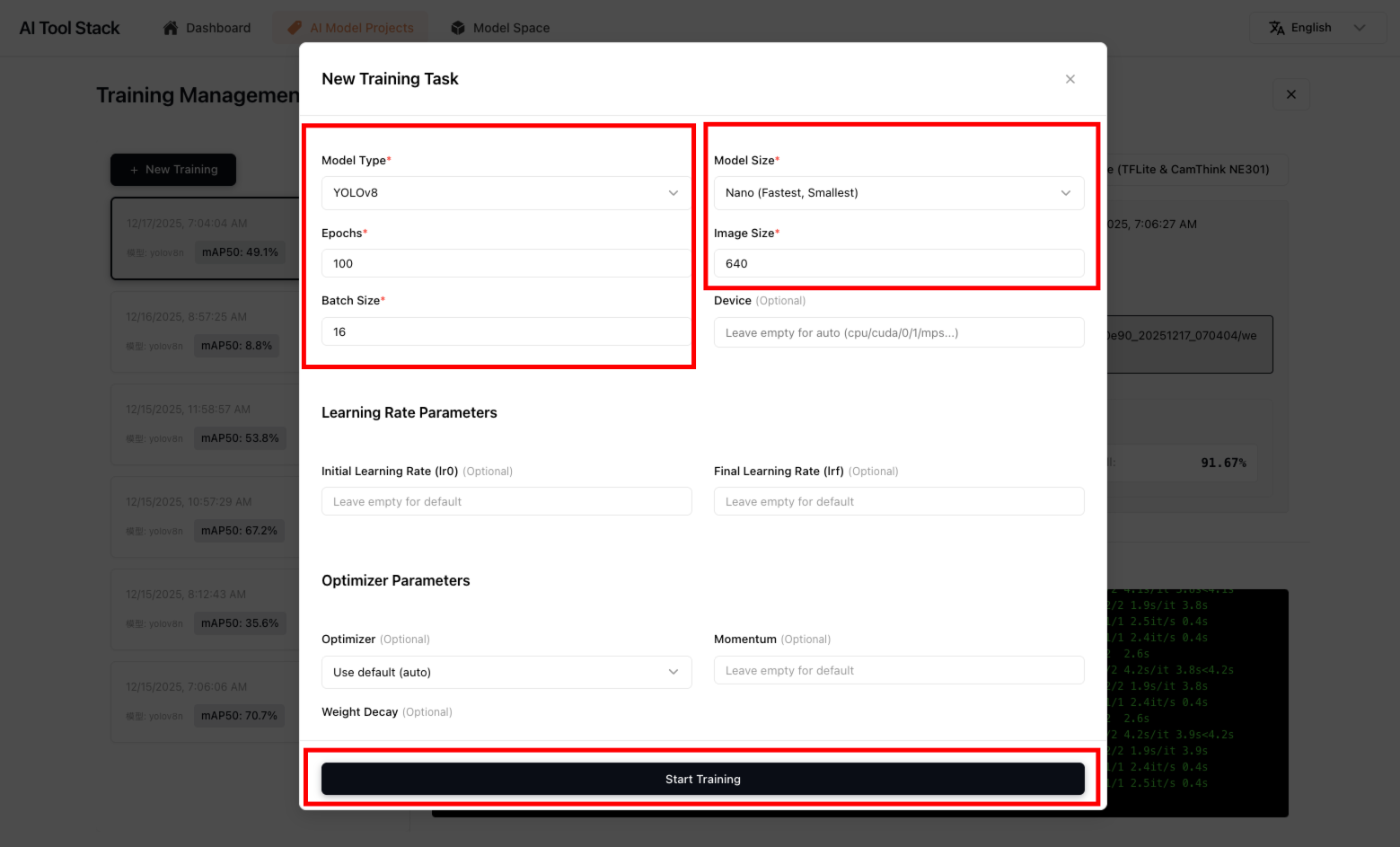
After completing all data annotation, click "Train Model" to start training the model. After entering the training interface, you need to build a new training task for the current project dataset. Click "New Training", configure training information. If you don't fully understand the training parameters, we recommend you directly use the default configuration settings. Advanced parameters don't need to be adjusted; they will all run with default values. Click "Start Training" to start the training task. After the task starts, check the training process logs and wait for training to complete.
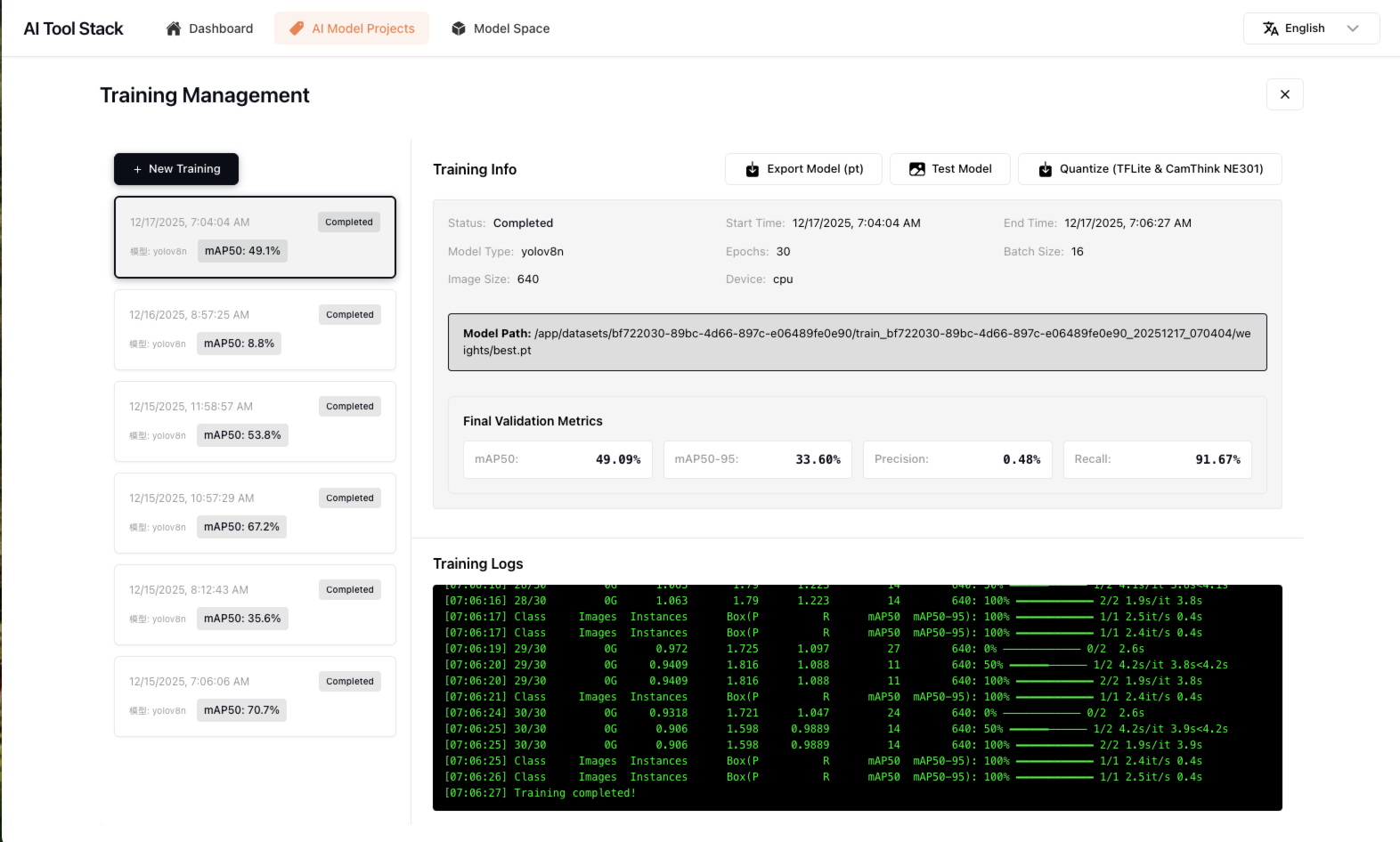
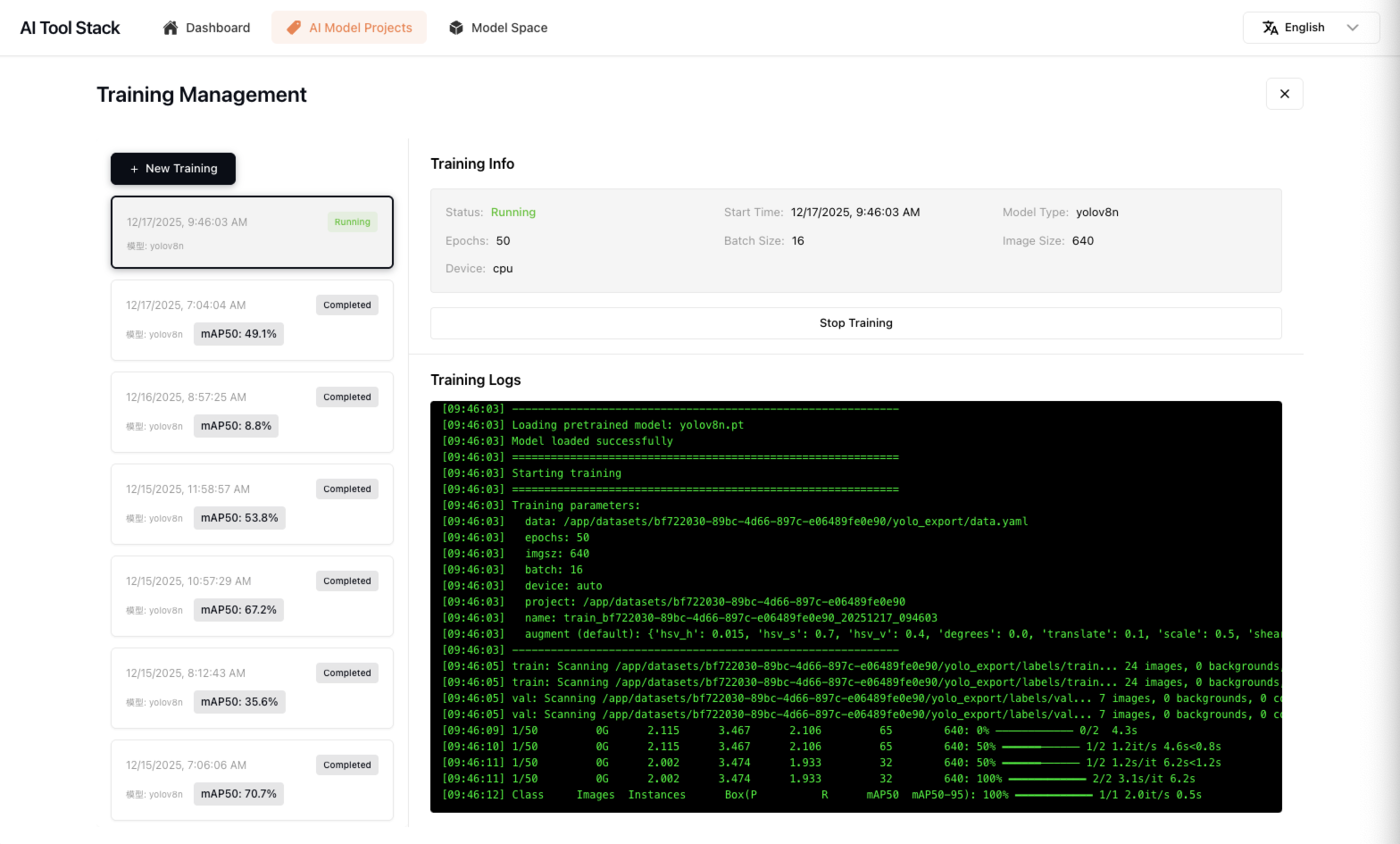
After completing model training, you can view logs in the training details, as well as the accuracy performance of the trained model. You can also operate the following functions. All model files can be found in the list in Model Space:
- Export Model: Can export the trained .pt model to a local folder
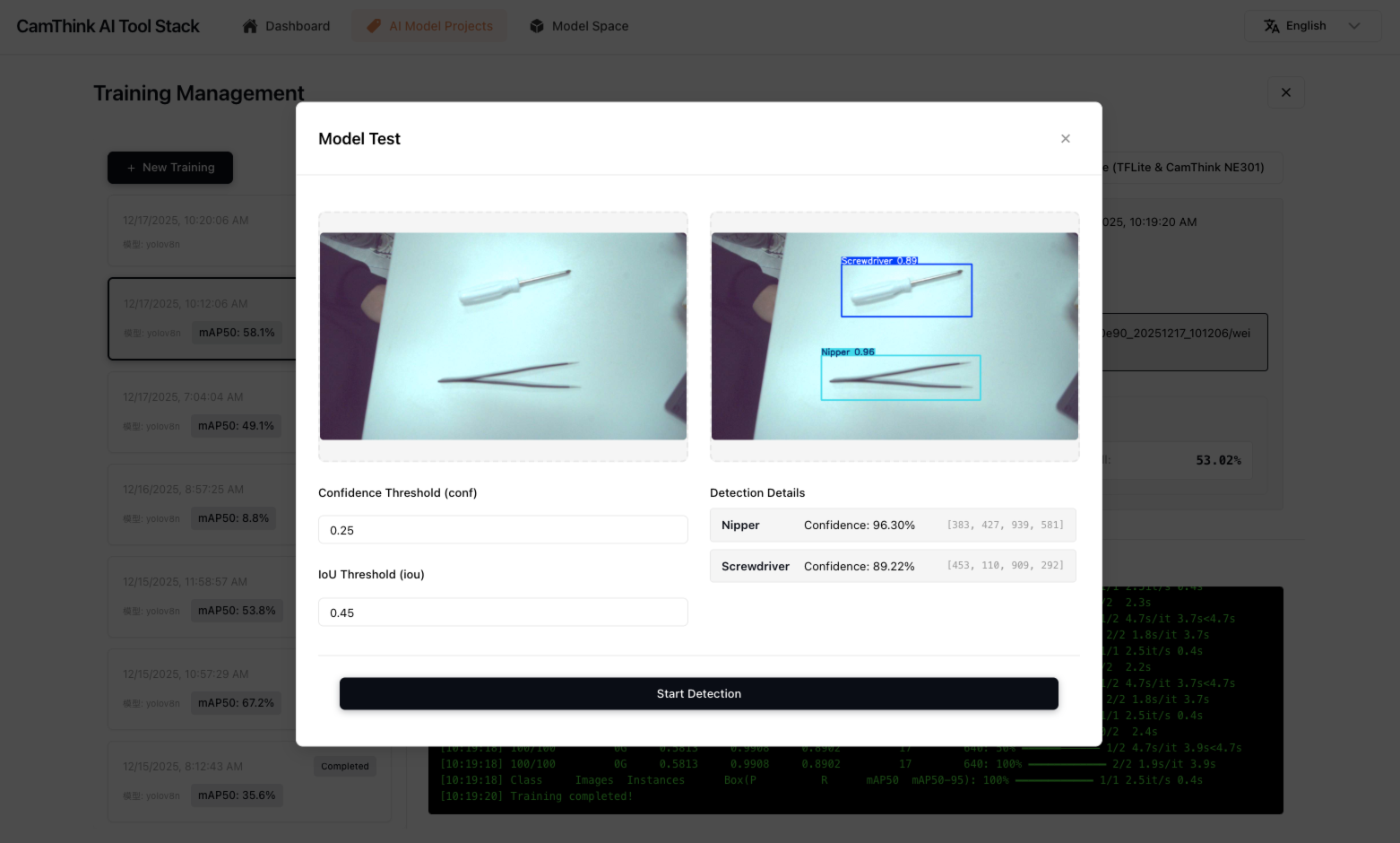
- Test Model: Can upload images to test the overall detection effect of the current trained model to evaluate training results
- Quantize (TFLite & CamThink NE301): Can quantize to tflite models and NE301-usable model file packages. If you need to deploy to NE301 devices, this step is necessary
Model Quantization
This action is necessary if you want to deploy the model to NE301 devices. Quantization requires the NE301 development environment Docker. Please ensure you have installed "NE301 Dev Docker"
After testing the model effects, you can start quantization work and prepare to deploy the quantized model to NE301.
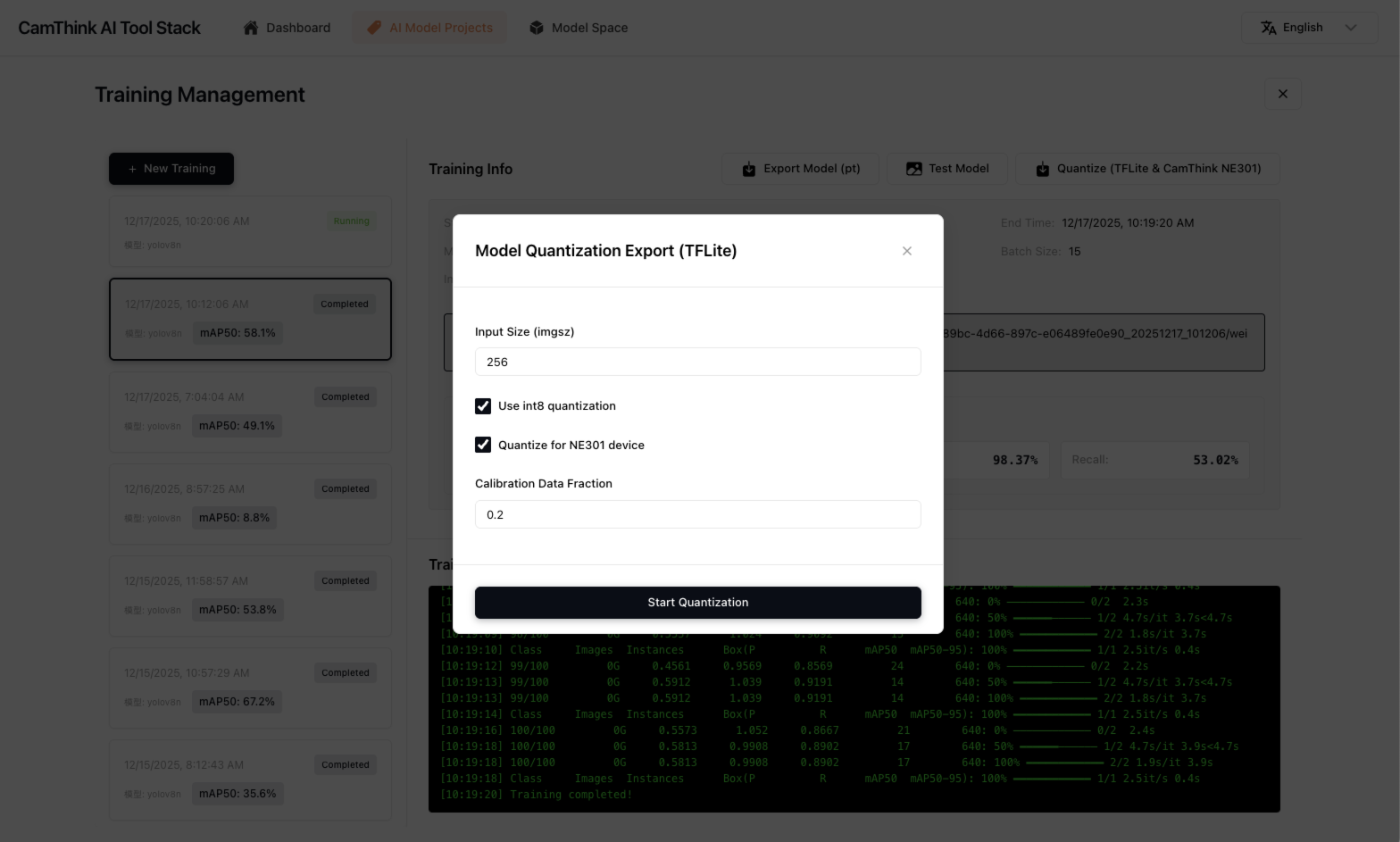
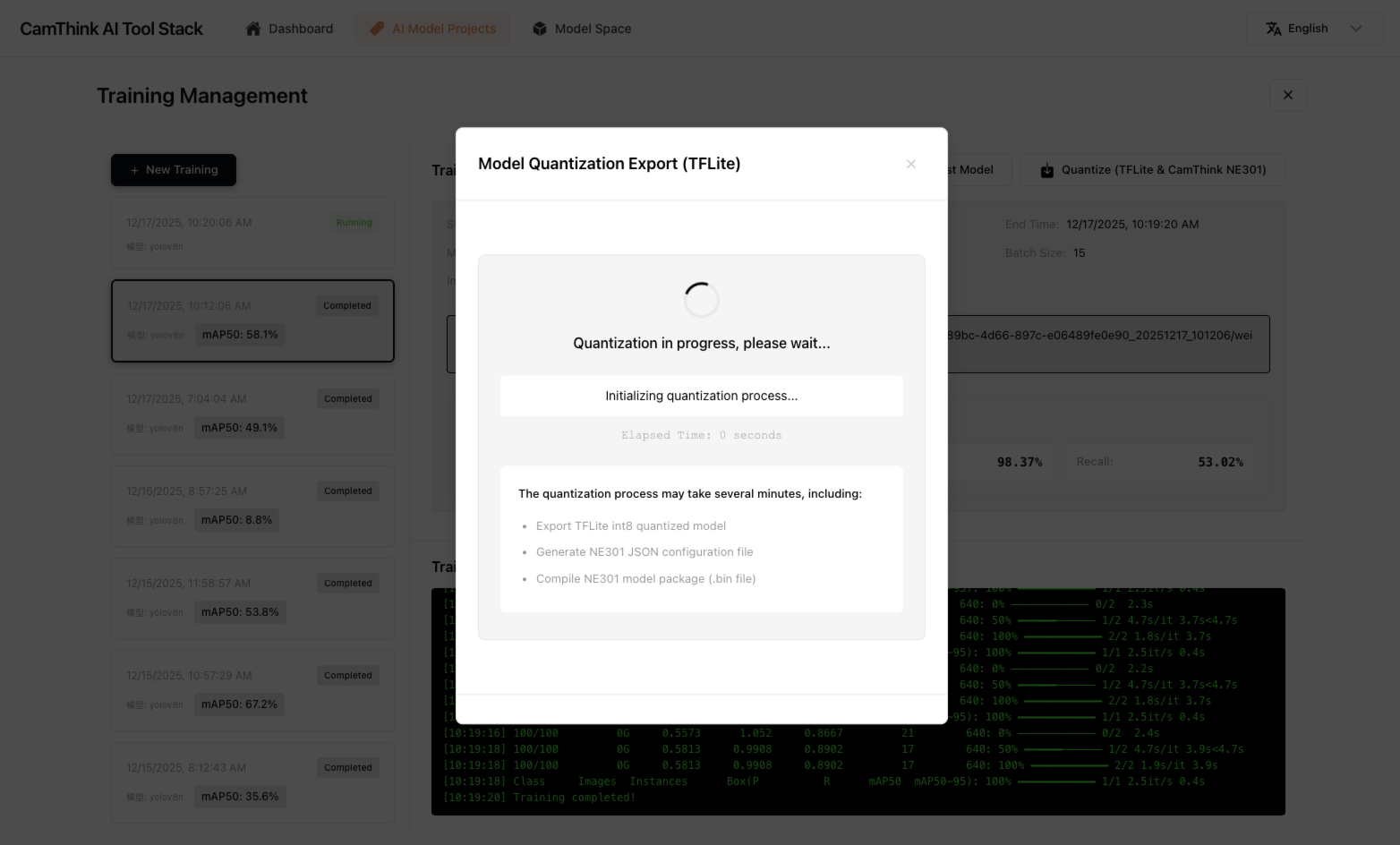
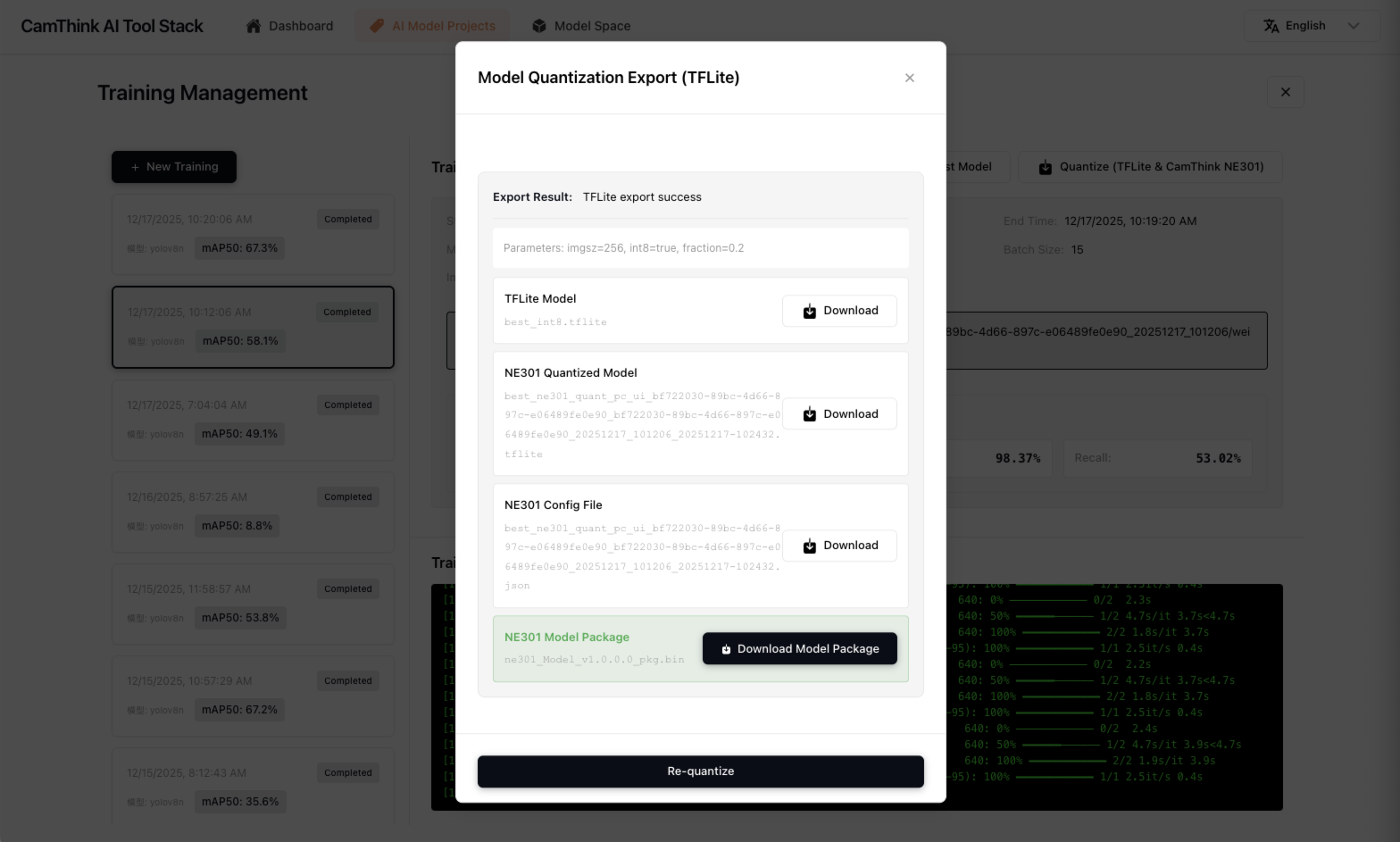
After model training is completed, you can click "Quantize (TFLite & CamThink NE301)" to build a model quantization task. In the task popup, you can set some quantization parameters. Except for the input size parameter, we don't recommend making any changes to the others. For the input size parameter setting, we recommend setting one of 256, 416, or 640. This parameter represents the image input size supported by the quantized model. If you don't want to adjust, use the default value. We recommend you set 256. If you want better accuracy performance, set 416. Inference performance is tight at 640, so set it carefully. Click "Start Quantization" and the model will start the quantization process. You only need to wait for quantization to complete. This process requires a long wait. Please do not close the task window. It will take approximately 5-10 minutes. After model quantization is completed, you can see the quantized NE301 model resource package. Click "Download Model Package" to download it (or find this resource in the Model Space menu after closing to download). The next step is to update the model to the NE301 device locally.
Model Deployment
Now we have trained the model and exported the NE301 device-deployable model resource file. Now we can deploy the model in the NE301 device. Currently, model deployment still requires entering the NE301 device's WebUI to upload and update device model files. AI Tool Stack will support remote model updates in the future. Below will explain how to update the trained model file on NE301.
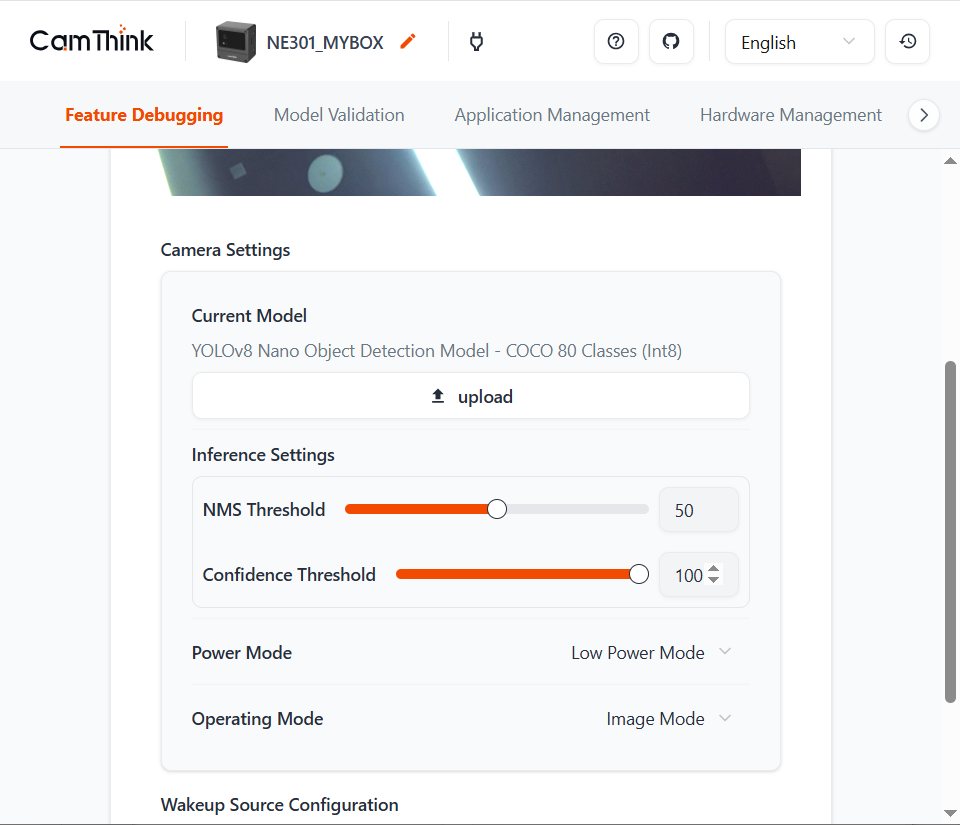
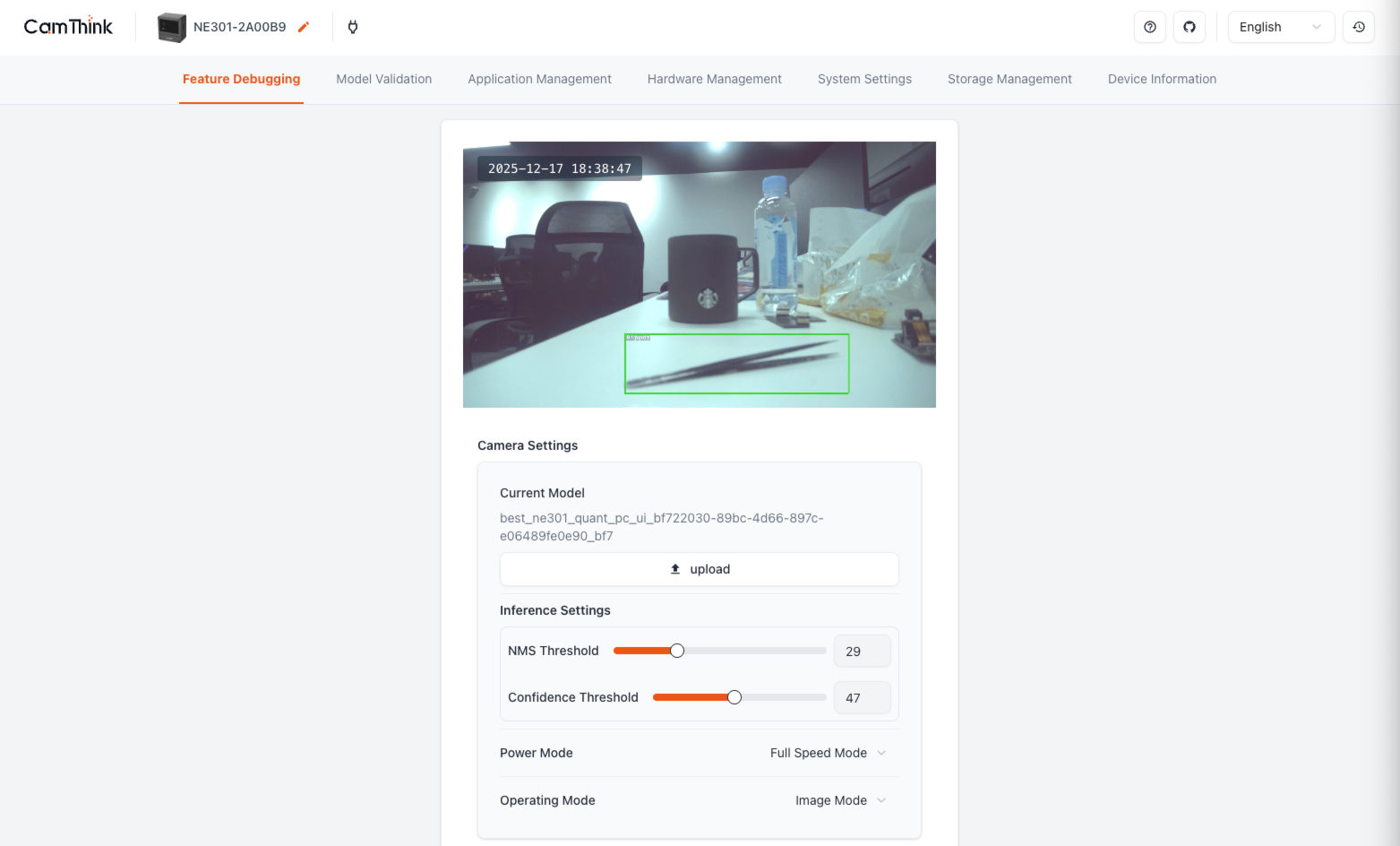
Use the mobile phone or computer that downloaded the model to connect to NE301's WiFi, enter the NE301 Web UI page, click "upload" in Current Model to select the downloaded NE301 model file for model update. After waiting for the model update, test the device model detection effect. You can test through the "Model Validation" function carried on the NE301 management page, or directly preview the target class detection effect in NE301. You can adjust Conf and NMS to verify the effect.
Deploying Existing Models
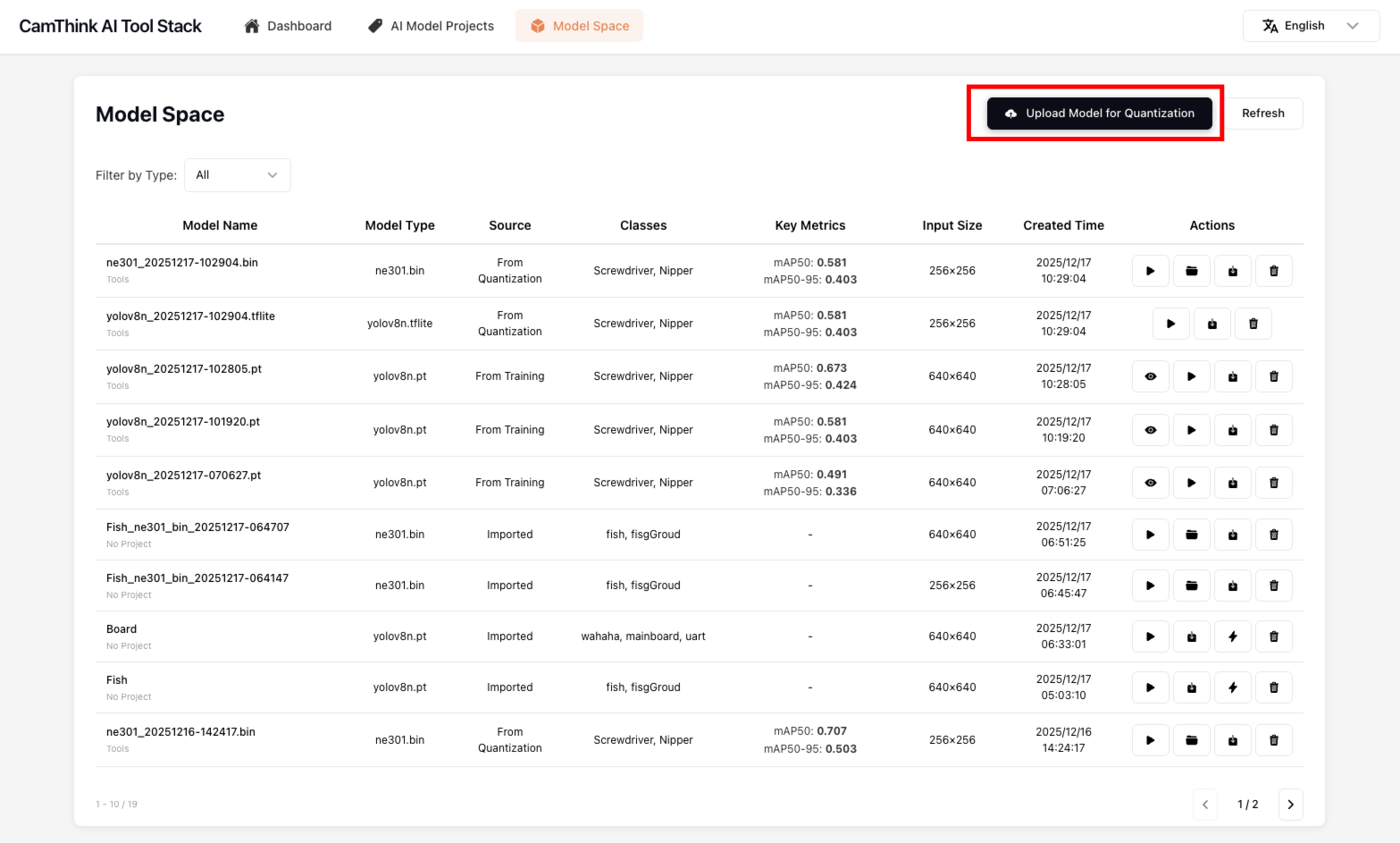
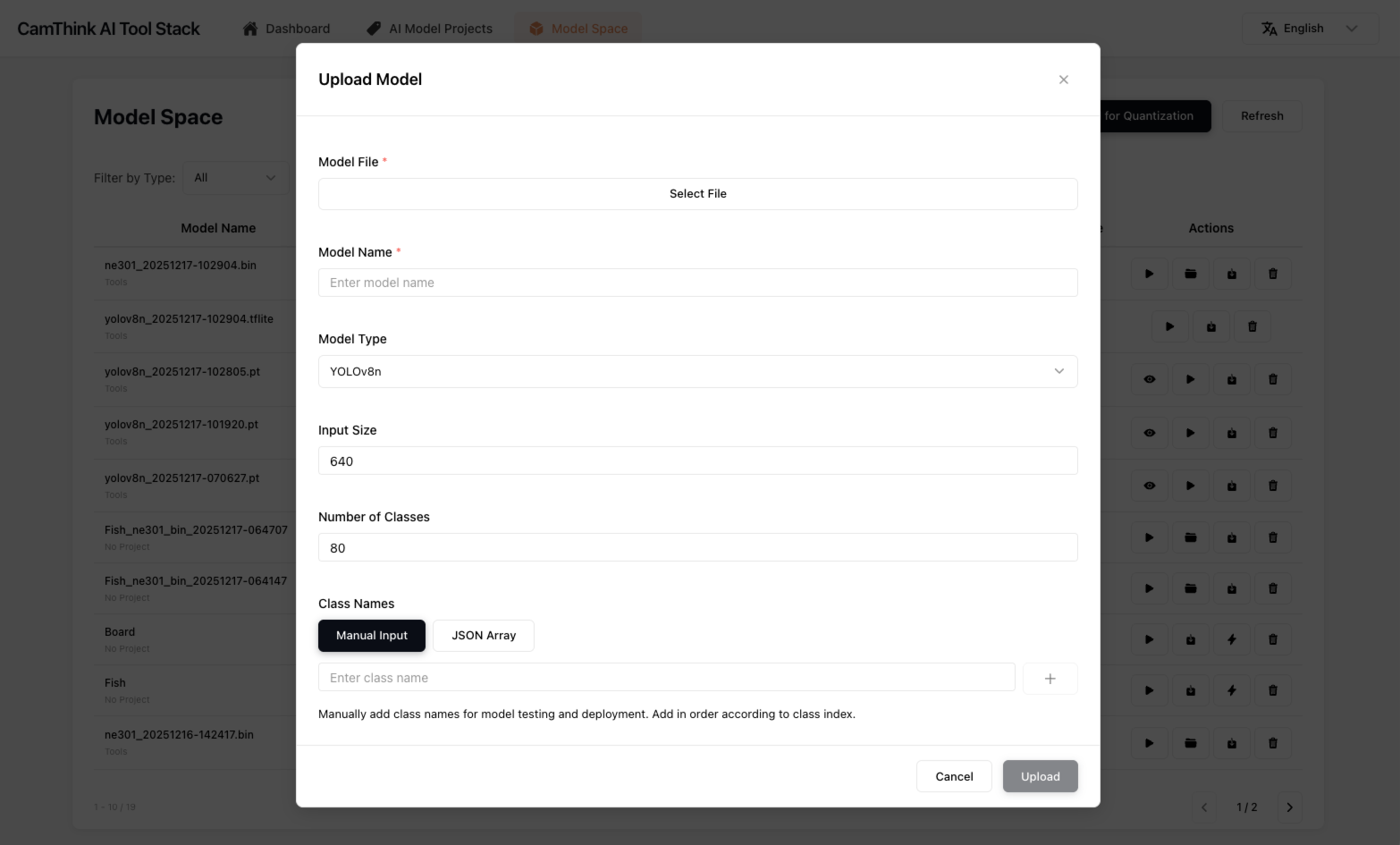
If you already have a trained Ultralytics YOLOv8 model, and it happens to be a Ultralytics YOLOv8n model—why Ultralytics YOLOv8n? Because in NE301 deployment, the model performance and performance under the n size are relatively appropriate. Ultralytics YOLO11 and Ultralytics YOLO26 will be supported in the future. If you need to deploy existing models in NE301, you can find the "Upload Model for Quantization" button in AI Tool Stack's "Model Space" menu. Click it and fill in the information in the form:
- Model Name: Define a name
- Model Type: Default Ultralytics YOLOv8n
- Input Size: Default 640, adjust according to your model's input image size
- Number of Classes: Adjust according to your model's detection class count
- Class Names: Fill in your model types
Click "Upload" to upload your model. Find the model you uploaded in the list. You can click test to test this model's performance.
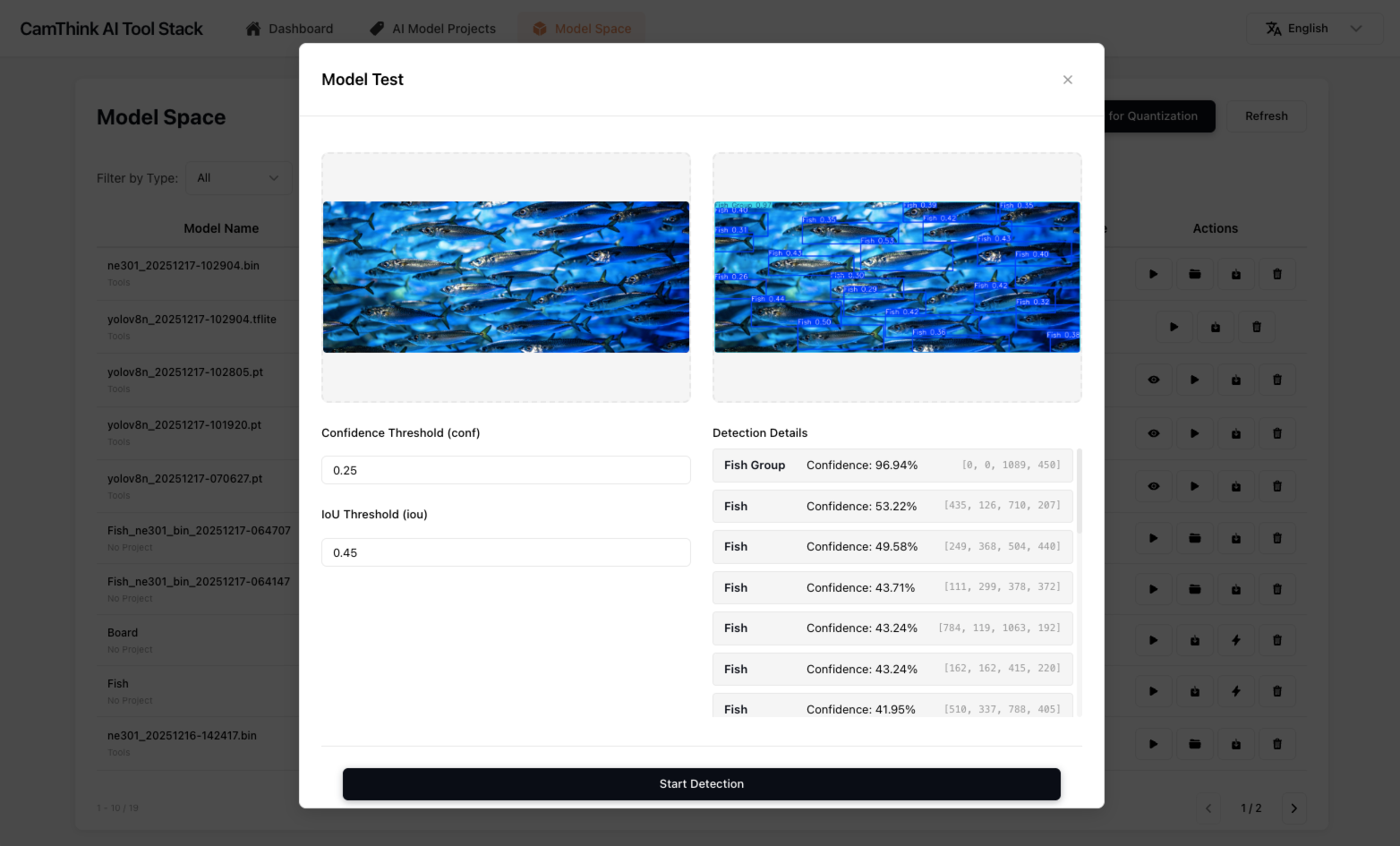
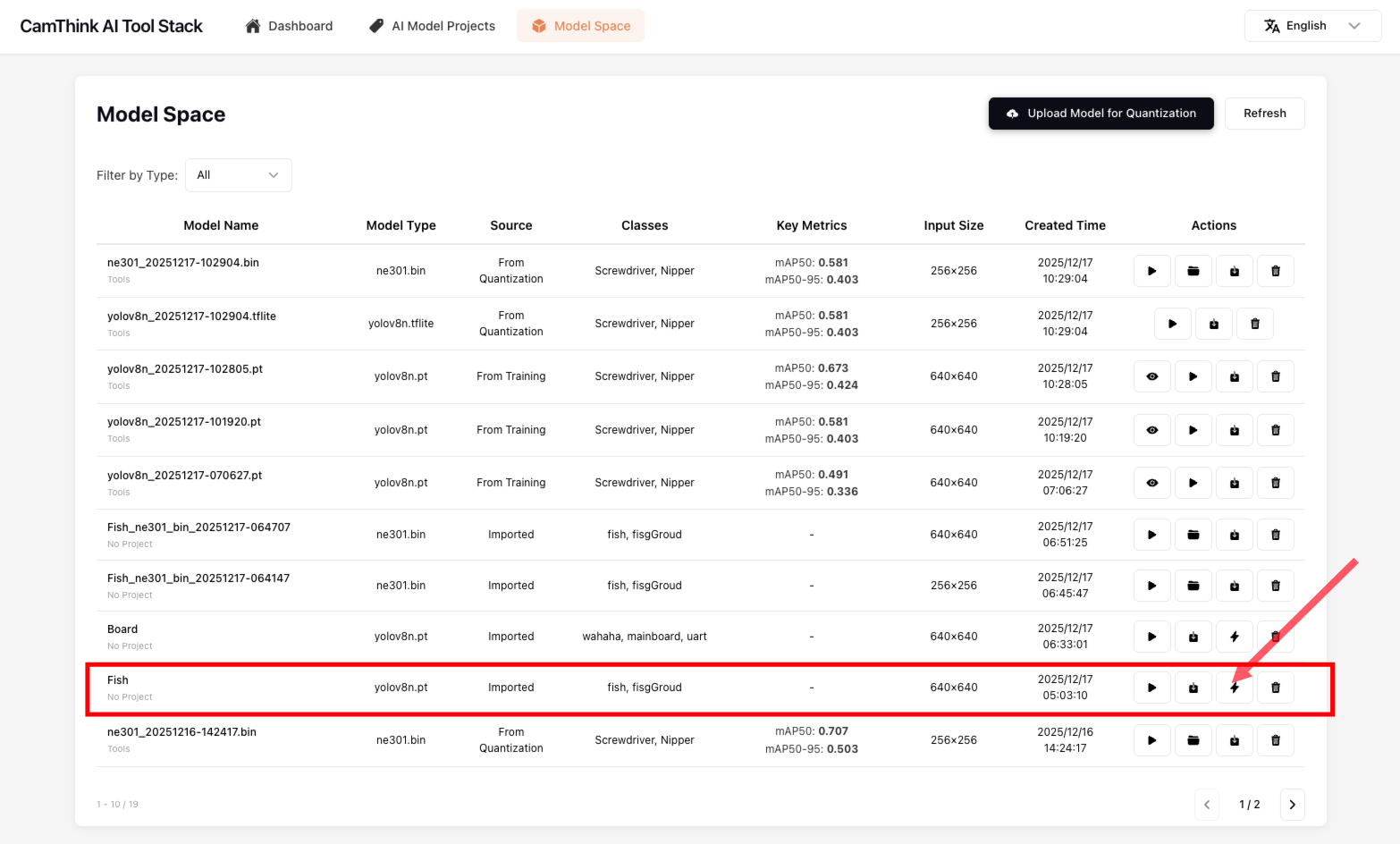
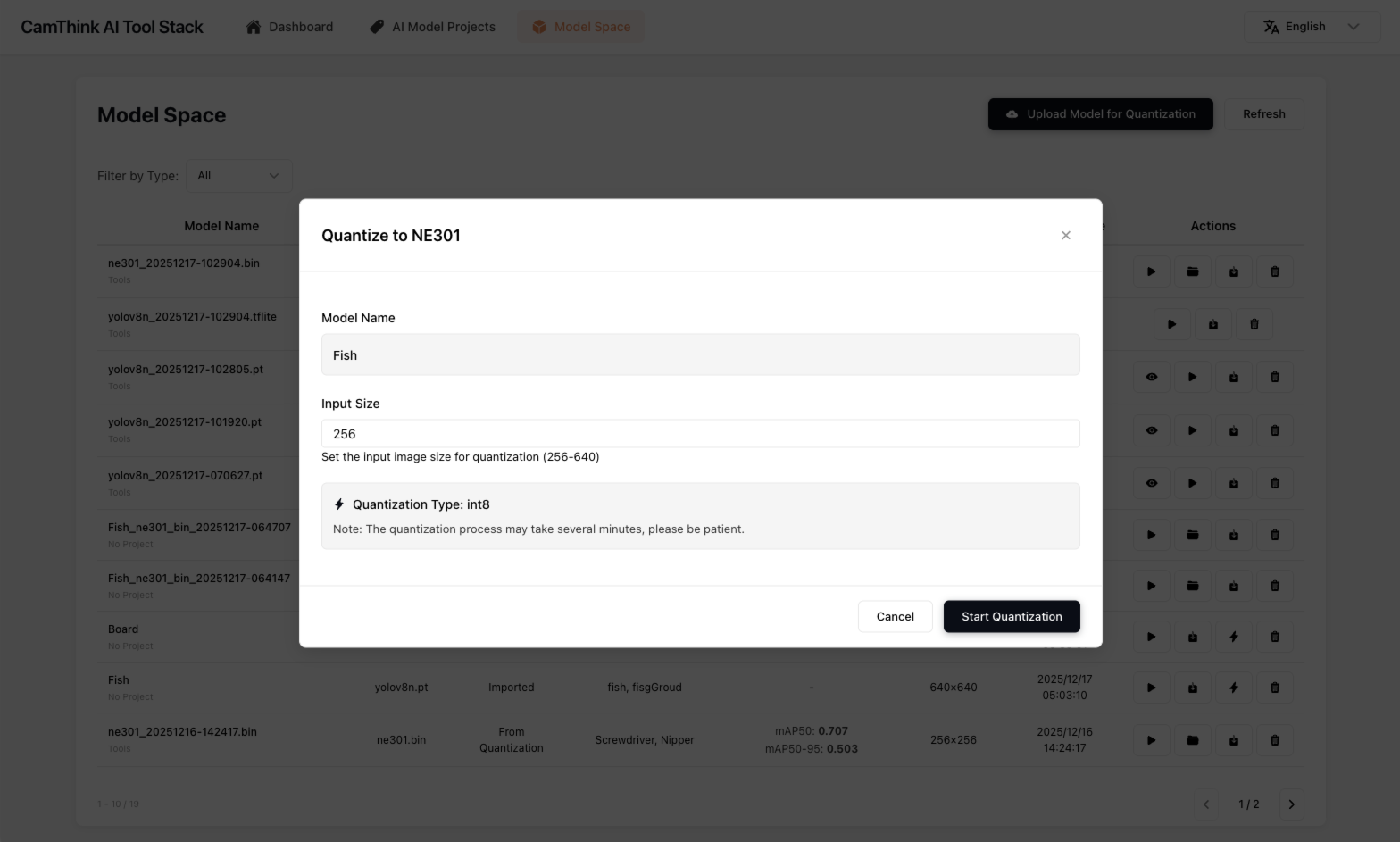
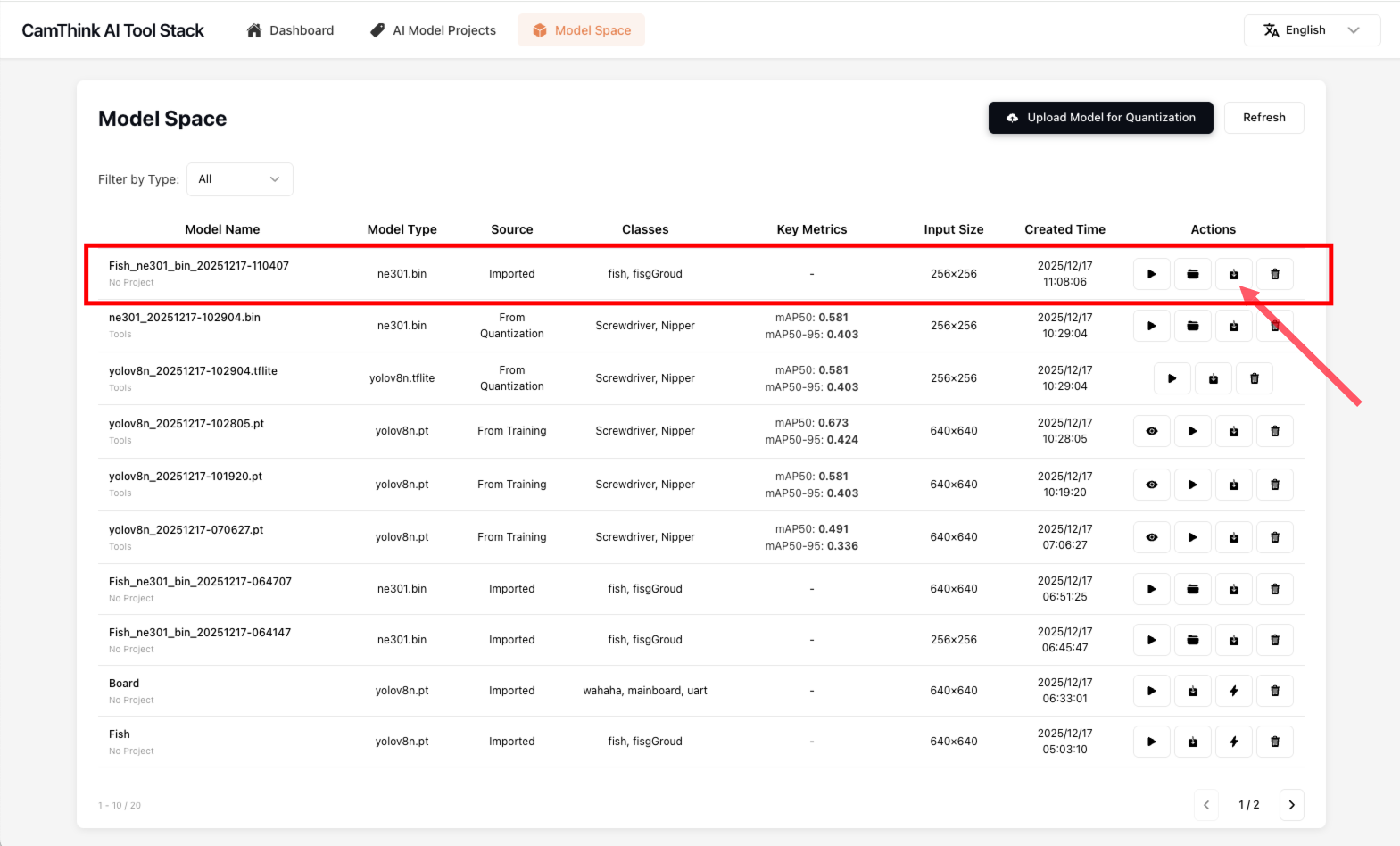
After model verification is completed, we begin to quantize the model to make the model quantized into NE301-deployable model resources. Click the quantization button in the list, fill in Input Size (256, 416, 640) in the popup, click the "Start Quantization" button, and wait for the quantization work to complete. This process takes a long time, please be patient. After model quantization is completed, NE301-usable model resources will appear in the list. You can download this file and deploy it on the NE301 device. For model deployment details, see Model Deployment
Overview of Training to Model Quantization Deployment Results
Below is our process of collecting 31 images from NE301 devices using MQTT to push to the project, completing annotation. This model is a detection model for identifying tweezers and screwdrivers. Below are the detection effects after training and quantization deployed to NE301. This entire process took less than 2 hours.