OCR Solution


1. Solution Overview​

The NeoMind OCR plugin performs general text recognition on images captured by devices, extracting text content and displaying it on the dashboard. Recognition results can also be queried via AI Chat using natural language.

Typical Use Cases:

ScenarioDescription
Nameplate ReadingIdentify model, serial number, and parameters on equipment nameplates
Label RecognitionRead text descriptions next to product labels and barcodes
Document DigitizationConvert paper documents and signage into searchable text
Meter ReadingRecognize readings on digital meters (e.g., electricity, water)

Data Flow:

NE101/NE301 Image Capture β†’ NeoMind Platform β†’ OCR Plugin Recognition β†’ Dashboard Display + AI Chat Query
StageDescription
Image CaptureNE101/NE301 captures images via timed snapshots or event triggers
OCR RecognitionOCR plugin automatically extracts text from images
Result DisplayDashboard displays recognition results in real time, with history support
AI Chat QueryQuery recognized text content using natural language

2. Bill of Materials (BOM)​

ItemSpecificationQtyPurposeRequired
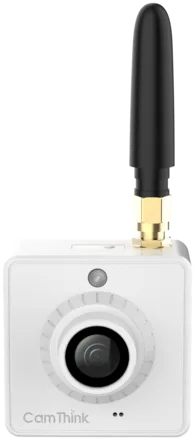
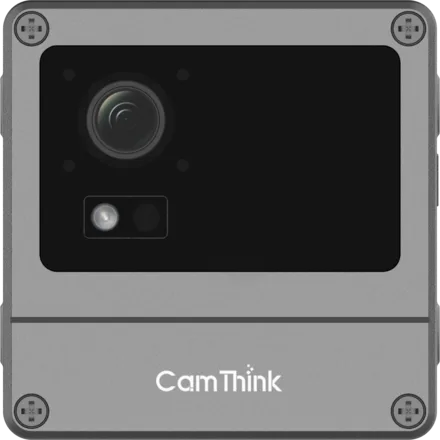
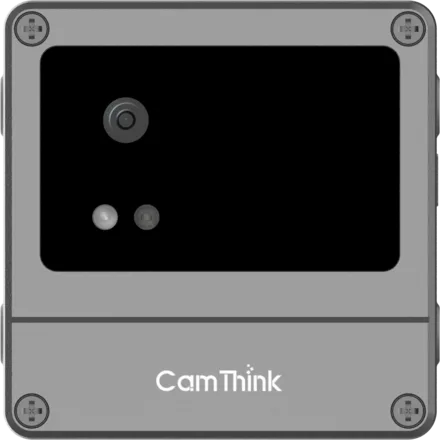
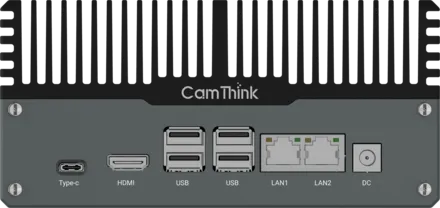
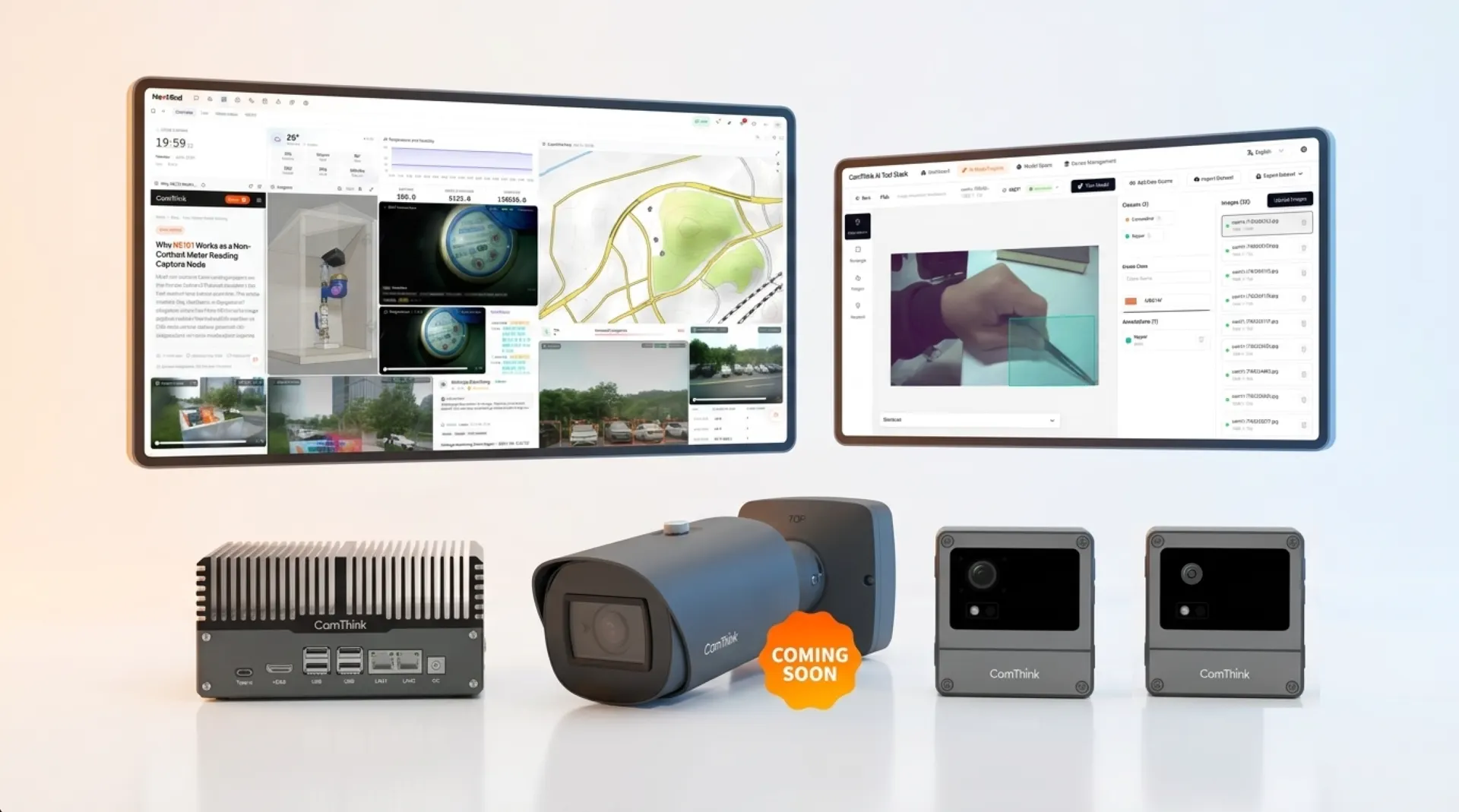
Smart CameraNE101 or NE3011+Image captureβœ…
NeoMind Platformv0.6.8+1Edge AI managementDownload βœ…

3. Prerequisites​

3.1 NeoMind Installation and Configuration​

Complete the NeoMind installation, registration, and basic configuration first. For detailed steps, refer to NeoMind Quick Start.

3.2 Device Onboarding​

Register your NE101 or NE301 to the NeoMind platform:

  1. Navigate to the Device Management page in NeoMind
  2. Click Add Device and select the device type (NE101 or NE301)
  3. Enter the Device ID and MQTT topic
  4. Save and wait for the device to come online

For detailed device onboarding steps, refer to NeoMind Quick Start - Device Management.


4. Install the OCR Plugin​

Step 1: Navigate to the Extensions management page and find the OCR plugin

Step 2: Click Install

Step 3: After installation, enable the plugin


5. Dashboard Configuration and Device Binding​

5.1 Create a Dashboard​

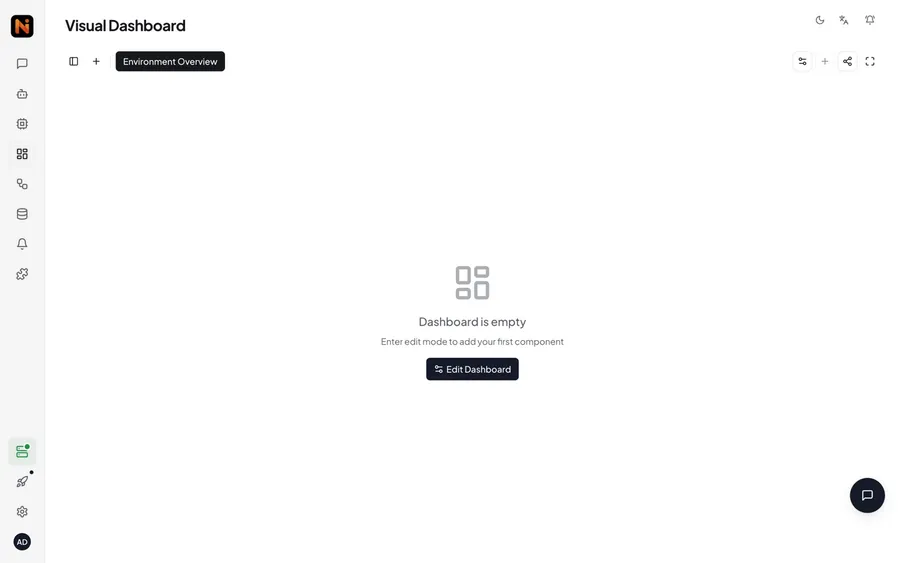
Navigate to the Dashboard management page and click Create Dashboard.

5.2 Add OCR Panel and Bind Device​

In the dashboard, click Add Panel, select the OCR plugin type, and bind the target device:

Once bound, the OCR panel will automatically receive and process images captured by the device:

You can add other widgets to the Dashboard page for additional data and content display.


6. Trigger Test and View Results​

6.1 Trigger Capture Test​

After binding the device, you can manually trigger a capture to verify OCR recognition. Once the device captures an image, the OCR plugin will automatically perform text recognition.

6.2 View Recognition Results​

In the OCR panel on the dashboard, you can view real-time recognition results, including the original image and extracted text:

6.3 View Recognition History​

In the device details, you can view all historical OCR recognition records, including the original image and extraction results for each recognition:


7. AI Chat Query​

Once OCR recognition results are stored, you can query recognized text content via AI Chat using natural language. For example:

Hello, what's the OCR result of my device ne301-new? Reply in English.

Tip: AI Chat requires an LLM backend (e.g., Ollama). For configuration, refer to NeoMind Quick Start or AI Agent and Extensions Solutions.


Last updated: 2026-04-17