MQTT Data Interaction and Reporting
This document primarily describes how to configure the MQTT/MQTTS function of NeoEyes NE301, use the MQTTX client to receive data reported by the device, and provides a detailed analysis of the reported data protocol format. This will help you better understand the data sent by the device for upper-layer application development.
Introduction
NeoEyes NE301 supports reporting AI inference results and device-related information to a specified MQTT Broker via the MQTT protocol. Developers can subscribe to the corresponding Topic to obtain real-time data for secondary development or system integration.
Preparation
Before starting, please ensure the following preparations are complete:
- NE301 Device: Powered on and connected to the network (ensure the device allows network communication with the MQTT Broker).
- MQTT Broker: An MQTT server (such as EMQX, Mosquitto, etc.) is deployed, or use a public test server.
- MQTT Client Tool: We recommend using MQTTX for debugging and data viewing.
If you are not familiar with MQTT protocol, please refer to MQTT Protocol for learning.
1. Configure NE301 MQTT Parameters
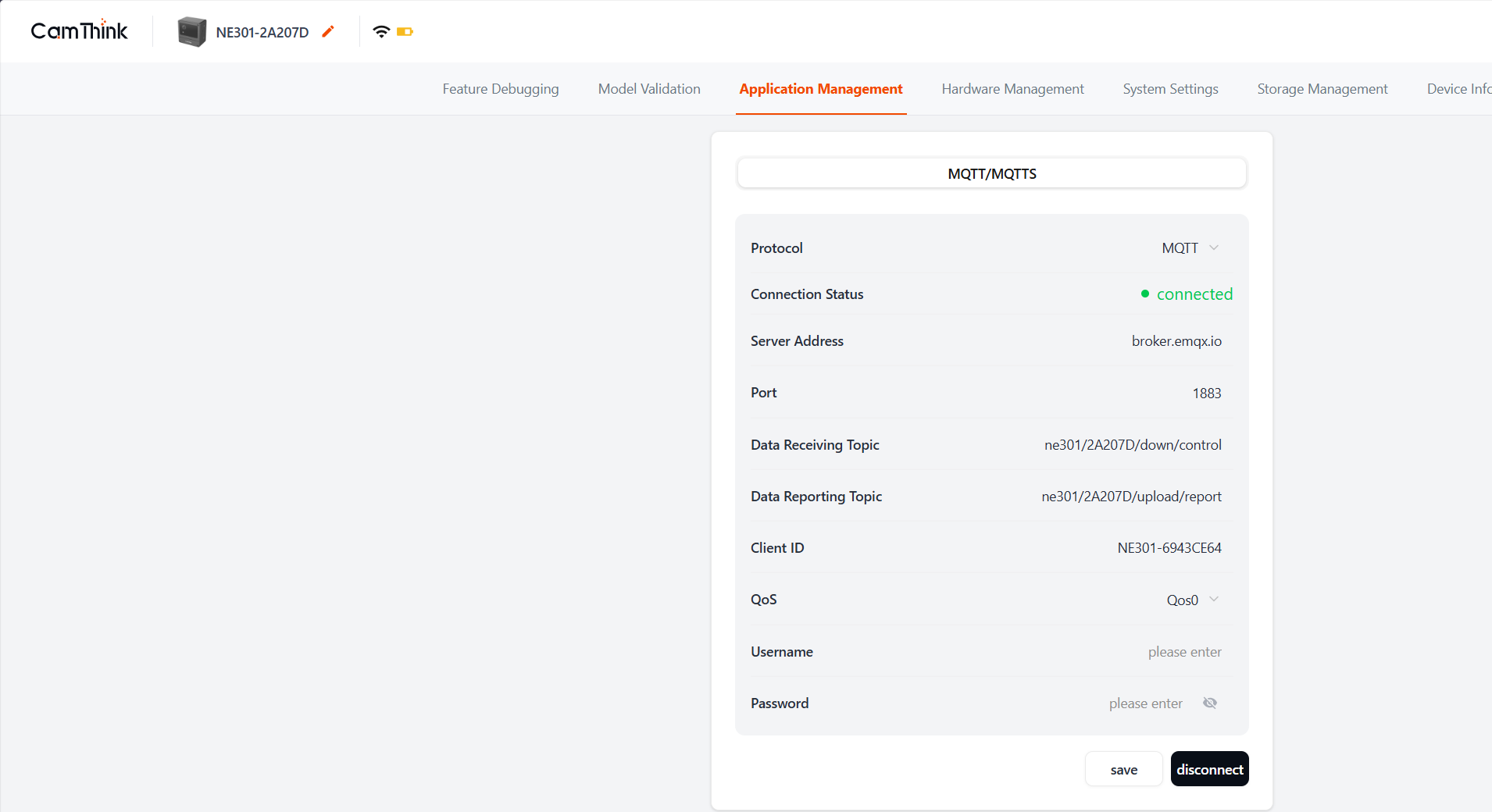
Login to the NE301 Web management interface, go to the "Application Management" -> "MQTT/MQTTS" page, and configure the following parameters:
- Broker Address: MQTT server IP address or domain name.
- Port: Server port (default is 1883).
- Client ID: Device unique identifier (optional, usually defaults to the device serial number. Please ensure it does not duplicate with other client IDs to avoid conflicts).
- Username / Password: If the server requires authentication, enter the username and password.
- Data Receiving Topic: Topic for data downlink (e.g.,
ne301/2A207D/down/control), used for the device to receive control commands. The device generates one by default; modify if customization is needed. - Data Reporting Topic: Topic for data reporting (e.g.,
ne301/2A207D/upload/report), used for the device to report data. The device generates one by default; modify if customization is needed.
After configuration, click "Save", and the device will attempt to connect to the MQTT server.
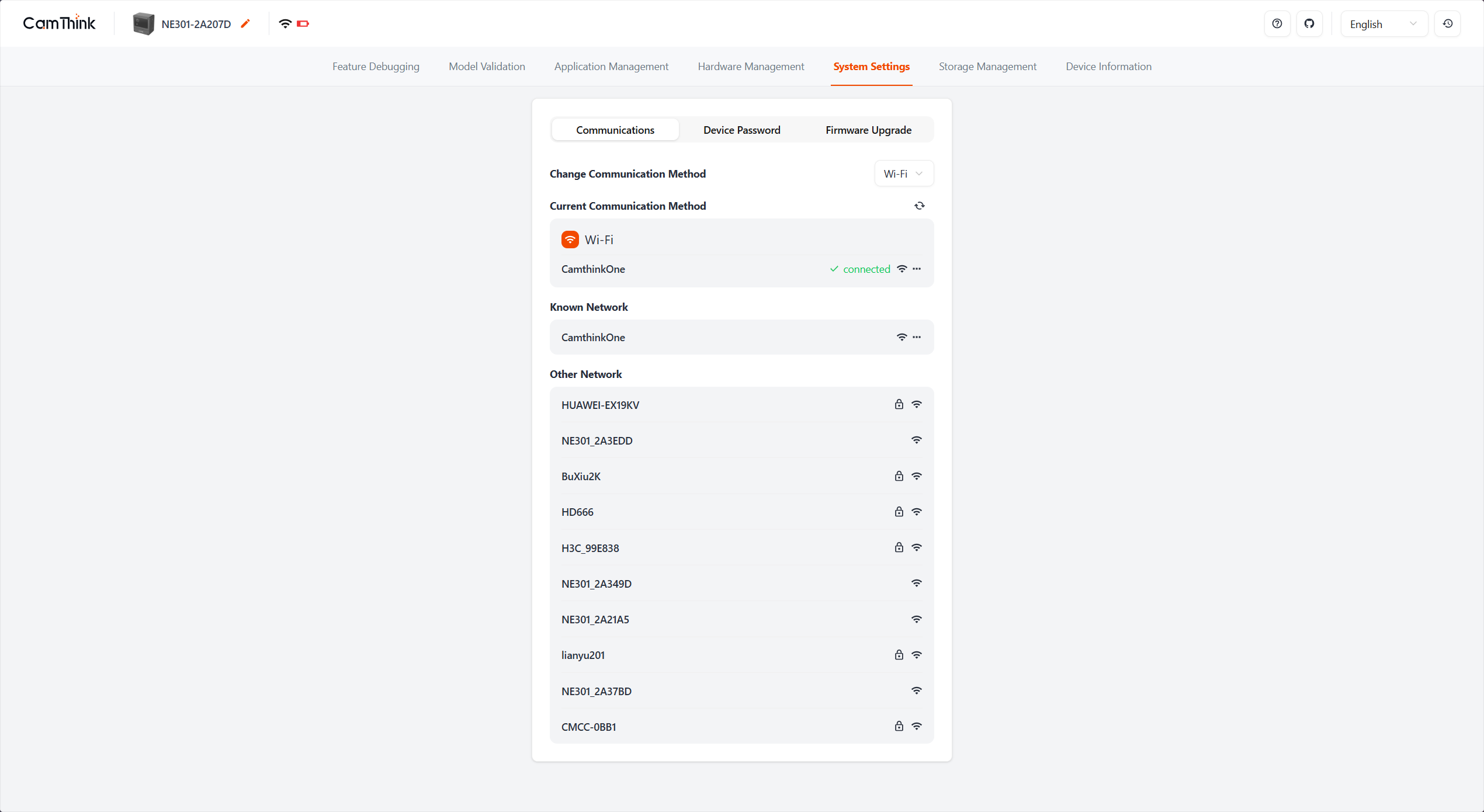
Switch to MQTTS configuration if encryption is required.
2. Configure MQTTX Client
Open the MQTTX software and click "+" to create a new connection:
- Name: Custom connection name (e.g.,
NE301_Monitor). - Host: Enter the same MQTT Broker address configured on the device.
- Port: Enter the port (e.g., 1883).
- Click the "Connect" button to connect to the server.
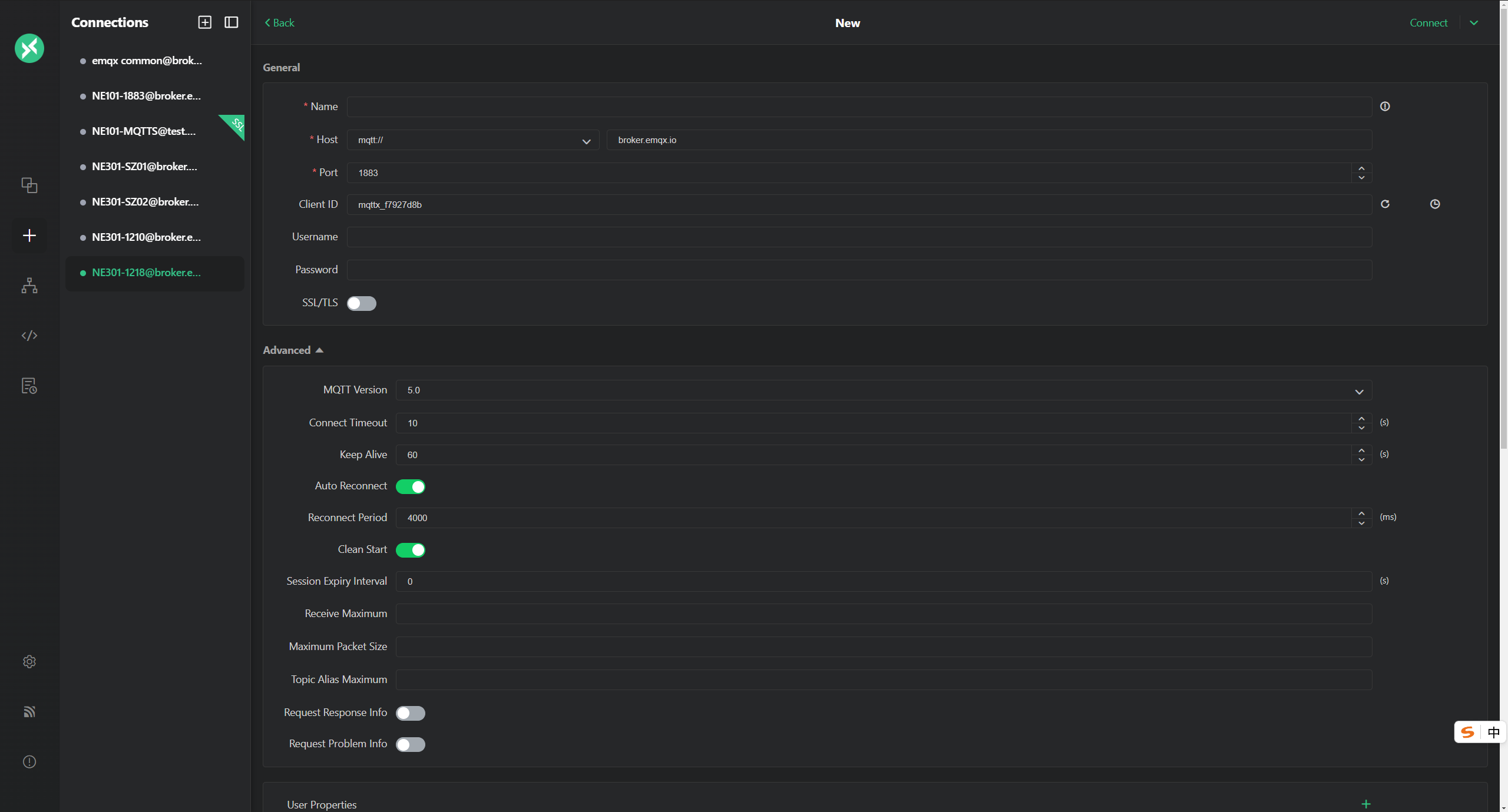
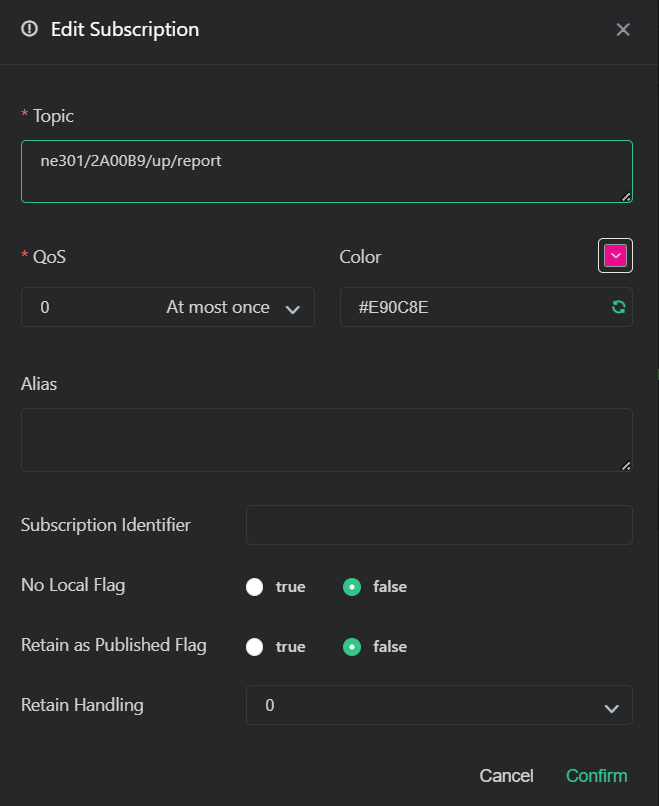
After successful connection, add a subscription:
- Click "New Subscription".
- Topic: Enter the reporting Topic configured on the device (e.g.,
ne301/device/data). - Click "Confirm".
3. Trigger Capture and Receive Data
Trigger Methods
You can trigger device capture and inference in the following ways:
- Web UI: Click the capture button on the "Live" page.
- Physical Button: Press the camera button on the side of the device.
- Sensor/IO Trigger: Trigger capture via the IO interface.
- Scheduled Trigger: Set up scheduled tasks.
- Remote Control: Trigger capture remotely via MQTT control commands.
Receiving Data
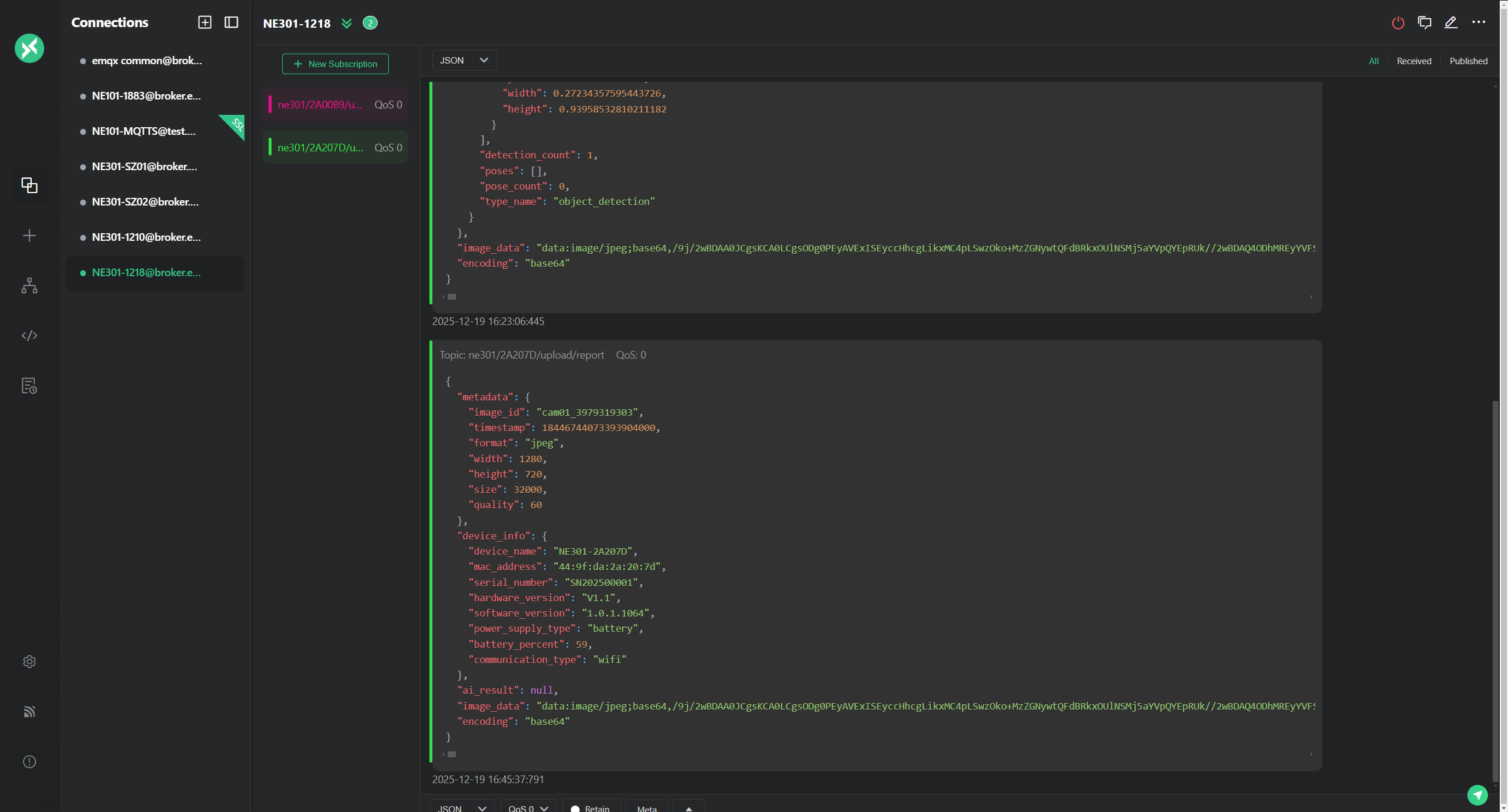
When the device completes inference, the MQTTX client will receive a message in JSON format. As shown below:
4. Data Protocol Format Analysis
The data reported by the device uses standard JSON format, containing device information, timestamps, and AI inference results.
Example Data
{
  "metadata": {
    "image_id": "cam01_1766132582",
    "timestamp": 1766132582,
    "format": "jpeg",
    "width": 1280,
    "height": 720,
    "size": 61880,
    "quality": 60
  },
  "device_info": {
    "device_name": "NE301-2A207D",
    "mac_address": "44:9f:da:2a:20:7d",
    "serial_number": "SN202500001",
    "hardware_version": "V1.1",
    "software_version": "1.0.1.1064",
    "power_supply_type": "battery",
    "battery_percent": 41,
    "communication_type": "wifi"
  },
  "ai_result": {
    "model_name": "YOLOv8 Nano Object Detection Model - COCO 80 Classes (Int8)",
    "model_version": "1.0.0",
    "inference_time_ms": 50,
    "confidence_threshold": 0.5,
    "nms_threshold": 0.5,
    "ai_result": {
      "type": 1,
      "detections": [
        {
          "index": 0,
          "class_name": "bottle",
          "confidence": 0.57646054029464722,
          "x": 0.11801555752754211,
          "y": 0.052199184894561768,
          "width": 0.27234357595443726,
          "height": 0.93958532810211182
        }
      ],
      "detection_count": 1,
      "poses": [],
      "pose_count": 0,
      "type_name": "object_detection"
    }
  },
  "image_data": "data:image/jpeg;base64,...",
  "encoding": "base64"
}
Field Description
| Field | Type | Description |
|---|---|---|
| metadata | Object | Image metadata |
metadata.image_id | String | Unique Image ID |
metadata.timestamp | Number | Capture Timestamp (Unix) |
metadata.format | String | Image Format |
metadata.width | Number | Image Width |
metadata.height | Number | Image Height |
metadata.size | Number | Image Size (Bytes) |
metadata.quality | Number | Image Compression Quality |
| device_info | Object | Device Information |
device_info.device_name | String | Device Name |
device_info.mac_address | String | MAC Address |
device_info.serial_number | String | Device Serial Number |
device_info.hardware_version | String | Hardware Version |
device_info.software_version | String | Software Version |
device_info.power_supply_type | String | Power Supply Type |
device_info.battery_percent | Number | Battery Percentage |
device_info.communication_type | String | Communication Type |
| ai_result | Object | AI Inference Result Information |
ai_result.model_name | String | Model Name (includes quantization details) |
ai_result.model_version | String | Model Version |
ai_result.inference_time_ms | Number | Inference Time (ms) |
ai_result.confidence_threshold | Number | Confidence Threshold |
ai_result.nms_threshold | Number | NMS Threshold |
ai_result.ai_result | Object | Specific Inference Data |
ai_result.ai_result.type | Number | Result Type ID |
ai_result.ai_result.type_name | String | Task Type Name |
ai_result.ai_result.detection_count | Number | Count of Detected Objects |
ai_result.ai_result.detections | Array | List of Detections |
detections[].index | Number | Object Index |
detections[].class_name | String | Object Class Name |
detections[].confidence | Number | Confidence Score (0-1) |
detections[].x | Number | Normalized Center X |
detections[].y | Number | Normalized Center Y |
detections[].width | Number | Normalized Width |
detections[].height | Number | Normalized Height |
| image_data | String | Base64 Encoded Image Data |
| encoding | String | Encoding Method |
By parsing this JSON data, you can easily obtain information about objects in the image and the current status of the device.
5. FAQ
1. The data reported by the NE301 device is not what I want, what should I do?
Currently, the NE301 device does not support modification of the data format. If you need to customize the reported data format or related application logic, you may consider secondary development or contact us for custom development.
2. MQTT is configured, but the device is not connected to the MQTT server, what should I do?
Please check if the device is configured with the correct MQTT parameters, including Broker address, port, username, and password. If the configuration is correct but the device still cannot connect to the MQTT server, please check if the MQTT server is running normally and ensure the device can access the network.
3. MQTT is connected, but no data is reported, what should I do?
Please troubleshoot whether the device's current network is stable and if it can access the internet. Also, check if the MQTT server is running normally. After confirmation, disconnect the MQTT connection and try again.