Engineering Guide
This page is for implementation and integration engineers — the complete engineering process from equipment selection, deployment and commissioning through business usage and data integration.
1. Deployment Scenarios
Typical sites are mid-size gyms, personal-training studios, and hotel/apartment gyms — 10–20 people training simultaneously, dense equipment, mixed lighting. One NE503 camera covers the whole floor, with all analytics and data on-premises.
Typical Environments
| Environment | Characteristics | How the solution adapts |
|---|---|---|
| Mid-size gym (primary) | equipment + free-weight zones, 2.8–4m ceilings | single ceiling camera covers 10–20 people; 2×2 tiling serves near and far fields |
| PT studio | small area, close targets, large movements | mount at the lower height limit; near-field pose covered by tiling |
| Hotel / apartment gym | concentrated usage windows, high turnover | auto member enrollment + visitor mode; time-of-day traffic stats |
| Large venue | one camera cannot cover everything | deploy one camera per zone, aggregate at the platform |
Mounting Position
- Height: 2.5–3.5m ceiling mount, 15–30° downward tilt
- Aim: recommended diagonal corner mount — the frame cuts across the room covering the main equipment area and the entrance — the entrance ensures members are identified on arrival, the equipment area drives occupancy stats
- Lens options: if the standard lens doesn't cover the area (deep rooms / wider views needed), the NE503 supports custom wider-FOV lenses — contact CamThink for an on-site assessment
- Avoid: strong backlight from windows; pillars or pendant lights occluding key equipment
- Night: confirm lighting stays on; NE503 supports IR, but recognition works best with visible light

Install verification: before locking the bracket, check the live preview in the camera web UI — far-side members are recognizable (full skeletons), the entrance is in frame, no major occlusion.
2. Bill of Materials
| # | Item | Model / Spec | Qty | Purpose |
|---|---|---|---|---|
| 1 | NE503 AI camera | Hailo-15H 20 TOPS・PoE・4K+720p dual streams | 1 per zone | on-device pose/ReID inference |
| 2 | NeoMind platform (on the customer PC or the NE503) | Docker deployment, incl. gym-tracker extension | 1 set | device onboarding, pose inference, dashboards & reports |
| 3 | Gym installer package | gym-suite-<version>.tar.gz (from CamThink) | 1 | one-command install (image, models, manual) |
| 4 | Ethernet cables | Cat5e or better | as needed | camera PoE power + data uplink |
Starter setup (single zone, ≤20 people): 1 × NE503 (PoE powered) + NeoMind on the customer PC or the NE503. To grow, add one camera per zone and register it in the extension config (≤4 cameras per extension recommended).
3. Network Topology

General requirements:
- Camera and host on the same LAN; the host needs no public IP
- Bandwidth: video uses the 720p sub-stream (~2–4Mbps) per camera plus an event stream under 100KB/s — a regular LAN handles 4 cameras easily
- Power: cameras are PoE-powered from the customer-side network (PoE switch or injector) — no separate power cabling needed
- The camera uses self-signed HTTPS; set
tls_insecure: trueon the edge side - All data stays on-premises; nothing is sent outside the venue unless you integrate a business system (see 4.6)
4. Building the Solution
Work in this order: platform first, then the extension bound to the camera, then the one-command camera install, then the four-link commissioning.
4.1 Deploy the Gym Application on the NE503
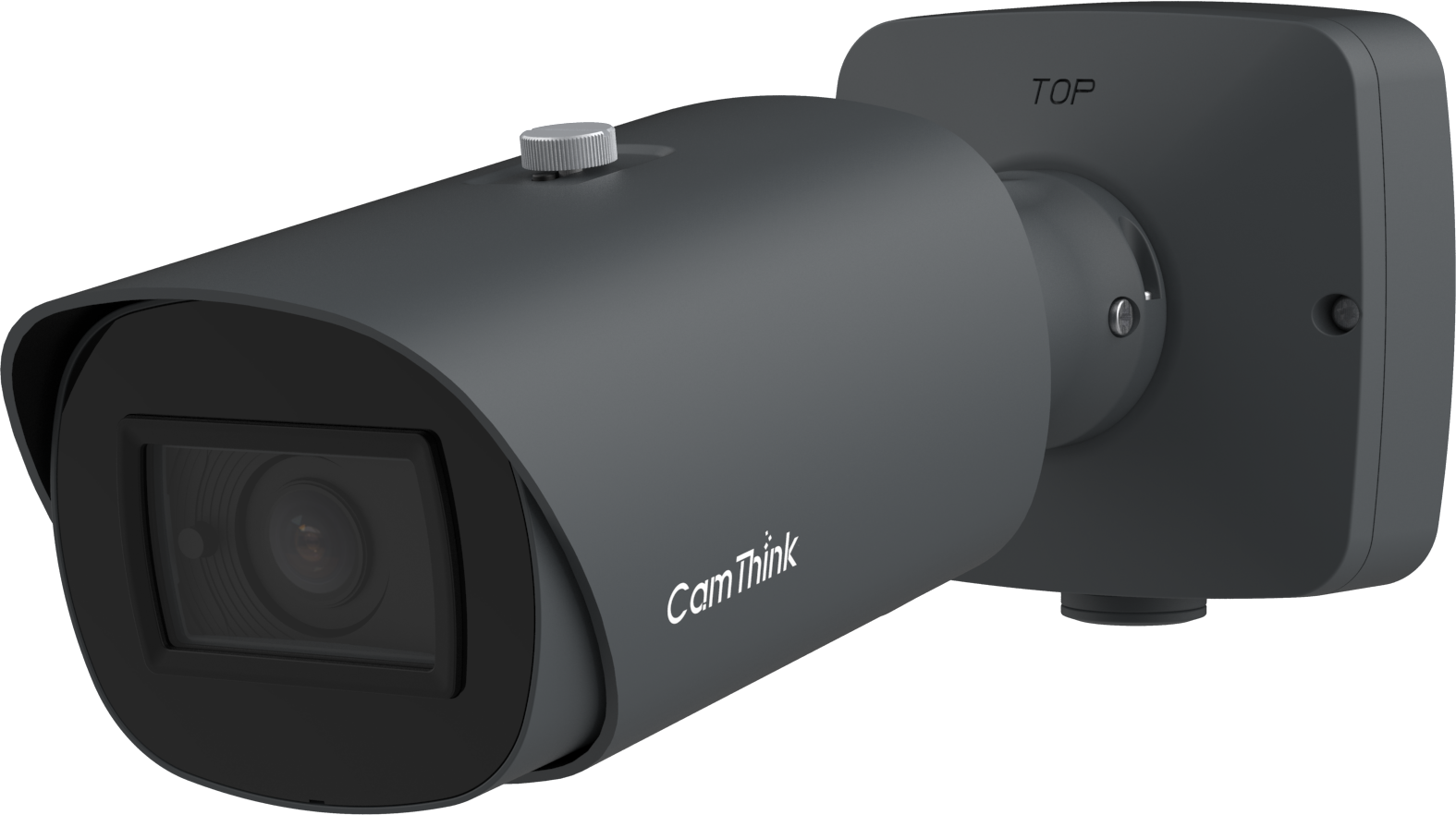
4.1.1 Bring the Camera Online (after physical install)
Port & cabling — plug the Ethernet cable into the PoE port on the camera body; the other end goes into the customer-side PoE switch or injector:

Bring-online steps:
- Plug one end of the cable into the camera's PoE port until the clip clicks; the other end goes to the customer-side PoE switch / injector
- Power the camera via PoE and wait ~2 minutes for boot
- Find the camera IP from the router (or the CamThink discovery tool, shipped in the neoruntime package)
- Browse to
https://<camera-ip>(self-signed cert — click "proceed") — the camera web UI confirms it is online
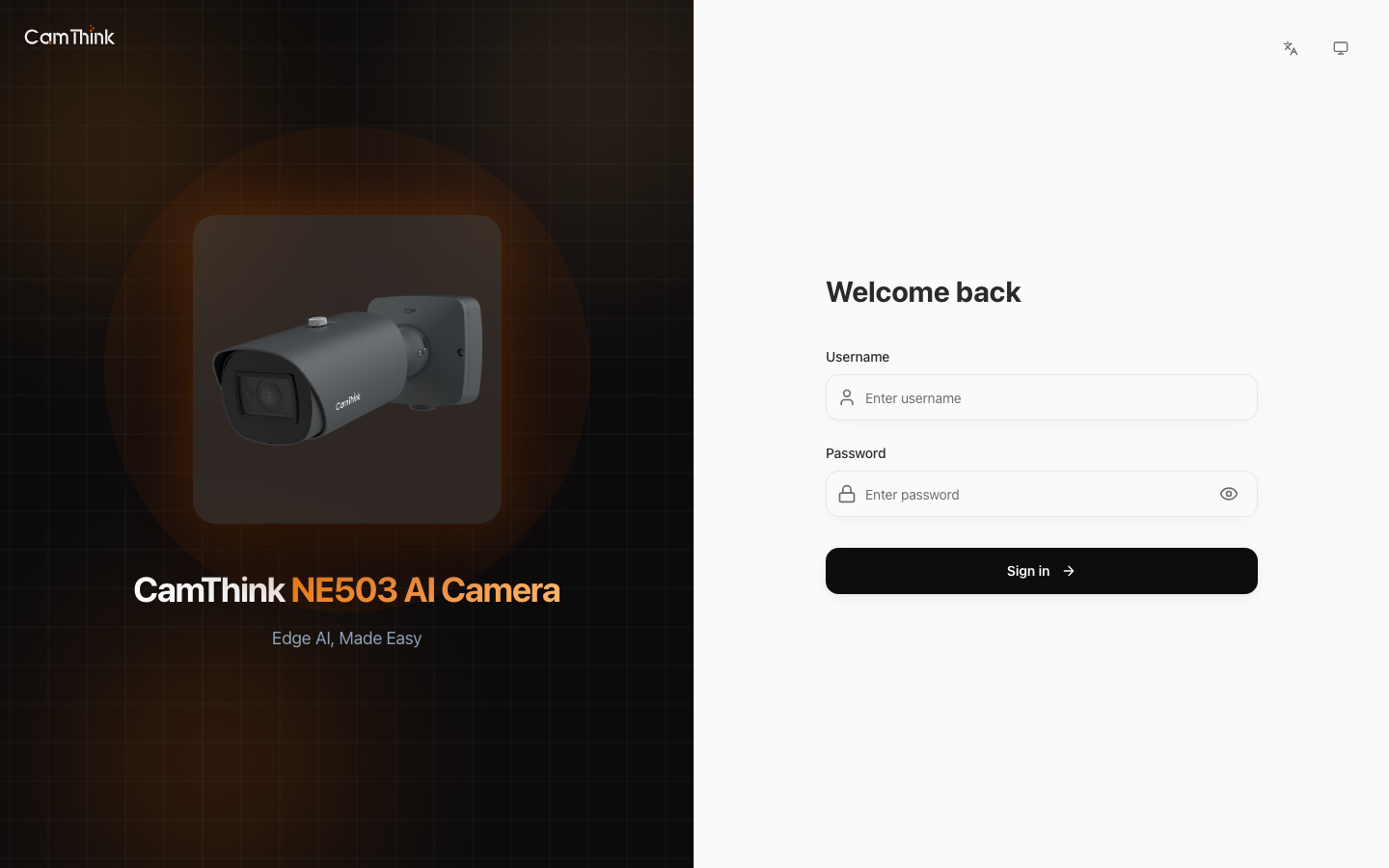
4.1.2 Initial Security Setup
- Log in with the factory default:
admin / password - Top-right → System Settings → Change Password — set a strong password and record it (the extension config uses it too)
- Confirm firmware >= v1.0.2 on the system info page; if older, request a firmware package from CamThink and upload it via web System Upgrade (~10 min, auto-restarts)
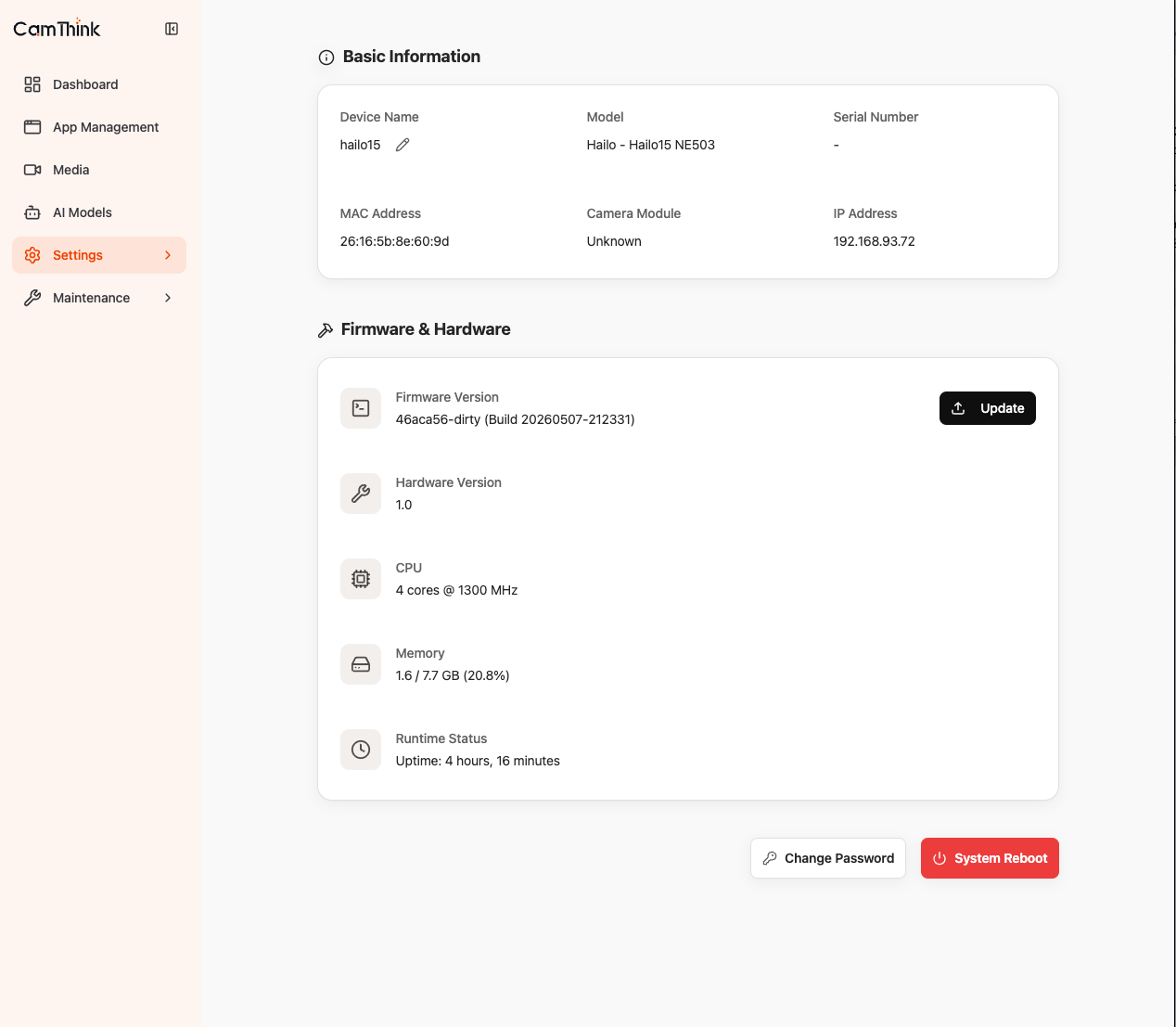
4.1.3 Verify the View
- Web home → live preview: confirm the frame covers the equipment area + entrance, no occlusion, adequate lighting at night
- Adjust focus/tilt now if needed (see section 1 mounting guidance)
4.1.4 One-Command App Install
Where is the package: it is the smart gym installer gym-suite-<version>.tar.gz from BOM item 3 — delivered by CamThink with the order. Copy it to any laptop on the same network as the camera (requires curl + python3 — Mac/Linux/Windows+WSL all work), then in that laptop's terminal:
How to run: extract the package → enter the folder → run the script (enter the camera IP and the new password set in 4.1.2 when prompted):
tar xzf gym-suite-1.1.0.tar.gz && cd gym-suite-1.1.0
./camera-install.sh <camera-ip> <the new password from 4.1.2>
The script runs:
| Step | What | Time |
|---|---|---|
| 1 | Login to the camera API | under 1s |
| 2 | Check firmware version | under 1s |
| 3 | Upload models (pose S/M HEF tiers) | ~10s |
| 4 | Upload and install the app container image | ~15s |
| 5 | Start the app | ~2s |
| 6 | Health check (wait for stream + fps stats) | ~40s |
Success looks like:
Install OK! Producer running: stats: 19.8 fps
The script is idempotent — re-running performs an overwrite upgrade without touching member data.
Online install (optional, when the camera has internet): skip the tarball entirely — the camera's install wizard pulls the official image straight from Docker Hub (camthink/gym-native):
cd gym-suite-1.1.0/publish
./install-remote.sh <camera-ip> <password> detect    # equivalent to the offline install, no tar upload
Fully online install (no installer package at all): the images are public on Docker Hub, so two curl calls are enough. Single-box form shown (recommended — one command installs the complete system):
# 1. Log in and grab a token
TOK=$(curl -sk -X POST https://<camera-ip>/api/login -H "Content-Type: application/json" \
  -d '{"username":"admin","password":"<password>"}' | python3 -c 'import json,sys;print(json.load(sys.stdin)["data"]["token"])')

# 2. Submit the install wizard (the camera pulls from Docker Hub, 1-3 min)
curl -sk -X POST https://<camera-ip>/api/v1/apps/wizard -H "Authorization: $TOK" \
  -H "Content-Type: application/json" -d '{
  "metadata":{"id":"gym-neomind","name":"Gym NeoMind All-in-One","version":"1.0.4"},
  "image":"camthink/gym-neomind:1.0.4",
  "resources":{"cpu":"150%","memory":"1500Mi"},
  "volumes":[{"host":"/data/aipc-data/gym-neomind","container":"/app/data"}],
  "permissions":{"network":{"mode":"host"}},
  "env":[{"name":"GYM_LEAN_TRACK","value":"1"}],
  "restart_policy":"on-failure","restart_max_retries":10,"autostart":true}'
When done, browse to http://<camera-ip>:9375 (credentials are in the container log, gym-bootstrap section). The two-box detection app works the same way — swap image for camthink/gym-native:0.2.31 plus the full env/volume spec; since that spec is long, prefer the suite's install-remote.sh detect.
Under the Hood: What the One-Command Script Does (optional reading)
Every step in camera-install.sh calls the camera's native REST API — no SSH, no manual Docker commands. Understanding this helps with troubleshooting and customization:
| Step | REST API | What it does |
|---|---|---|
| Login | POST /api/login | obtains a Bearer token |
| Check firmware | GET /api/v1/system/ota/status | confirms >= v1.0.2 |
| Upload models | POST /api/v1/files/upload | HEF files -> /data/aipc-data/gym-hefs/ |
| Upload image | POST /api/v1/apps/upload-image | container tar -> /data/aipc/images/ |
| Upload manifest | POST /api/v1/apps/upload-manifest | app.yaml -> /data/aipc/apps/manifests/ |
| Install | POST /api/v1/apps/install-package | imports image into containerd + registers manifest |
| Start | POST /api/v1/apps/gym-native/start | creates and runs the container |
What is the app: an OCI container image (containing the gym-native C++ binary and an entrypoint script), managed by the camera's app-manager service (start/stop/restart/logs). The container accesses the NPU (/dev/h1x), video streams (/run/aipc), and model files through volumes declared in the manifest.
Built-in self-healing (no configuration needed):
| Fault | System behavior | Recovery |
|---|---|---|
| Stream hiccup | auto-reconnect | seconds |
| Stream dead >30s | app auto-restarts (built-in watchdog) | ~2 min |
| Camera power cycle | app auto-starts, data preserved | ~30s |
4.1.5 App Management (web UI)
After installation, manage the app from camera web → Apps:
- Status: running / installed
- Logs: open gym-native for live logs —
stats: xx fps, pub okis the healthy heartbeat - Stop/Start: one click, no SSH
- Uninstall: removes the app (model files are kept)
4.1B Single-Box Form (optional): one camera = one complete system
The installer's singlebox/install-singlebox.sh installs the NeoMind platform + gym extension directly on the camera (one self-bootstrapping container — first start automatically creates the admin, installs the extension, binds the camera and builds the dashboard). No extra hardware:
cd gym-suite-1.1.0
./camera-install.sh <camera-ip> <password>              # step 1 unchanged: detection app
./singlebox/install-singlebox.sh <camera-ip> <password> # step 2: the whole stack, on-camera
Then browse to http://<camera-ip>:9375 (credentials are printed by the script). Functionally identical to the two-box form (same detection app, platform, extension and data flow — only WSS moves from LAN to loopback); the difference is just where the platform runs:
| Two-box (4.2/4.3) | Single-box | |
|---|---|---|
| Extra hardware | edge box (Linux/Mac) | none |
| Best for | multi-camera, 7×24 production | single camera, demos, small gyms |
| Camera load | detection only | detection + platform (~6GB RAM headroom measured) |
The single-box form also supports online install: with the camera online, ./publish/install-remote.sh <camera-ip> <password> singlebox pulls the all-in-one image (camthink/gym-neomind:1.0.4) directly; credentials output and entry point are the same as offline.
4.2 Install the NeoMind Platform (customer PC or NE503)
NeoMind can run on the customer's own PC — any Linux server or Mac mini (Docker, 4GB+ RAM) — or directly on the NE503.
Option A: Docker Compose (recommended)
# 1. Confirm Docker is installed
docker --version

# 2. Use the compose file from the installer package (or the NeoMind repo)
cd gym-suite-1.1.0/edge/
docker compose up -d

# 3. Wait for the first image pull and startup (~1-2 min)
docker compose logs -f neomind    # ready when you see "listening on 0.0.0.0:9375"
Option B: One-line install script
curl -fsSL https://raw.githubusercontent.com/camthink-ai/NeoMind/main/scripts/install.sh | sh
First-time setup:
- Browse to
http://<host-ip>:9375 - Register the admin account (email + password — keep it safe: platform encryption keys derive from it)
- Confirm the "Extensions" page in the left navigation opens correctly
Full platform installation details (manual deploy / HTTPS reverse proxy / volume backup): see Install & Upgrade.
4.3 Install the Gym Extension and Bind the Camera
Install the extension (two ways):
- Local import (offline delivery): platform web → Extensions → Import → select
gym-tracker-*.nepfrom the package → it appears in the extension list after import - Marketplace (online): platform web → Extension Marketplace → search "Gym Tracker" → Install (available once the extension is published)
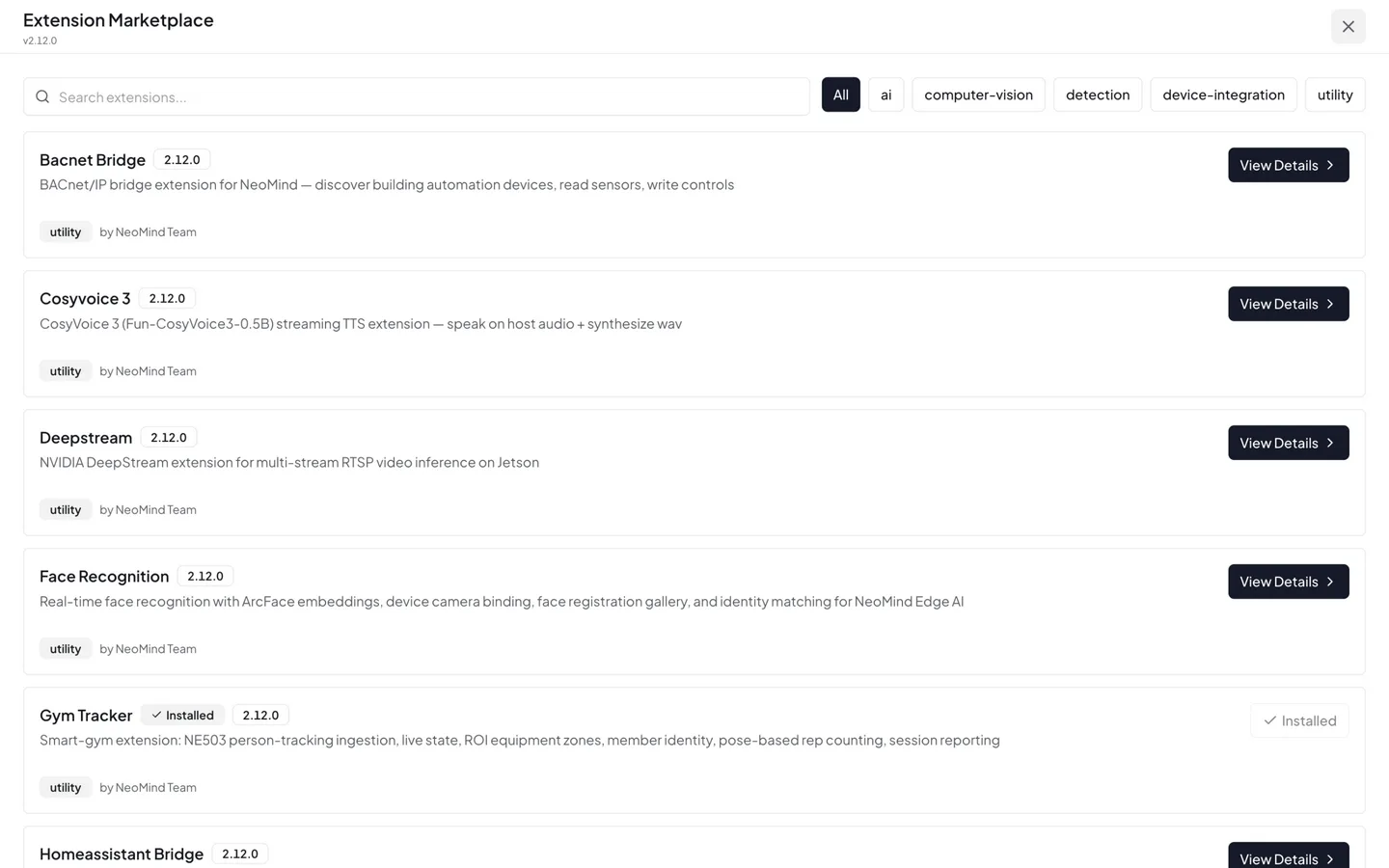
Marketplace: search "Gym Tracker" and install in one click; offline delivery uses Upload Extension
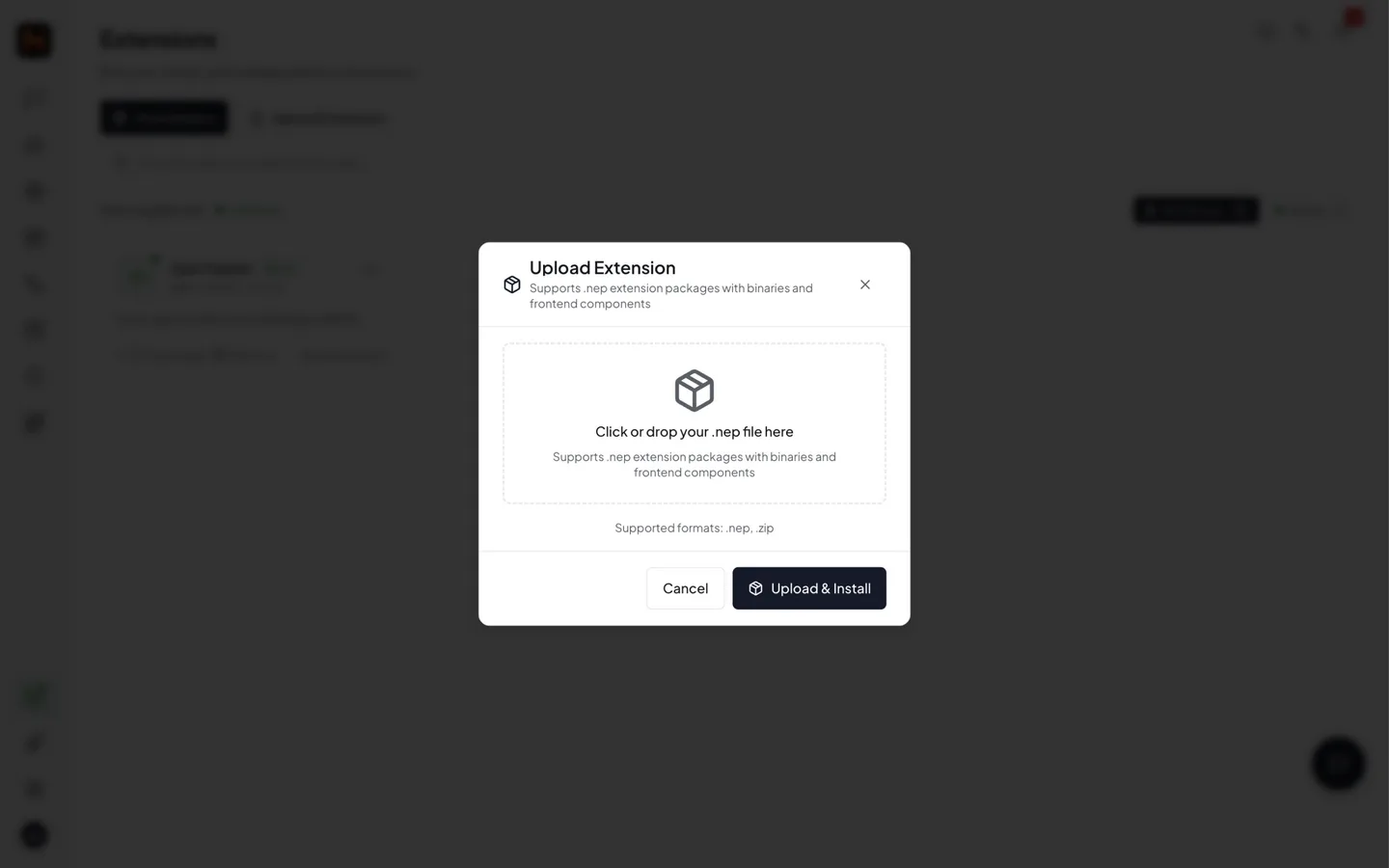
Offline delivery: the Upload Extension dialog — drop or pick the .nep package, Upload & Install
Configure the camera connection:
- Open gym-tracker config from the extension list
- Fill in the camera connection:
device:
  host: 192.168.x.x        # camera IP (check the router, or use the [CamThink discovery tool](https://github.com/camthink-ai/neoruntime/releases/tag/v1.0.2))
  username: admin
  password: <camera password>
  tls_insecure: true       # camera self-signed cert — keep true
- Save; the extension turns green within ~5s once the camera event stream (WSS) connects
- If it keeps flipping red: verify the camera IP is reachable (
ping <camera-ip>) and the password is correct
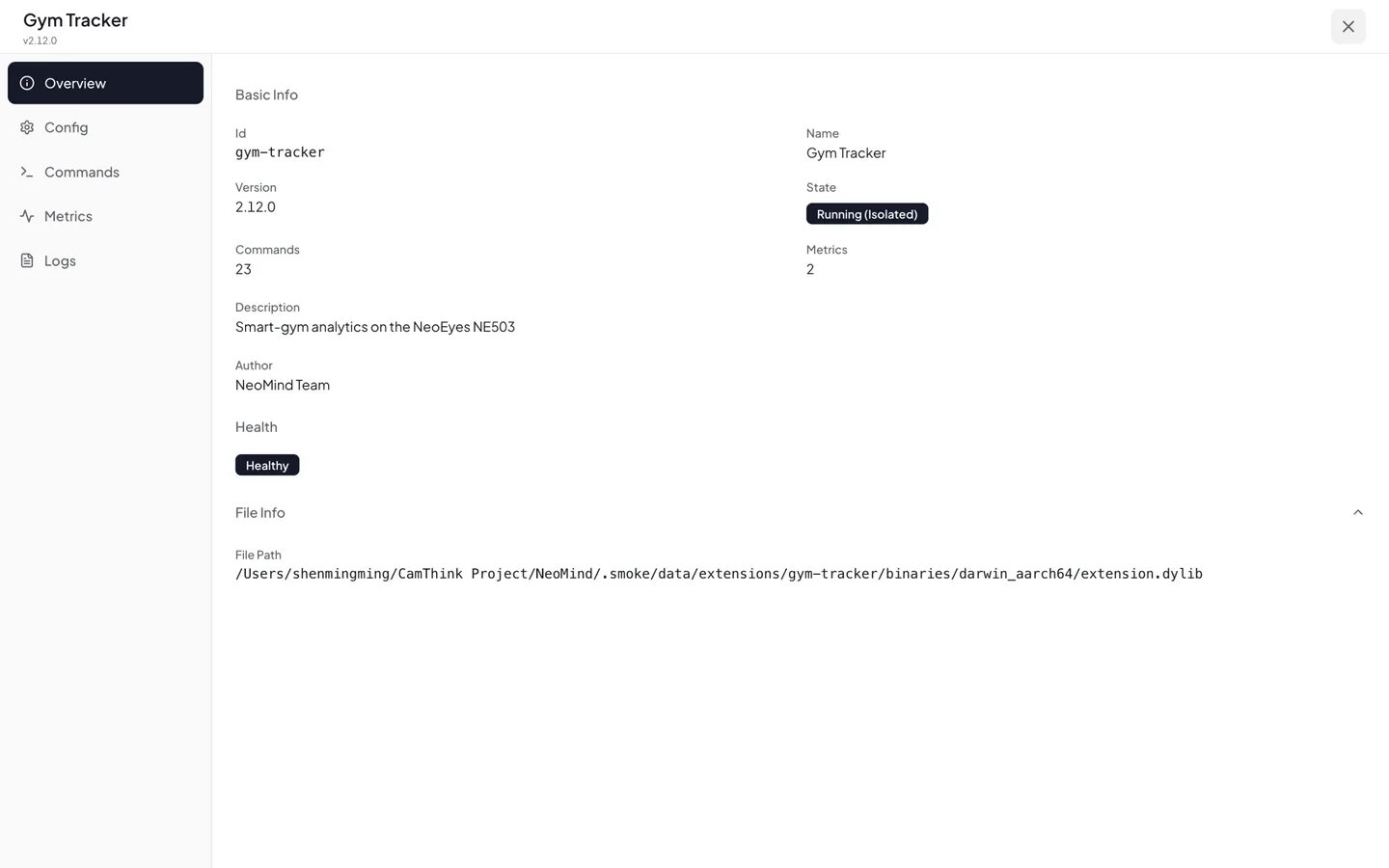
Extension detail: Running (Isolated) state, health check, Config / Commands / Metrics / Logs tabs
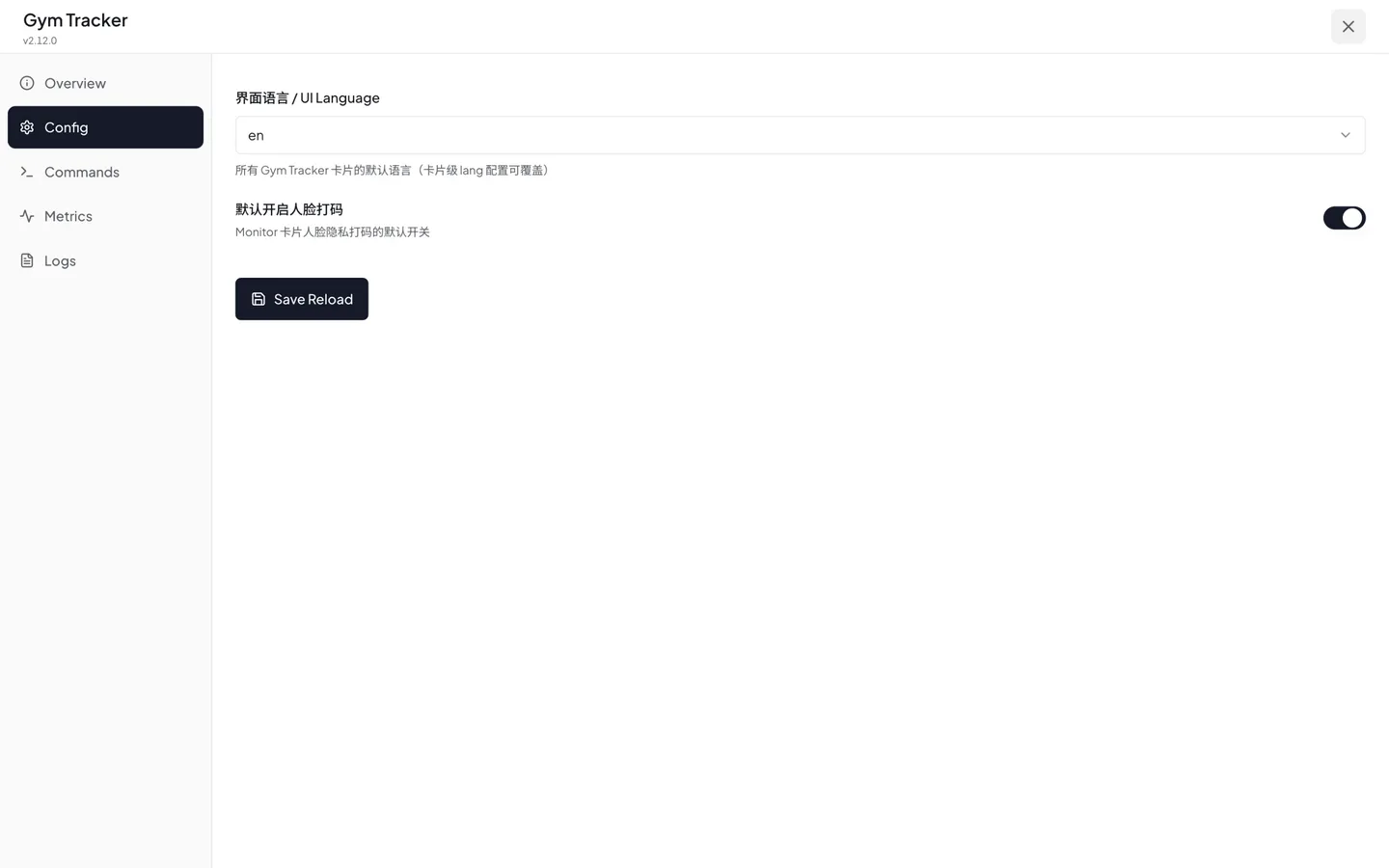
Extension config: UI language (English default), privacy-mosaic default, Save Reload
UI language: extension dashboards default to English; set ui.language: zh in the extension config for Chinese.
Multi-camera: add more device entries in the config, after each camera has completed 4.3.
4.4 Commissioning (Four-Link Verification)
Verify in order; if a link fails, debug that link first:
- Streaming: camera web → Apps → gym-native shows
stats: xx fps(≥15) — on-camera inference healthy - Events: the platform extension is green with no reconnect alerts — the event stream reaches the platform
- Detection: walk into frame and wave; skeleton + bbox appear within 1s — the tracking chain works
- Recognition: walk past the camera naturally → an "unrecognized person" card appears → register a name → the name shows on the next appearance — the recognition chain works
All four green = site acceptance passed.
4.5 Data Storage & Display
- Member library / zone config / training records: stored in the NeoMind host data volume, auto-backed up daily; the camera holds no persistent business data — replacing a camera is just a re-install
- Video: the dashboard live view uses the camera 720p sub-stream; the platform does not store raw video. Chrome / Edge / Safari 16.4+ decode H.264 in hardware via WebCodecs at the native 30fps; older browsers without WebCodecs automatically fall back to a camera-side color JPEG preview (~12fps) — frame-rate differences almost always come from the browser, not the system
- Dashboards: recommended trio — live headcount & occupancy overview, equipment-zone utilization, member training report entry; see Using Dashboards
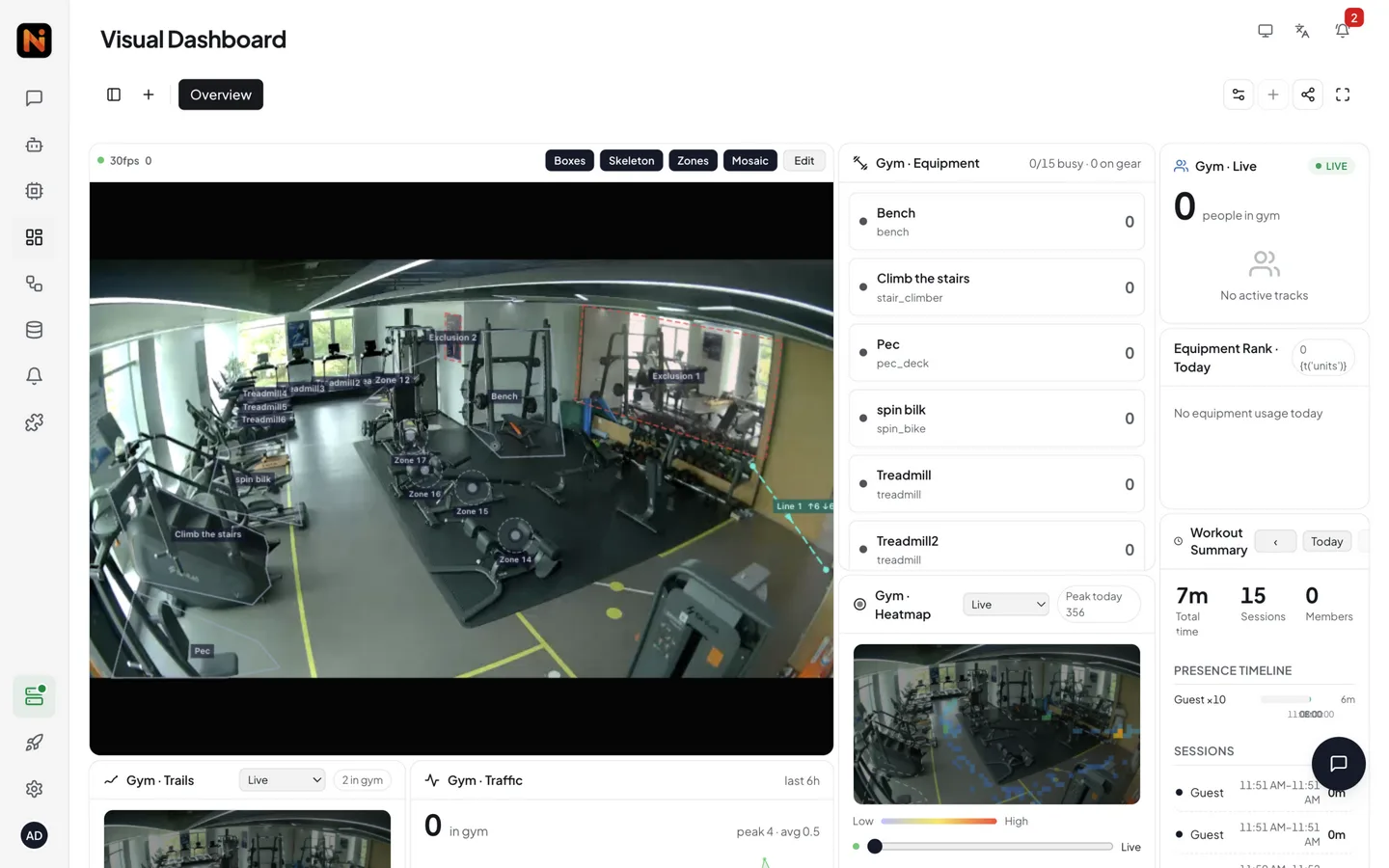
Dashboard top: live video (skeleton/boxes/zone overlay), equipment occupancy panel (0/15 busy), workout summary, traffic trend
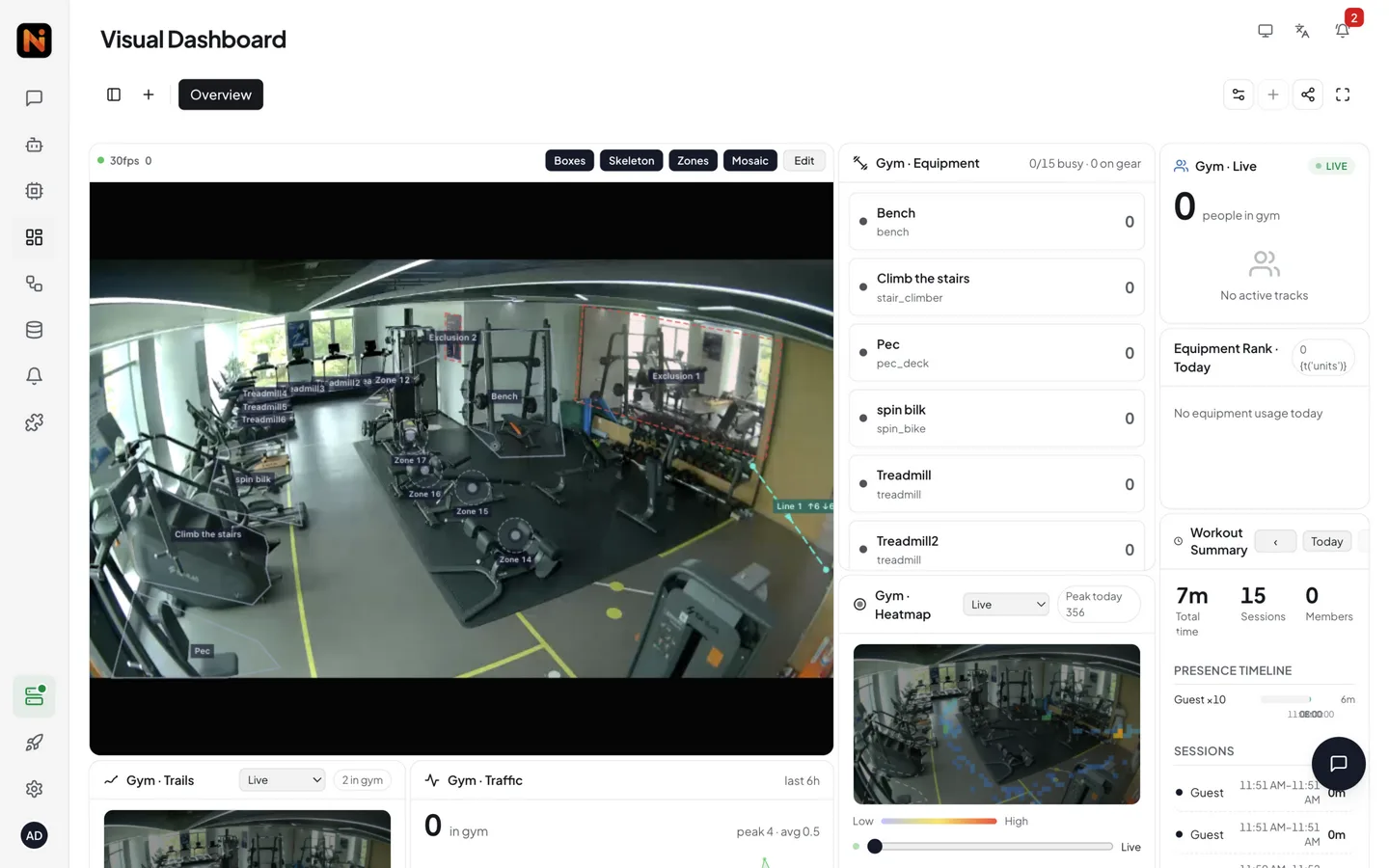
Full dashboard: door flow, heatmap, trails, alerts (fall suspects), member visits, live headcount
4.6 Data Forwarding (optional)
To integrate a member-management system / video wall / mini-program, choose by real-time needs:
| Method | Description | Fits |
|---|---|---|
| Data Push | pushes selected data (check-in events, training summaries) to business HTTP endpoints in real time, with retries | live walls, door integration |
| OpenAPI pull | business systems pull data on a schedule via REST API | daily/weekly reporting |
- Configuration: Data Push / Platform API
- Field mapping example: member ↔ member ID + name; arrival/departure ↔ event timestamps; training detail ↔ exercise × reps; equipment usage ↔ zone name + duration
5. Business Usage (Extension Cards in Detail)
The gym-tracker extension surfaces on the NeoMind dashboard as a set of "cards", one per business module. This section walks through each: the business need it solves and how to operate it. Every card supports Live / Replay switching; the UI language follows the extension config ui.language (overridable per card).
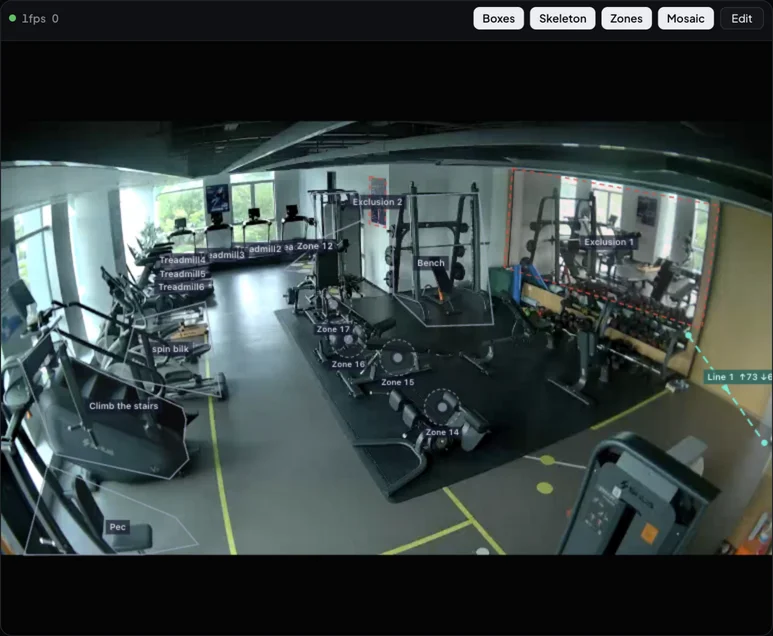
5.1 Live View & Skeleton Overlay (Video Overlay)
What it solves: the cockpit for floor walks and tuning — see directly what the AI sees: are skeletons complete, are zones framed right, is traffic being counted — while protecting privacy.
How to operate:
- Open the card for the live view with body boxes and 17-keypoint skeletons overlaid; switch
Live / Replayfor past windows - Zones: create/edit equipment ROIs on the frame (rectangle / polygon, named e.g. "Treadmill 1", "Dumbbell area"); saving takes effect immediately — a foot point inside a zone for ≥3s counts as "in use" (passers-by filtered)
- Count lines: draw one line at the entrance; each crossing counts one entry/exit
- Exclusions: mark pillars, mirrors and other noise areas as invalid to avoid false detections
- Mosaic toggle: auto-mosaic non-relevant people for privacy
Keep zones small — overlapping equipment zones double-count people standing between machines.
5.2 Live Presence & Track List (Live State)
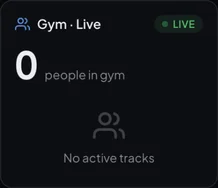
What it solves: answers "how many people are in the gym right now, who are they, where".
How to operate: the card header shows the live headcount; the list shows everyone present (member name / guest, current equipment zone, pose state) — click to locate them in the 5.1 view.
5.3 Equipment Occupancy Board (Equipment Grid)
What it solves: whether each machine is busy / on gear / idle at a glance — steer members to free equipment, review utilization.
How to operate: one cell per machine with live color and status text (requires zones from 5.1); the header strip summarizes overall occupancy.

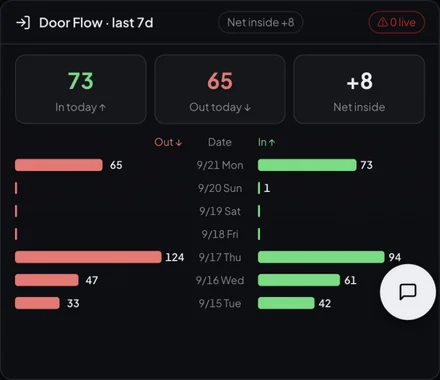
5.4 Traffic Trend & Door Flow (Traffic Chart / Door Flow)
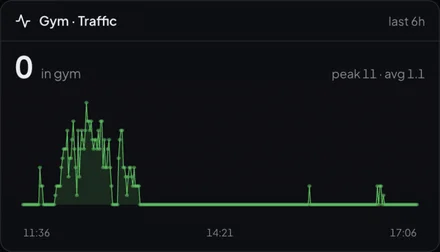
What it solves: time-slot traffic and net entry/exit flow — the basis for scheduling and staffing decisions.
How to operate:
- The traffic card shows the presence curve over the last N hours
- The door-flow card shows today's in / out / net-inside: crossings accumulate automatically once a count line is drawn, logged daily, with previous/next day paging
5.5 Workout Summary & Equipment Rank (Workout Summary / Equipment Rank)
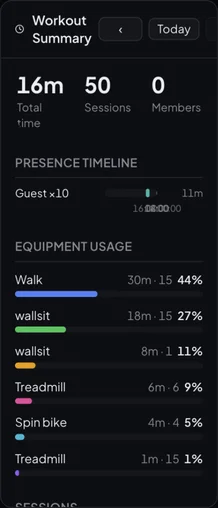
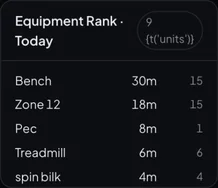
What it solves: today at a glance — how many visitors, how long they trained, which machines are most popular.
How to operate: the summary card shows total time, sessions, visiting members, a presence timeline and equipment usage duration (explicitly flagged when a day has no records); the rank card bars today's per-machine usage duration.
5.6 Member Report & Member Management (Member Report)
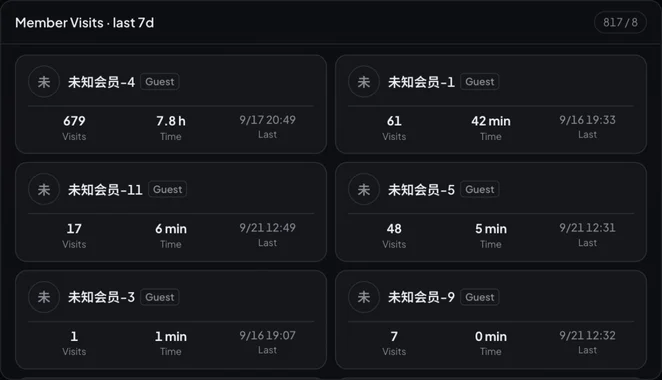
What it solves: the per-member quantified view for coaches and members — per-session details, history trends and training suggestions, turning coaching from gut feeling into data.
How to operate:
- Member enrollment (passive): have the member walk naturally in front of the camera for 1–3s (1–3m works best) → the "unidentified person" card appears → fill in name / phone → save; they are auto-recognized afterwards. Bulk enrollment is available via CamThink
- Read reports: pick a member → per-session details (equipment, exercise, sets × reps), workout history (by day / last N days), exercise analysis, equipment split, visit log; the recognition channel status is shown on the card
- Member management: rename; use "merge" to fold a repeat enrollment / outfit change into one member; deleting a member removes their features and visit history (with confirmation)
- Privacy: only anonymous feature vectors are stored, never raw footage; anonymous walk-ins are excluded from stats
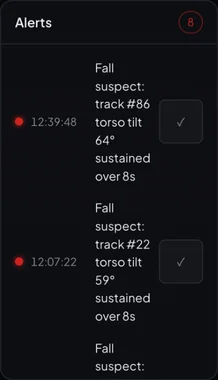
5.7 Live Alerts (Alerts)
What it solves: fall detection and long-occupancy watch — immediate notification of safety events and operational anomalies.
How to operate: alerts appear with time and message; click "mark handled / false positive" to close the loop. When there are none the card reads "all clear — fall detection & occupancy watch running".
5.8 Trails & Heatmap (Trails / Heat)
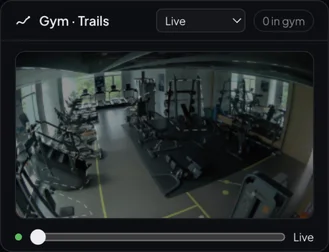
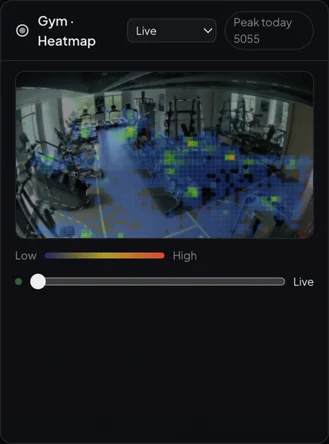
What it solves: member flow lines and zone heat — answers "where do members move, when is it densest", the data basis for equipment layout, circulation optimization and new purchases.
How to operate:
- Trails card: draws members' recent flow lines on the gym view ("blue line = recent trail"); switch
Live / Replay, page through history with "previous / next day" — drag the timeline to the right end for live - Heat card: renders zone density by sample count with a low→high color scale and marks today's peak window; switch dates to compare heat distribution across periods
- Data source: footprint logs accumulate from extension activation; empty windows are explicitly flagged ("no footprints in this window")
Business use: peak-hour heat concentrated on a few machines → consider adding units or re-layout; a chronically cold free-training area → optimize space utilization; dense crossing flow lines → watch for safety hazards.
5.9 Optional Tuning
| Scenario | Adjustment |
|---|---|
| Occasional box flicker | confidence_threshold 0.6 → 0.7 in app config GYM_POSE_VARIANT_JSON |
| Missed small far targets | ask CamThink to adjust tiling params (2×2 coverage ratio / refresh cadence) |
| Visible skeleton lag | check network bandwidth; confirm the video uses the sub-stream |
6. Daily Operations
6.1 Self-Healing (no human action)
| Fault | System behavior | Recovery |
|---|---|---|
| Stream hiccup | auto-reconnect | seconds |
| Stream dead over 30s | app auto-restarts (built-in watchdog) | ~2 min |
| Camera / host power cycle | app and platform auto-start, data preserved | ~30s |
6.2 When to Intervene
| Symptom | Action |
|---|---|
| No dashboard data over 10 min | camera web → Apps → gym-native → Stop/Start |
| Video stutter | check bandwidth and network; confirm sub-stream |
| Camera unreachable | check PoE power; power-cycle the camera |
| Need logs | camera web → Logs → gym-native |
| No detection long after a service restart | restart the camera (web → System, or POST /api/v1/system/restart) — the NPU service occasionally fails to come up with boot |
Legacy gym-bridge app present on the camera | stop it and set autostart: false in its manifest (a watchdog recovery script may bring it back) |
All camera-side operations go through the HTTPS API (no SSH). Log keyword quick reference:
| Log keyword | Meaning | Action |
|---|---|---|
stats: xx fps, pub ok | healthy heartbeat | none |
stream watchdog — exiting(1) | self-healing from stream loss | wait 2 min; if recurring, check the network |
HAILO_TIMEOUT / VDevice | NPU anomaly | restart the app; if recurring, contact support |
6.3 Upgrades
- App upgrade: re-run
camera-install.shwith the new package (overwrite, ~2 min, member data preserved); with the camera online,publish/install-remote.shpulls the new image — equivalent to the offline upgrade - Firmware upgrade: camera web → System upgrade → upload the package (~10 min; installed apps are preserved)
7. Performance & Specifications
| Metric | Value |
|---|---|
| Detection frame rate | ~20fps (720p sub-stream, rotating 2×2 tiling) |
| Full-field refresh | ~200ms |
| Identity recognition latency | within 1s |
| Coverage per camera | 10–20 members, mid-size venue |
| Self-healing | stream loss ~2 min; power loss ~30s |
| Bandwidth per camera | video 2–4Mbps + event stream under 100KB/s |
Recognition and statistics accuracy depend on lighting, crowd density and occlusion — validate on site at deployment.
8. Support
- Community: Discord / GitHub Discussions
- Customization & volume deployment: contact us — the CamThink support team will follow up
- Exercise library extension / multi-venue aggregation / CRM integration: same channel; include venue size and your existing member system
Learn More
- Solution Description
- NeoEyes NE503 Overview
- NeoMind Platform Docs
- gym-tracker extension open-source repo: github.com/camthink-ai/NeoMind-Extensions