Displaying Content
The Display page has three mutually exclusive mode tabs. All three end the same way:
Build a Spectra 6 six-color frame (in the browser or on-device) → Push to screen → full refresh ~20–40 s.
| Mode | Best for | On-device path |
|---|---|---|
| Image | Full-screen photo / poster | Browser quantize → uploadFrame |
| Editor | Doorplates / signs: text + boxes + QR + partial images | renderCanvas |
| Markdown | Notices and bullet lists | Parse to canvas, then refresh |
Screenshots and control names below follow the English UI (System → Preferences → Language can switch to 中文). Mobile layout is usually canvas on top, controls below; desktop is canvas left/center with controls on the right.
Shared top bar (all three modes)
| Control | Role | Tip |
|---|---|---|
| Original | Source / design colors — not final ink look | Compare only |
| E-ink 6 | Browser Floyd–Steinberg + Spectra 6 preview | Always check before Push |
| Layout guides | Safe area, midlines, resolution badge | Use while composing |
| Push to screen | Refresh the panel with the current mode’s preview | No power-off; do not spam clicks |
Panel palette: black / white / yellow / red / blue / green only. Logical canvas is always 1600×1200. Trust E-ink 6 for photos, gradients, and fine text.
The API returns busy; hammering Push to screen fails easily. Check System → Event log or UART on failure.
Image mode
What the page looks like
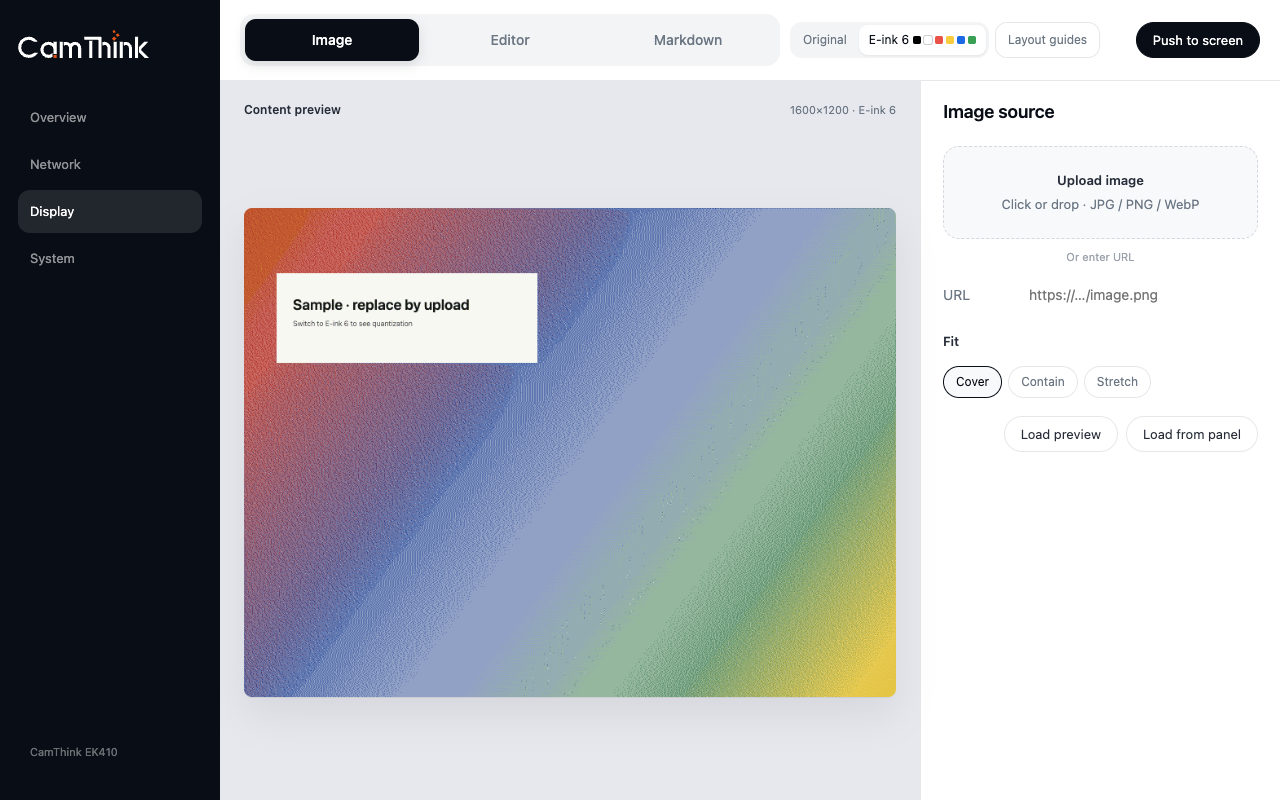
Top tab Image. Center: Content preview. Right: Image source.
First open may show a sample gradient (Sample · replace by upload) — it is not pushed until you upload / load preview and Push.
Controls
| Control | Notes |
|---|---|
| Upload image | Dashed Click or drop — JPG / PNG / WebP |
| URL | Reachable image URL (device needs Internet) |
| Load preview | Device fetches via STA (proxyImage). On SoftAP the phone often has no Internet — must use device fetch |
| Fit → Cover | Fill 1600×1200, may crop |
| Fit → Contain | Entire image, may letterbox — best first choice |
| Fit → Stretch | Force fill, may distort |
| Load from panel | Pull Flash lastfrm into the preview for edit-and-push |
Steps
- Open Display, select Image.
- Either upload a local JPG / PNG / WebP, or paste a URL → Load preview (home Wi‑Fi required for URL).
- Choose Fit (start with Contain).
- Switch to E-ink 6; enable Layout guides if useful.
- Push to screen; wait ~25–35 s (up to ~40 s on some units).
- Panel shows your image; Overview Current panel should show a snapshot (Refresh if needed).
- (Optional later) Load from panel → adjust Fit / replace → Push again.
Troubleshooting
| Symptom | Fix |
|---|---|
| URL preview fails on SoftAP | Join home Wi‑Fi first, or upload locally |
| Panel colors differ from the browser | Did you check E-ink 6 before Push? |
| Cropped / too much letterbox | Try another Fit |
| Push busy / error | Wait for the previous refresh; check Event log |
| Upload does nothing | Confirm JPG / PNG / WebP; try a smaller file |
Editor mode
Best for
Layered layouts on a solid background: titles, body text, color bars, QR codes, small logos — not a full-screen photo swap (use Image for that).
What the page looks like
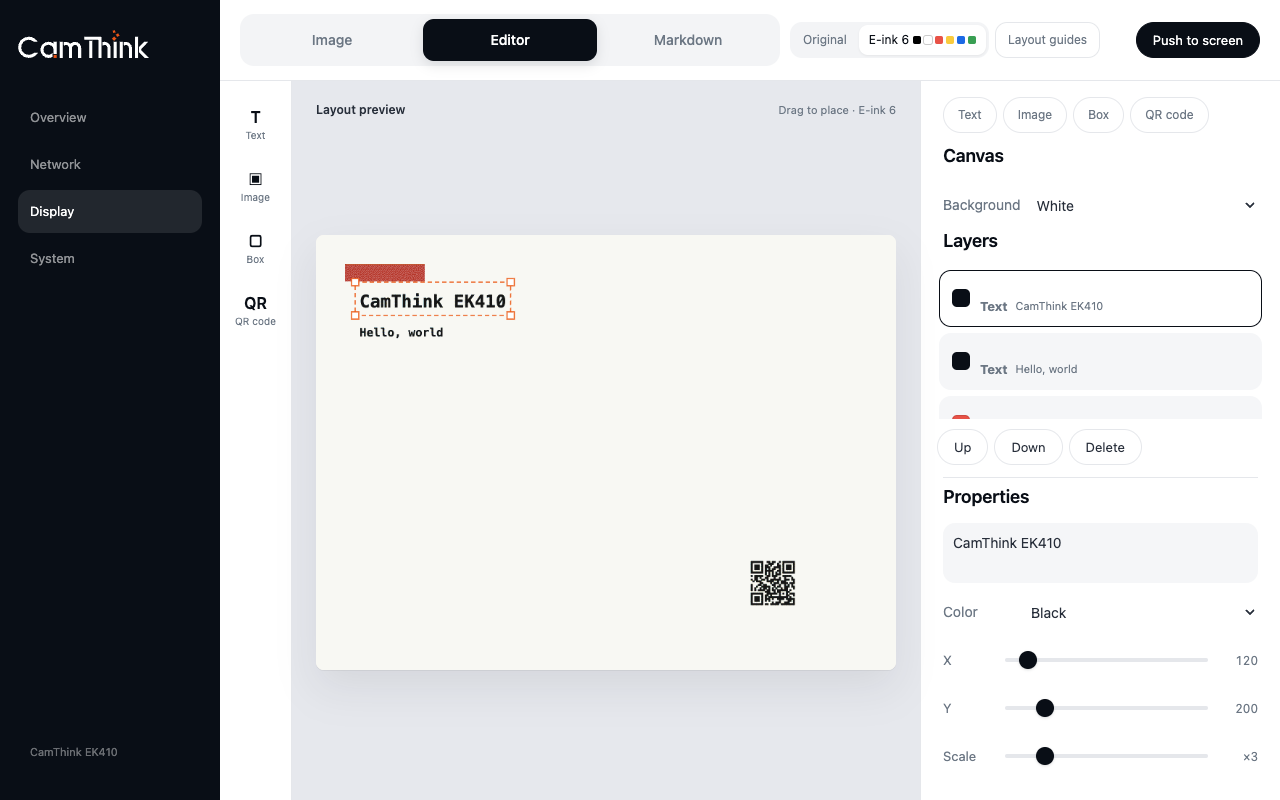
Top tab Editor. Center: Layout preview (draggable). Left tool strip; right Quick add / Canvas / Layers / Properties.
On phones, Add / Layers bottom sheets replace the right rail — same concepts.
Regions
| Region | Role |
|---|---|
| Left tools / Quick add | Text, Image (layer), Box, QR code |
| Canvas → Background | Page fill (one of six colors) |
| Layers | Select; Up / Down / Delete |
| Properties | Edit the selected layer (Select a layer to edit when none) |
| Drag on canvas | Reposition selection (Drag to place) |
Layer types and properties
| Type | How to add | Typical Properties |
|---|---|---|
| Text | T / Text | Content, Color, X / Y, Scale (size multiplier; ZH UI may say 字号) |
| Box | Box | Color, X / Y, size sliders (bars / dividers) |
| QR code | QR | URL (link or text), X / Y, Scale / Size |
| Image (layer) | Image | Upload / Replace image, position / size — a partial paste, not Image-mode full-screen |
Starter sample layers (CamThink EK410, Hello, world, swatch, QR) can be edited or deleted.
Steps (doorplate example)
- Switch to Editor.
- Canvas → Background → White (or another six-color fill).
- Add Text for the title → edit Content / Color / Scale; drag on canvas.
- Add body Text for subtitle / time.
- Add a Box color bar if needed (brand orange often maps near red on ink — trust E-ink 6).
- Add QR and set URL.
- Reorder in Layers so text is not covered.
- Check E-ink 6 + Layout guides.
- Push to screen and wait for the full refresh.
Limits
| Item | Notes |
|---|---|
| Canvas | Logical 1600×1200 WYSIWYG after quantize |
| Elements | Prefer ≤ 48; QR prefer ≤ 2 |
| Font | No color emoji in panel font — replaced with text symbols |
| Push path | Layer JSON → device renderCanvas → full refresh |
| vs Image mode | Switching tabs does not convert a full-screen photo into layers; mode state is independent |
Markdown mode
Best for
Notices, agendas, bullet lists. Mapped to a canvas layout then pushed. Not for pixel-perfect posters (use Editor or Image).
What the page looks like
Top tab Markdown. Left: Write Markdown. Right: Layout preview (badge like Markdown → canvas · E-ink 6).
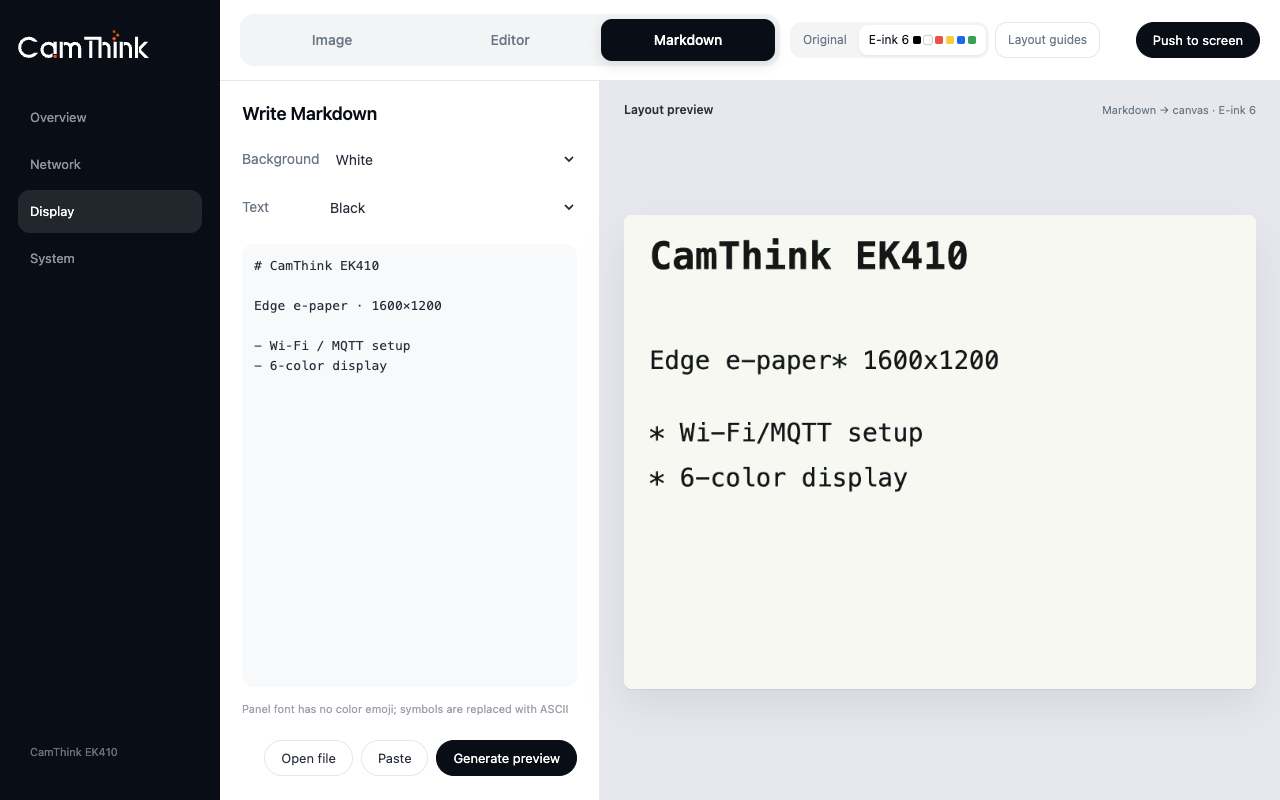
Editing the left pane does not continuously equal the final layout. Click Generate preview, trust the right preview, then Push to screen.
Controls
| Control | Notes |
|---|---|
| Background | Page fill (six colors) |
| Text | Default text color (six colors) |
| Editor | Type / paste Markdown; sample text may appear on first open |
| Open file | Load a local .md file |
| Paste | Paste sample / clipboard (toast confirms) |
| Generate preview | Map Markdown → layout (H1→large, paragraphs→body, lists→lines) |
Hint text notes that color emoji are replaced with ASCII symbols.
Syntax mapping
| Write | Typical preview |
|---|---|
# Heading | Large H1 |
## Subheading | H2 |
| Paragraphs | Body lines |
- / * lists | Multi-line items |
 | Image pipeline (device must reach the URL; SoftAP-only often fails) |
If content is too long, the preview may truncate (toast like Content truncated…): shorten text or reduce mapped scale, then Generate preview again.
Steps
- Switch to Markdown.
- Set Background / Text.
- Replace the editor text, or Open file / Paste.
- Click Generate preview; inspect Layout preview.
- Edit → Generate preview again (required after every change).
- Confirm with E-ink 6.
- Push to screen; wait for full refresh.
Troubleshooting
| Symptom | Fix |
|---|---|
| Text changed but panel/old preview | Did you Generate preview and Push? |
| Truncation toast / missing lines | Shorten; fewer huge headings |
 missing | Home Wi‑Fi up? URL publicly reachable? |
| Odd emoji glyphs | Expected — use plain text / symbols |
Current panel (lastfrm)
- Each successful user refresh (Image upload, URL push, Editor, Markdown, …) writes Flash
lastfrm(skipped if unchanged). - SoftAP guide art and boot CamThink logo are not written.
- Overview shows a snapshot; Image Load from panel pulls it back for editing.
- Deep sleep / power loss keeps the last e-paper frame; the snapshot is for web preview and re-edit.
Platform / wake images (not via Display tabs)
MQTT display_url and power Wake image (wakeUrl) decode on-device — not through Image / Editor / Markdown:
| Format | Notes |
|---|---|
| Native frame | 960000-byte 4bpp; can stream in chunks (more resilient to PSRAM fragmentation) |
| JPEG / PNG | On-device decode; baseline JPEG only (progressive → JPEG decode fail); huge images may downscale in Speed mode |
| WebP | Unsupported (2MB PSRAM) — convert to JPEG / PNG first |
System → Preferences → URL image: Quality / Speed affects only this path — not browser Image-mode local upload.
Other on-device URL limits (displayUrl / proxyImage / wakeUrl, firmware 1.3.10):
- Nominal size cap ~1280 KB; acceptance depends on the largest free PSRAM block (
need …KB, max block …KB). - HTTP(S) follows at most 5 redirects; https never downgrades to http.
- Frequent
getDevInfopolls can leave TCP control blocks that shrink the free block — wait and retry, or use a native frame / smaller image. GET /api/v1/system/getDiagreportsheap/stackMin— use for debugging, not as a status poll.
MQTT may pause during URL / OTA downloads (deferred_heap / temporary stop) and should resume afterward.
Refresh notes (all modes)
| Symptom | Notes |
|---|---|
| Full refresh 20–40 s | Normal; do not power off |
| Busy / render busy | Wait for the previous job |
| Spam Push | Fails or no-ops |
| SoftAP URL / Markdown images fail | Join home Wi‑Fi so the device can fetch |
| Tab switch changes preview | Mode state is independent; Push uses the active tab only |