Power Management
Power settings live on System → Work mode card (same page: preferences, OTA—see screenshot). Also via API getPowerParam / setPowerParam or MQTT set_power. Stored in NVS, survives reboot.
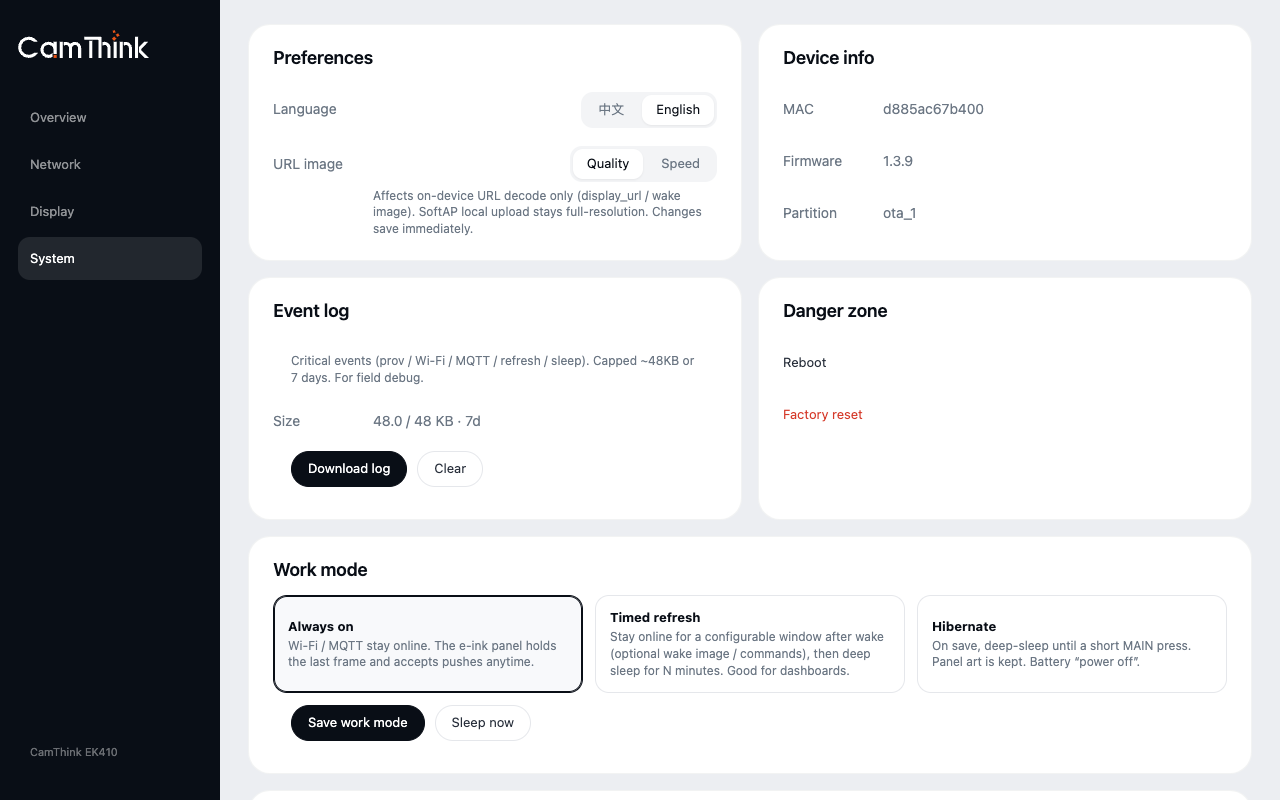
Choosing a mode
| Mode | When to use | Behavior summary |
|---|---|---|
| Always-on (default) | Push anytime, MQTT always when awake | No deep sleep; Wi‑Fi/MQTT stay up |
| Scheduled refresh | Dashboard every N minutes | Wake → (optional wake image) → online wakeSec s → sleep sleepMin min → repeat |
| Sleep | Long idle, max savings | Deep sleep until button wake; panel holds image |
No “half-online keepalive” tier: MQTT keepalive only while device is awake.
Steps: always-on
- Open System.
- Select Always-on in work mode.
- Save work mode.
- Overview Sleep should show always-on.
To sleep temporarily: Sleep now (rejected if SoftAP is on—close hotspot first).
Steps: scheduled refresh (dashboard)
- System → select Scheduled refresh.
- Set:
- Period (min)
sleepMin: sleep duration before next wake, ~1–525600; - Online window (sec)
wakeSec: stay awake on network, 30–600, default 120; - Wake image (optional): image URL each wake (platform can vary per cycle).
- Period (min)
- Save work mode.
- Device arms sleep on new schedule; if SoftAP is on or not yet online, sleep may defer (close hotspot / get IP then sleep).
If the device cannot join the router after boot, it still sleeps after the max online window (600 s) to avoid staying awake until battery dies.
Steps: sleep mode
- Select Sleep.
- Save work mode.
- Behavior:
- Not on SoftAP: usually enters deep sleep quickly;
- Save while on SoftAP: UI shows shutdown-style message; actual sleep waits until hotspot closes (avoid sleeping mid-provision).
Wake: next section.
Waking from deep sleep
| Action | Result |
|---|---|
| Short / long MAIN | Wake → SoftAP (blue LED) |
| Short / long PAGE | Wake → BLE (cyan LED) |
| Timer (scheduled refresh only) | Auto wake; optional wake image |
| Hardware RESET | Exit provision handoff; restore last frame |
A short MAIN / PAGE press does not open SoftAP / BLE (LED unchanged), but it cancels the sleep timer and re-arms the online window on release (especially visible in scheduled refresh: short-press ≈ “stay awake a bit longer”). Opening provision still needs a ~2.5 s long-press.
Preferences: URL image quality
Same System page, Preferences → URL images:
| Option | Effect |
|---|---|
| Quality first (default) | Finer, slower device URL/wake decode |
| Speed first | Faster; more grain; huge JPEG may downsample |
Affects device URL fetch only; browser Image mode push unchanged.
Language (中文 / English) is in preferences—local web UI only.
Status LED quick reference
| Color | Meaning |
|---|---|
| Blue blink | SoftAP |
| Orange blink | Wi‑Fi connect / reconnect |
| Cyan blink | BLE |
| Solid green | Running (online) or idle unprovisioned |
| Red short blink | Fault (provision / OTA / panel) |
| Magenta fast blink | OTA in progress |
| Off | Deep sleep (LED and panel power off) |
MQTT state does not change LED color—use Overview badges.
API / MQTT notes
setPowerParam: only fields present in body change; if neithermodenorsleepMin, sleep schedule unchanged (can update onlywakeSec/wakeUrl/imageQuality).- May return
sleepDeferred: "softap"or"no_sta". sleepNowrejected while SoftAP is on.
See HTTP API, MQTT protocol.