RTMP Video Streaming
The NeoEyes NE301 supports streaming live video to a backend server via the RTMP protocol, enabling use cases such as remote monitoring and AI inference visualization. This guide uses Nginx-RTMP as the receiving server and walks through the complete setup from scratch.
1. Overview
Why Use RTMP Streaming?
The NE301 is an edge AI camera with a built-in H.264 hardware encoder that supports 1080p@30fps video capture. With RTMP streaming, you can:
- Remote real-time monitoring — View the NE301 live feed from any location using a media player, without being on the same local network
- AI inference visualization — Directly verify the detection results and image quality of on-device AI models running on the NE301
- Multi-platform integration — RTMP is a widely adopted streaming protocol compatible with OBS, YouTube, enterprise surveillance platforms, and more
- Video archiving — The backend server can automatically record incoming streams for later review
Typical use cases include remote device debugging, construction site monitoring, unattended inspection, and smart retail shelf visualization.
Power Recommendation: Continuous RTMP streaming is a sustained high-load scenario that requires stable power. The NE301 PoE edition is recommended — it delivers both power and network connectivity through a single Ethernet cable for a clean and reliable deployment. Standard NE301 users can also use USB continuous power (Type-C 5V) for extended streaming sessions.
How It Works
The NE301 pushes an H.264-encoded video stream over WiFi or wired Ethernet to a backend Nginx-RTMP server using the RTMP protocol. Once the server receives the stream, any player (such as VLC or FFplay) can pull the same URL to view the live feed.
Network Requirements: The NE301 only needs network reachability to the RTMP server (port 1935 accessible). Being on the same LAN is not required. For cross-subnet or public network setups, ensure the firewall allows traffic on port 1935.
2. Prerequisites
Hardware
- NE301 device: Powered on, with WiFi or wired network configured
- Computer or server: For running the RTMP server (macOS / Windows / Linux supported)
Software
| Software | Purpose | Installation |
|---|---|---|
| Nginx + RTMP module | Receive RTMP streams | Homebrew (macOS) / apt (Linux) |
| VLC player | Play RTMP video streams | Download from videolan.org |
| FFmpeg (optional) | CLI playback and debugging | Homebrew |
Network Verification
Ensure the NE301 can reach the RTMP server over the network. In the NE301 web interface (Debug Tools → Network Tools), ping the RTMP server's IP address to confirm connectivity.
3. Setting Up the RTMP Server
This section uses macOS with Homebrew to install Nginx-RTMP. Linux users can refer to nginx-rtmp-module to compile from source.
3.1 Install Nginx-RTMP
Open a terminal and run:
# Install Nginx with the RTMP module
brew install nginx-full --with-rtmp
After installation, verify the RTMP module is loaded:
nginx -V 2>&1 | grep rtmp
If the output contains --add-module=...rtmp..., the installation was successful.
3.2 Configure the RTMP Service
Edit the Nginx configuration file:
# Default path on macOS
nano /opt/homebrew/etc/nginx/nginx.conf
You will see the default Nginx configuration:
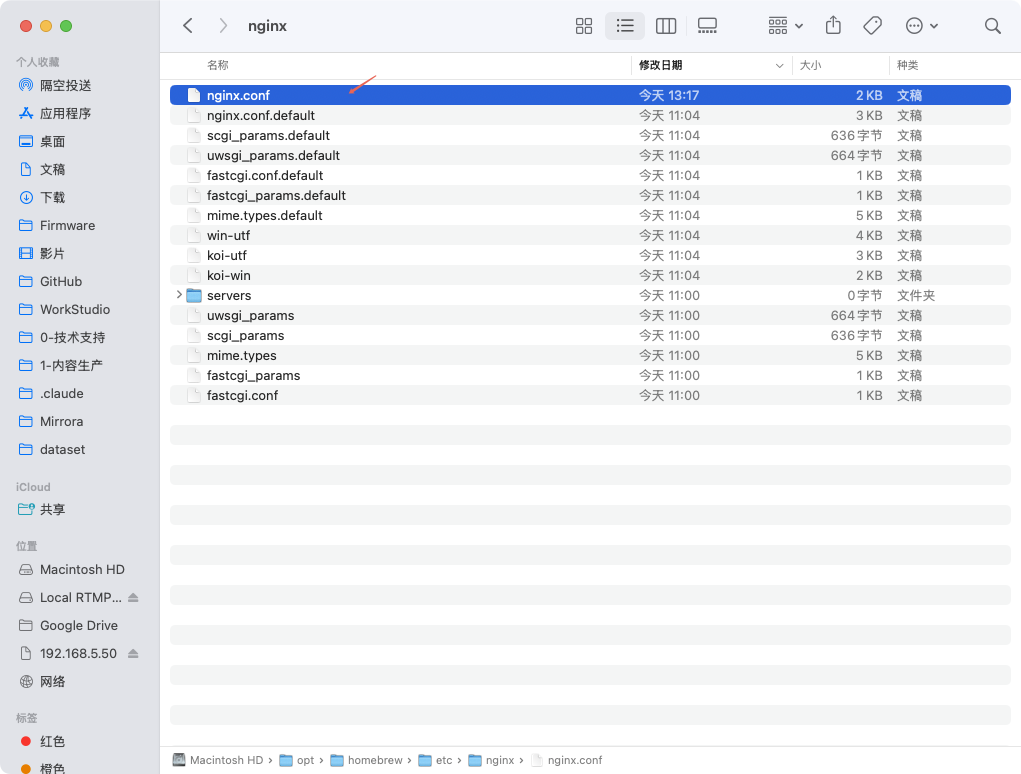
Append the RTMP configuration at the end of the file (outside the http {} block):
rtmp {
    server {
        listen 1935;          # RTMP default port
        chunk_size 4096;

        application live {
            live on;          # Enable live streaming
            record all;       # Record all incoming streams
            record_path /tmp/rtmp-recordings;                    # Recording output directory
            record_suffix -%Y-%m-%d_%H-%M-%S.flv;                # File name format
        }
    }
}
The configuration file should look like this after editing:
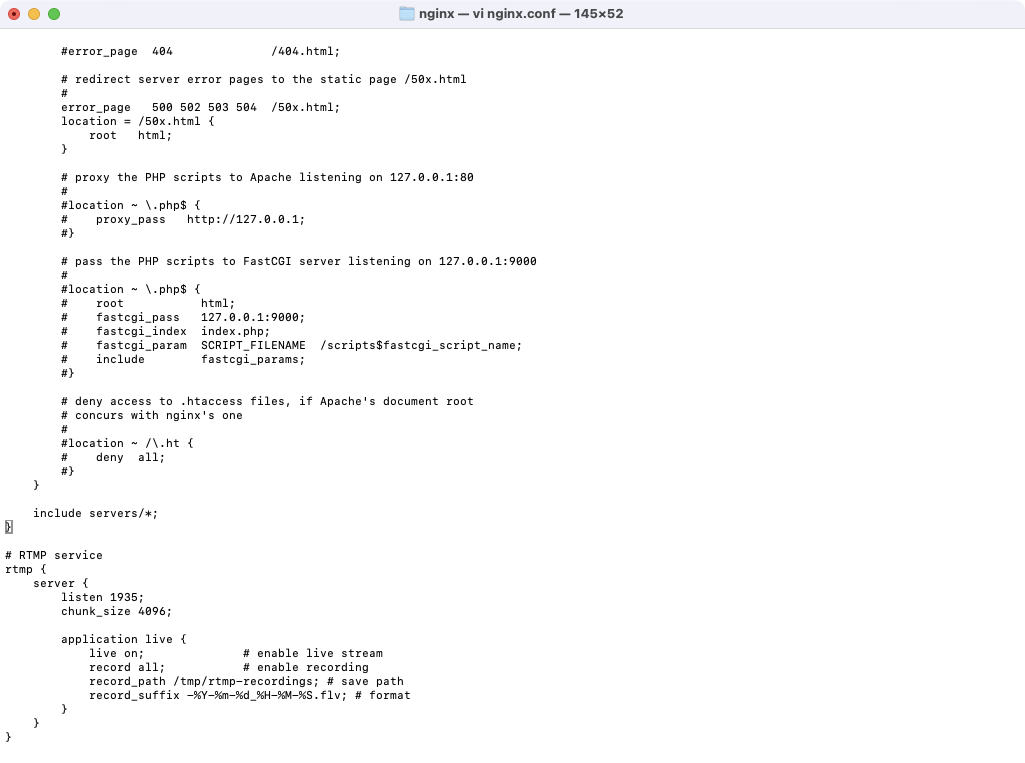
Note: The rtmp {} block must be placed outside the http {} block as a top-level configuration block, otherwise Nginx will report a syntax error.
3.3 Start and Verify
Validate the configuration:
nginx -t
If the output shows syntax is ok and test is successful, the configuration is correct.
Start Nginx:
# First-time start
nginx

# If already running, reload the configuration
nginx -s reload
Confirm port 1935 is listening:
# macOS / Linux
lsof -i :1935
If the output shows nginx ... TCP *:macromedia-fcs (LISTEN), the RTMP service is ready.
4. Configure NE301 Streaming
4.1 Open RTMP Settings
- Connect to the NE301 WiFi hotspot (SSID format:
NE301_<last 6 digits of MAC>), or ensure your computer is on the same network as the NE301 - Open a browser and navigate to the NE301 management address:
http://192.168.10.10 - Enter the password to log in (default:
hicamthink) - Navigate to Debug Tools → Media Stream Settings
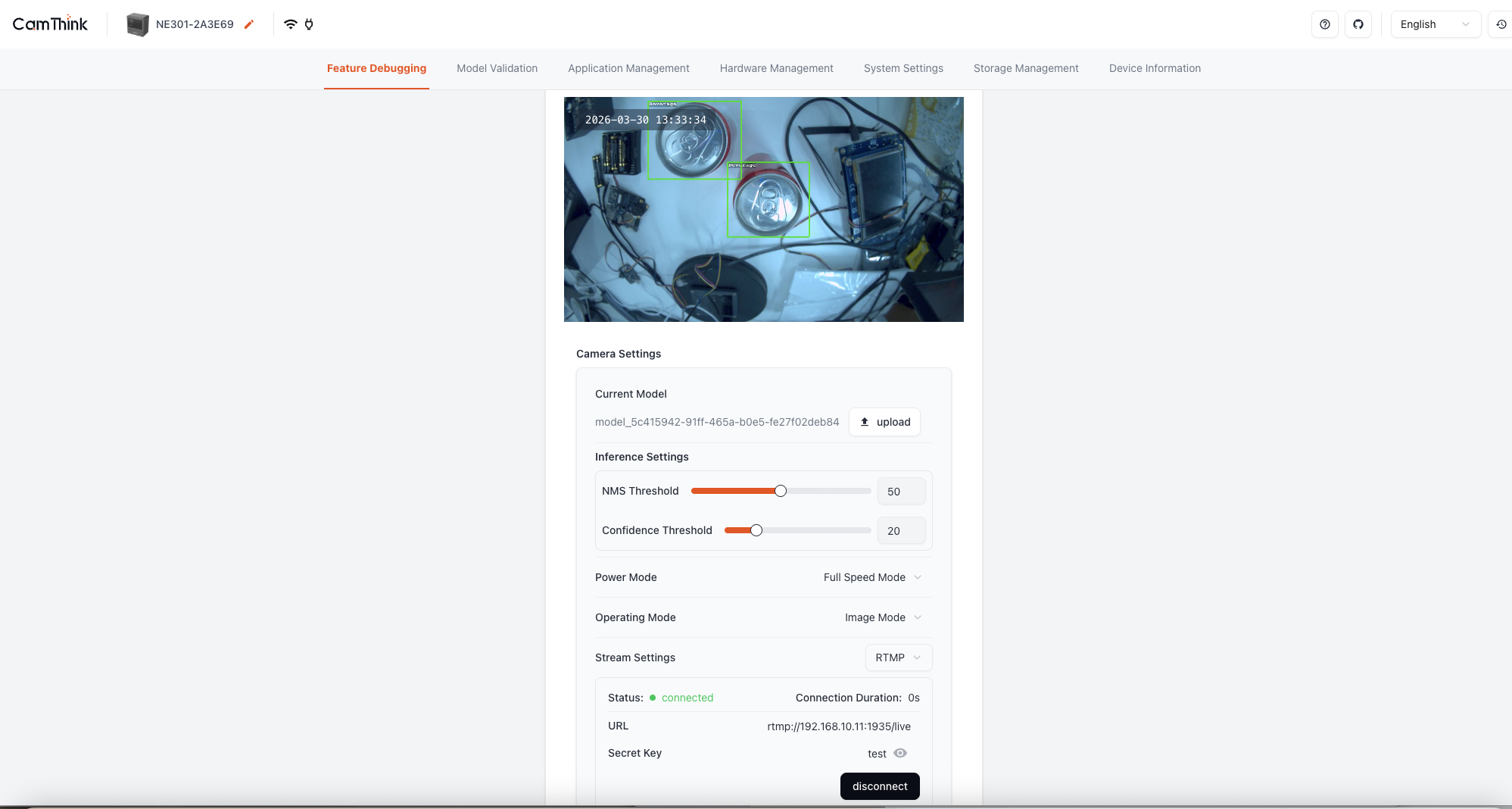
4.2 Enter the Stream URL
On the media stream settings page, locate the RTMP configuration fields and fill in the following:
| Field | Description | Example |
|---|---|---|
| Server Address | IP or hostname of the Nginx-RTMP server | 192.168.1.100 |
| Port | RTMP port | 1935 |
| Stream Key | Custom identifier to distinguish different devices | test |
As shown in the screenshot above, the stream key in this example is set to test.
The complete stream URL format is:
rtmp://<server-ip>:1935/live/<stream-key>
For example: rtmp://192.168.1.100:1935/live/test
Notes:
livecorresponds to theapplication liveblock in the Nginx configuration- The stream key is customizable and used to identify different devices or scenarios
- When using multiple NE301 units, assign different keys (e.g.,
device-a,device-b)
4.3 Start Streaming
Once configured, click the Enable button to start RTMP streaming. The NE301 will begin pushing the live video stream to the server.
5. Playback and Verification
5.1 Playing the RTMP Stream in VLC
VLC is a free, cross-platform media player that supports direct RTMP stream playback.
Step 1: Open a Network Stream
Open VLC and go to Media → Open Network Stream... from the menu bar (on macOS: File → Open Network...).
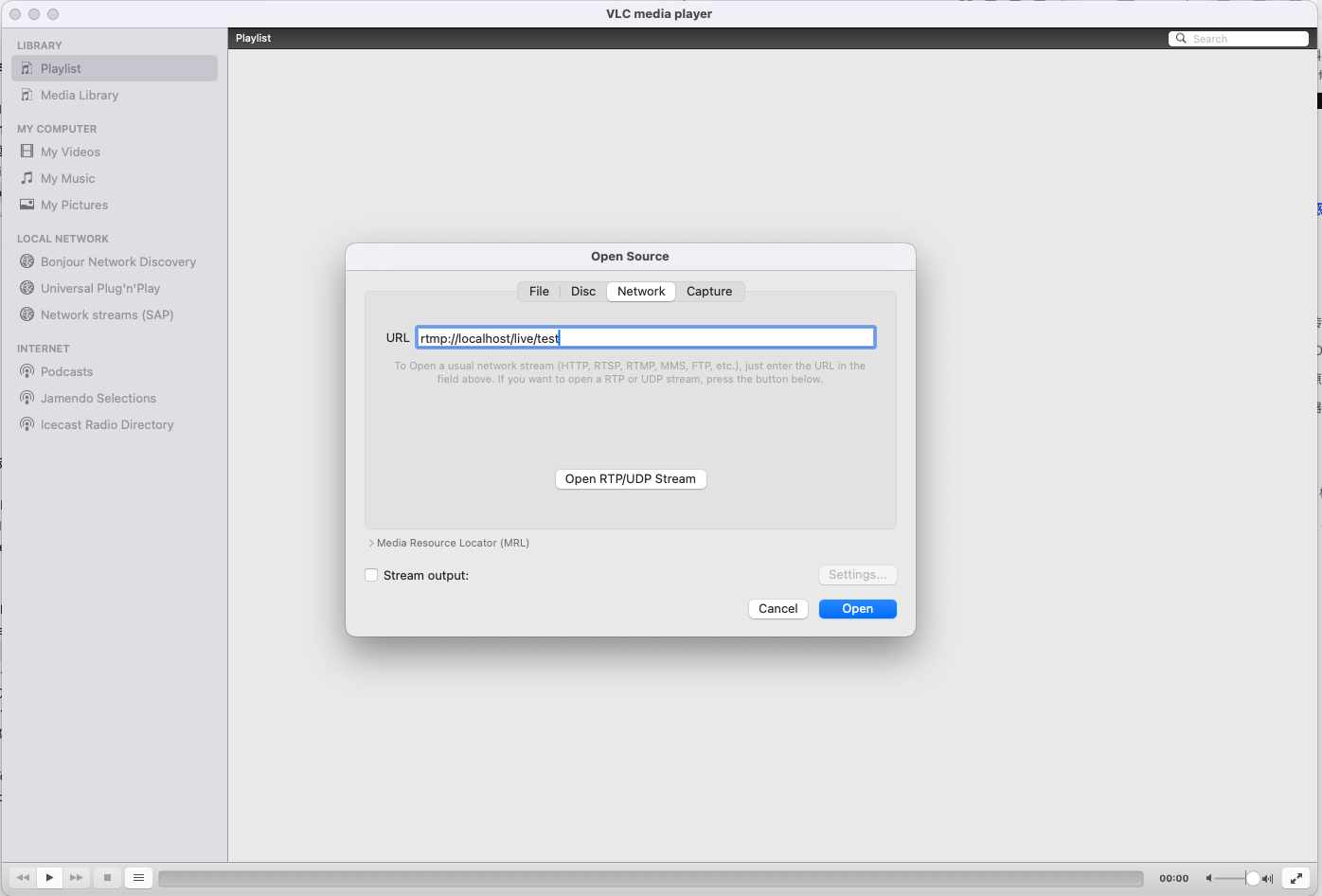
Step 2: Enter the URL and Play
In the "Open Network Stream" dialog, enter the NE301 RTMP address:
rtmp://<server-ip>:1935/live/test
If playing locally (VLC and Nginx-RTMP on the same machine), you can use localhost as the server address:
rtmp://localhost/live/test
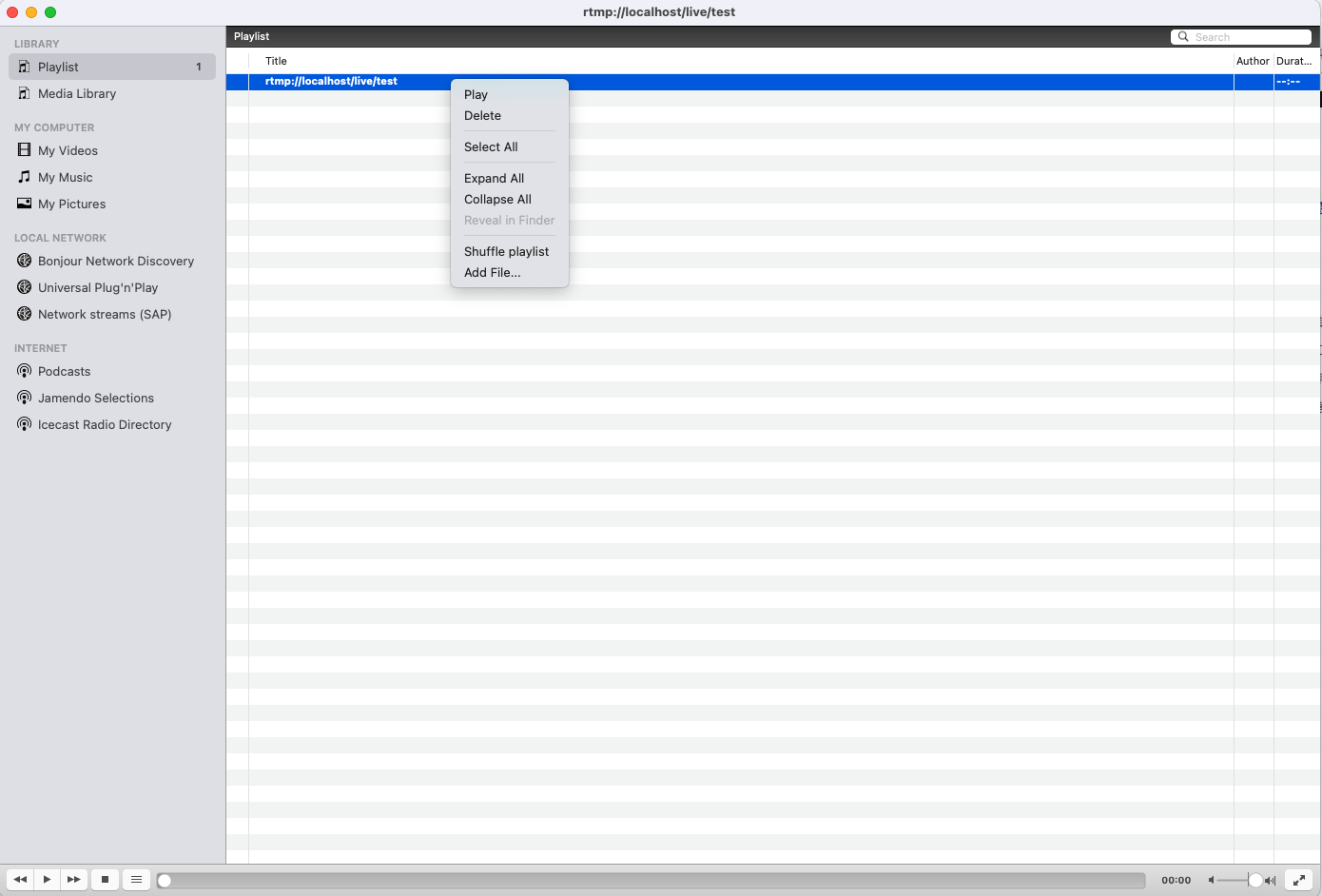
Click Play to view the NE301 live feed.
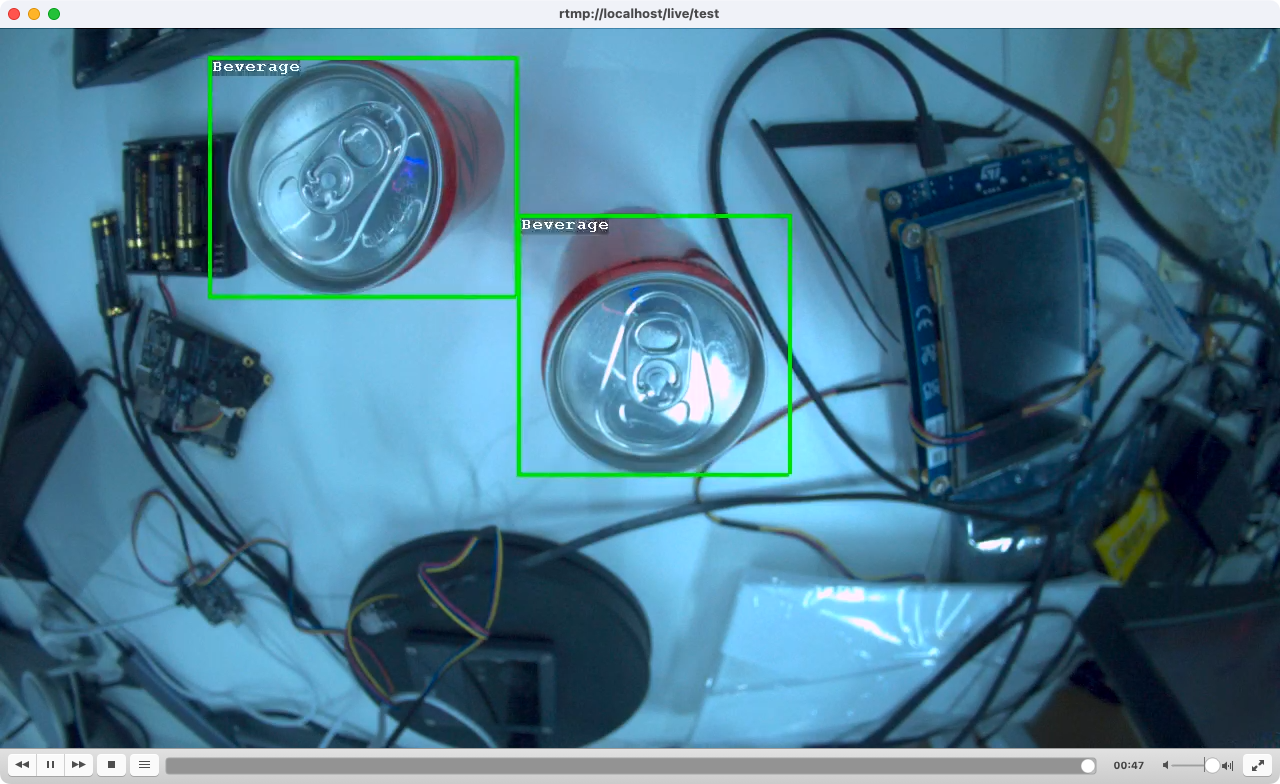
5.2 Alternative Verification Methods
In addition to VLC, you can use command-line tools for quick verification:
# Play with FFplay (reduced latency)
ffplay -fflags nobuffer -flags low_delay rtmp://<server-ip>:1935/live/ne301-camera-01

# Check streaming connection status
lsof -i :1935

# View Nginx error log
tail -f /opt/homebrew/var/log/nginx/error.log
6. Recording Management
6.1 Viewing Recorded Files
If recording was enabled in section 3.2, the recorded files are available on the server after the stream ends:
# List recorded files
ls -lh /tmp/rtmp-recordings/
Recordings are saved in FLV format. File names include the stream key and recording timestamp, for example:
test-2026-03-30_13-30-49.flv
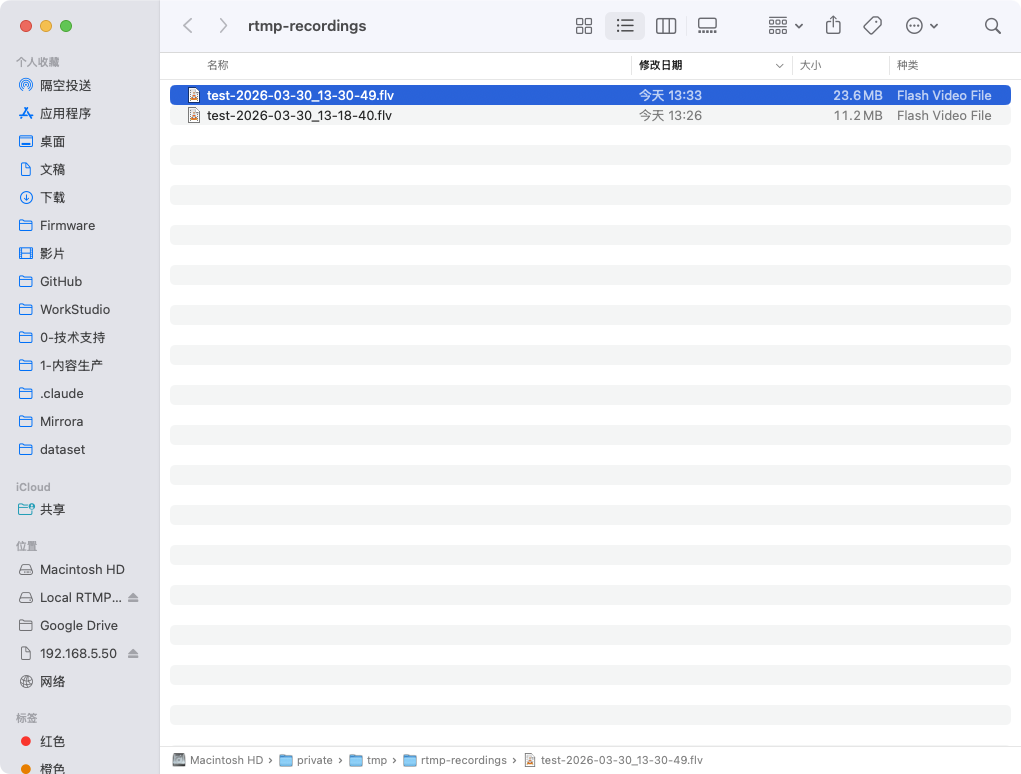
6.2 Common Operations
# Play a recording with FFplay
ffplay /tmp/rtmp-recordings/test-2026-03-30_13-30-49.flv

# Convert to MP4 using FFmpeg
ffmpeg -i /tmp/rtmp-recordings/test-2026-03-30_13-30-49.flv -c copy output.mp4
Note: The /tmp directory is cleared on system reboot. For persistent storage, change the record_path in the Nginx configuration to a different directory (e.g., /home/user/recordings) and reload the configuration with nginx -s reload.
7. Troubleshooting
NE301 Streaming Errors
| Symptom | Possible Cause | Solution |
|---|---|---|
WriteN, RTMP send error 119 | Connection interrupted or handshake failure | Verify the server IP and port are correct |
WriteN, RTMP send error 9 | File descriptor invalid, connection dropped | Check network stability and retry streaming |
| Stream disconnects immediately after starting | RTMP server is not running | Confirm nginx is running and port 1935 is listening |
Server-Side Troubleshooting
# Check if Nginx is running
ps aux | grep nginx

# Check if port 1935 is listening
lsof -i :1935

# View Nginx error log
cat /opt/homebrew/var/log/nginx/error.log

# Validate the configuration
nginx -t
Network Connectivity Troubleshooting
# Test server port reachability from the NE301 network side
# Use the Network Tools in the NE301 web interface to ping the server IP

# Test from the computer side
nc -zv <server-ip> 1935
Common Network Issues:
- Firewall: Ensure the server firewall allows inbound traffic on port 1935 (TCP)
- NAT/Port Forwarding: If the server is behind NAT (e.g., home network), configure port forwarding for 1935 on the router
- Cross-subnet routing: Ensure the route between the NE301 and the server is reachable
8. Appendix
Complete nginx.conf Reference
worker_processes 1;

events {
    worker_connections 1024;
}

http {
    include       mime.types;
    default_type  application/octet-stream;
    sendfile      on;
    keepalive_timeout 65;

    server {
        listen       8080;
        server_name  localhost;

        location / {
            root   html;
            index  index.html;
        }
    }
}

# RTMP service
rtmp {
    server {
        listen 1935;
        chunk_size 4096;

        application live {
            live on;
            record all;
            record_path /tmp/rtmp-recordings;
            record_suffix -%Y-%m-%d_%H-%M-%S.flv;
        }
    }
}
Common Tools
| Tool | Purpose | Platform |
|---|---|---|
| NE301 | Edge AI camera, RTMP stream source | — |
| Nginx-RTMP | RTMP stream receiving server | All platforms |
| VLC | RTMP stream playback | All platforms |
| FFmpeg | CLI streaming / playback / transcoding | All platforms |