System Management
The configuration and tooling needed to keep the device running are split across the Settings and Maintenance pages. Settings handles configuration; Maintenance handles operations.
Settings
Expand the navigation bar and click Settings to access four sub-pages: Device Info / Time Settings / Network / Storage.
Device Info
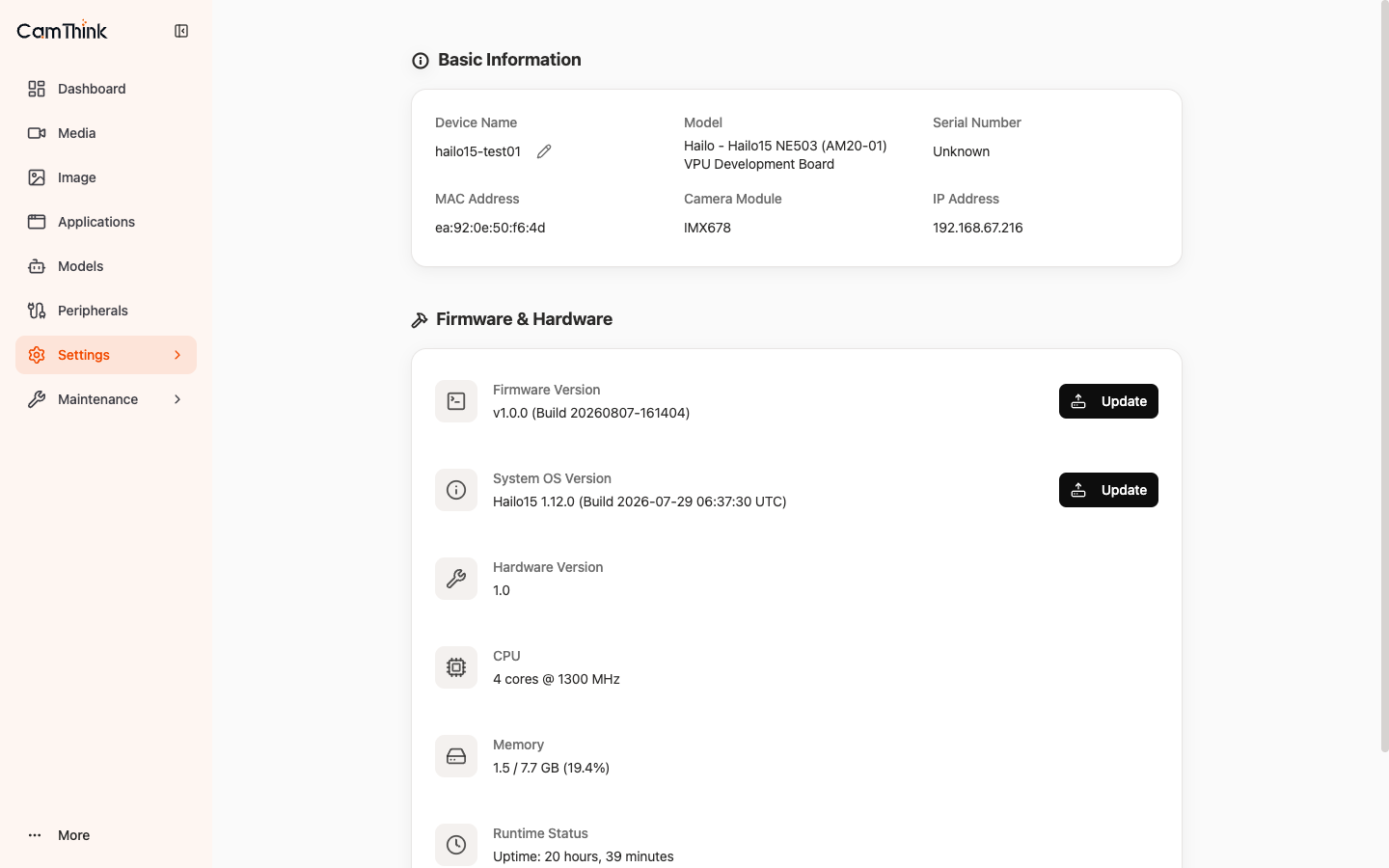
The page has three parts:
Basic Information: device name (editable), model, serial number, MAC address, camera module, IP address.
Firmware & Hardware:
| Field | Description |
|---|---|
| Firmware Version | Platform firmware version (platform services, HAL, web console); Update beside it |
| System OS Version | System OS version (Linux kernel, device tree, root filesystem); Update beside it |
| Hardware Version / CPU / Memory | Hardware version, CPU core count and clock, memory usage |
| Runtime Status | Continuous uptime |
Bottom actions: Change Password, System Reboot.
Dual-Layer Firmware Upgrade
NE503 has two independent upgrade layers:
| Upgrade item | Coverage |
|---|---|
| Firmware Update | Application layer: platform services, HAL, web console |
| System OS Update | OS layer: Linux kernel, device tree, root filesystem |
Click Update beside the relevant version, upload the package, and the system parses, verifies, and writes it automatically, then reboots.
The upgrade takes about 2–5 minutes. Do not power off or operate the device during this time. Prefer off-peak hours.
Time Settings
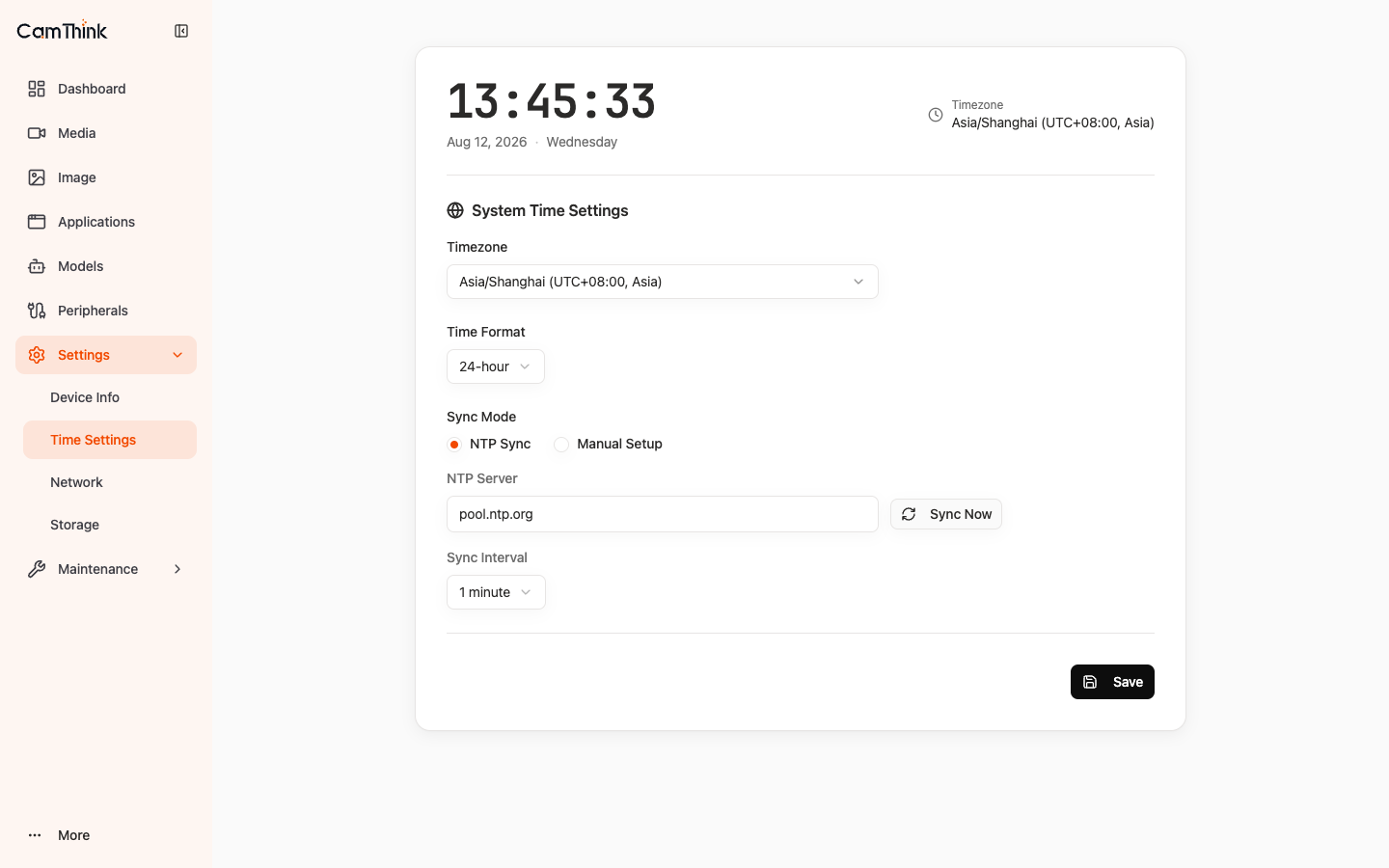
| Field | Description |
|---|---|
| Timezone | Time zone of the deployment location |
| Time Format | 12 / 24-hour |
| Sync Mode | NTP Sync (network time) or Manual Setup (manual) |
| NTP Server | NTP server address (e.g., pool.ntp.org); Sync Now beside it |
| Sync Interval | Sync interval |
The time zone directly affects video OSD timestamps and recording file names — keep it aligned with the deployment location.
Network
IPv4 Settings (interface eth0):
| Field | Description |
|---|---|
| Mode | DHCP (auto from router) or Static Address (manual fixed) |
| IP Address / Subnet Mask / Gateway | Required in static mode |
| DNS Server / Secondary DNS | Domain name servers |
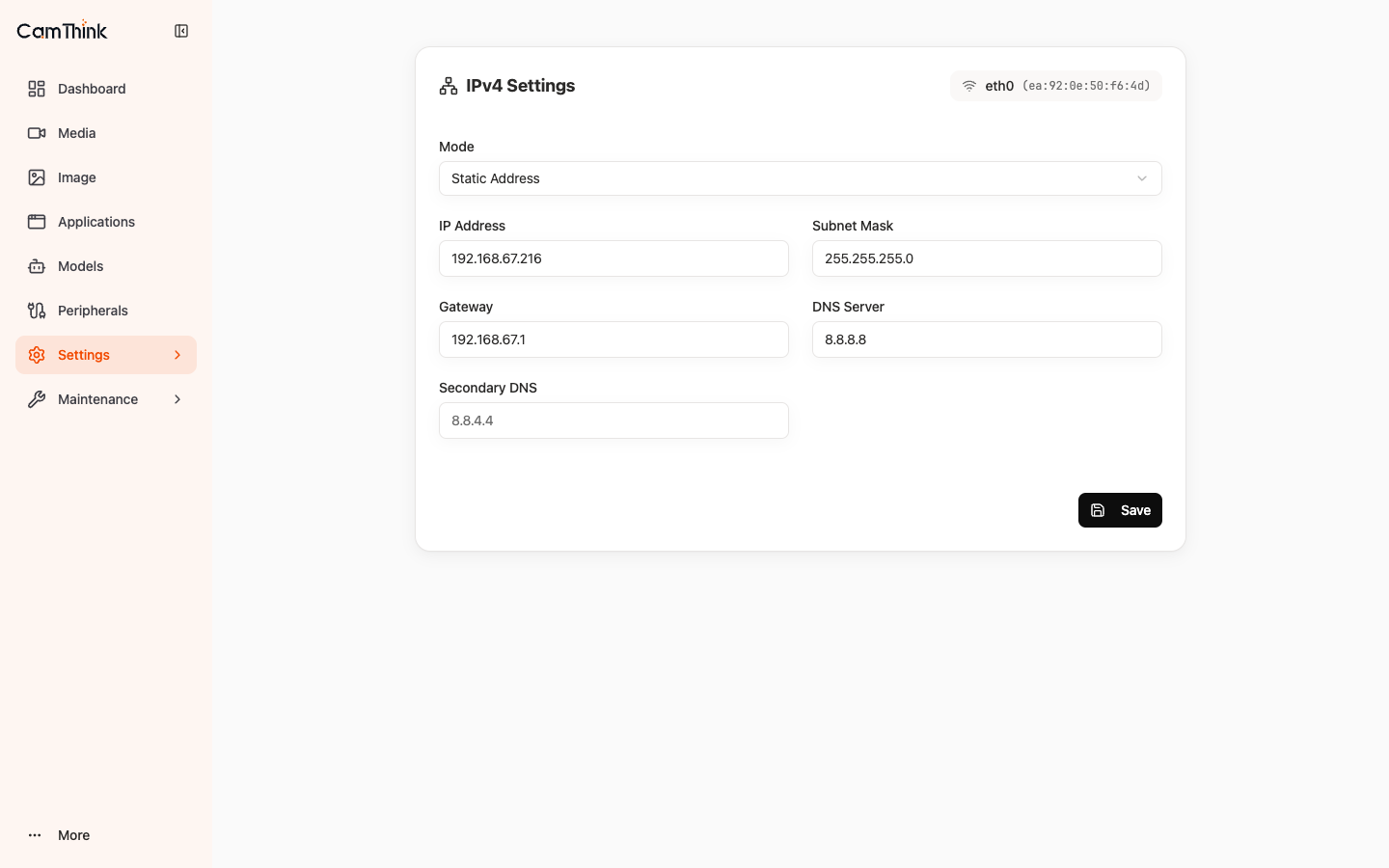
For production, prefer a static IP or bind the MAC in the router to avoid IP changes breaking integrations. After changing the IP, reach the device at the new address.
Storage
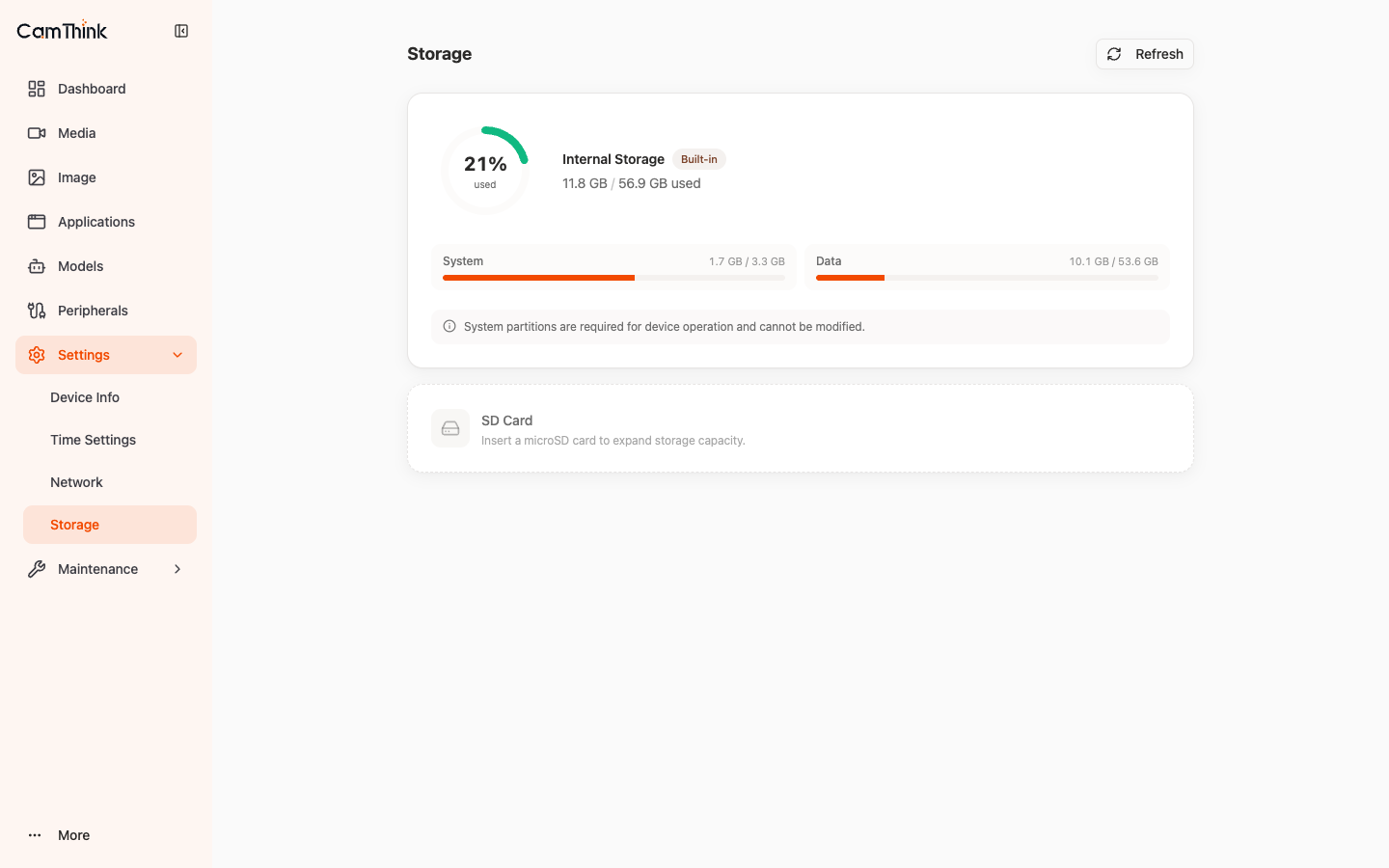
Shows built-in storage usage, split into System (system partition, not modifiable) and Data (data partition). When usage exceeds 80%, clean up logs / recordings / models, or insert a microSD card to expand.
Maintenance
Expand the navigation bar and click Maintenance to access four operational sub-pages.
Logs
Three switchable log views:
| View | Content |
|---|---|
| Operation Logs | User logins, app start/stop, configuration changes |
| System Logs | System-level events |
| Developer Logs | Developer debug logs |
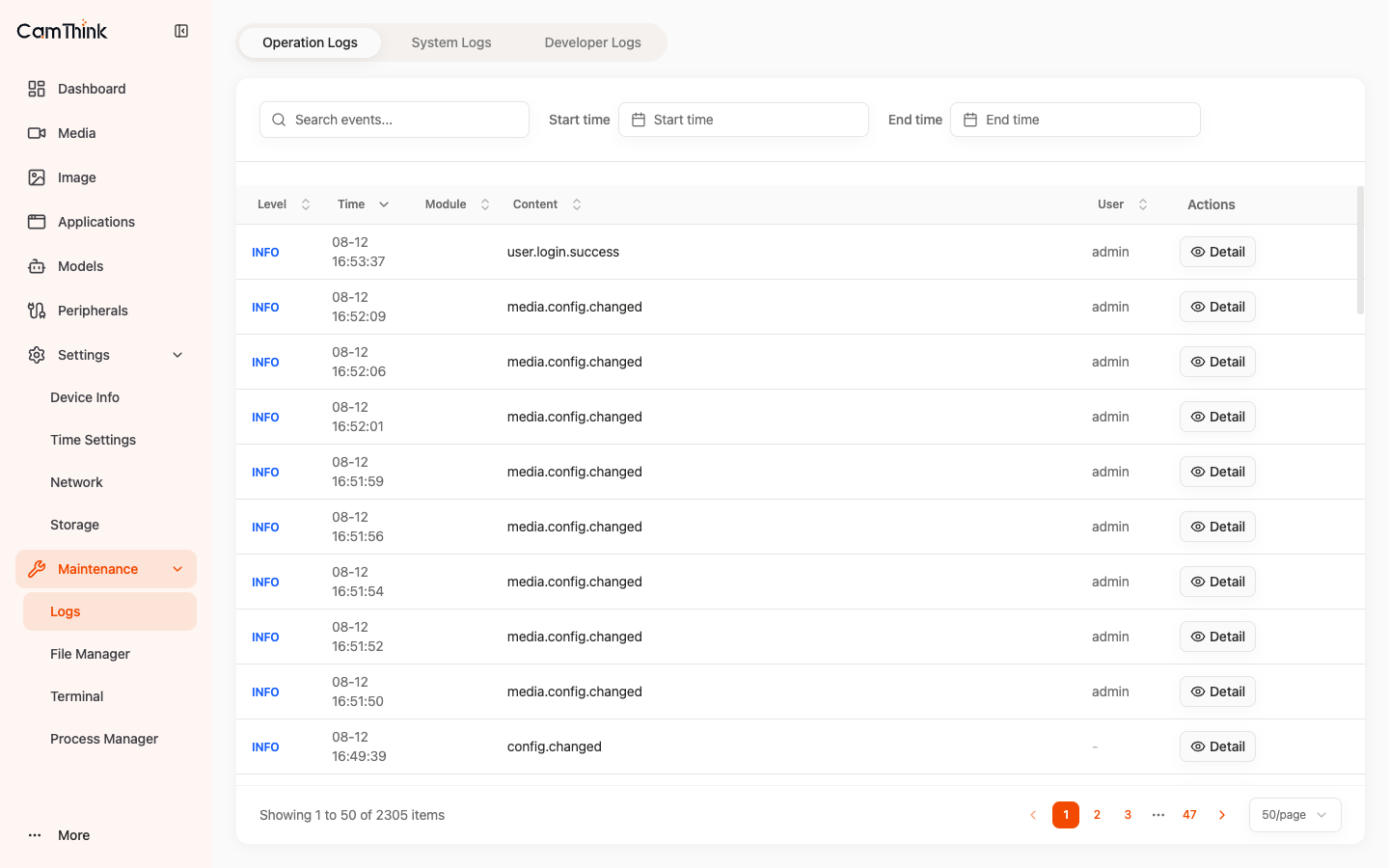
Filter by time range and keyword; columns include Level / Time / Module / Content / User; each row has a Detail button.
File Manager
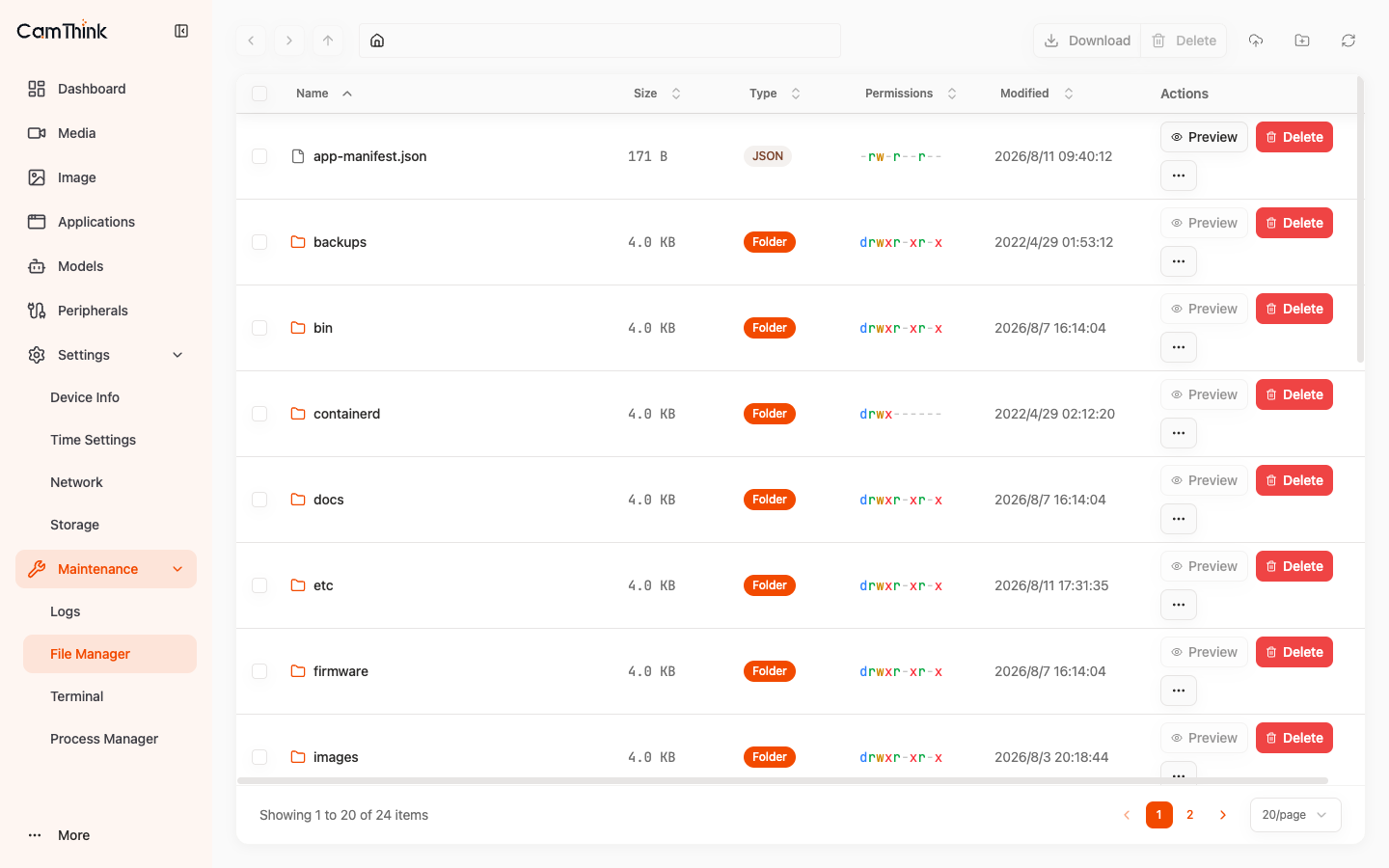
A web file browser for the device's /data/aipc filesystem. Navigation (Back / Forward / Up + breadcrumb), an action bar (Download / Delete / Upload File / New Folder / Refresh), and columns Name / Size / Type / Permissions / Modified; each item supports Preview / Delete / More.
Terminal
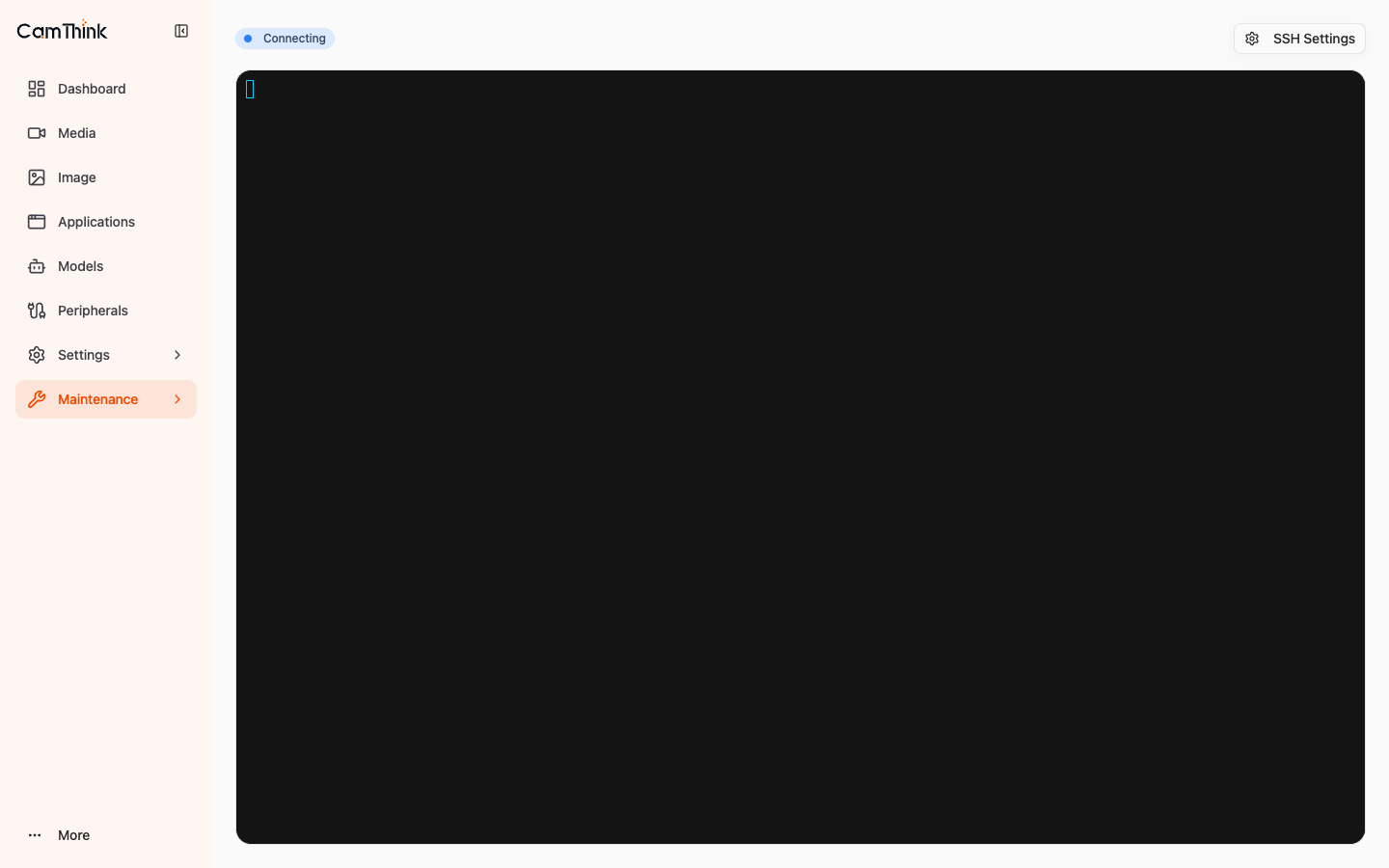
A built-in web SSH terminal — access the device command line in the browser with no extra tools. The status reads Connected when ready; SSH Settings in the top-right adjusts connection parameters.
Process Manager
Lists all running processes. Columns: PID / Name / User / CPU% / Memory% / RSS / Status / Command. Search by name / PID / user / command; each row supports Detail or Kill for abnormal processes.
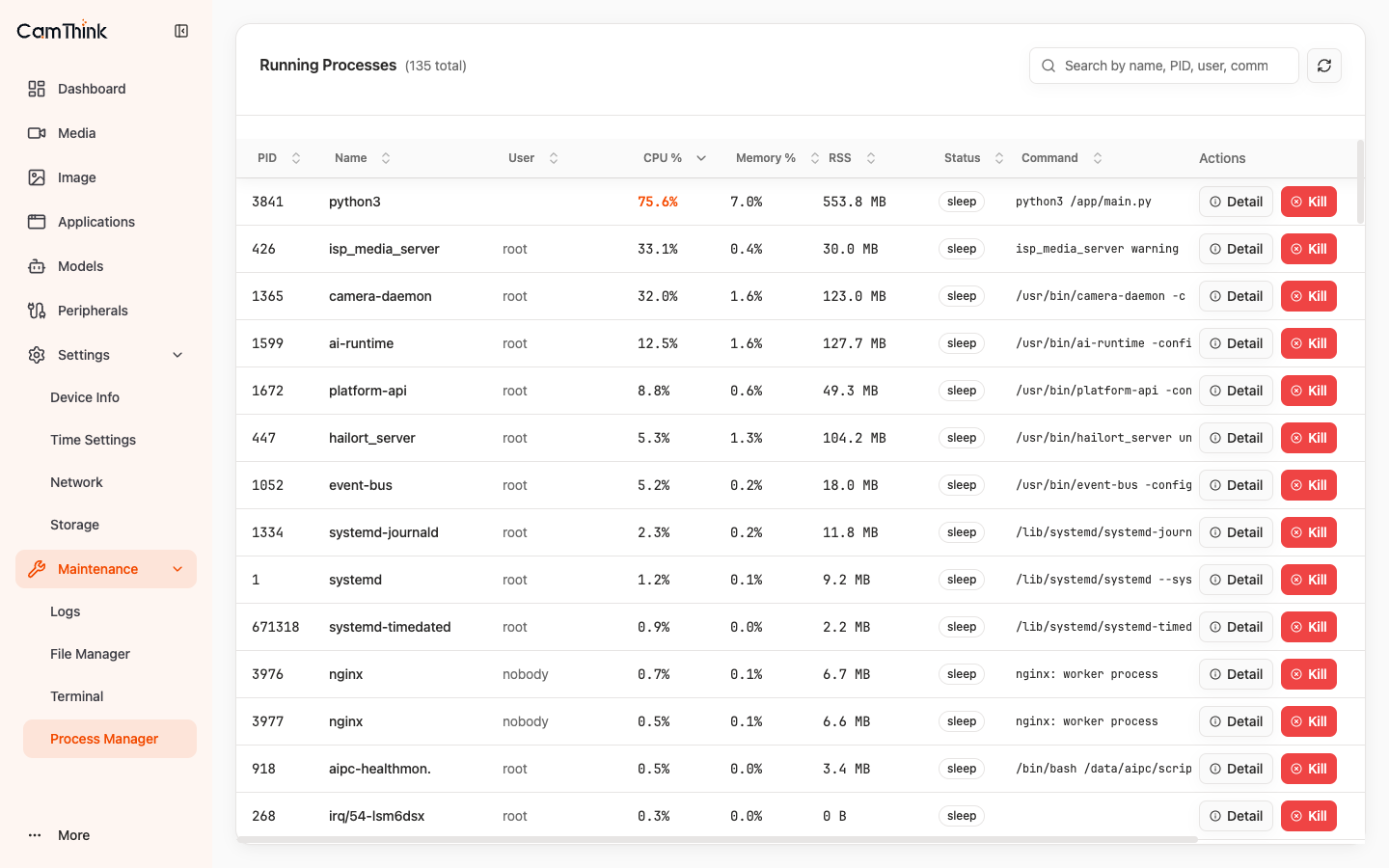
Killing critical platform processes (such as camera-daemon, ai-runtime, platform-api, event-bus) can break functionality and require a reboot to recover. Avoid Killing unless necessary.