AI Apps and Models
NE503 manages apps on Applications and models on Models. Before an AI app starts, declare its model dependencies, streams, and event permissions in the wizard.
Applications
Open the Applications page. Click Import to install an app.
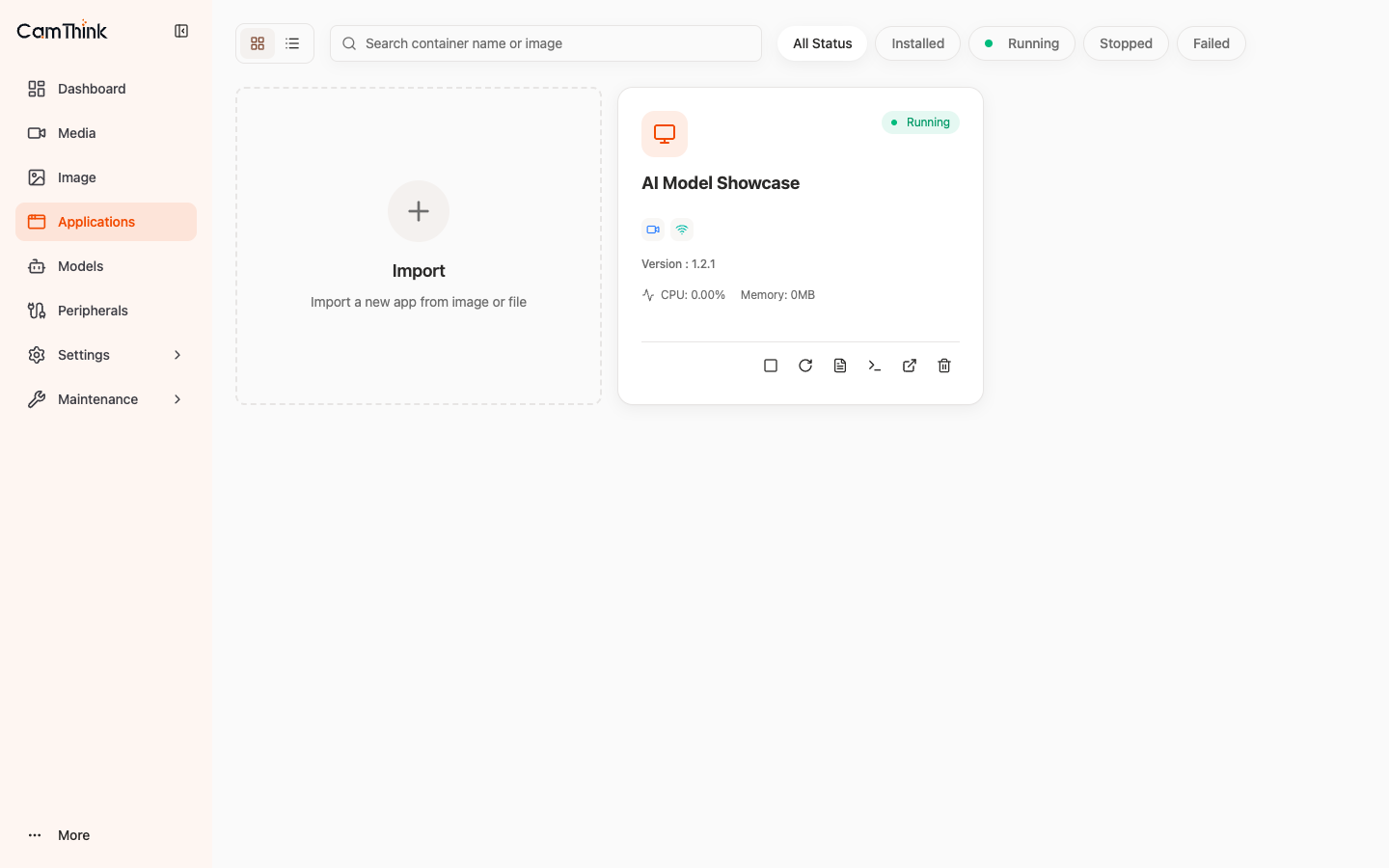
App Actions
| Button | Action |
|---|---|
| Stop / Restart | Stop / restart the app |
| Logs | View runtime logs |
| Console | Open a shell inside the container (for debugging) |
| Visit App | Open the app's Web UI |
| Uninstall | Remove the app |
Use All / Installed / Running / Stopped / Failed to filter the list.
Install a New App (Application Setup Wizard)
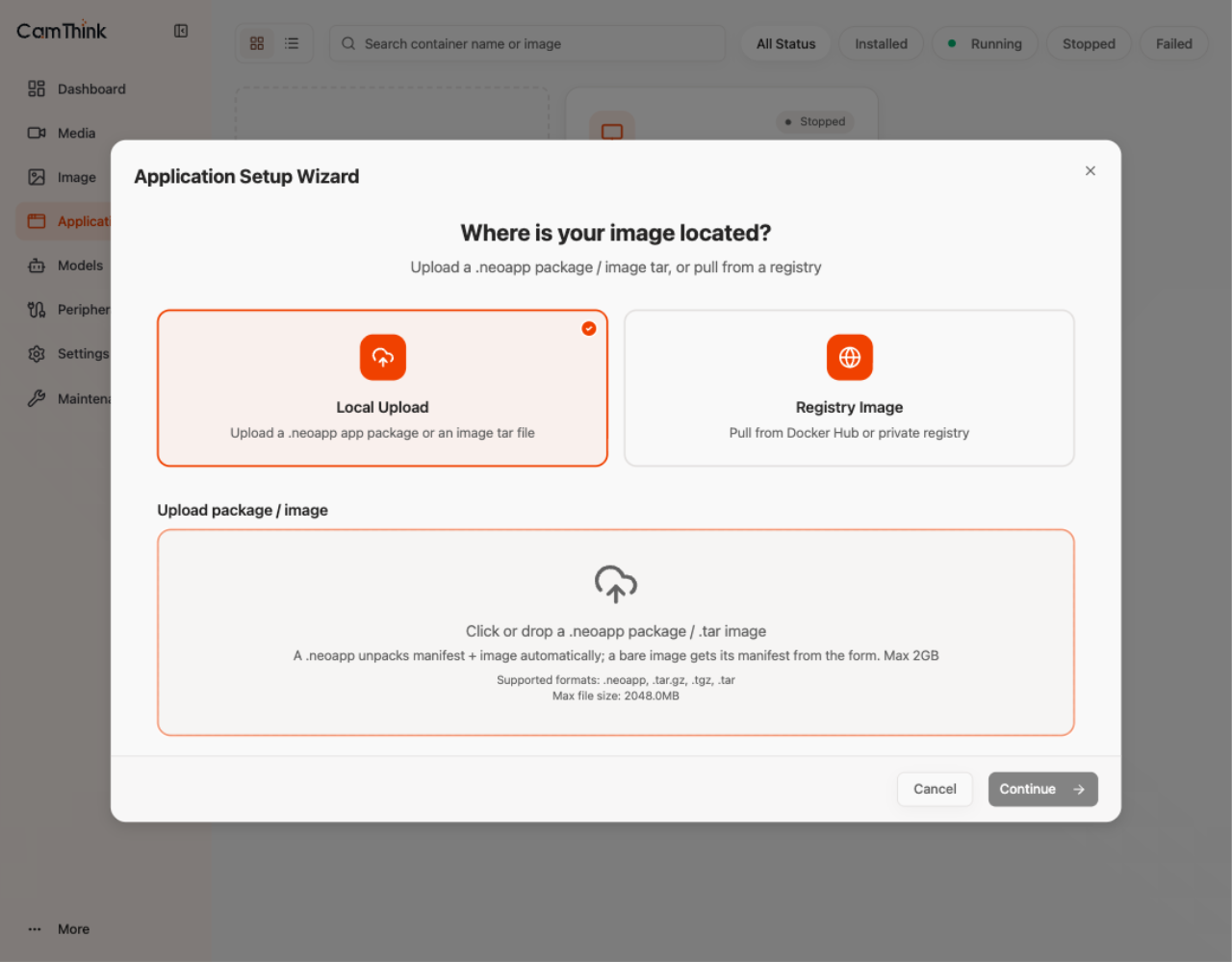
Click the Import card to open the Application Setup Wizard. The wizard is organized into sections; switch between Registry Image / Basic Info / Resources / Models / Permissions / Advanced on the left, and toggle between the Form view and the YAML view at the top.
Source (first screen)
- Local Upload: upload a
.neoappapp package or an image tar (max 2 GB). A.neoapppackage unpacks its manifest and image automatically; a bare image tar gets its manifest from the form. - Registry Image: enter an image address to pull from Docker Hub or a private registry. The device needs internet access; use Local Upload on offline devices.
Sections
| Section | Contents |
|---|---|
| Basic Info | Application ID (immutable after creation), name, version, and description |
| Resources | CPU Limit (accepts both 0.5 and 50% input formats) and Memory Limit |
| Models | Model dependencies: Add Dependency declares a model alias (injected at runtime as the AIPC_MODEL_<alias> environment variable) and selects the model; set Max Inference QPS and Max Concurrent Inference; Allow Dynamic Model Registration lets the app discover and register models at runtime — keep it off unless required |
| Permissions | Video Stream Permissions to select streams; Event Permissions for publish/subscribe topics; Network Mode defaults to Isolated Mode |
| Advanced | Environment variables, volumes, Auto-start on boot, and Restart Policy |
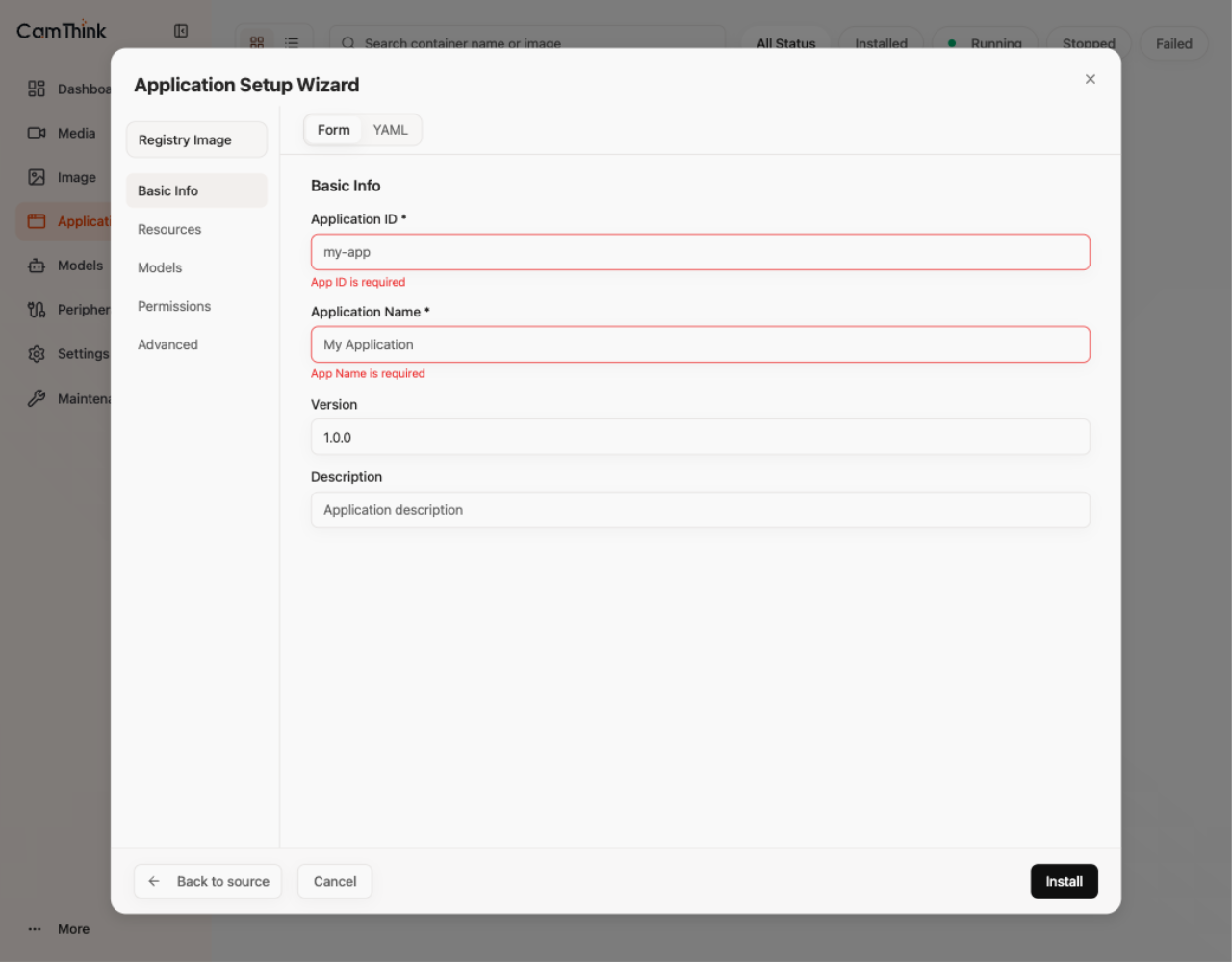
Click Install when the configuration is complete. After installation, the app appears in the list. Start it and confirm the status changes to Running.
Models
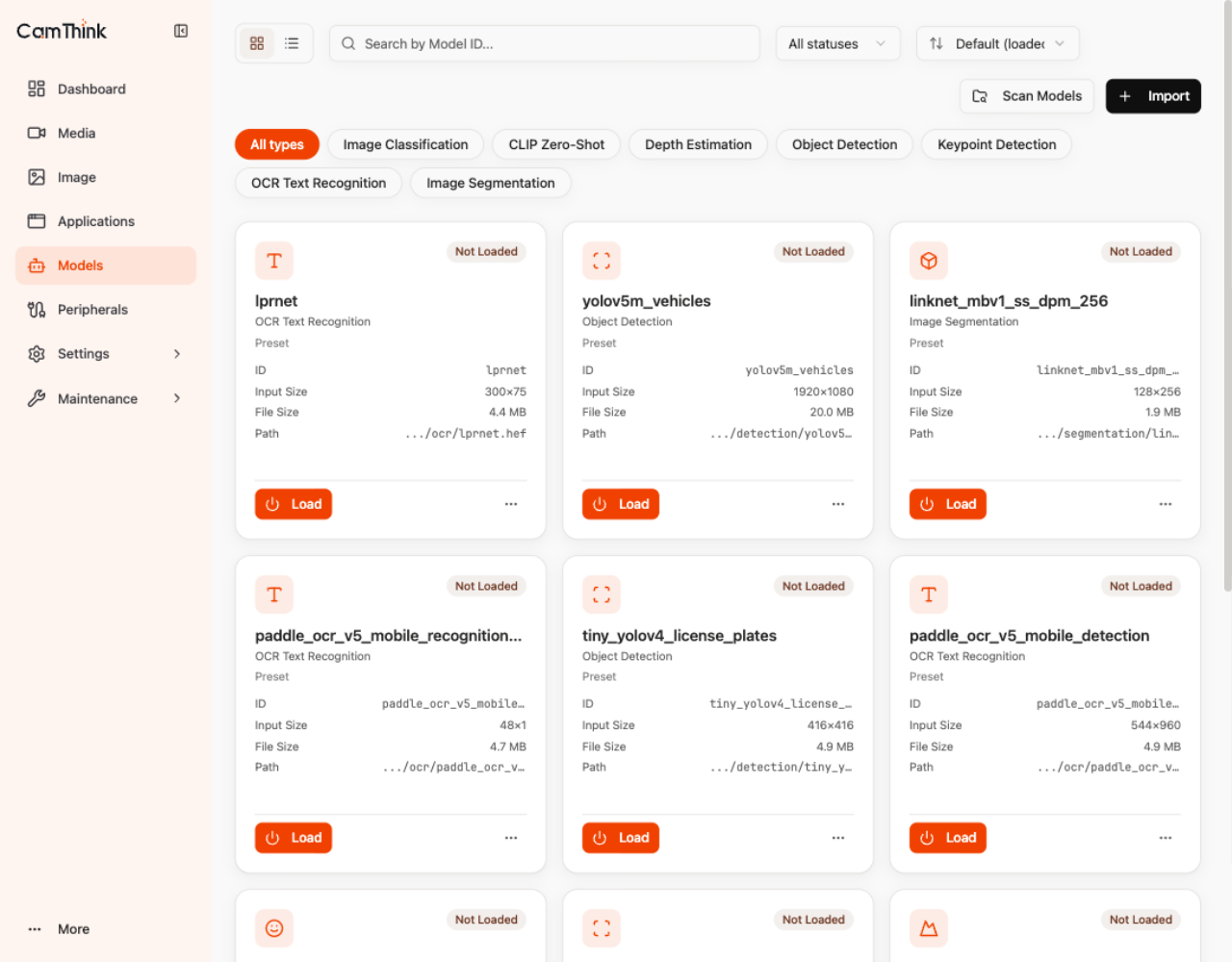
Open the Models page to manage inference models. The top bar provides search by Model ID, status filtering, load-order sorting, and model-type filters (detection, classification, OCR, etc.); the list depends on the device.
Import a Model (3-Step Wizard)
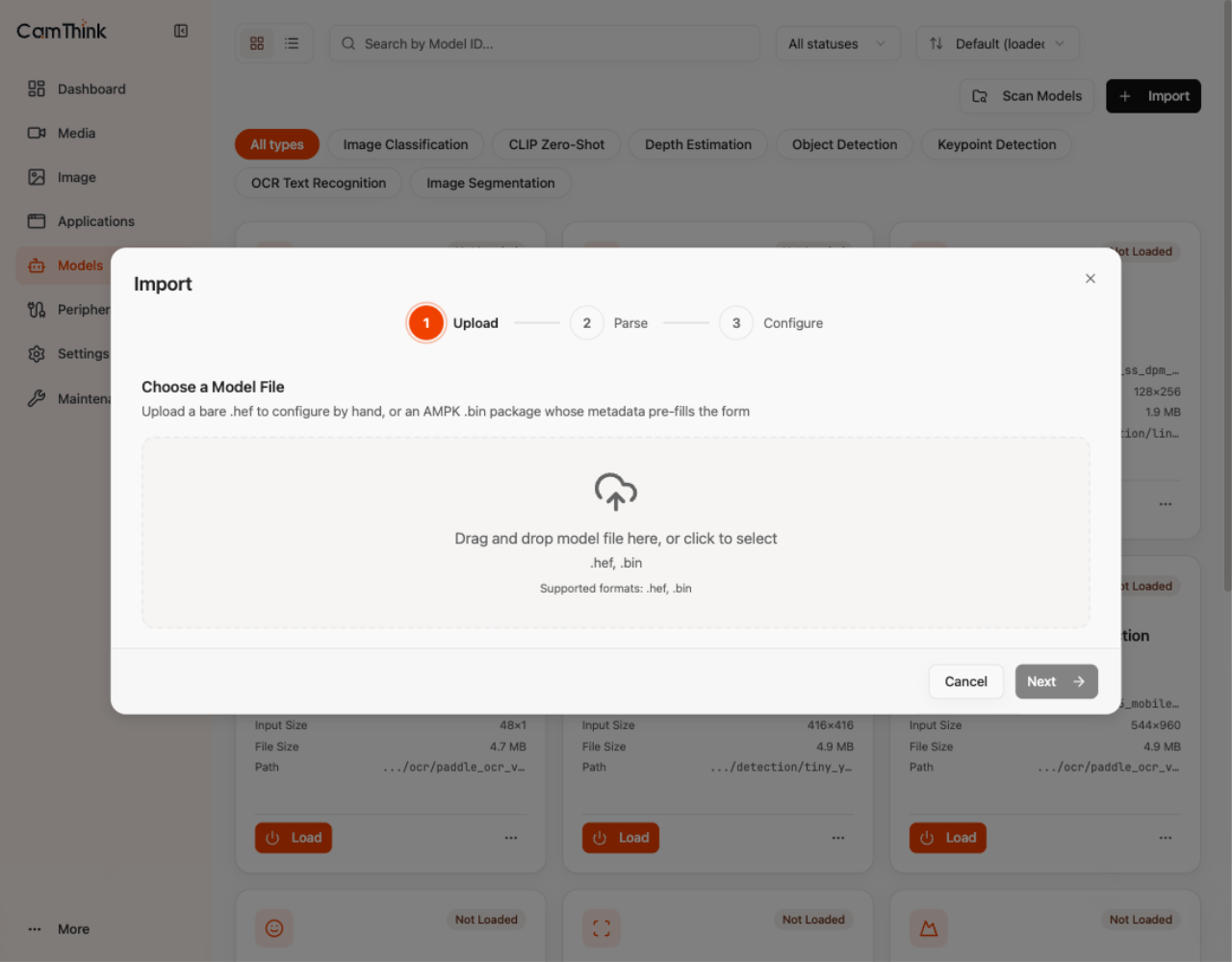
Click Import to open the import wizard and complete Upload → Parse → Configure:
- Upload: upload a bare
.heffile (configure manually afterwards) or an AMPK.binpackage whose parse result pre-fills the form. - Parse: the platform parses the model file server-side and suggests input and postprocess settings.
- Configure: review the model ID, input/output and postprocess configuration (including threshold, NMS, and related parameters), then submit for registration.
Since v1.1.0, postprocess configuration errors are reported explicitly at registration instead of being silently ignored; failed model registrations roll back automatically. For models with custom postprocess or vendor plugins, verify the plugin path, postprocess name, and parameter configuration before upgrading.
Model Actions
Each model card supports Scan Models (scan /data/aipc/models/) and Load / Unload / Detail / Delete. Confirm that the model is Loaded before inference; models declared in the wizard's Models section load automatically at app startup. Confirm that the model input matches the active stream configuration, and verify that the app is Running and produces the expected result.