AI Model Validation
Use this page to upload a model package to NE302, then confirm that it produces a result with a fixed image.
1. Download or prepare a model package
In the CamThink Model Zoo, select ne302, then filter by scenario, task or model architecture.
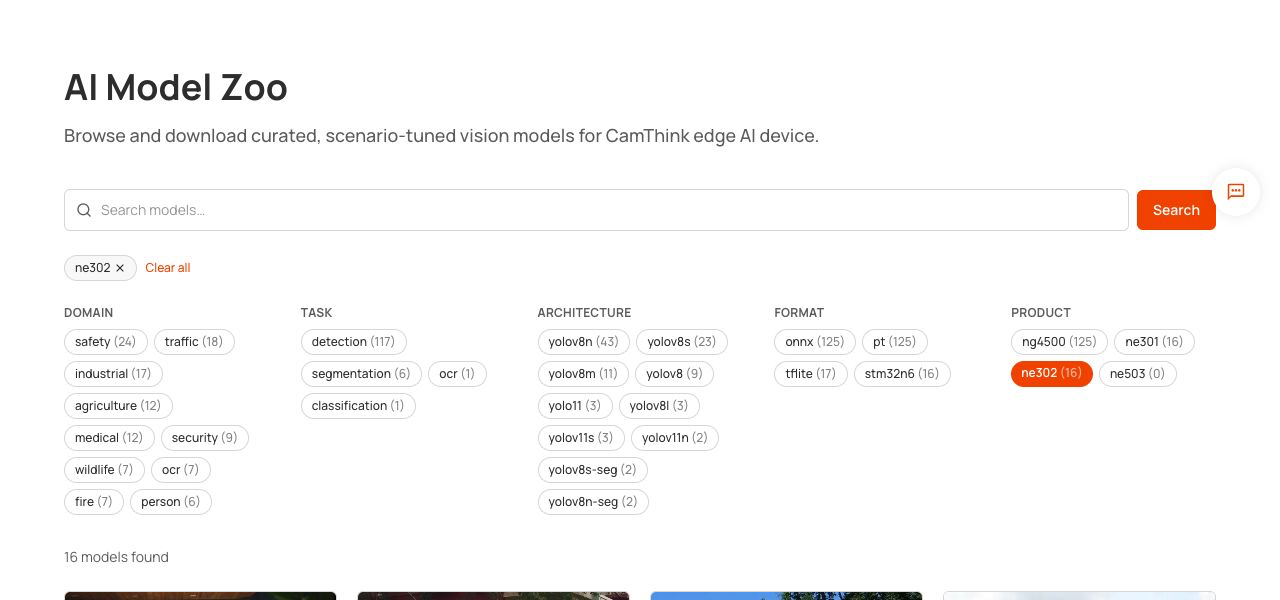
The device upload requires an NE302 model package, such as ne302_Model_xxx_pkg.bin. A raw .tflite or .onnx download cannot be uploaded directly; prepare its JSON configuration and build the package according to the NE302 Model README.
2. Camera Settings
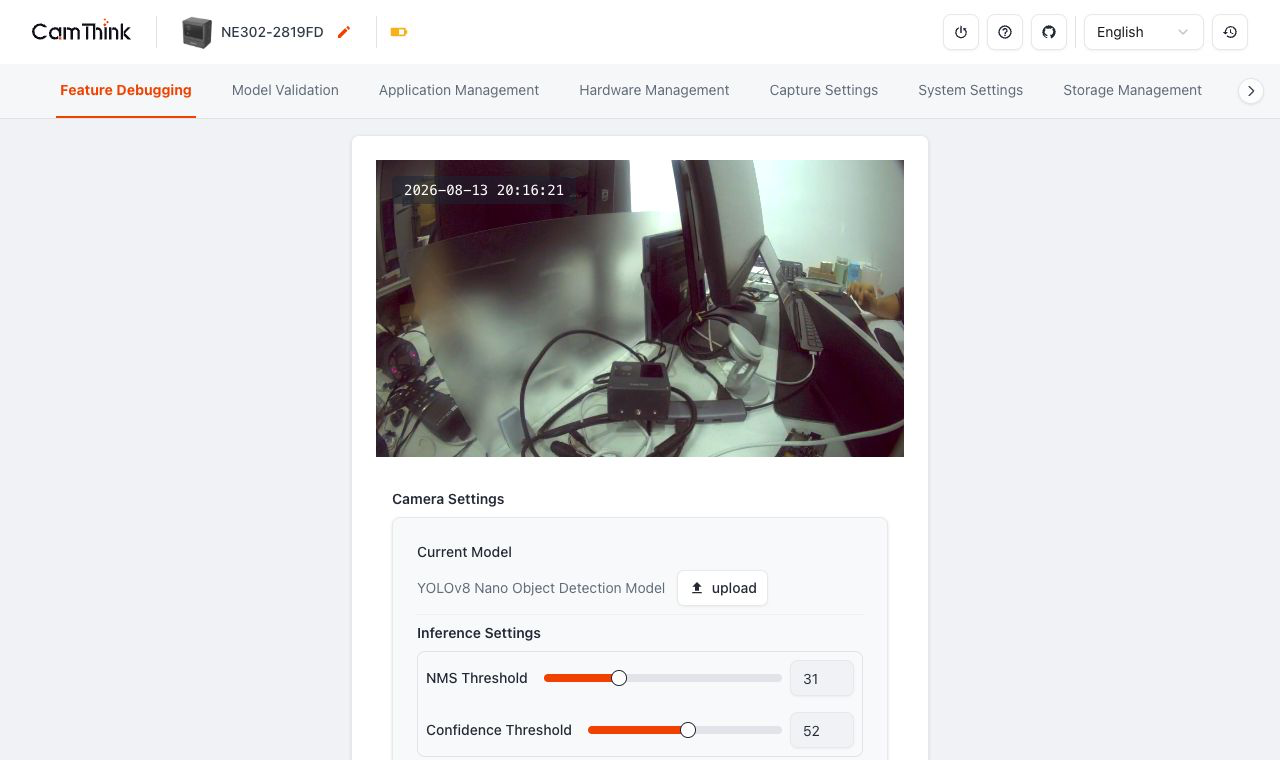
Open Feature Debugging → Camera Settings. This page manages the loaded model, inference thresholds, operating mode and work frequency.
| Setting | Purpose and operation |
|---|---|
| Current Model | Identifies the loaded model. Click upload to select one NE302 model package; the page accepts one file at a time, up to 10 MB. After upload, validation and model reload finish, reread this field to confirm the switch. |
| NMS Threshold | Controls how overlapping detection boxes are handled. To reduce or retain overlapping boxes, adjust this value alone and compare the same fixed image. |
| Confidence Threshold | Filters results below the threshold. When results are empty, first lower it and retest with the same known-target image. |
| Power Mode | Select Full Speed Mode or Low Power Mode. Recheck the fixed-image result after changing it. |
| Operating Mode | Selects the current operating mode. The current device page shows Image Mode; use the options displayed on the device. |
| Work frequency | Selects the system-clock profile. A change takes effect on the next reboot or wake-up, so validate the model result again afterwards. |
Do not refresh or power off during upload. If Current Model does not change, first confirm that the selected file is a model package rather than a raw model or JSON file.
3. Validate with a fixed image
Open Model Validation. Select a jpg, jpeg, png or webp image no larger than 10 MB, then wait for the JSON result area to update.
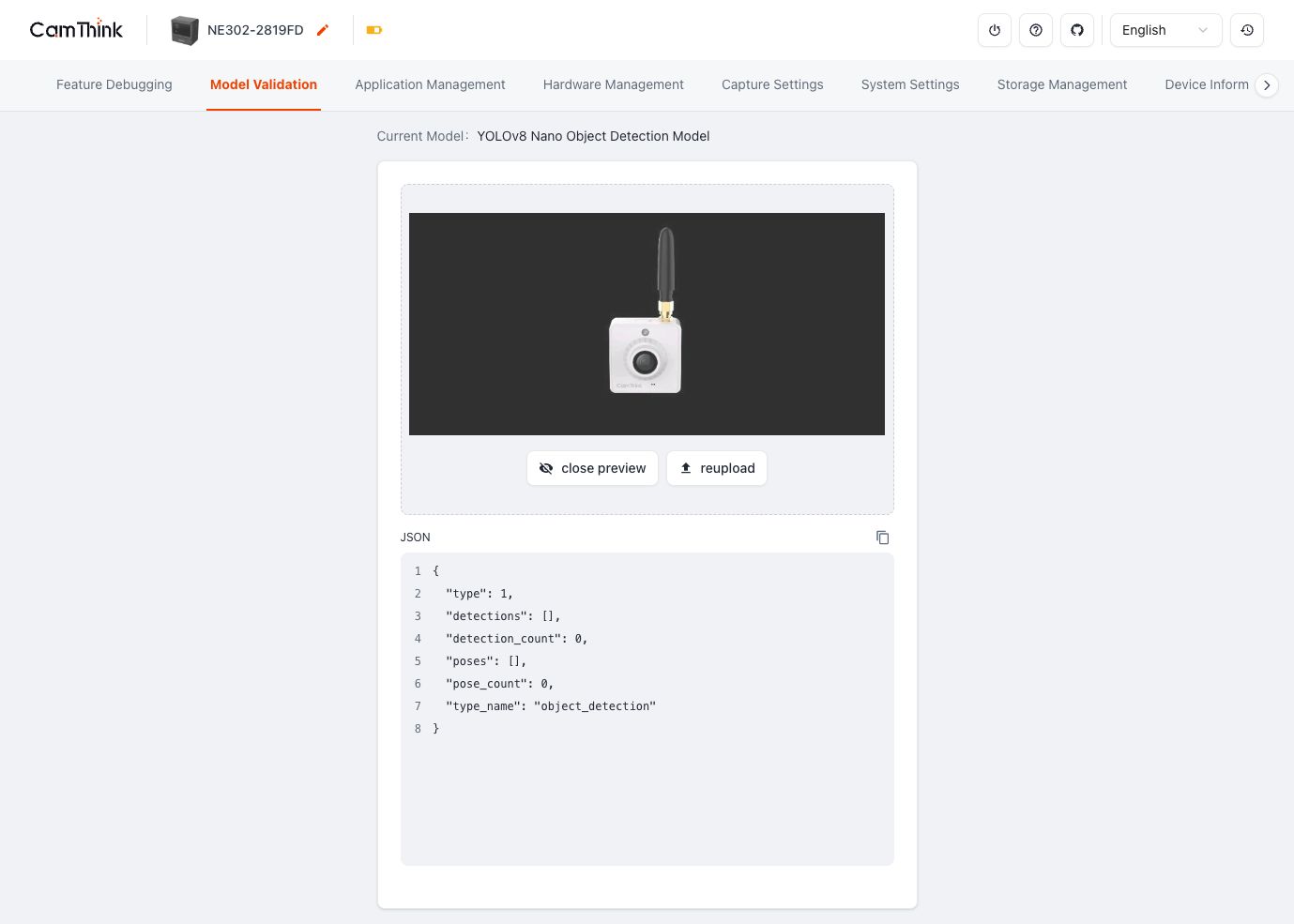
A fixed-image validation passes when the page shows the current model, accepts the image and updates the JSON result. Empty detections means that image produced no detection; it does not mean model upload failed. Try a known-target image first, or adjust Confidence Threshold and repeat with the same image.