System Maintenance
Use this page to change the login password, upgrade firmware and manage device storage. Network connection and result delivery are covered in Data Transmission; capture storage policy and Records are covered in Capture and Storage.
1. Change login password
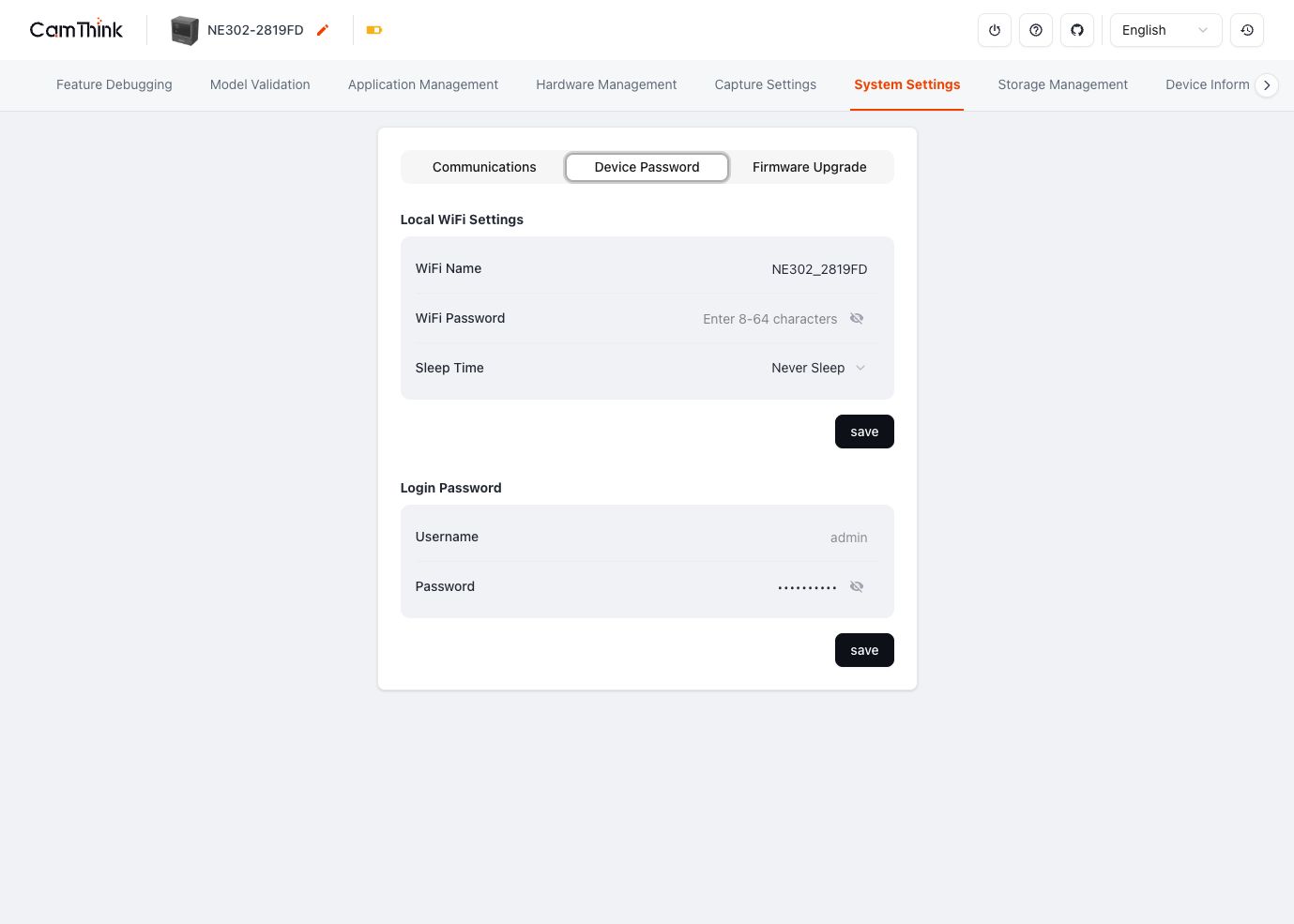
Open System Settings → Device Password:
- Enter and confirm the new password in Login Password. Its length is 8–32 characters.
- Click save in that section.
- Sign out, then sign in with the new password.
Username is admin. Local WiFi Settings is a separate configuration group; saving Wi-Fi settings may require reconnecting to the device network.
2. Firmware Upgrade
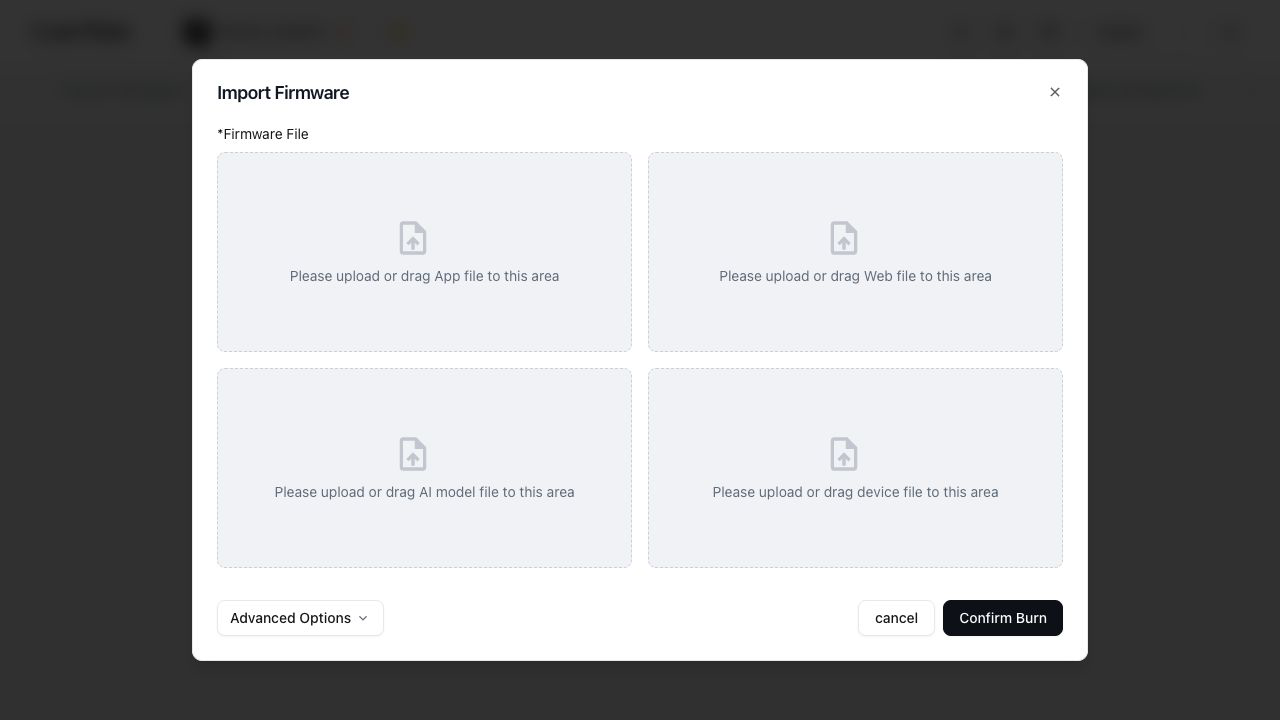
Open System Settings → Firmware Upgrade. Check the installed versions under Firmware Information, then download firmware from NE302 GitHub Releases. The table lists v4.3.0 files verified as reachable on 2026-08-17; for another version, use only the matching files from its Release.
| Component | v4.3.0 file | Use |
|---|---|---|
| App | ne302_App_signed_v4.3.0.12_pkg.bin | App upload entry |
| Web | ne302_Web_v1.5.0.1_pkg.bin | Web upload entry |
| AI Model | ne302_Model_v4.0.0.0_pkg.bin | AI Model upload entry |
| FSBL | ne302_FSBL_signed_v1.0.3.0_pkg.bin | FSBL Firmware Upgrade under Advanced Options |
| WiFi Firmware | ne302_Wifi_flash_v2.15.5.2_pkg.bin | WiFi Firmware Upgrade under Advanced Options |
| WakeCore | ne302_WakeCore.bin | Not a Web upload; flash through U0-STLINK as described in Build and Flash |
Use Export Firmware first if the current configuration must be retained. Its Device File is a .json configuration backup, not an upgrade package.
- Download the
_pkg.binfor one component; upgrade one component at a time. - Upload it to the matching entry under Import Firmware. For App, Web, AI Model and FSBL, click Confirm Burn after validation completes.
- For WiFi, upload
ne302_Wifi_flash_*_pkg.bin, wait for the page to report that it was written to Flash, then click Confirm Upgrade. - Wait for the device to restart, sign in again and confirm the version in Firmware Information.
Upgrade FSBL only when a Release or engineer explicitly requires it. Do not mix packages from different Releases or upload .json, .hex or unpackaged images to an OTA entry.
3. Storage Management
Open Storage Management and check SD Card Status and available Internal Flash space.
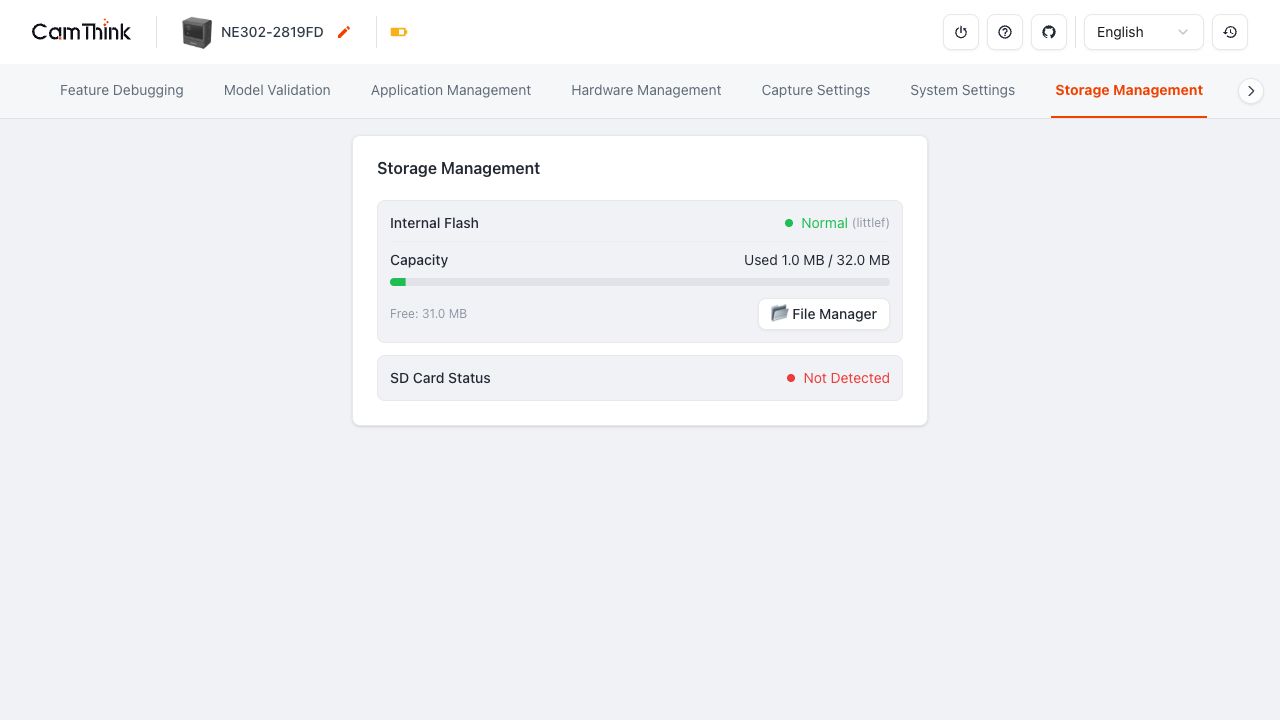
In the relevant File Manager, use Preview to identify a file and Download to keep it before deleting the selected file or directory. Deleting a directory also deletes its contents.
To clear internal Flash, export any required files first. Then open File Manager → Format Flash, enter the device password and confirm. Formatting permanently removes files on internal Flash.