Parking Lot
This recipe deploys the Parking Lot Showcase from neoruntime-apps on NE503 and verifies vehicle events through the Event Bus.
The full source and configuration are in neoruntime-apps/showcases/parking-lot. This page keeps only the information needed to deploy and verify the app; use the repository for implementation details.
1. Goal and prerequisites
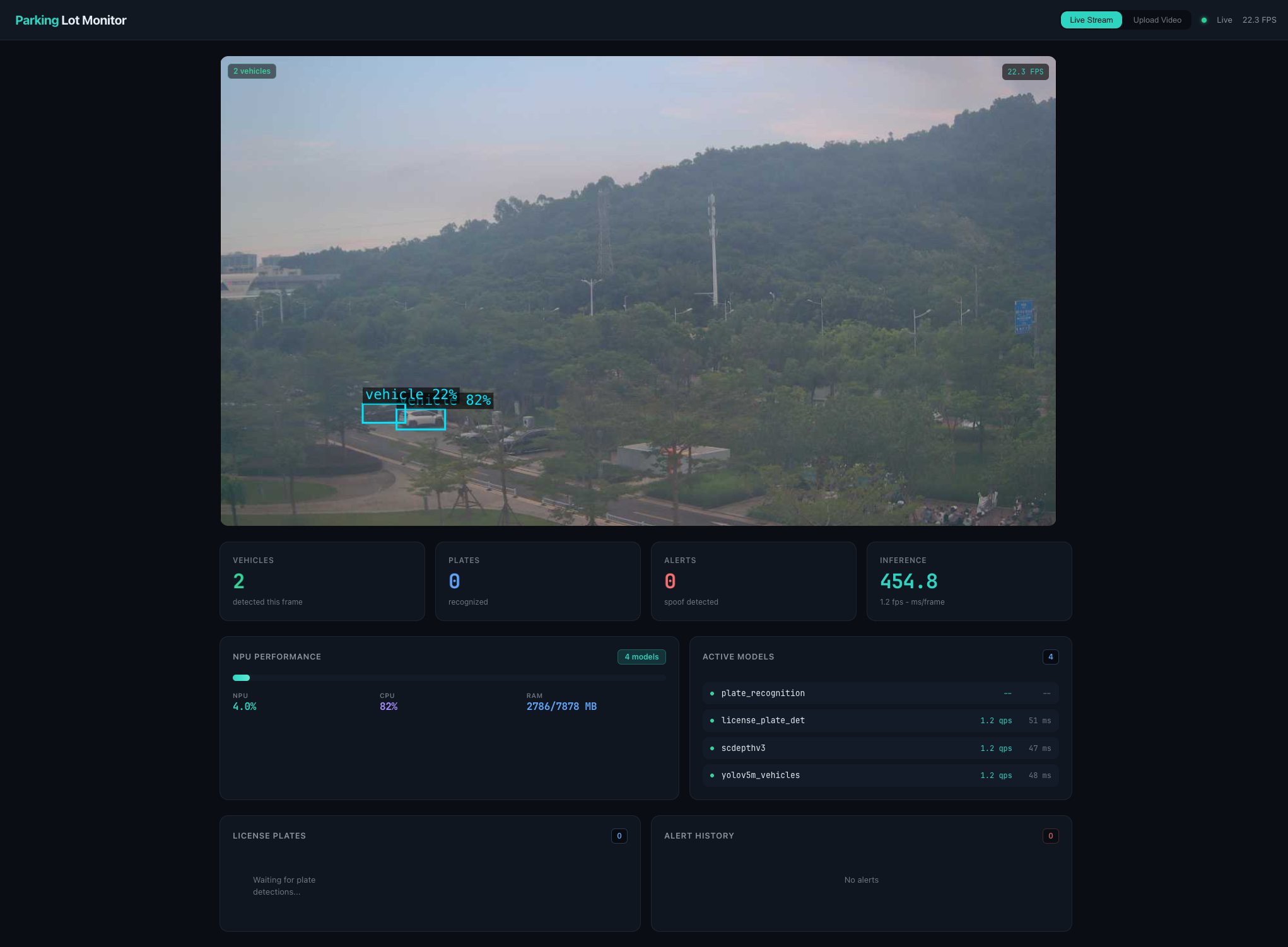
After completing this recipe, you should see the Parking Lot Monitor page and be able to receive:
parking/vehicles: vehicle boxes and confidence values;parking/plates: plate regions and recognized text;parking/alerts: depth anti-spoof alerts.
Before you start, confirm that:
- NE503 has a working OS installation and the Web Console is reachable;
- the four HEFs required by the Showcase are available under
/data/aipc/models; - you will use the ARM64 Release bundle, or have Docker and a source-build environment ready.
2. Key configuration
2.1 Models and events
| Model ID | Purpose | Input |
|---|---|---|
yolov5m_vehicles | Vehicle detection | RGB, 1920 × 1080 |
scdepthv3 | Depth anti-spoof analysis | RGB, 320 × 256 |
license_plate_det | Plate-region detection | RGB, 416 × 416 |
plate_recognition | Plate-character recognition | NV12, 320 × 48 |
The app reads model files from /data/aipc/models; use the repository for the complete configuration.
The default manifest uses sub.raw and STREAM_ID=sub. Inference fails if the device has no matching raw stream.
3. Get and build the app
3.1 Download the Release bundle
The recommended path is the Parking Lot ARM64 bundle. The web import uses the .neoapp file directly; for checksum verification or CLI install, extract it to get app.yaml, parking-lot-image.tar, and SHA256SUMS:
tar -xzf parking-lot-latest-arm64.neoapp
cd parking-lot-*-arm64
sha256sum -c SHA256SUMS
3.2 Build from source (advanced)
Building from GitHub source is an advanced path. The current upstream process is defined by the neoruntime-apps README and may still require a sibling SDK checkout and a local wheel; do not treat it as the default SDK installation path.
git clone https://github.com/camthink-ai/neoruntime-apps.git

# Update existing checkouts
git -C neoruntime-apps pull
If you want to run Python code directly on the host, install the SDK from PyPI:
cd neoruntime-apps
pip install neoruntime-ipc-sdk
The Python import module is neoruntime_ipc_sdk. To build from source, follow the current neoruntime-apps README.
3.3 Check the key manifest fields
Before installation, open app.yaml and confirm that an old bundle has not restored the wrong values:
permissions:
  video:
    - sub.raw
  inference:
    models:
      - yolov5m_vehicles
      - scdepthv3
      - license_plate_det
      - plate_recognition
    allow_register_model: true
  events:
    publish:
      - parking/vehicles
      - parking/plates
      - parking/alerts
  network:
    mode: host

env:
  - name: STREAM_ID
    value: "sub"
  - name: HD_PREVIEW_ENABLED
    value: "0"
Keep HD_PREVIEW_ENABLED=0 to use the app's MJPEG /stream preview.
4. Install and start
4.1 Install
In the Web Console, open App Management, upload the downloaded .neoapp file via Import → Upload Package, then click Install.
You can also use the installation command from the repository README on an authenticated device terminal:
aipc-cli app install app.yaml parking-lot-image.tar
4.2 Start
After installation, open App Management → Installed Apps, find parking_lot, and click Start. Wait for Running before verifying; an installed container is not proof that the inference pipeline is working.
4.3 Open the Web UI
Open this URL from a browser that can reach the device:
http://<deviceIP>:8090
Expected result: Parking Lot Monitor, a live preview, and model statistics. If black, confirm HD_PREVIEW_ENABLED=0 and check /stream.
5. Verify the result
5.1 Verify the page and vehicle detection
- Refresh
http://<deviceIP>:8090and wait for the page to finish loading. - Confirm that the preview shows the real camera feed.
- Confirm that
Active Modelslists all four models. - Point the camera at vehicles and watch the vehicle boxes, the
VEHICLEScount, and the statistics.
FPS, inference latency, and detection counts vary with the scene and device load.
5.2 Verify the Event Bus
Subscribe to the parking topics on the device:
aipc-cli event subscribe 'parking/*'
Point the camera at vehicles and first confirm parking/vehicles. The plate and anti-spoof topics require their respective scene conditions.
5.3 Check status and logs
In the app details page, confirm Running and inspect the app logs. Check for:
- successful registration of all four models;
- recurring media capture failures, model timeouts, or
Pipeline errormessages; - unexpected app restarts;
- a scene that actually meets the plate or anti-spoof trigger condition when the page has video but no corresponding event.
6. Related docs
- Resources —
app.yaml, SDK, API, and event protocol references - Person Detection — single-model inference and event publishing example