NE301 WiFi Firmware Flashing Guide
If you are a DIY enthusiast and have received the NE301 development board, you might encounter a situation where the NE301 WiFi AP cannot be found because it is a bare board. This is usually caused by the lack of WiFi firmware on the development board. This article will guide you on how to check and flash the WiFi firmware.
Preparation
-
Download WiFi Firmware: Visit the following link to download the
siwg917firmware file: WiFi Firmware Download Link -
Prepare SD Card: Prepare a formatted MicroSD card.
Flashing Steps
1. Place Firmware
Copy the downloaded siwg917 firmware file to the root directory of the SD card.
2. Insert SD Card and Check
Insert the SD card into the card slot of the NE301 development board.
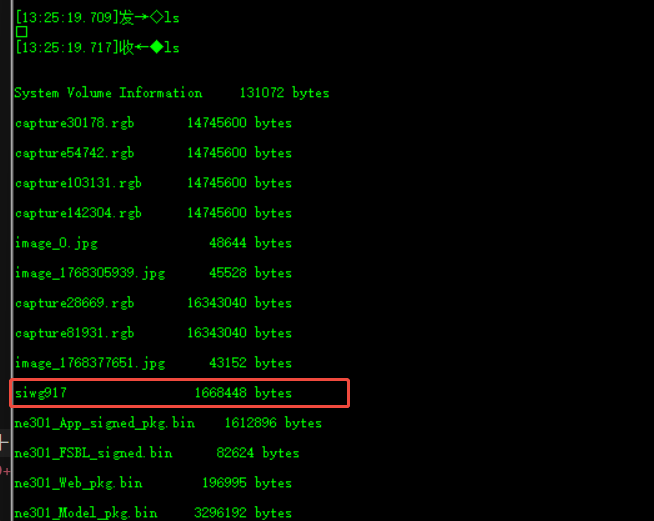
Connect the serial tool (baud rate 115200), enter the ls command in the console to confirm that the system has recognized the SD card and can see the siwg917 file.
3. Execute Flashing Command
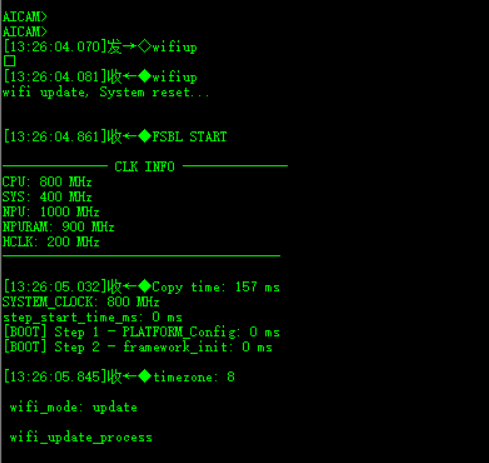
Enter the following command in the serial console to start the upgrade:
wifiup
4. Wait for Flashing to Complete
The system will automatically restart and enter the WiFi firmware upgrade mode. Note: The flashing process takes a few minutes, please be patient and do not power off or interrupt the operation.
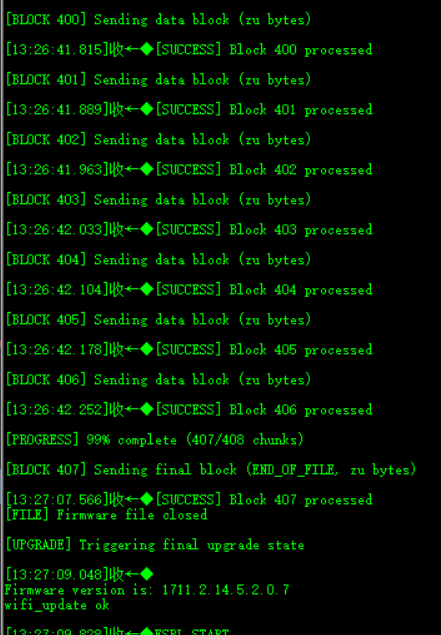
When you see the prompt "wifi_update ok" similar to the figure below, and the system automatically restarts to enter the working mode, it means the flashing is successful.
After flashing is complete, you should be able to search for the WiFi hotspot of NE301.