Security Hardening

NE503 ships for quick intranet evaluation: default credentials work, and RTSP provides no authentication. That is acceptable on a test bench, but the device must complete the credential, network, and app-permission steps in this guide before production handover. For the platform's isolation and security model, see security-architecture.md in the open-source repo.

1. Factory Defaults and First-Change Checklist

SurfaceFactory defaultRiskFirst action
Web / REST APIadmin / passwordWeak credentials allow full takeoverChange immediately after login (§3)
SSHroot / root, root login enabledFull device controlChange the password and prefer key-based login (§3)
RTSP :8554No authentication — anyone on the network can pull the streamsVideo leakageIsolate the network; never expose it to the internet (§2)
API tokenLogin-issued session token (random each login) plus a built-in static integration keyA leak allows API accessSessions die on password change; rotate the static key (§3)

The current firmware does not automatically force a password change on first login. The default remains valid until changed manually. Make the first post-login password change a recorded handover requirement; do not skip it because the device did not display a forced-change prompt.

2. Network Exposure Surface and Protections

The main network surfaces are listed below. :443 is for management, :8554 is for video streams, and :22 is for SSH operations. Limit each port to the source network that needs it instead of opening all three together.

PortServiceAuthProtection
:443Web console / REST API (TLS, self-signed certificate)Login tokenAllow only the operations subnet
:8554RTSP streamsNoneAllow only NVR and other video consumers
:22SSHRoot password or keyRestrict source IPs; block it at the firewall when unused

Deployment principles:

  1. Intranet only: place the device on the surveillance LAN / VLAN, not on a route reachable from the public internet;
  2. Firewall: allow only necessary ports and sources. For example, allow only the NVR to reach 8554 and only operations hosts to reach 443 and 22;
  3. Treat RTSP as an unauthenticated stream: the current firmware enables RTSP by default and provides no RTSP authentication. Any host that can reach 8554 may be able to pull video, so use VLANs, ACLs, or firewall rules to restrict the sources;
  4. Never port-forward directly to the internet: none of these three surfaces has sufficient protection for direct public exposure (see §5).

3. Credential and Token Management

3.1 Change the Login Password in the Web Console

  1. Sign in to the Web console and open Settings → Device Info.
  2. At the bottom of the page, click Change Password.
  3. Enter the old password, the new password, and the new password again for confirmation.
  4. Click Confirm. The platform service restarts automatically; after it returns, sign in again with the new password.

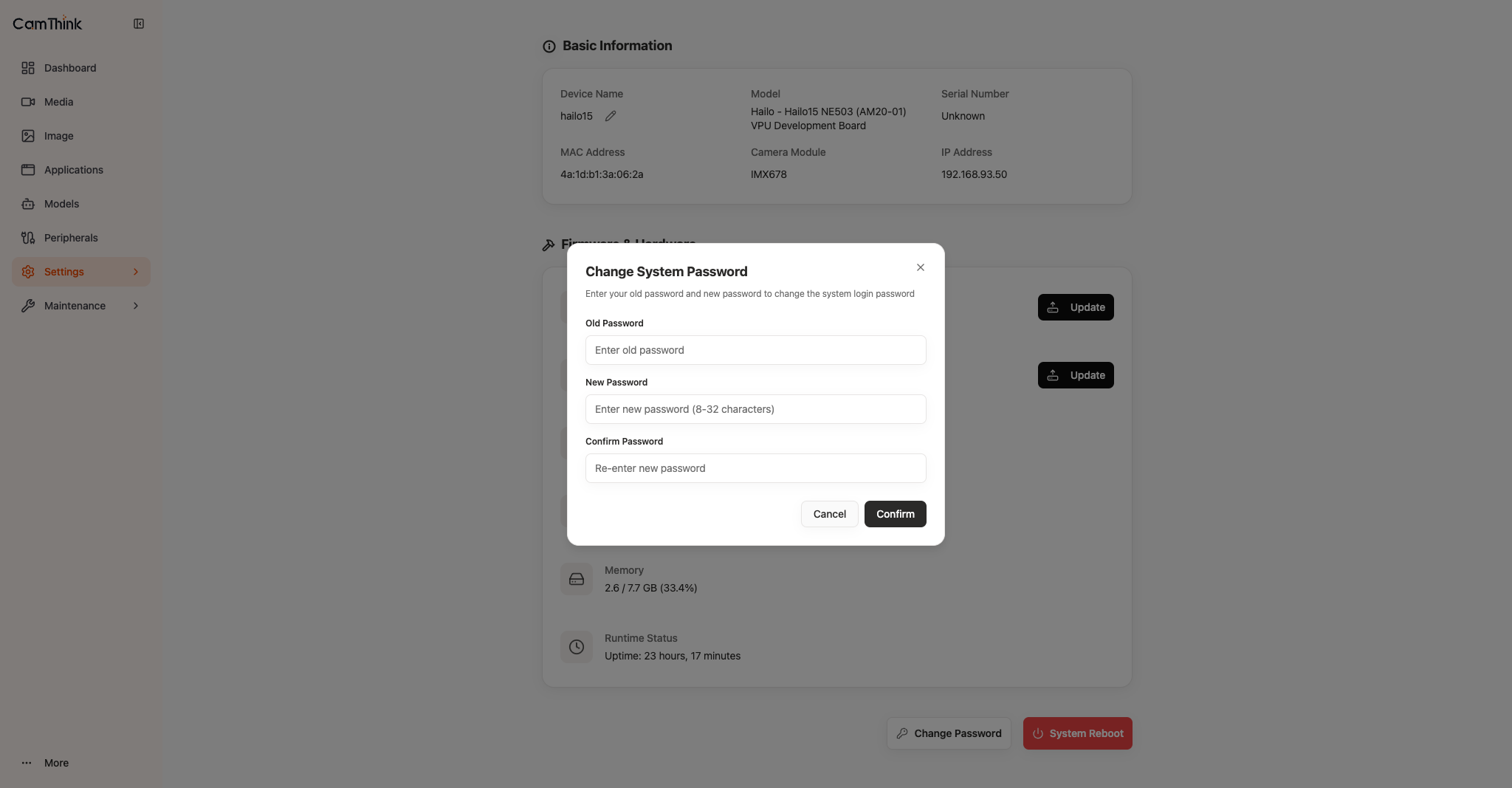
Change System Password dialog

The dialog contains these fields:

FieldWhat to enterPurpose
Old PasswordThe current Web / API login passwordThe Web console uses it to verify the current credential
New PasswordThe new password (the page indicates 8–32 characters)Sets the new login password
Confirm PasswordThe new password againEnsures that both entries match

After a successful change, the existing Web session and session token become invalid. If the page is temporarily unavailable while the service restarts, wait for the service to return and open the login page again; do not repeatedly submit the form during the restart.

3.2 Change the Password through the API

The API authenticates the request with a valid login token. In the current implementation, the request body only needs new_password; it does not require the old password:

POST /api/v1/system/password
Authorization: Bearer <valid-login-token>
Content-Type: application/json
{
"new_password": "<new-password>"
}

Request fields use snake_case: new_password. Do not change it to NewPassword or newPassword. After a successful response, the platform service restarts, existing session tokens become invalid, and the client must sign in again with the new password to obtain a token.

The Web console and API have different input requirements: the Web page displays and requires Old Password, New Password, and Confirm Password; the current API requires only a valid session and new_password. Treat tokens like passwords in integration scripts: never write them to logs, source repositories, or public configuration.

3.3 Session Tokens, Static Keys, and SSH

  • Session token: a new random token is issued at each login. Store it like a password in scripts and integrations. It expires after a password change or platform-service restart; when an API call returns 401, sign in again and obtain a new token instead of retrying the old one indefinitely.
  • Static integration key: the device has a fixed API key in its configuration, accepted as either Authorization: Bearer or X-API-Key. It is not changed by the Web password update, and its factory default is public in the open-source repo. Before production, use SSH to replace the auth.token_key value with a site-managed secret. Update every integration at the same time so the old key is not left in scripts or configuration files.
  • SSH password: sign in over SSH and run passwd to change the root password. Prefer key-based login and restrict source IPs. The Web console does not provide an SSH service start/stop control; when SSH is not needed, block port 22 at the upstream firewall. Do not copy an ssh or dropbear service command from another Linux distribution unless the service-unit name has been confirmed on the current device OS.

4. App and Container Permissions

The Permissions page in the app-install wizard separates model, stream, event, and device-control permissions. Select permissions according to the app's actual functions before installing it; do not grant everything “for later.”

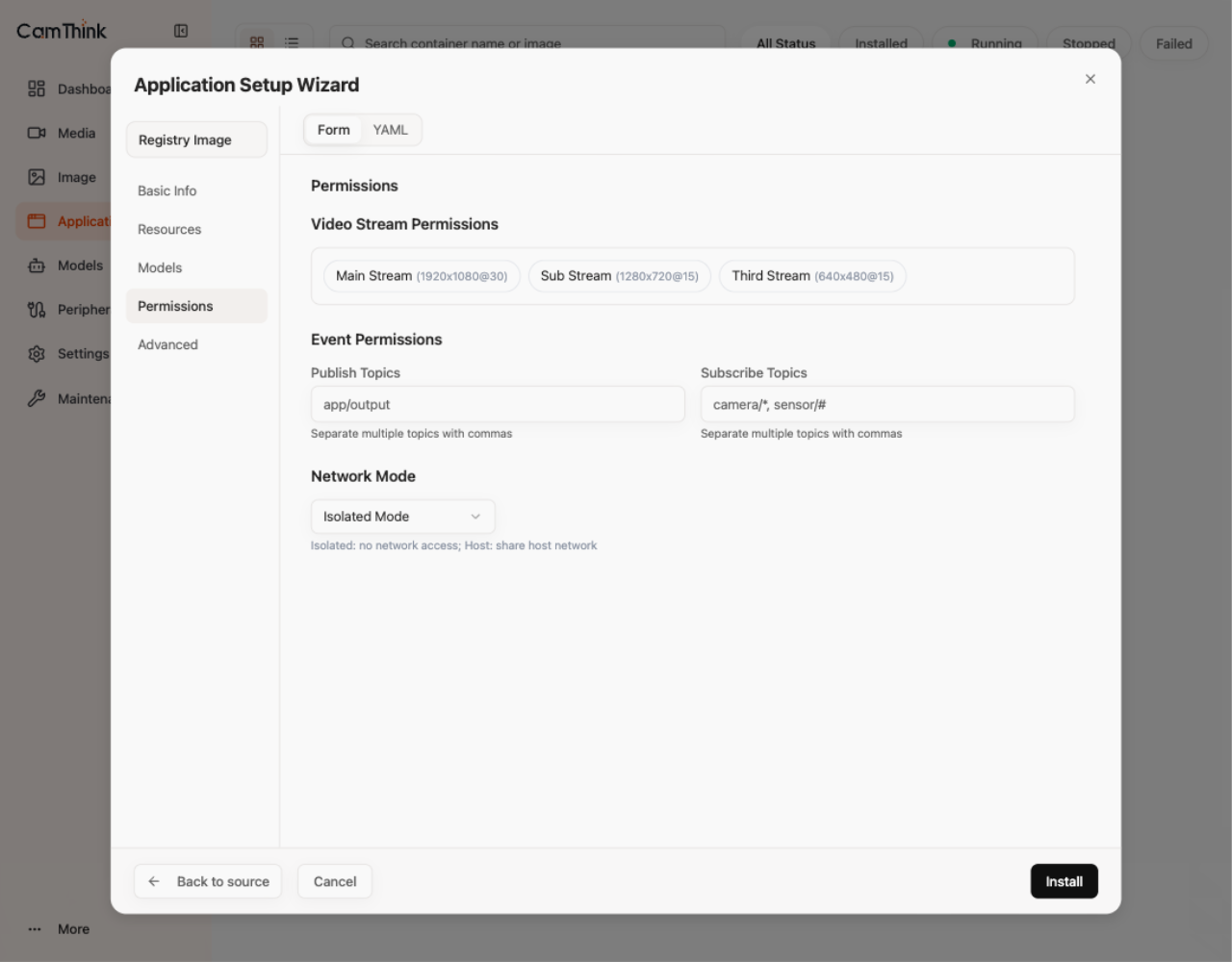
Open Applications → Import. In the Application Setup Wizard, complete Source, Basic Info, and Resources, then open Permissions. The page is longer than the visible panel; the following screenshots show the full permission area from top to bottom:

Upper part of the Application Setup Wizard Permissions page

Lower part of the Application Setup Wizard Permissions page

Use these principles when configuring each group:

Permission groupConfiguration principle
AI Models AccessGrant only the models the app actually calls. Set Max Inference QPS and Max Concurrent Inference so one app cannot consume all inference capacity. Leave Allow Dynamic Model Registration disabled unless it is required.
Video Stream PermissionsGrant only the streams the app needs to read. An app that does not process video should not receive stream access.
Event PermissionsSelect only the event topics the app really needs to publish or subscribe to. Publishing and subscribing are separate permissions.
Network ModeKeep Isolated Mode by default so the app remains network-isolated. Evaluate Host only when the app genuinely needs an external service or LAN device; identify the required addresses and ports first.
Device controlsGrant Light Control, IR Cut Filter, PTZ Control, and Lens Control individually according to the app's functions. A read-only or analysis-only app should not control the camera.

Apps also run inside a five-layer sandbox: Linux namespaces, capability dropping, seccomp, cgroups, and a read-only root filesystem. The sandbox does not replace permission configuration; the app can still call only the resources declared in app.yaml and granted during installation.

Image provenance is part of the security boundary. Install only self-built images or .aipc packages released by the official neoruntime-apps repo. Check the package source, version, and release record before installation; do not install a package whose origin cannot be confirmed.

5. Remote Access from the Internet

When external access is genuinely needed (remote operations or cross-network streaming), do not expose device ports. Enter the controlled intranet through an approved access path, or let an internal service relay the traffic:

NeedRecommended approach
Remote Web / API operationsUse a VPN (site-to-site or client) into the intranet, or an authenticated reverse proxy
Remote streamingRelay through an intranet NVR / streaming server instead of exposing device RTSP directly to the internet
Cloud alertsUse the outbound event-bus → MQTT bridge (see Event Integration) so the device has no inbound port opened