Notifications & Messages
NeoMind's message system routes device alerts, rule triggers, AI Agent analysis results, and system events to the channels you configure. Every message lands in the in-app notification center first, then fans out to your enabled external channels. It supports 7 external message channels (Webhook, Email, Telegram, WeCom, DingTalk, Slack, Feishu) with simultaneous multi-channel fan-out and per-channel message filtering.
The message system lives under Messages (bell icon) in the left nav. Three tabs: Messages (notification center, browse alert history), Channels (channel configuration), and IM Sessions (IM bridge sessions, see AI Chat — IM Bridging).
Supported Channels
| Channel | Type | Use Case | Auth | Disable |
|---|---|---|---|---|
| Webhook | Generic HTTP | Forward to any HTTP endpoint (custom systems, IFTTT, n8n, AlertManager); the UI can configure auth headers for the endpoint | URL + 5 auth types (configured in UI, converted to headers) | Yes |
| SMTP | Standard email notifications | SMTP username / password | Yes | |
| Telegram | Bot API | Real-time alerts for global teams | Bot Token | Yes |
| WeCom | Group Bot | China enterprise collaboration | Group Bot Webhook Key | Yes |
| DingTalk | Custom Bot | China enterprise collaboration | Access Token + signing | Yes |
| Slack | Incoming Webhook | International team collaboration | Webhook URL | Yes |
| Feishu | Custom Bot | China enterprise collaboration | Hook ID + signing | Yes |
NeoMind does not support SMS. For SMS alerts, use a Webhook channel to bridge to a third-party SMS gateway (e.g. Twilio, Alibaba Cloud SMS).
Interface Overview
Messages Tab (Notification Center)
Open the Messages page — the default view is the notification center:
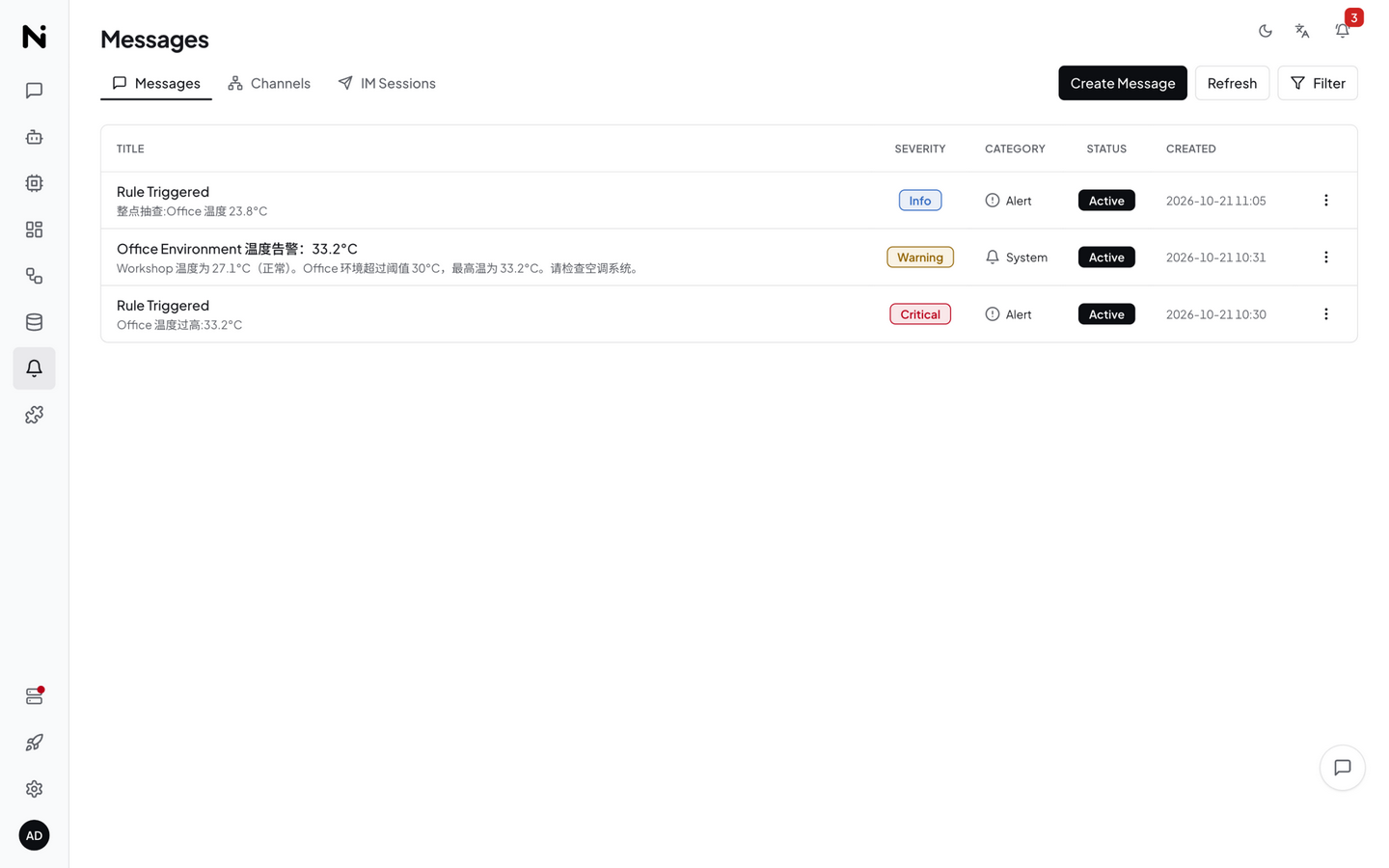
Each message contains:
| Field | Description |
|---|---|
| Severity | info / warning / critical / emergency (color coded light → dark) |
| Title | Message title |
| Body | Message content (click row to expand full content) |
| Category | alert / system / business / notification + backend-extensible arbitrary categories |
| Source | Triggering source: device / rule / telemetry / schedule / llm / system |
| Status | active / acknowledged / resolved / archived / false_positive (marked as false positive) |
| Time | Created and last-updated timestamps |
| Actions | Acknowledge / Resolve / Archive / Delete |
Filtering: Click Filter in the toolbar to open the filter Popover. Filter by severity (multi-select), status (multi-select), and category (multi-select). Active filters appear as chips in the toolbar.
Channels Tab (Channel Management)
Switch to the Channels tab to see all channels:
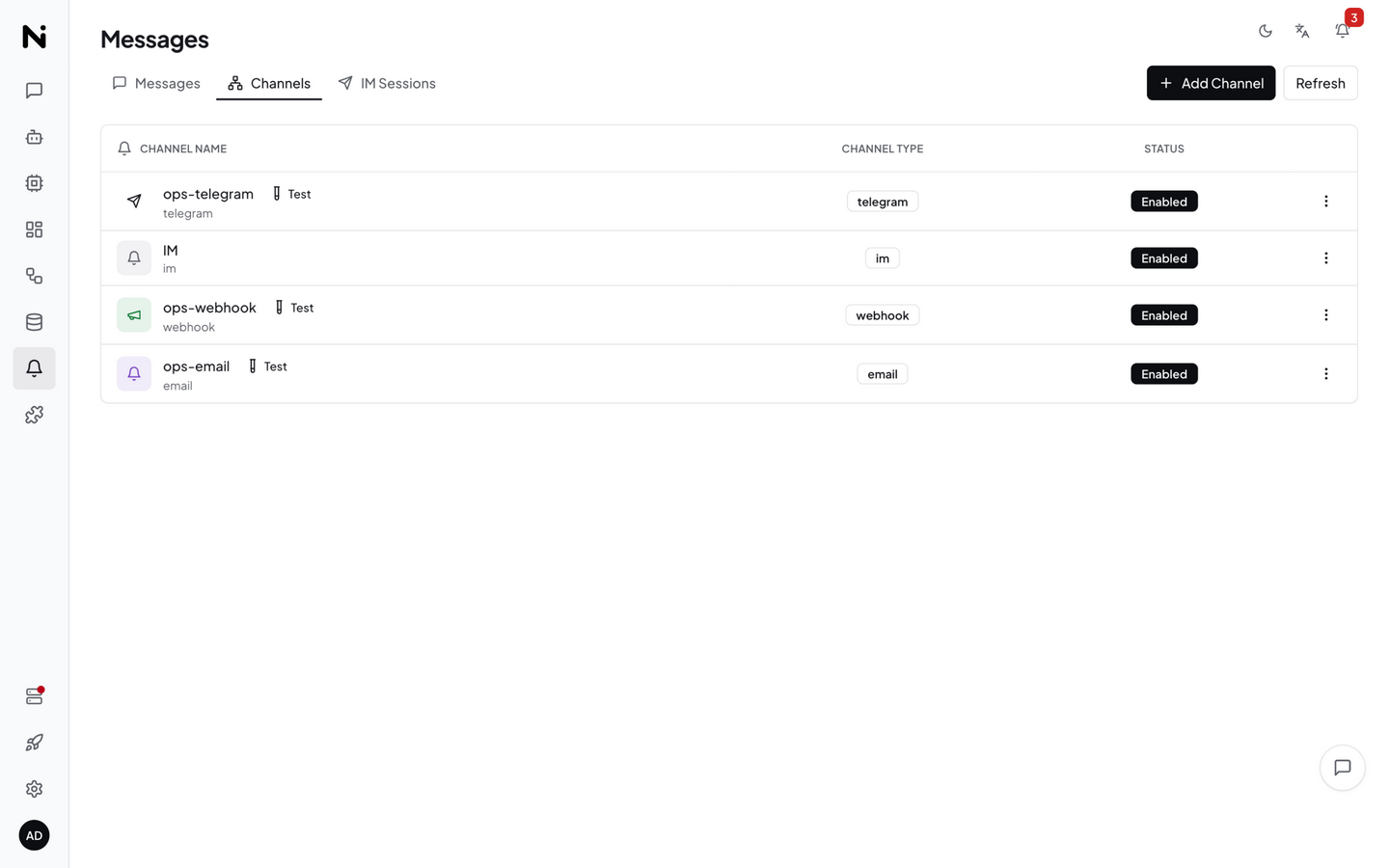
The top shows summary cards (Total channels / Enabled / Channel type count). Below is the channel list. Each channel card shows:
- Name + type icon: Channel identity
- Enable switch: Toggle channel on/off in one click
- Test button: Inline test result (success / failure + reason)
- Action menu: View / Edit / Configure Filter / Manage Recipients (Email only) / Enable | Disable / Delete
Configuring a Channel
Click Create to open the full-screen channel editor:
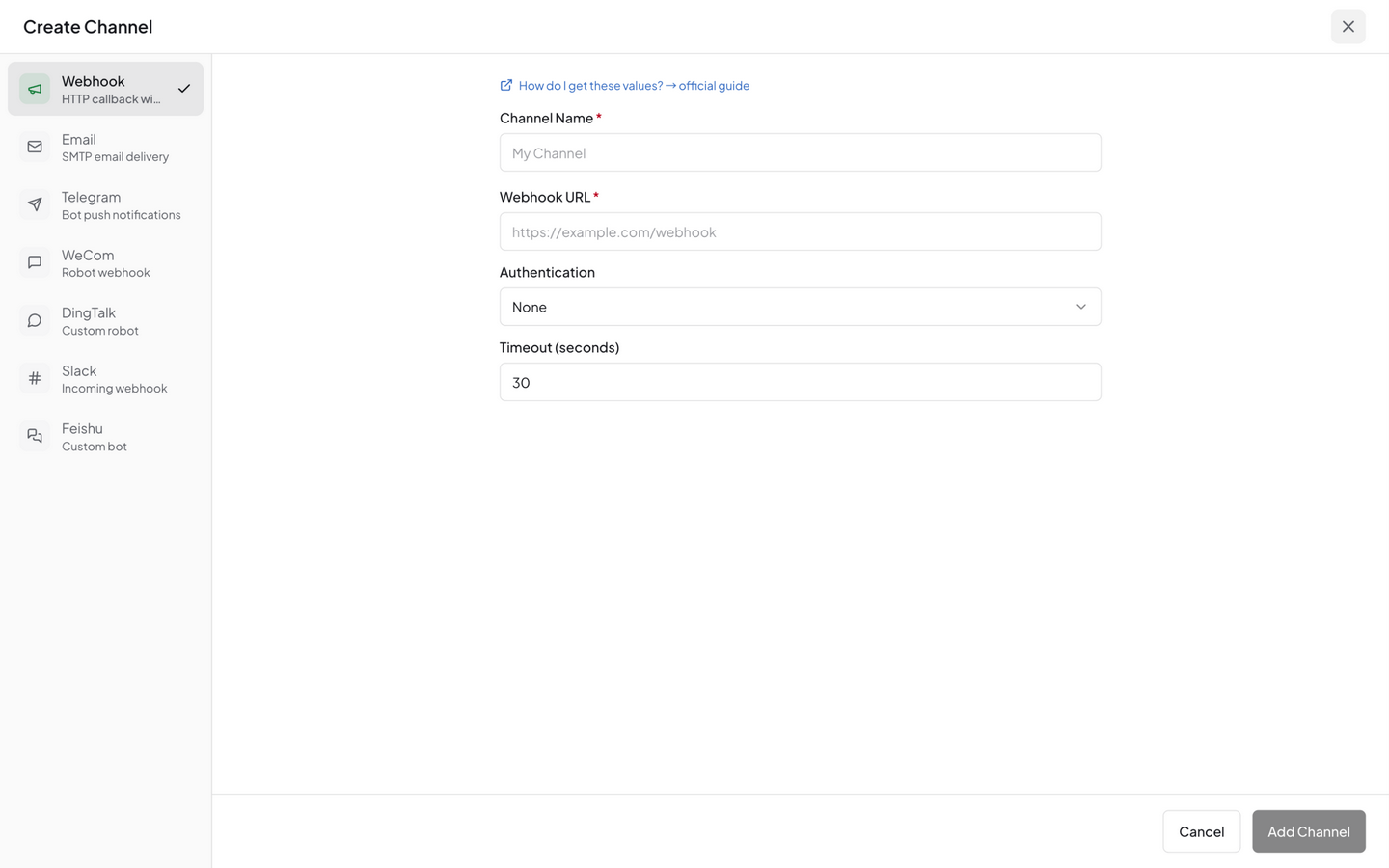
The editor uses a split-pane layout:
- Left sidebar: Lists the 7 channel types; click to switch
- Right form: Shows config fields for the selected type
Channels only handle external forwarding. Regardless of channels, every message is kept in the in-app notification center (Messages tab), viewable via the top-right bell icon in the Web UI.
Common Fields
All external channels need:
| Field | Description |
|---|---|
| Name | Unique identifier used by rules and Agents. Use lowercase-hyphenated names (e.g. ops-feishu) |
| Enabled | Whether the channel is active. Disabled channels receive no messages |
Webhook Channel
The most flexible channel — bridges to any HTTP endpoint.
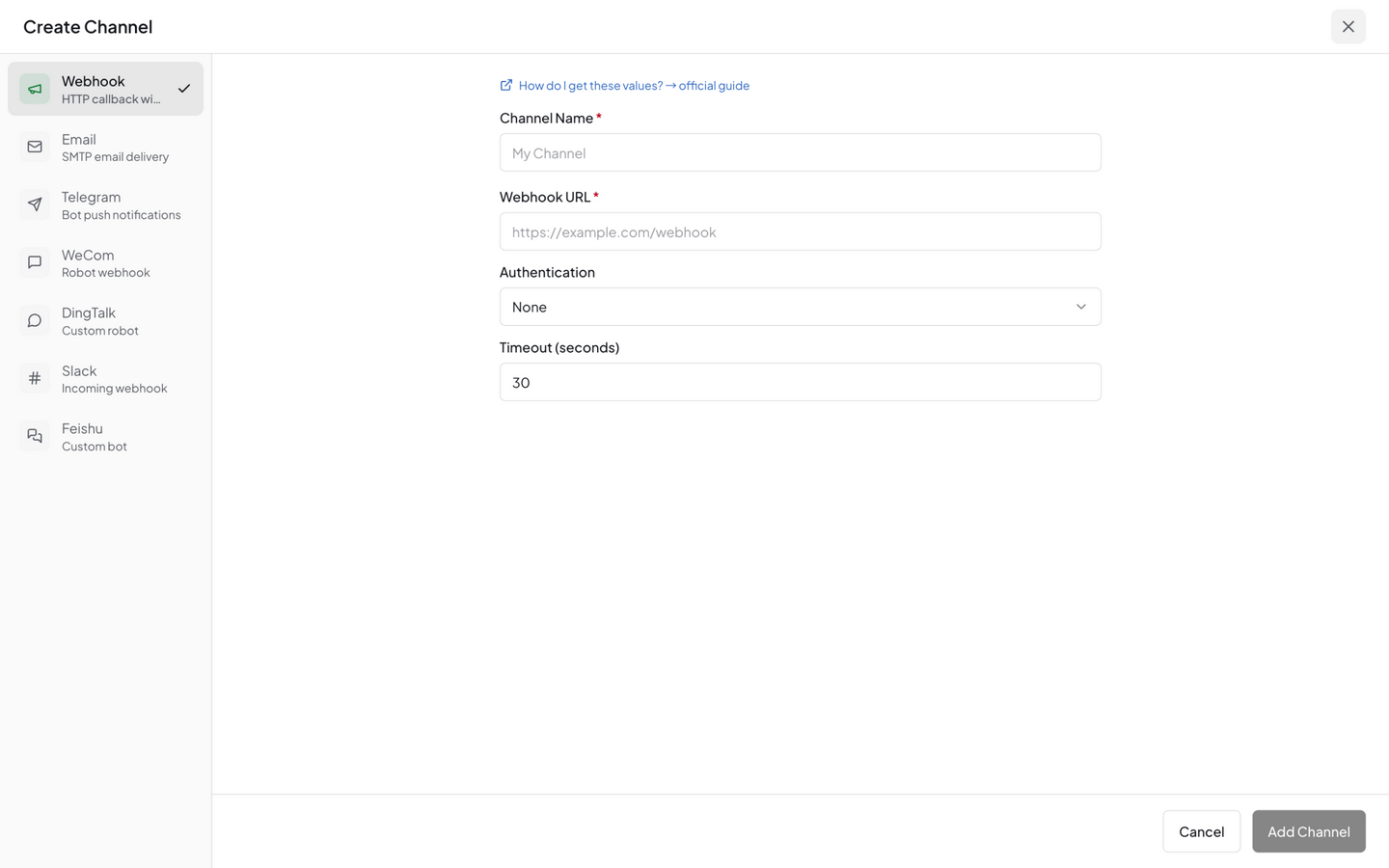
| Field | Description | Example |
|---|---|---|
| URL | HTTP(S) endpoint receiving messages; NeoMind pushes via POST | https://api.example.com/alerts |
| Authentication | Auth type: none / bearer / basic / apikey / custom | See table below |
| Headers | Custom request headers (used with custom auth) | {"X-Tenant": "factory1"} |
| Timeout (secs) | HTTP timeout, default 30, max 300 | 30 |
Auth types in detail (UI-level settings, converted to HTTP headers on save):
| Type | Extra Fields | Use Case |
|---|---|---|
| none | None | Public endpoints, intranet without auth |
| bearer | Bearer Token | OAuth 2.0, JWT |
| basic | Username + Password | HTTP Basic Auth |
| apikey | API Key + Header Name (default X-API-Key) | Third-party API gateways |
| custom | Custom Headers key-value table | Custom signatures, multi-header combos |
Email Channel
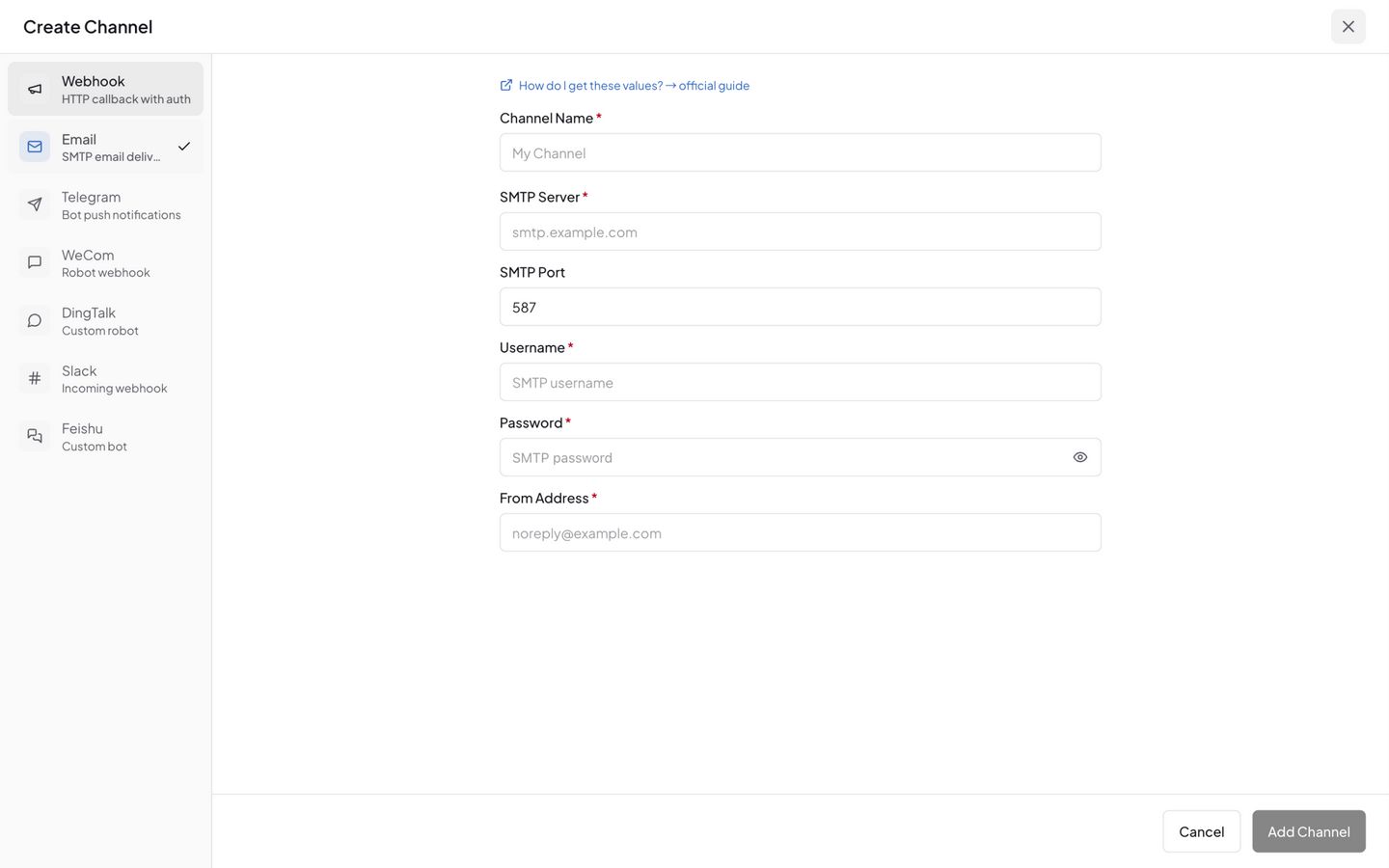
| Field | Description | Example |
|---|---|---|
| SMTP Server | SMTP server host | smtp.gmail.com |
| SMTP Port | Port (default 587, STARTTLS) | 465 (SSL) / 587 (STARTTLS) |
| Username | SMTP login username | alert@example.com |
| Password | SMTP password or app-specific password | •••••••• |
| From Address | Sender address (usually same as Username) | alert@example.com |
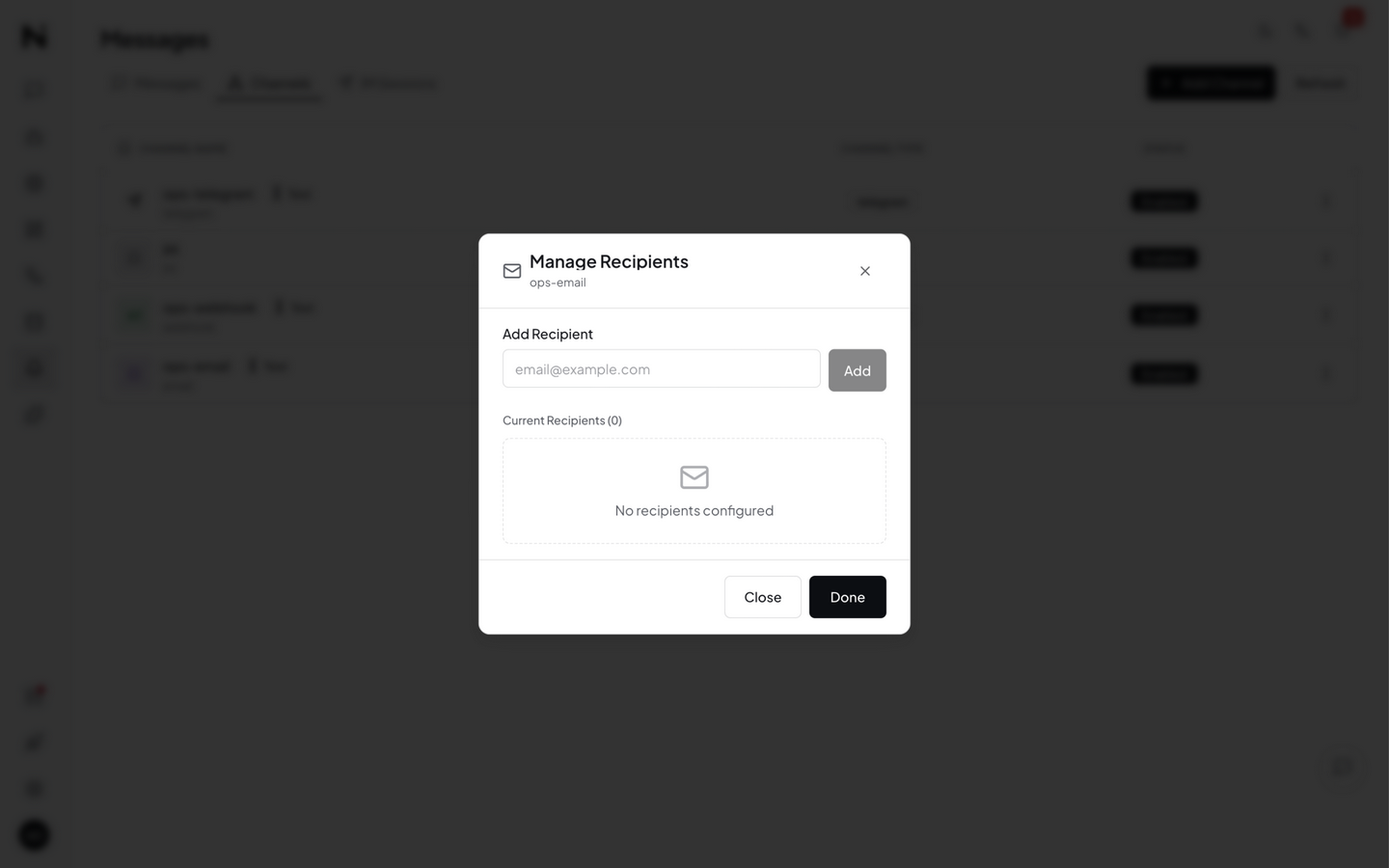
After saving the Email channel, use Manage Recipients in the channel action menu to add/remove recipient addresses — no need to reopen the channel editor.
Telegram Channel
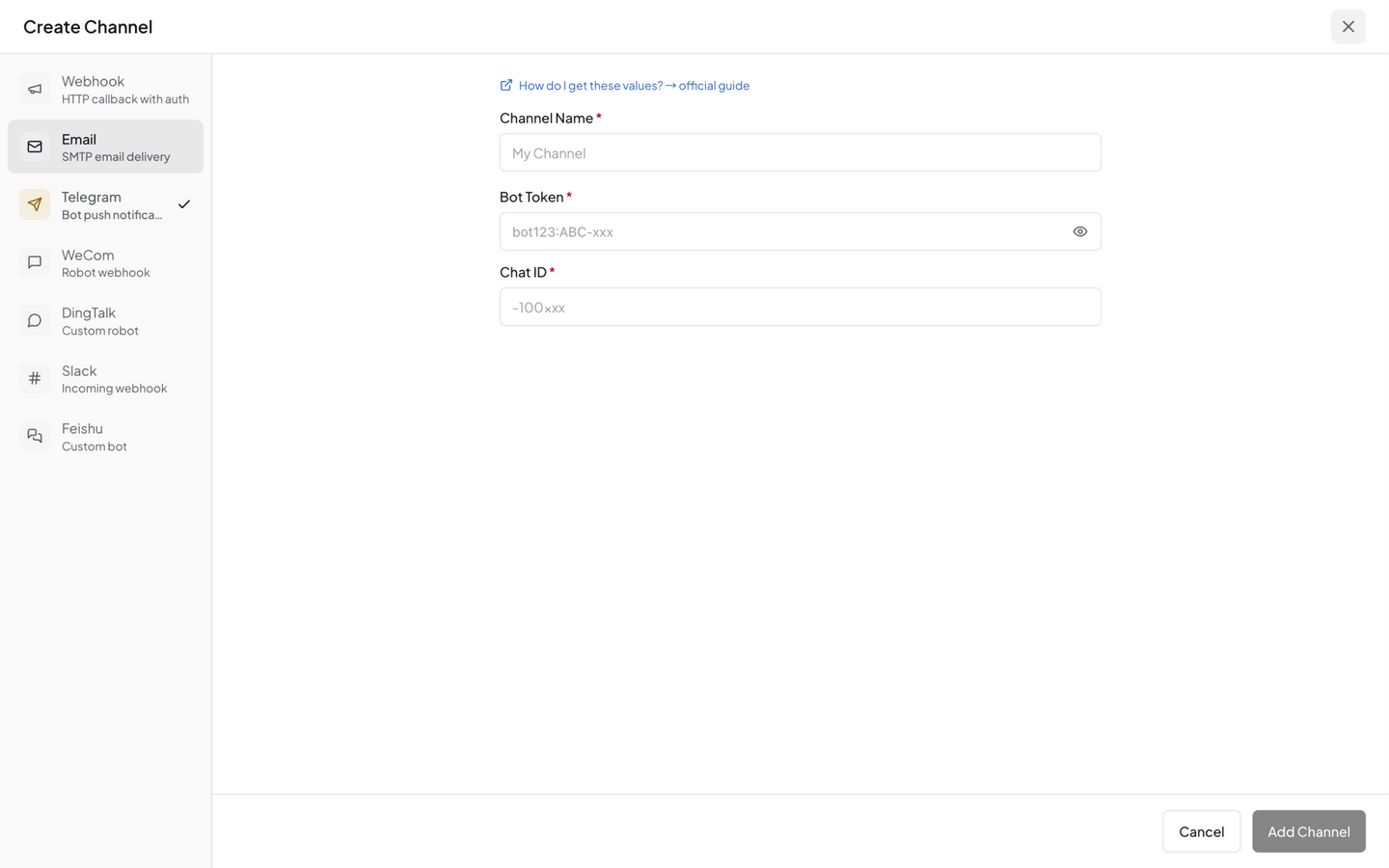
| Field | Description | How to Get |
|---|---|---|
| Bot Token | Telegram Bot access token | Create a Bot via @BotFather, format 123456:ABC-DEF... |
| Chat ID | Conversation ID receiving messages (group or DM) | Add the Bot to a group, then visit https://api.telegram.org/bot<TOKEN>/getUpdates to read it |
DM Chat IDs are pure numbers (your user ID). Group Chat IDs typically start with
-(e.g.-1001234567890).
WeCom Channel
| Field | Description | How to Get |
|---|---|---|
| Key | The key portion of the group bot Webhook URL (not the full URL) | Group Settings → Add Group Bot → copy Webhook URL, take the value after key= |
NeoMind internally reconstructs
https://qyapi.weixin.qq.com/cgi-bin/webhook/send?key=<KEY>, so fill in only the Key.
DingTalk Channel
| Field | Description | How to Get |
|---|---|---|
| Access Token | The access_token portion of the group bot Webhook URL | Group Settings → Smart Group Assistant → Add Custom Bot → copy Webhook URL, take the value after access_token= |
| Secret (optional) | Signing secret | Bot security settings → choose "Sign" → copy the Secret. Strongly recommended — otherwise the bot can be invoked maliciously |
When signing is enabled, NeoMind computes an HMAC-SHA256 signature and appends timestamp and sign to the URL per DingTalk protocol.
Slack Channel
| Field | Description | How to Get |
|---|---|---|
| Webhook URL | Full Slack Incoming Webhook URL | https://api.slack.com/apps → Create New App → Incoming Webhooks → enable → copy URL |
URL format:
https://hooks.slack.com/services/T000/B000/XXXX.
Feishu Channel
| Field | Description | How to Get |
|---|---|---|
| Hook ID | The hook_id portion of the bot Webhook URL (not the full URL) | Group Settings → Group Bots → Add Custom Bot → copy Webhook URL, take the UUID after open.feishu.cn/open-apis/bot/v2/hook/ |
| Secret (optional) | Signing secret | Bot security settings → choose "Signature Verification" → copy the Secret |
When signing is enabled, NeoMind computes timestamp and sign fields per Feishu protocol and includes them in the request body.
Testing a Channel
After saving, click Test in the channel list. NeoMind sends a test message and shows the result inline:
- ✅ Success: HTTP status code or channel response
- ❌ Failure: Error reason (connection timeout, auth failed, Chat ID not found, etc.)
Always Test before enabling in production to avoid silent alert failures.
Channel Filters
Each channel can have its own message filter deciding which messages get forwarded. Click Configure Filter in the channel action menu to open the filter dialog:
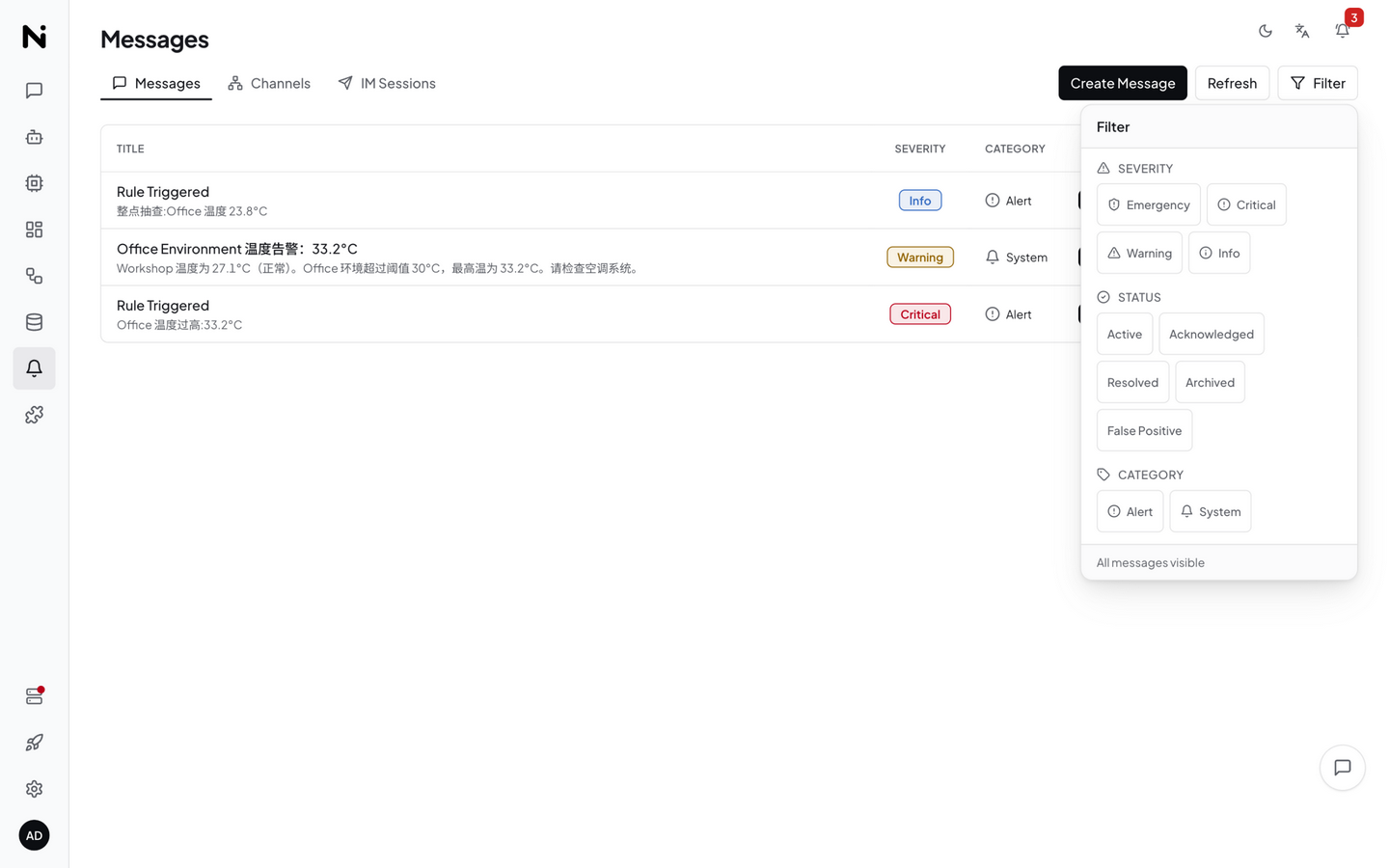
Filters have three groups:
1. Source Types
Multi-select, deciding which triggering sources get forwarded:
| Source | Description |
|---|---|
device | Device events (online / offline / data anomaly) |
rule | Rule engine triggers |
telemetry | Telemetry threshold alerts |
schedule | Scheduled task triggers |
llm | AI Agent / Chat triggers |
system | System events (extension crashes, storage alerts) |
Empty = receive all sources (default).
2. Categories
Multi-select message categories:
alert— Alerts (device anomaly, threshold breach)system— System (service status, extension events)business— Business (orders, workflows)notification— General notifications
Empty = receive all categories (default). The backend can extend with custom categories which will also appear here.
3. Minimum Severity
Single-select dropdown, filtering out messages below the chosen level:
| Value | Severities Received |
|---|---|
| (empty) | All (info / warning / critical / emergency) |
info | All |
warning | warning / critical / emergency |
critical | critical / emergency |
emergency | emergency only |
Typical usage:
- Email channel: min
warning(filter out info noise) - Feishu / DingTalk group: min
critical(only important alerts) - Webhook → monitoring dashboard: All (preserve full data)
Newly created rule notifications enter all enabled channels by default; use filters for tiered routing.
Triggering Notifications
Messages don't appear in isolation — they are triggered by other modules:
1. Rule Engine (Most Common)
Configure a notify action in an Automation Rule:
{ "type": "notify", "message": "sensor-01 temperature {value}°C exceeded threshold 30°C", "severity": "critical" }
For the complete rule structure, see Automation Rules.
A notify action generates a message that enters all enabled channels — each channel's filter then decides whether to forward. So after creating a rule, make sure to configure filters on the channels that should carry it.
2. AI Agent
Let an AI Agent decide whether to notify after analysis:
- Free-mode Agent: Write in the prompt "notify the ops group via email when an anomaly is detected" — the Agent calls the
messagetool - Focused-mode Agent: Automatically decides whether data is anomalous and triggers alerts
3. AI Chat (Manual)
Just say in Chat: "Send a Feishu message to the group telling them device 3 is offline" — the LLM invokes the message tool.
4. System Events
Some system events (device offline, extension crash-loop stop, low storage) automatically enter the notification center and are forwarded per each channel's filter.
Message Lifecycle
Messages have 5 statuses; 4 of them form a complete handling workflow:
active → acknowledged → resolved → archived
| Status | Description | Action |
|---|---|---|
| Active | New message, pending handling | Automatic |
| Acknowledged | Ops staff have seen it and are working on it | Click Acknowledge |
| Resolved | Issue fixed | Click Resolve |
| Archived | Archived, no longer active | Click Archive |
| False Positive | A verdict on alert quality (false alarm), not part of the active → archived workflow | Click Mark as false positive (or POST /api/messages/{id}/false-positive) |
Actions:
- Single message: click the corresponding button on the message row
- Bulk: filter a batch via the filter Popover, then bulk-act
- Delete: Delete removes from the database (irreversible — prefer Archive)
CLI Management
The NeoMind CLI provides message subcommands for managing messages and channels:
# List the last 20 messages (filter with --severity / --status)
neomind message list --limit 20

# View message details
neomind message get <message_id>

# Send a system message (for testing the delivery pipeline)
neomind message send --title "Test Alert" --body "Manually created test message" --severity warning

# Acknowledge (mark as read) / delete messages
neomind message read <message_id>
neomind message delete <message_id>

# List all channels
neomind message channel-list

# View channel types and each type's config fields
neomind message channel-types
neomind message channel-type-schema feishu

# Create a channel (--config takes the full JSON, or use repeatable --param k=v)
neomind message channel-create --name ops-feishu --type feishu \
  --config '{"hook_id":"xxxxxxxx-xxxx-xxxx-xxxx-xxxxxxxxxxxx","secret":"secxxxxxxxx"}'

# Update a channel (modify config / enable-disable, etc.)
neomind message channel-update --name ops-feishu --config '{"enabled":false}'

# Test a channel (send a test message)
neomind message channel-test ops-feishu

# Delete a channel
neomind message channel-delete ops-feishu
Message templates support
{value}and{source_id}interpolation; channel filters (by source / category / minimum severity) are configured in the channel edit panel of the Web UI.
REST API
All features are accessible via HTTP API (default port 9375):
Full REST API example
# List messages
curl http://localhost:9375/api/messages?limit=20 \
  -H "X-API-Key: $NEOMIND_API_KEY"

# Create a message
curl -X POST http://localhost:9375/api/messages \
  -H "X-API-Key: $NEOMIND_API_KEY" \
  -H "Content-Type: application/json" \
  -d '{
    "title": "High Temperature Alert",
    "message": "sensor-01 temperature 35°C exceeds threshold",
    "severity": "critical",
    "category": "alert",
    "source_type": "rule"
  }'

# List channels
curl http://localhost:9375/api/messages/channels \
  -H "X-API-Key: $NEOMIND_API_KEY"

# Create a channel (name + channel_type + config fields, all flat in one object)
curl -X POST http://localhost:9375/api/messages/channels \
  -H "X-API-Key: $NEOMIND_API_KEY" \
  -H "Content-Type: application/json" \
  -d '{
    "name": "ops-webhook",
    "channel_type": "webhook",
    "url": "https://api.example.com/alerts",
    "headers": {"Authorization": "Bearer xxx"},
    "timeout_secs": 30,
    "enabled": true
  }'

# Update a channel
curl -X PUT http://localhost:9375/api/messages/channels/ops-webhook \
  -H "X-API-Key: $NEOMIND_API_KEY" \
  -H "Content-Type: application/json" \
  -d '{"config": {"url": "https://api.example.com/alerts", "enabled": false}}'

# Test a channel
curl -X POST http://localhost:9375/api/messages/channels/ops-webhook/test \
  -H "X-API-Key: $NEOMIND_API_KEY"

# Enable / disable
curl -X PUT http://localhost:9375/api/messages/channels/ops-webhook/enabled \
  -H "X-API-Key: $NEOMIND_API_KEY" \
  -H "Content-Type: application/json" \
  -d '{"enabled": false}'

# Configure filter
curl -X PUT http://localhost:9375/api/messages/channels/ops-webhook/filter \
  -H "X-API-Key: $NEOMIND_API_KEY" \
  -H "Content-Type: application/json" \
  -d '{
    "source_types": ["rule"],
    "categories": ["alert"],
    "min_severity": "warning"
  }'

# View filter
curl http://localhost:9375/api/messages/channels/ops-webhook/filter \
  -H "X-API-Key: $NEOMIND_API_KEY"

# Email recipients management (one recipient per call)
curl -X POST http://localhost:9375/api/messages/channels/ops-email/recipients \
  -H "X-API-Key: $NEOMIND_API_KEY" \
  -H "Content-Type: application/json" \
  -d '{"email": "ops@example.com"}'

curl http://localhost:9375/api/messages/channels/ops-email/recipients \
  -H "X-API-Key: $NEOMIND_API_KEY"

# Remove a recipient
curl -X DELETE http://localhost:9375/api/messages/channels/ops-email/recipients/ops@example.com \
  -H "X-API-Key: $NEOMIND_API_KEY"

# Change message status
curl -X POST http://localhost:9375/api/messages/<message_id>/acknowledge \
  -H "X-API-Key: $NEOMIND_API_KEY"

# Delete a channel
curl -X DELETE http://localhost:9375/api/messages/channels/ops-webhook \
  -H "X-API-Key: $NEOMIND_API_KEY"
Sending & Dedup
Once created, a message is permanently stored in the notification center; it is then sent once to each enabled channel (after passing that channel's filter):
- Bounded retry only: A channel send failure (timeout, auth failure, target error) is retried automatically — up to 3 attempts with short second-level backoff (1s / 2s) — but there is no delivery history to inspect. Use Test on the channel to verify connectivity. For data forwarding with full retry semantics (exponential backoff + delivery history), use Data Push.
- Dedup window: Messages with the same (title, source, severity) are sent to channels at most once per 60-second window, preventing notification storms from high-frequency rule triggers; the message itself still appears in the notification center. Rule-triggered messages dedupe on "rule identity + severity" (so different rules never swallow each other); (title, source, severity) is only the fallback key when no rule identity is present.
- Semantic error detection: Channel tests inspect the response body (e.g. Feishu/DingTalk
code != 0, Telegramok: false) — HTTP 200 with a semantic failure counts as a failure.
Typical Scenarios
Scenario 1: Multi-Channel Redundancy for Critical Alerts
- Email channel: filter min_severity =
critical, recipientsoncall@example.com - Feishu channel: filter min_severity =
critical, signing enabled - Webhook channel: forward to AlertManager for secondary routing
When a critical alert fires, all three channels receive it — no missed alerts on single-point failure.
Scenario 2: Tiered Notifications
| Channel | Filter | Use Case |
|---|---|---|
min_severity = warning | Ops mailing list | |
| Feishu | min_severity = critical | 24/7 ops group |
| Slack | source_types = ["llm"] | Agent analysis channel |
| Webhook | categories = ["alert"] | Forward to monitoring dashboard |
Scenario 3: In-App Only (Silent)
- Create no external channels; all messages default to the in-app notification center
- Check history via the top-right bell icon in the Web UI
- Suitable for dev / test environments
Best Practices
- Test before enabling: After creating a channel, always test to catch config errors before they silently swallow alerts
- Multi-channel redundancy for critical alerts: Configure both email + Feishu / DingTalk to avoid single-point failure
- Tiered filtering: Use channel filters for severity-based routing — Info goes only to in-app, Critical fans out to email / group notifications
- Enable signing: DingTalk and Feishu bots should always enable signing to prevent malicious calls if the URL leaks
- Sensible dedup: Set
cooldownin rules to prevent sensor jitter storms; the message system's built-in 60-second dedup window provides a safety net - Manage recipients separately: Use Manage Recipients for Email channel add/remove — no need to reopen the channel editor
- Bridge via Webhook for unified alerting: Point a Webhook channel at AlertManager, Home Assistant, n8n, etc., and let the platform handle secondary routing and silencing rules
Integration with Other Modules
| Module | Description |
|---|---|
| Automation Rules | notify action triggers a message routed by channel filters |
| AI Agent | Agent invokes the message tool after analysis |
| Device Management | Device online / offline / data anomalies trigger messages automatically |
| Extensions | Extension crashes and other system events enter the notification center |
| Data Push | Data Push handles data streams; the message system handles alert streams |
Last updated: 2026-10-21