AI Chat
AI Chat is NeoMind's conversational interface — tell it what you want in natural language, the LLM understands intent, calls tools, and returns results. It can query device state, create rules, build dashboards, and trigger notifications.
The problem it solves: you don't need to memorize any CLI commands, API paths, or UI navigation. A request like "check the machine-room temperature and create an alert rule if it exceeds 35°C" used to require visiting the Devices page and the Rules page separately — now it's one sentence, because Chat is wired to the exact same toolset as the CLI and API (see Built-in Tools Reference).
Prerequisites
- At least one LLM backend configured (Ollama or cloud)
- At least one device onboarded (otherwise Chat is just small talk)
Interface Overview
Click AI Chat (chat icon) in the left nav to open the conversation view:
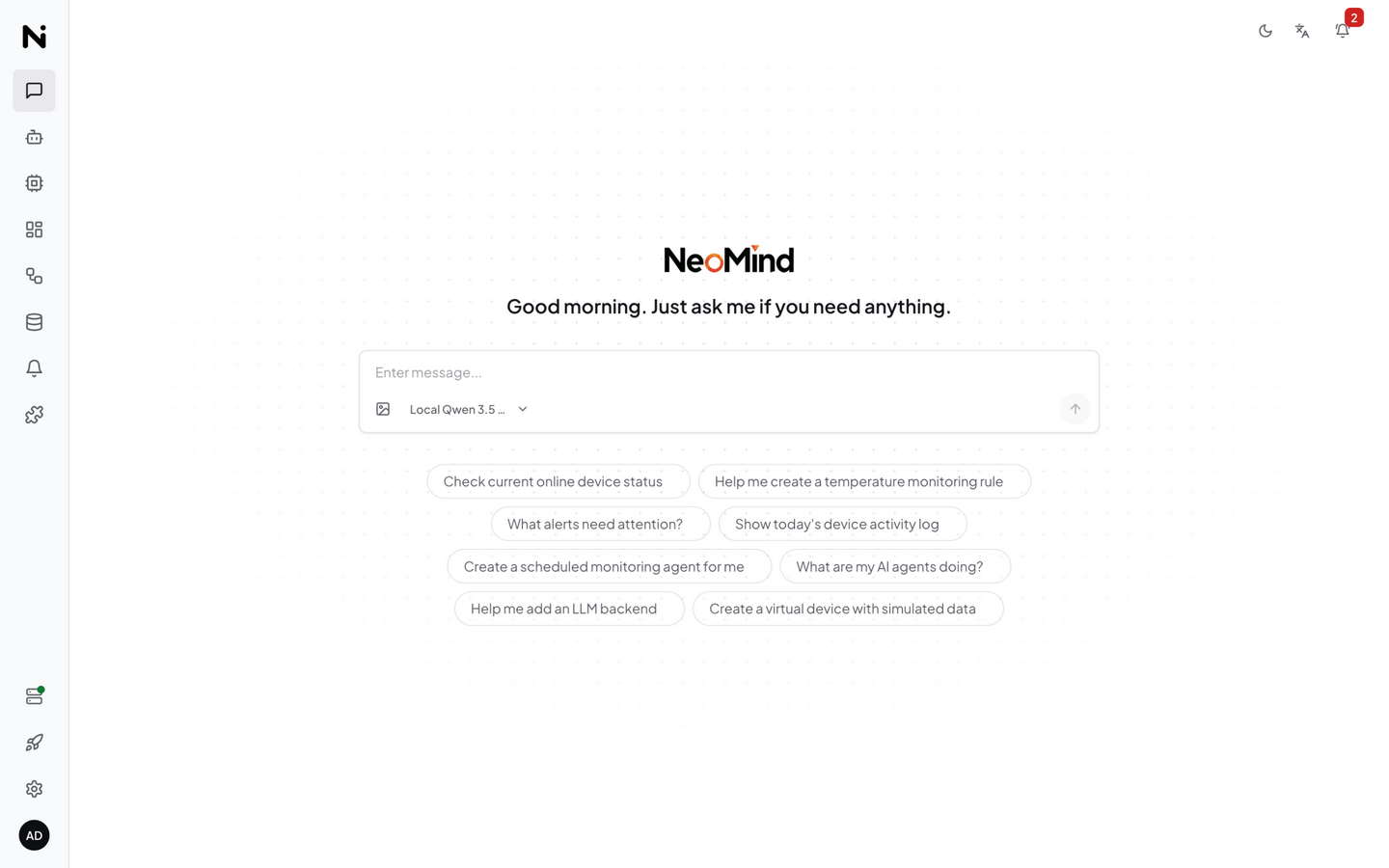
The interface has three areas:
| Area | Description |
|---|---|
| Left · Session List | Manage multiple sessions (create / switch / search / delete). Each session has independent context |
| Center · Conversation | Displays messages, tool call process, AI replies |
| Bottom · Input Area | LLM model selector, image upload button, text input, send button |
A new session initially shows suggested questions (e.g. "Check current online device status") — click to quickly start a conversation without typing.
Tool Call Mechanism
When you send a message, the AI doesn't answer directly — it understands intent → selects tools → executes → synthesizes results. The whole process is visible in the conversation:
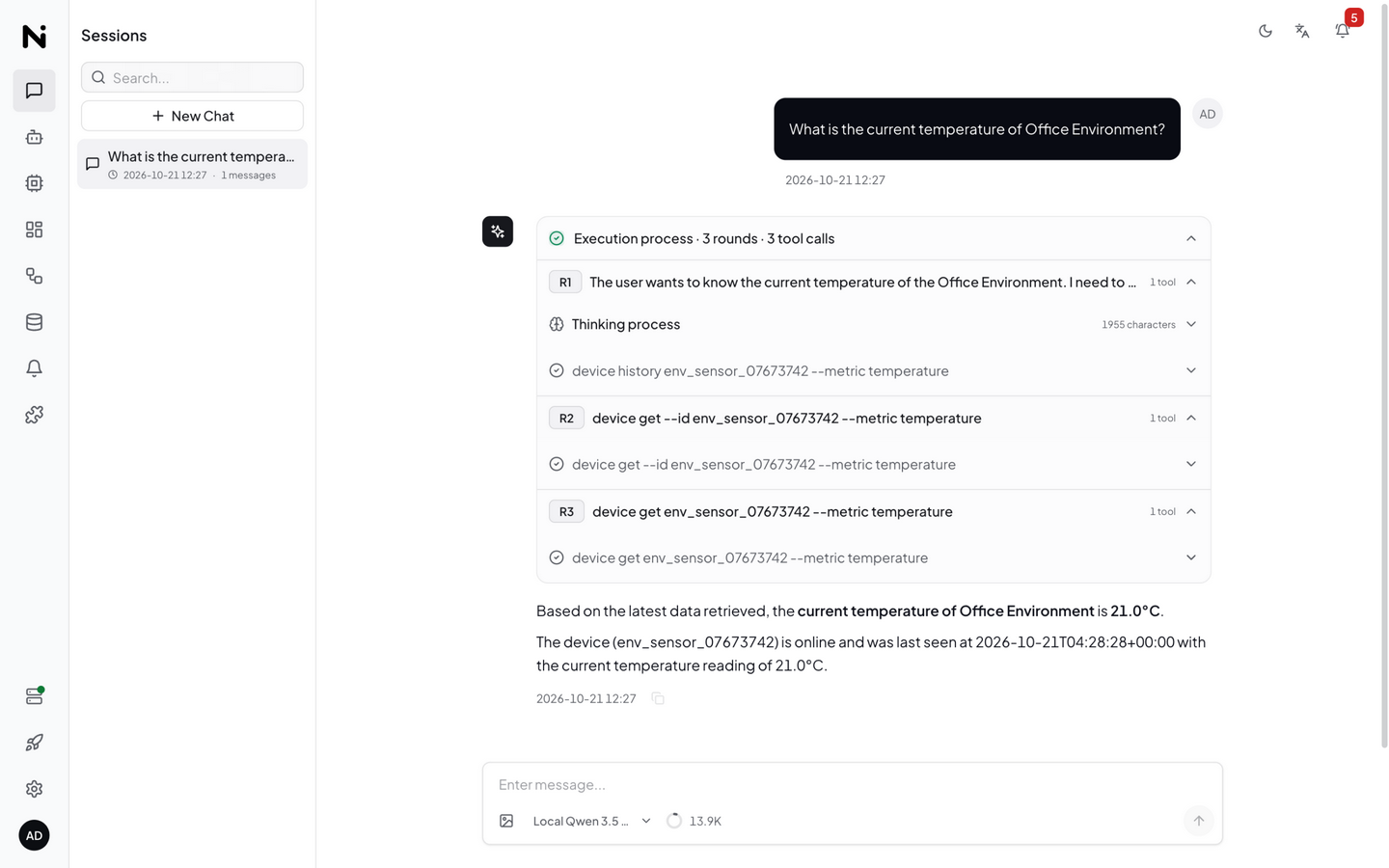
In the screenshot above, the user asked "How many devices are online right now?" and the AI's process was:
- Understand intent: Identify that device status needs to be queried
- Call tool: Execute the
device listcommand (green ✓ means success) - Synthesize answer: Generate a natural language reply based on the data returned by the tool
Above the AI's reply, a "Thinking process" summary appears (rounds, character count) so you can see how many steps the AI reasoned through. Complex requests may chain multiple tool call rounds (NeoMind caps at 30 rounds per turn; each turn times out after 30 minutes by default, adjustable in Settings → Preferences).
Worked Example: One Tool Call End to End
Take "How many devices are online right now?" and break down every step between your question and the answer. Once you understand this flow, you can read every entry in the conversation view — and know exactly when to follow up.
Step 1 · You send the question
How many devices are online right now?
Step 2 · The LLM decides to call a tool
Instead of making up an answer, the LLM emits a structured tool call (the conversation view shows the tool name and arguments; a green ✓ marks success). The LLM only needs a "simple name" — NeoMind automatically maps device, list_devices, and even Chinese aliases like 「设备列表」 to the real tool, and fills in parameters (e.g. inferring action: "list" when the LLM omits it):
{
  "name": "device",
  "arguments": { "action": "list" }
}
Step 3 · NeoMind executes the tool
device is a domain tool: NeoMind converts it internally into the equivalent CLI command neomind device list, runs it, and gets a JSON result (excerpt, illustrative):
{
  "success": true,
  "data": {
    "devices": [
      { "id": "sensor-01", "name": "Living Room TH", "status": "online" },
      { "id": "sensor-02", "name": "Machine Room TH", "status": "online" },
      { "id": "hvac-01",   "name": "AC Unit 1",      "status": "offline" }
    ],
    "total": 3
  }
}
Step 4 · The LLM synthesizes the final answer
There are currently 3 devices — 2 online (Living Room TH, Machine Room TH) and 1 offline (AC Unit 1, hvac-01).
For a more complex question ("Show me the humidity curve for the last 24 hours"), the LLM chains several tool calls within the same turn (query devices → pull history → render a chart) until it can answer — each intermediate step appears in sequence in the conversation view.
Built-in Tools Reference
The tools callable from AI Chat fall into three groups: domain tools (covering NeoMind's feature modules), general built-in tools (memory / skills / vision, etc.), and extension tools (registered by installed extensions). The most useful ones:
| Tool | Group | What it does | Typical arguments |
|---|---|---|---|
device | Domain | List devices, read latest telemetry, query history, send control commands, write metrics | {"action":"latest","device_id":"sensor-01"}; control {"action":"control","device_id":"hvac-01","command":"on"}; history {"action":"history","device_id":"sensor-01","hours":24} |
rule | Domain | Create / enable / disable / delete automation rules | {"action":"create","json":"<rule JSON>"} |
agent | Domain | Create / inspect / trigger AI Agents | {"action":"list"}, {"action":"create","name":"...","prompt":"..."} |
message | Domain | Send in-app messages / alerts, read message list | {"action":"send","title":"High temp","content":"Machine #3 at 38°C"} |
transform | Domain | Create / manage data transforms | {"action":"list"}, {"action":"create","js_code":"..."} |
push / dashboard / extension / system | Domain | Data push targets, dashboard widgets, extension management, system info, etc. | By action + parameters |
shell | Built-in | Run any neomind <domain> <action> CLI command directly | {"command":"neomind device list"} |
skill | Built-in | Search / load operation guides on demand (check a guide before unfamiliar multi-step operations) | {"action":"search","query":"create rule"} |
memory | Built-in | Read and write cross-session memory (see Session Management) | {"action":"add","target":"user","content":"Prefers Celsius"} |
vision | Built-in | Analyze images (needs a vision model, see Multimodal) | Triggered automatically with an uploaded image |
web_fetch | Built-in | Fetch web pages as grounding for answers | URL argument |
Extension tools (e.g. yolo-video:detect) | Extension | Call extension commands (YOLO detection, OCR, face recognition, etc.) | Per extension definition |
Domain tools (device / rule / agent / …) are not separate implementations — NeoMind converts them into the matching neomind <domain> <action> CLI command and hands it to the shell tool. So "what the AI can do" is exactly "what the CLI can do"; conversely, if the LLM is unsure about parameters, you can ask it to run a specific CLI command.
Common pitfalls (tool calls)
- Query-only, no action: small models are sometimes overly cautious — you ask it to create a rule and it only lists existing ones. Just follow up with "please create it" (see Tips).
- Automatic action inference: when calling
devicewithoutaction, NeoMind infers it from the arguments (commandpresent → control;device_idpresent → latest value; neither → list). If the inference isn't what you want, say explicitly whether you want to "query" or "control". - 30-round cap: a single request allows at most 30 tool call rounds; each turn times out after 30 minutes by default (adjustable in Settings → Preferences). Past the cap the AI answers from what it already has, which can look "unfinished" — split the task across two messages.
- Duplicate device names: the LLM fuzzy-matches by name and can pick the wrong device; use the device ID in that case.
What You Can Ask
AI Chat has built-in tools covering nearly every NeoMind capability. Here are typical phrasings (Chinese or English both work):
Query & Control Devices
- "What's the temperature in the living room?" → latest telemetry
- "Set the AC to 26 degrees, cooling mode" → send a device command
- "Show me the humidity curve over the last 24 hours" → pull history, render a chart
- "How many devices are online right now?" → query device status
Dashboards & Visualization
- "Build me a dashboard showing real-time values from all temp/humidity sensors" → create dashboard + auto-add widgets
- "Change this chart's time range to 7 days"
Automation Rules
- "Email me when the temperature goes above 30°C" → create an automation rule and bind a notification channel
- "Report yesterday's energy use every morning at 8 AM"
Notifications
- "Send a Telegram message to the ops team that machine #3 is offline"
Extensions & Data
- "Call the weather extension — will it rain in Shanghai tomorrow?"
- "What was the last face recognition result?"
System & Diagnostics
- "Why has sensor-03 been silent for two hours?" → triggers a diagnostic flow
The LLM decides which tools to call and in what order. If the AI only ran query operations but didn't complete your actual request (e.g. you asked it to create a rule but it only checked), just follow up with "Please create it".
Switching LLM Backend
Use the dropdown on the left side of the input box to switch the LLM backend for the current session:
- Ollama local models: e.g.
qwen3.5:4b(default),granite4.1:3b, etc. - Cloud models: e.g. DeepSeek, Qwen Cloud, GPT-4o, etc. (must be added in LLM backend configuration)
Different backends have different capabilities (reasoning quality, speed, multimodal support). Choose based on the task:
- Simple queries → lightweight model (fast)
- Complex analysis / rule creation → stronger model (accurate)
Multimodal (Images)
If your LLM backend supports vision (see Configure an LLM Backend — Vision), you can upload images in Chat:
Click the image upload button on the left side of the composer's bottom toolbar (left side: image upload, model selector, and context usage ring; right side: send button). PNG / JPG / JPEG / WebP supported (the backend also accepts GIF / BMP / TIFF).
Typical use cases:
| Upload Content | How to Ask | Backend Call |
|---|---|---|
| Field photo | "What objects are in this image?" | Vision model or YOLO extension |
| Camera snapshot | "Read the digits on this meter" | OCR extension |
| Surveillance frame | "Identify the faces in this frame" | Face recognition extension |
You must pull a vision model (e.g. llava / llava) first — otherwise the upload button is disabled with a notice that the model doesn't support vision. NeoMind auto-detects backend capability. Text-only models (e.g. qwen3.5:4b, DeepSeek-V3) cannot process images.
Chat vs Agent: Two Modes
NeoMind's AI has two runtime shapes — easy to confuse at first:
| Dimension | AI Chat (this doc) | AI Agent (autonomous) |
|---|---|---|
| Trigger | You send a message, real-time | Scheduled or event-driven |
| Context | Conversation history | Memory system (journal + knowledge) |
| Best for | Ad-hoc queries, exploration, debugging | Long-running monitoring, periodic checks, event response |
| Configured in | Just open Chat | Create from the Agents tab |
Examples:
- Chat: "What's the temperature of machine #3 right now?" ← one-shot query
- Agent: Create an agent that checks machine #3 every hour and notifies you if it crosses a threshold ← long-running automation
For detailed agent configuration, see AI Agent. For automation rules, see Rules.
Session Management
-
Multiple sessions: each has independent context. Switch / rename / delete from the left sidebar.
-
Cross-session memory: after each substantive exchange (short pleasantries don't count), NeoMind runs a background LLM pass that extracts up to 3 durable, reusable facts and writes them to disk so they survive restarts:
[user]facts (preferences, habits, identity) →data/memory/USER.md(2000-char limit by default)[knowledge]facts (device aliases, locations, naming conventions) →data/memory/KNOWLEDGE.md(3000-char limit by default)[procedures]facts (SOPs, playbooks, how-to know-how) →data/memory/PROCEDURES.md(3000-char limit by default)
For example, once you mention "machine #3 is the air compressor on the east side of the shop floor", the AI will remember that alias in every future session. The memory files can also be inspected and cleaned up in system settings.
-
IM bridges (0.9.14+): Beyond the web UI, you can chat with the same agents directly in Telegram / Feishu (once an IM Bridge is configured in the system); this is a separate feature from the Telegram/Feishu notification channels — notifications are one-way alert pushes, while IM bridges are two-way conversation.
-
History persistence: sessions are stored in
sessions.redb; restarting the server won't lose them. Long sessions open with only the most recent page and load older messages on demand as you scroll up. -
Auto title: the first message of a new session automatically becomes the session title for easy identification in the list.
Context usage and manual compaction
The context usage ring next to the input box shows how much of the model's context window the current session occupies. Hover for a breakdown (system prompt / tool definitions / conversation history); it turns amber past 70% and red past 90%.
The ring's hover card carries two actions (available on both the chat page and the side panel):
| Button | What it does | When to use it |
|---|---|---|
| Compact | Summarizes the earlier conversation into one digest to free context; the most recent turns stay verbatim | When the AI starts "forgetting" — device names, numbers, or requirements mentioned a few turns back |
| Clear | Empties the session's history and stored summary (the session itself is kept, title unchanged) | When you want a genuinely fresh start with no earlier context |
The backend auto-compacts when context usage crosses 60% (your most recent messages are always kept verbatim — never paraphrased away). The buttons give you the control: don't wait for the threshold — the moment the AI starts confusing earlier context, compact. Compaction is model-generated: meaning is preserved but verbatim detail moves into the digest, so confirm critical details (thresholds, device IDs, text to draw onto an image) in recent turns.
Mobile
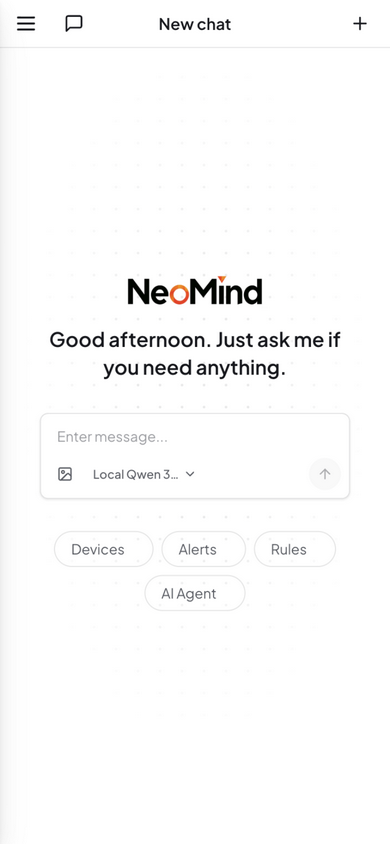
On mobile, the interface switches to a full-screen conversation mode. The session list is accessed via the menu in the top-left corner.
Tips
- Be specific about device identity: use the device name or ID ("the living-room temp/humidity sensor"). The LLM does fuzzy matching; if multiple devices share a name, use the ID.
- Break complex tasks into steps: "First check the humidity; if it's below 40%, turn on the humidifier" is more reliable than one giant instruction.
- Correct mistakes: if the LLM misreads your intent, just say "No, I meant machine #2" — no need to start a new session.
- Tool feedback: when an LLM tool call fails, it returns an error with a suggestion — follow the hint.
- Suggested questions: the questions shown on the new session page are clickable and a great way to explore AI capabilities.
Chat from Telegram / Feishu (IM Bridges)
Beyond the web UI, NeoMind can join Telegram or Feishu so you can talk to the AI right inside your IM — device queries and control work exactly like the web app.
Step 1: create bot credentials
- Telegram: find @BotFather →
/newbot→ copy the Bot Token (looks like123456789:AAxxx…) - Feishu: create a custom app on the Feishu Open Platform, grab the
App IDandApp Secret, and enable the "receive messages" capability
Step 2: add the bridge in NeoMind
Go to Settings → IM Channels, pick the platform, and fill in the credentials:
| Platform | Required fields |
|---|---|
| Telegram | Bot Token (optional custom API Base for proxy / private gateway) |
| Feishu | App ID + App Secret (for international Lark switch the domain to open.larksuite.com) |
The bridge starts automatically and listens for messages once saved.
Step 3: pair via invite
IM bridges are invite-only — send /start <pairing token> to your bot from Telegram/Feishu (the token comes from the IM Channels management screen). The chat is added to the allowlist and bound to a session; from then on everything you say there is answered by NeoMind.
Management
- View / remove allowed chats: bridge details in IM Channels
- Reset a chat's session context: the session reset button (or
POST /api/im-bridges/:id/sessions/:chat_id/reset)
The Telegram / Feishu entries in Notification Channels are one-way alert delivery (rule triggers notify you); an IM bridge is two-way conversation (you send commands, the AI executes and replies). They are independent and can be used together.
Next Steps
- AI Agent — Upgrade from interactive chat to autonomous patrols
- Automation Rules — Create rules directly via Chat
- Extensions — Add vision / OCR capabilities to AI
Last updated: 2026-09-09