Configure LLM Backend
NeoMind's AI Agent and AI Chat rely on an LLM backend to understand natural language and execute instructions. This guide covers configuring local or cloud LLMs via Web UI or CLI.
Backend Overview
NeoMind supports 10+ LLM backends in two deployment modes:
| Category | Backend | Default Model | Notes |
|---|---|---|---|
| Local (zero config) | Built-in Model | Curated platform catalog (LFM2.5-2.6B / MiniCPM5-2B / Qwen3.5-4B, 8 models) | No API key, fully offline — one-click download on the card, see section below |
| Local | Ollama | qwen3.5:4b | Fully offline |
| Local | llama.cpp (self-hosted) | Loaded at startup | Run llama-server yourself |
| Cloud | OpenAI | gpt-4.1-mini | API Key required |
| Cloud | Anthropic | claude-sonnet-4-5 | API Key required |
| Cloud | gemini-2.5-flash | API Key required | |
| Cloud | xAI | grok-3-mini | API Key required |
| Cloud | Qwen (Alibaba) | qwen-plus | DashScope Key required |
| Cloud | DeepSeek | deepseek-chat | API Key required |
| Cloud | GLM (Zhipu) | glm-4.5-flash | API Key required |
| Cloud | MiniMax | MiniMax-M2 | API Key required |
| Cloud | Custom gateway | Any | OpenAI-compatible endpoint (type OpenAI with a custom endpoint) |
Recommended: the built-in MiniCPM5-2B first (Q4_K_M, 1.5GB, 3GB RAM floor, 128K window default auto-capped to available RAM; keep ≥32K for long agent turns — 81% tool accuracy on the 2026-09 corrected eval, same tier as cloud deepseek-v4-flash; Apache-2.0 redistributable). With 4GB+ RAM and a need for the strongest agent, pick Qwen3.5-4B (128K default, RAM-capped — degrades badly at 8K). On the Ollama path use
qwen3.5:4b.
Built-in Model (Zero Config)
The Built-in Model card at the top of Settings → LLM Backends is the built-in backend: the platform ships with a llama.cpp runtime and downloads models from the official catalog on demand — no API key, no external dependencies, fully offline. Once a model is downloaded it can serve as the system default backend.
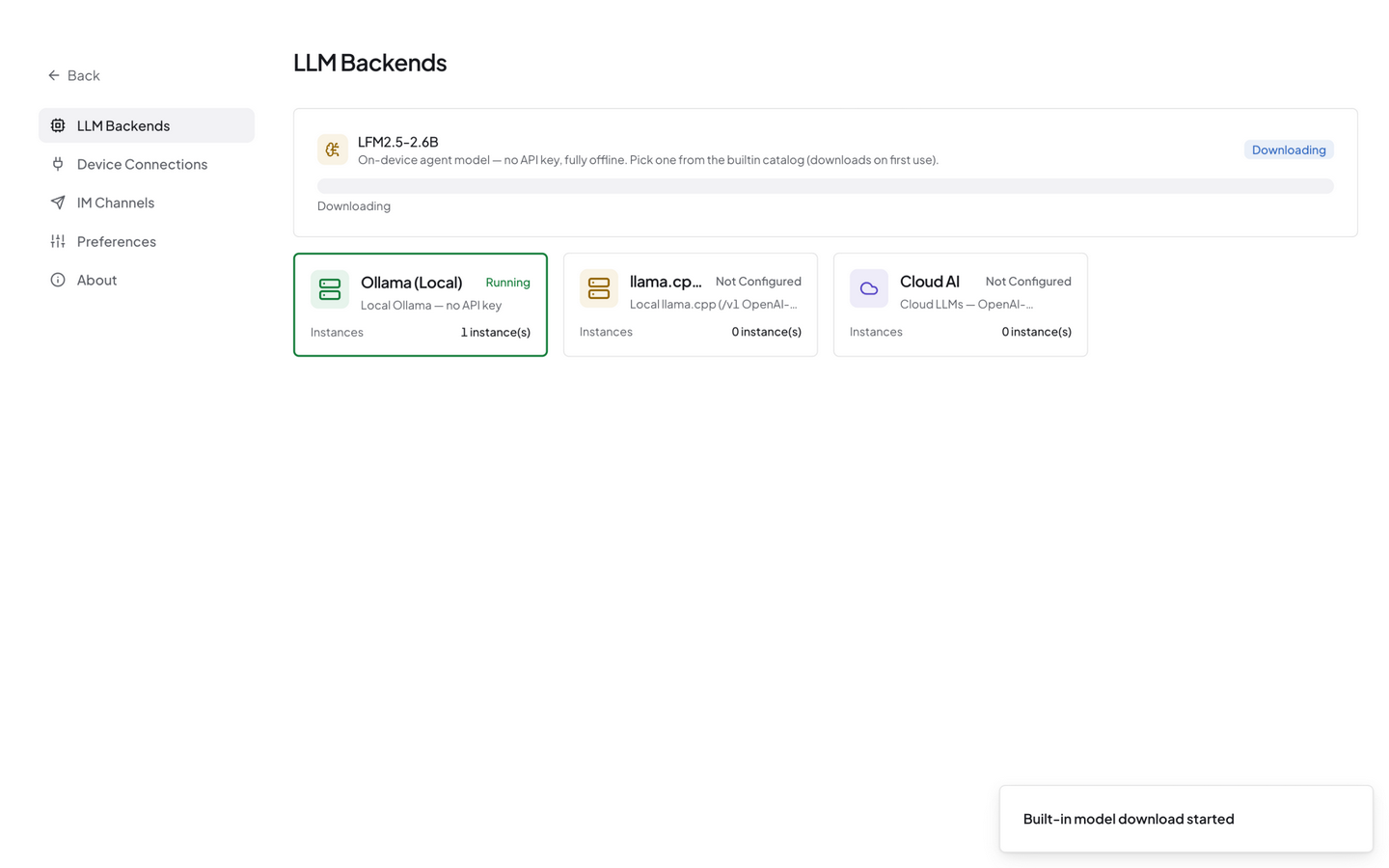
Model Catalog
The catalog comes from a remote manifest (models/catalog.json in camthink-ai/NeoMind-Runtimes, so new models keep arriving without upgrading the platform; offline it falls back to the built-in list, overridable via NEOMIND_CATALOG_URL). Current catalog (2026-10):
| Model | Quant | Size | Min RAM | Context | Notes |
|---|---|---|---|---|---|
| MiniCPM5-2B | q4_k_m | 1.6GB | 3GB | 128K | Recommended in docs — Apache-2.0 open license, commercial-friendly; 81% tool accuracy on the corrected eval, same tier as cloud deepseek-v4-flash |
| LFM2.5-2.6B | qad_q4_0 | 1.5GB | 3GB | 128K | Long-standing default · thinking always on · native 128K (custom LFM license — review terms for commercial use) |
| Qwen3.5-4B | q4_k_m | 2.7GB | 4.8GB | 128K | Strongest agent capabilities with 4GB+ RAM |
| Gemma4-E2B | qat_q4_0 | 3.1GB | 5.6GB | 128K | Google QAT quantization |
| Nanbeige4.2-3B | q4_k_m | 2.6GB | 4GB | 128K | — |
| Ling-3.0-tiny | q4_k_m | 4.8GB | 6GB | 128K | Quality cliffs past 8K context; keep sessions short |
| Spark-X2.6-4B | q4_k_m | 3.5GB | 6GB | 128K | Apache-2.0 zh+en · hybrid attention, native 1M context (RAM-capped) · controllable thinking |
| Spark-X2.6-1.7B | q4_k_m | 1.8GB | 4GB | 128K | Default recommendation — Apache-2.0 zh+en · light 1.7B · 1M context · controllable thinking |
| LFM3-1.7B | q4_k_m | 1.1GB | 3GB | 128K | LiquidAI next-gen · reasoning-first + tool calls · requires runtime ≥ b11960 |
| MiniCPM-V-4.7-1B | q4_k_m | 0.7GB | 2.4GB | 32K | Vision model — ships with an mmproj projection file for image understanding |
| LFM3-VL-2B | q4_k_m | 1.1GB | 3GB | 32K | Vision model — reasoning-first · requires runtime ≥ b11960 |
All models default to a 128K window auto-capped to available RAM (MiniCPM-V: 32K); keep ≥32K for long sessions.
Download & Activate (Web UI)
- Download (one click) — An uninstalled card shows a single Download button that fetches the currently recommended model, with live progress pushed over WebSocket. Downloads resume after interruption; cancelling keeps the partial file.
- Switch Model — Once installed, the card shows this button, opening the wizard straight at the model picker: switch to any catalog model, or use the "Import Local Model" card to bring your own GGUF (drag-and-drop with streamed upload, or an absolute server path; the platform parses name / quantization / context, verifies SHA-256, and imported models participate in switching just like catalog ones).
- Activate — Available while the built-in server is Running. Activating sets it as the system default backend — AI Chat, scheduled Agents, and rule-engine LLM analysis all switch to the built-in model. Clicking again confirms the current activation state.
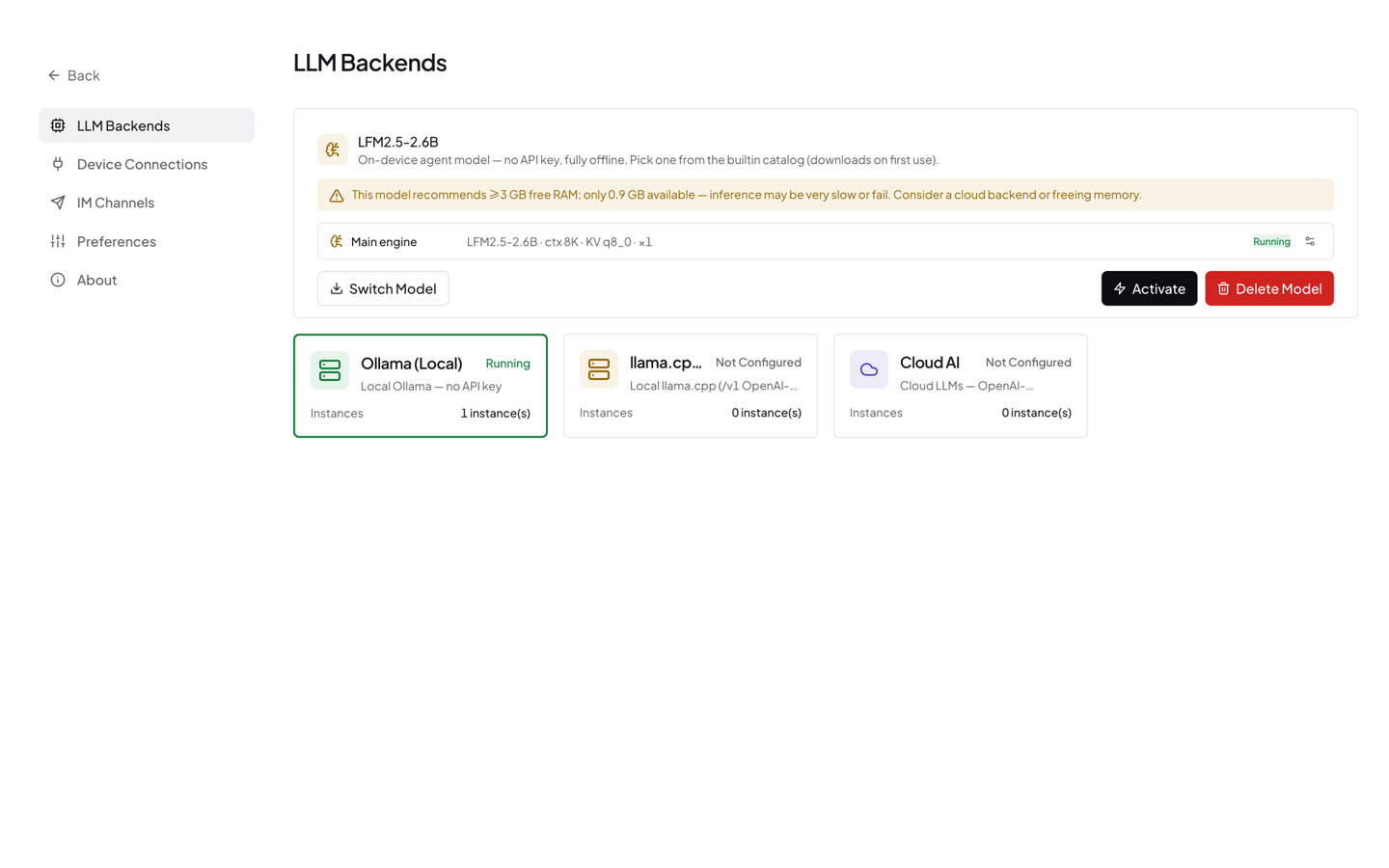
After the download completes, the card shows the engine status (e.g.
Main engine · LFM2.5-2.6B · ctx 8K · Running). The context auto-caps to available RAM — when free memory falls below the catalog value, a yellow warning banner appears noting that inference may slow down; switch to a lighter model, free memory, or use a cloud backend.
The built-in model registers as a LlamaCpp backend and participates in default switching equally with Ollama / cloud backends. Deactivate it when unneeded — the model file stays in the data directory for quick re-enablement.
Vision (VLM)
MiniCPM-V-4.7-1B in the catalog is a vision model: selecting it additionally downloads the mmproj projection file and spawns a vision companion instance — AI Chat can then take uploaded images, and AI Agents can analyze camera footage (see the Vision LLM Scene Understanding solution). At 0.7GB it is the cheapest vision option for edge devices.
Option 1: Web UI Setup (Recommended)
Step 1: Install Ollama and Pull a Model (Local Backend)
Install from ollama.com. After install, Ollama listens on http://localhost:11434 by default.
# Install Ollama (macOS / Linux)
curl -fsSL https://ollama.com/install.sh | sh

# Recommended model (Chinese + tool calling + 128K context)
ollama pull qwen3.5:4b

# For vision capability (image input), also pull a vision model
ollama pull minicpm-v   # or llava etc.
Note: Use
qwen3.5:4b. Earlier docs mentionedministral-3:3b/deepseek-r1:7b— these are no longer recommended (unstable tool calling / too large for edge hardware).
Skip this step if using a cloud backend (OpenAI / Anthropic / GLM, etc.).
Step 2: Open LLM Backend Settings
Navigate to Settings → LLM Backends:
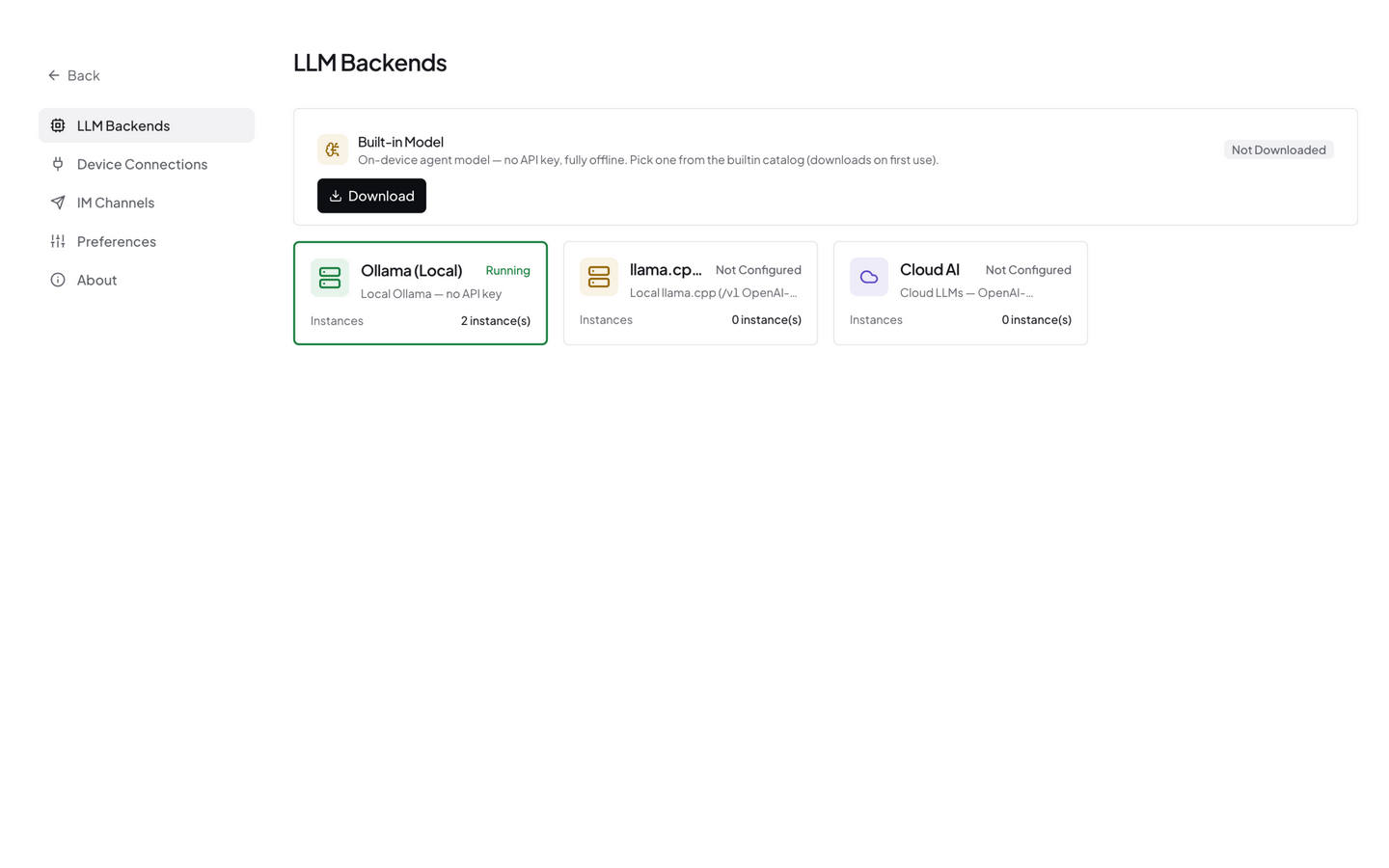
Backends are presented as cards (built-in model / Ollama / llama.cpp / Cloud AI). Click Add Instance on the corresponding card to open the configuration form.
Step 3: Fill in Backend Details
Ollama (Local)
| Field | Value |
|---|---|
| Type | Ollama |
| Endpoint | http://localhost:11434 (default; use the host IP for remote) |
| Model | qwen3.5:4b (must match the ollama pull name) |
| Stream | Enabled (recommended for better UX) |
Cloud (OpenAI example)
| Field | Value |
|---|---|
| Type | OpenAI-compatible protocol (or Anthropic protocol) |
| API Key | Your API Key (e.g. sk-...) |
| Base URL | Leave empty for official; fill in for custom gateway |
| Model | gpt-4.1-mini (or gpt-4o / gpt-4-turbo, etc.) |
Chinese providers: Qwen / DeepSeek / GLM / MiniMax all use OpenAI-compatible protocols. NeoMind has built-in default endpoints — just fill in the API Key and model name.
Custom Gateway (OpenAI-Compatible Endpoint)
If you use vLLM, Together AI, OpenRouter, or another self-hosted/third-party gateway, pick the OpenAI-compatible protocol on the Cloud AI card and fill in:
base_url: Gateway URL (e.g.https://api.openrouter.ai/v1)api_key: Gateway keymodel: Model name exposed by the gateway
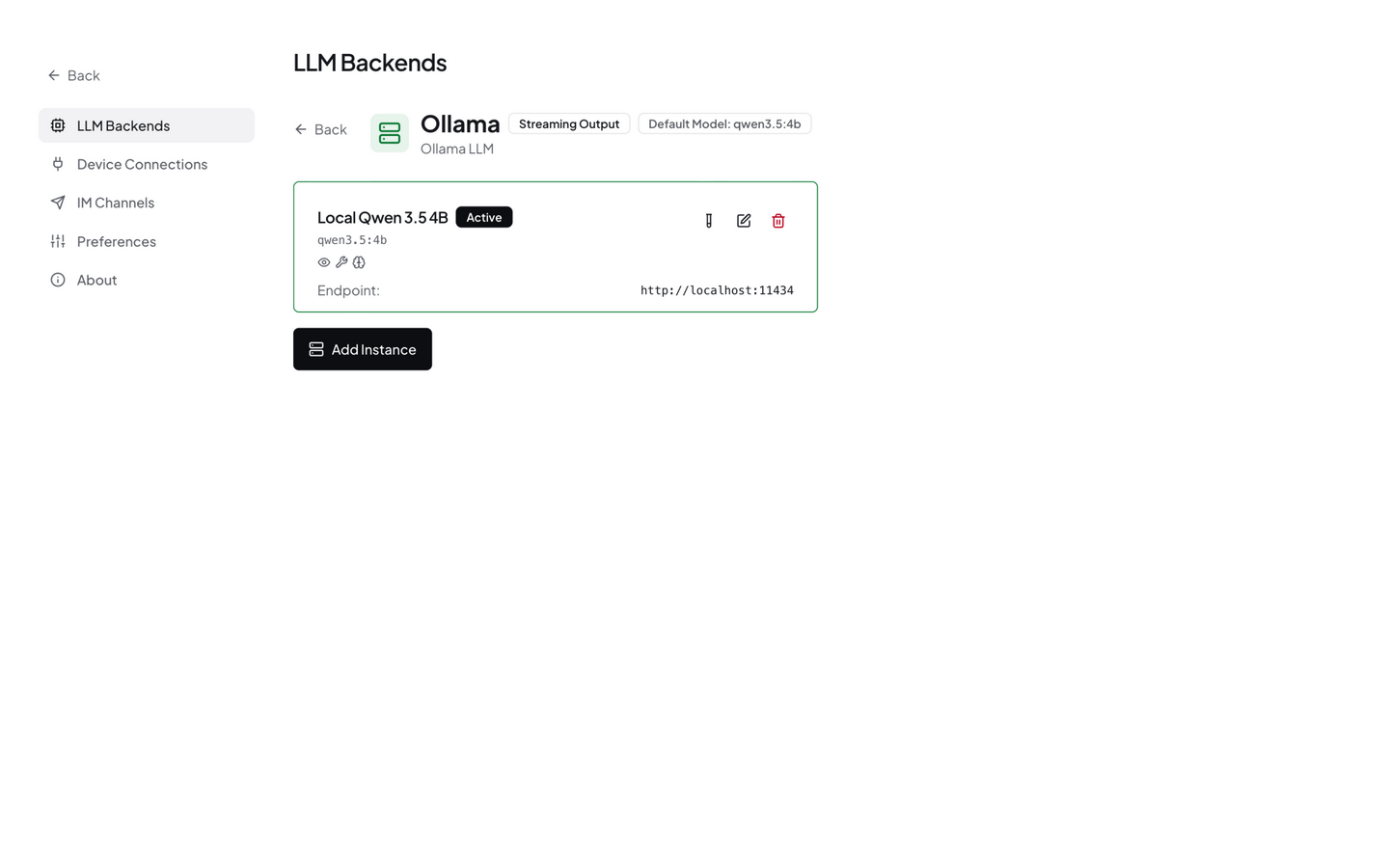
After saving, NeoMind probes the backend's capabilities (tool calling, multimodal, context window) and writes capability tags automatically.
Step 4: Set Default and Verify
Select the backend in the model picker at the top of AI Chat to make it the system default (the current default carries an "Active" badge), or activate it with neomind llm activate <ID>.
Then open AI Chat and send a greeting to verify:
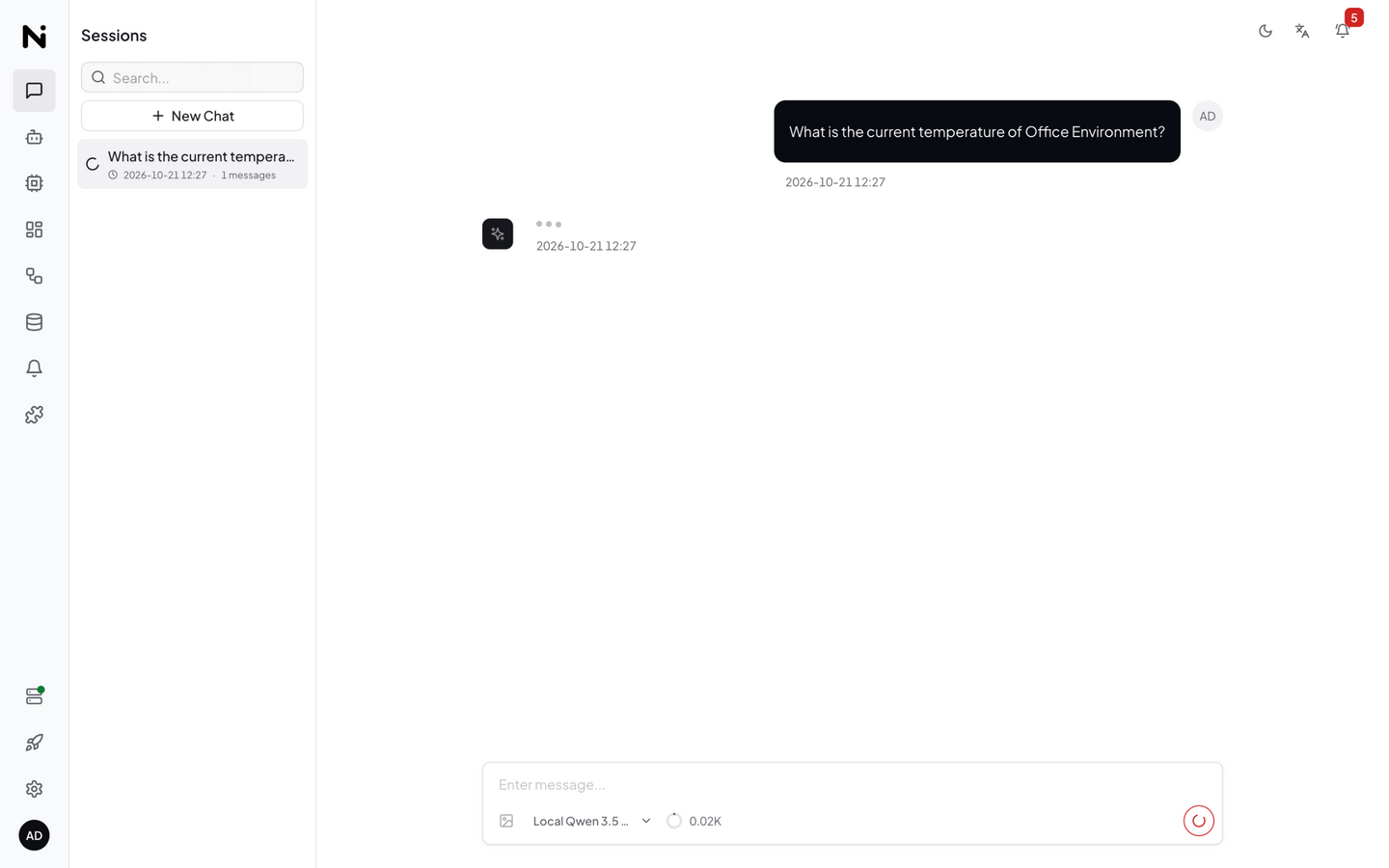
If AI Chat doesn't respond, check:
- Is Ollama running?
ollama listshould show pulled models- Cloud backend: Is the API Key valid? Is the network reachable?
- More in Troubleshooting
Option 2: CLI Setup
Prefer the terminal? These commands cover the full workflow from creation to activation.
1. List Existing Backends
neomind llm list
2. List Available Models (Ollama)
# List models pulled in Ollama
neomind llm models

# Or specify a remote Ollama
neomind llm models --endpoint http://192.168.1.100:11434
3. Create a Backend
# Ollama local
neomind llm create --name local --type ollama \
  --endpoint http://localhost:11434 --model qwen3.5:4b

# OpenAI cloud
neomind llm create --name openai --type openai \
  --endpoint https://api.openai.com/v1 \
  --model gpt-4.1-mini --api-key sk-xxxx

# GLM cloud (OpenAI-compatible)
neomind llm create --name glm --type openai \
  --endpoint https://open.bigmodel.cn/api/paas/v4 \
  --model glm-4-flash --api-key xxx.xxx.xxx

# Custom gateway (OpenRouter etc., via the OpenAI-compatible protocol)
neomind llm create --name router --type openai \
  --endpoint https://openrouter.ai/api/v1 \
  --model anthropic/claude-3.5-sonnet --api-key sk-or-xxxx
A backend ID is returned on success (e.g. local or a random ID).
4. Test the Connection
neomind llm test local
Returns model info and response status = connection OK.
5. Activate as Default
neomind llm activate local
6. Other Common Commands
# View backend details (with capability tags)
neomind llm get local

# Update model or parameters
neomind llm update local --model qwen3.5:8b --temperature 0.5

# Delete a backend
neomind llm delete local
📖 CLI Command Reference
| Command | Description | Key Flags |
|---|---|---|
llm list | List all backends | — |
llm get <id> | View details | — |
llm models | List available Ollama models | --endpoint <url> |
llm create | Create a backend | --name --type --endpoint --model --api-key --temperature |
llm update <id> | Update config | --model --endpoint --api-key --temperature |
llm test <id> | Test connection | — |
llm activate <id> | Set as default | — |
llm delete <id> | Delete | — |
Thinking Effort
For models that support reasoning, you can control the thinking effort uniformly in the backend capability panel: none / low / medium / high (some backends offer finer levels). NeoMind abstracts this into a single switch and maps it automatically to each backend's native parameters — Ollama's think levels, reasoning_effort for OpenAI / custom / GLM / Google, thinking for DeepSeek / Anthropic, and enable_thinking for Qwen. Backends that don't support reasoning show a read-only badge instead.
NeoMind calls Ollama's native /api/chat endpoint (not /v1/chat/completions) — which is why thinking chains (thinking), native multimodality, and Ollama's native streaming/tool-call protocol all work. For curl examples during self-testing and the common 404 troubleshoot, see Troubleshooting — LLM / Ollama.
Multimodal (Vision) Capability
NeoMind supports image input and visual analysis. Vision capability depends on the model:
- Built-in Model: pick the vision variant MiniCPM-V-4.7-1B (0.7GB) — the platform attaches the vision projection and spawns a companion instance automatically, see Built-in Model
- Ollama: After pulling a vision model (e.g.
llava/minicpm-v), you can upload images in AI Chat. - Cloud:
gpt-4o/gpt-4o-mini/claude-sonnet-4-5/gemini-2.5-flash/qwen-vl/glm-4vnatively support vision.
NeoMind auto-detects multimodal capability (via LiteLLM registry + /api/show runtime probe + name heuristic matching). If auto-detection is inaccurate, manually toggle Multimodal in the backend detail page.
Setting the Default Backend
A NeoMind instance can have multiple LLM backends, but only one is marked as default. The default backend is used for:
- Initial AI Chat conversations
- Scheduled Agent executions
- LLM analysis in the rule engine
- Web UI: model picker at the top of AI Chat → click the backend to set as default
- CLI:
# List all backends and see which is default
neomind llm list

# Set a backend as default
neomind llm activate local
Next Steps
- Onboard a Device — Start receiving telemetry data
- Use Dashboard — Visualize your device data
- AI Chat — Query device status in natural language
Last updated: 2026-10-21
Runtime Upgrade & Management (llama.cpp)
The builtin model's inference engine is llama.cpp, and it can now be upgraded independently of platform releases: below the engines list on the builtin card sits a llama.cpp runtime row showing the variant (CPU / CUDA / Jetson / Vulkan) and version, with an "Update" badge when a newer runtime is recommended.
Upgrade & revert
- Click the badge (or the row's gear icon) to open the runtime dialog (admin required)
- The dialog shows
current → recommended; Upgrade to … downloads and installs with live progress, then restarts the builtin LLM service automatically - Revert drops the most recent upgrade, falling back to the previous version or the bundled binary
- Variant override: auto (hardware-detected: Jetson / qualifying NVIDIA GPU → CUDA, else CPU) / CPU / CUDA / Vulkan / Jetson — for troubleshooting; applies on the next engine restart
Recommendations come from our update channel (runtimes.json in camthink-ai/NeoMind-Runtimes) — we only recommend versions verified against the Ubuntu 22.04 / glibc 2.35 floor; the self-hosted Jetson / T4 (CUDA) builds are SHA-256 pinned. When the channel is unreachable the card shows "can't check" and everything else keeps working.
Upgrades only write a versioned cache under the data directory (data/llama-server/<tag>/) — no root, no install-dir writes, identical under systemd / Docker / bare neomind serve / desktop. The platform always resolves the newest valid runtime (a platform upgrade shipping a newer bundled binary wins instead); broken caches are ejected automatically at startup with fallback.
Restricted Networks (Mirrors & Offline Install)
Some networks cannot reach huggingface.co / github.com directly. All three download sources support mirror overrides (Settings → LLM Backends → builtin card → runtime → Download sources, or env vars):
| Source | Setting key | Env var | Mirror example |
|---|---|---|---|
| Model downloads (HuggingFace) | llm_hf_base_url | NEOMIND_HF_BASE_URL | https://hf-mirror.com |
| Model catalog | llm_catalog_url | NEOMIND_CATALOG_URL | any reachable catalog.json copy |
| Runtime update channel | llm_runtime_channel_url | NEOMIND_RUNTIME_CHANNEL_URL | any reachable runtimes.json copy |
Priority: setting > env > default; empty resets. Model downloads still SHA-256 verify, so a mirror does not weaken integrity. When the catalog is unreachable the model list shows a "built-in catalog" badge (compiled-in fallback).
Fully offline, the model wizard offers two offline install paths: import a model file on the server (absolute GGUF path) or upload a model file (streamed, up to 12 GB) — the platform parses the GGUF header, validates, and rolls back on failure; imported models switch like catalog models. HTTP(S)_PROXY is honored by all download paths too.