OCR Solution
Turn images captured by NE101/NE301 cameras into searchable text with the OCR extension (
ocr-device-inference) — once bound to the image stream, every frame is recognized automatically, and results flow into the dashboard, automation rules, and AI Chat.
1. Solution Overview
The NeoMind OCR extension (ocr-device-inference) performs general text recognition on images captured by devices. Built on PP-OCRv4 models (DB text detection + SVTR text recognition, with Chinese/English switching), the extension binds to a device's image stream and automatically extracts text from every frame, displaying results on the dashboard. Recognition results can also be queried via AI Chat using natural language.
Typical Use Cases:
| Scenario | Description |
|---|---|
| Nameplate Reading | Identify model, serial number, and parameters on equipment nameplates |
| Label Recognition | Read text descriptions next to product labels and barcodes |
| Document Digitization | Convert paper documents and signage into searchable text |
| Meter Reading | Recognize readings on digital meters (e.g., electricity, water) |
Data Flow:
| Stage | Description |
|---|---|
| Image Capture | NE101/NE301 captures images via timed snapshots or event triggers |
| OCR Recognition | The OCR extension automatically extracts text from images (detection + recognition, with bounding-box drawing and ROI filtering) |
| Result Display | Dashboard displays recognition results in real time, with history support |
| AI Chat Query | Query recognized text content using natural language |
2. Bill of Materials (BOM)
Before starting, confirm you have: a smart camera that can capture images, a NeoMind platform, and the OCR extension — no GPU or extra hardware required.
| Item | Specification | Purpose | Required |
|---|---|---|---|
| Smart Camera | NE101 or NE301 | Image capture | ✅ |
| NeoMind Platform | v0.9.0+ (Download) | Edge AI management | ✅ |
| OCR Extension | ocr-device-inference 2.12+ | Text recognition inference | ✅ |
Inference hardware is auto-detected: CoreML on macOS, CUDA on Linux with an NVIDIA GPU, CPU fallback otherwise — no manual configuration needed.
3. Prerequisites
3.1 NeoMind Installation and Configuration
Complete the NeoMind installation, registration, and basic configuration first. For detailed steps, refer to NeoMind Quick Start.
3.2 Device Onboarding
Register your NE101 or NE301 to the NeoMind platform:
- Navigate to the Device Management page in NeoMind
- Click Add Device and select the device type (NE101 or NE301)
- Confirm the device info (device ID and topic are auto-generated, or customize them)
- Save and wait for the device to come online
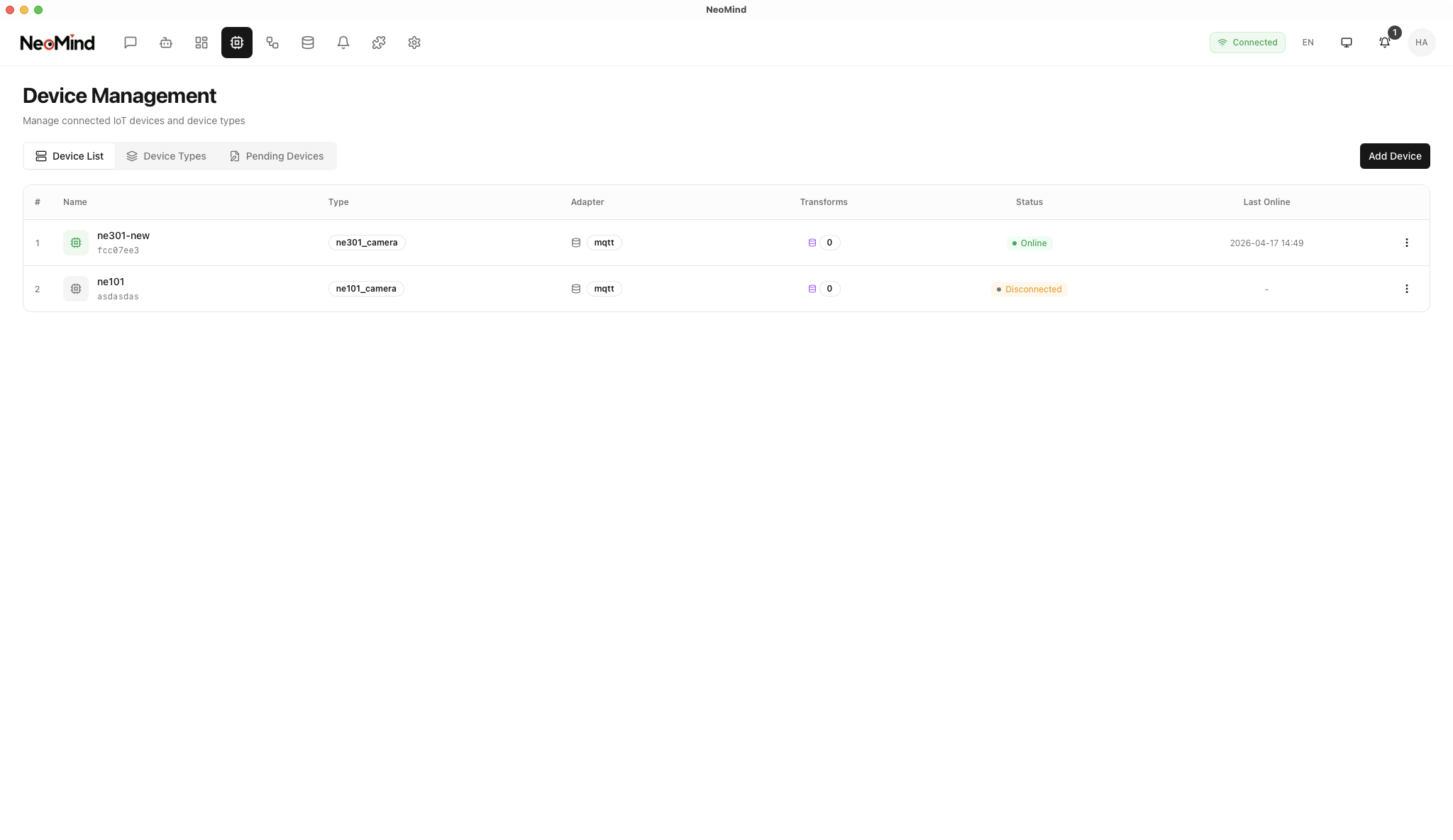
For detailed device onboarding steps, refer to NeoMind Quick Start - Device Management.
3.3 Verify the Device Is Online
- The Devices page shows the newly added device (e.g.,
ne301-new) with an online status. - In the device details, confirm there is an image metric — OCR binding uses the image metric named
imageby default; make sure it keeps updating when the device captures images. - Note the device ID: you will need it for binding and for metric references (DataSourceId format:
device:<deviceID>:<metric>).
4. Install the OCR Extension
The OCR extension is published in the official extension marketplace; the current version is 2.12+ (this guide uses 2.12.0).
4.1 Install from the Extension Marketplace (Recommended)
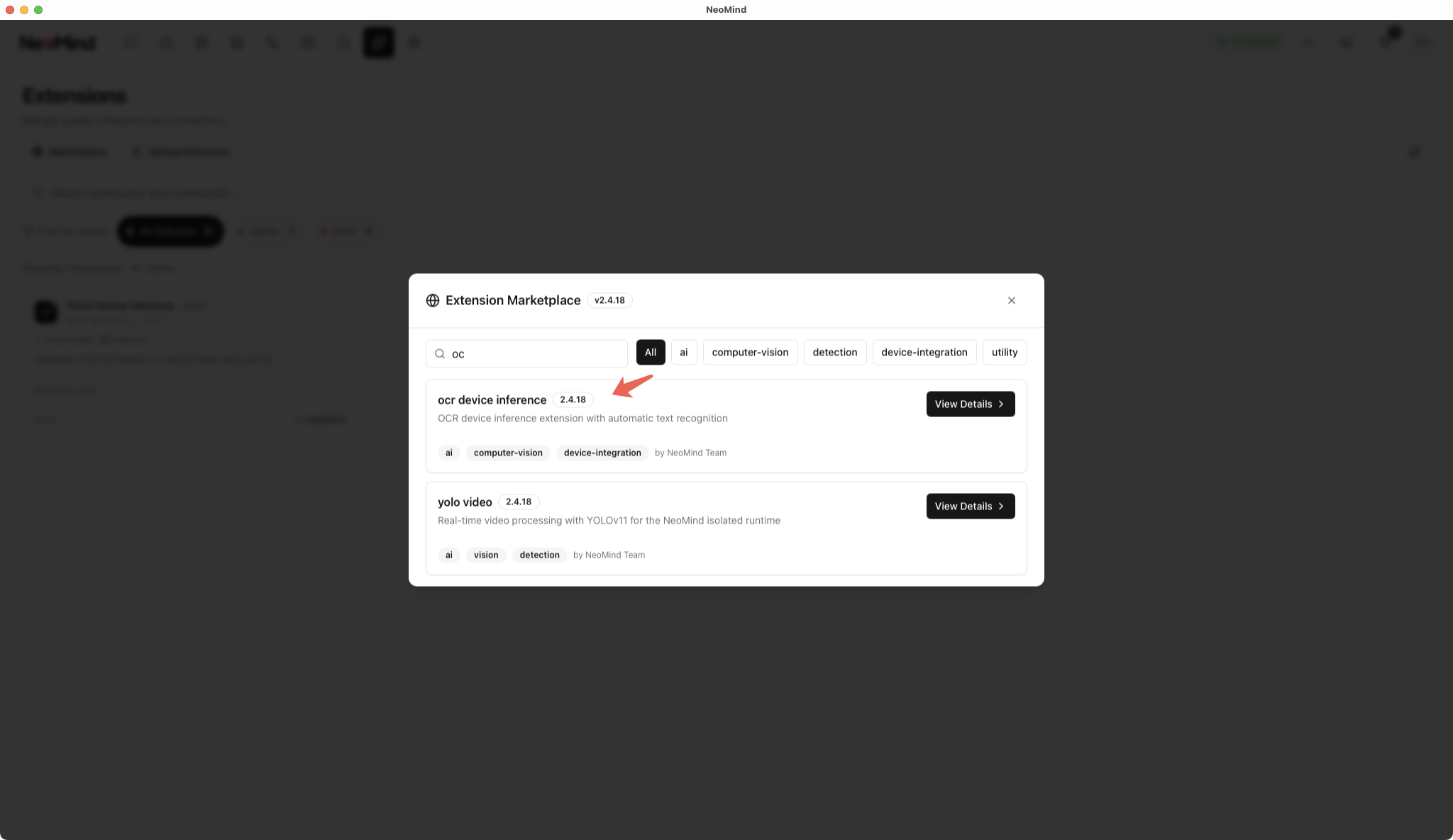
Step 1: Navigate to the Extensions management page, click the Extension Marketplace icon (globe) in the toolbar, and search for ocr-device-inference
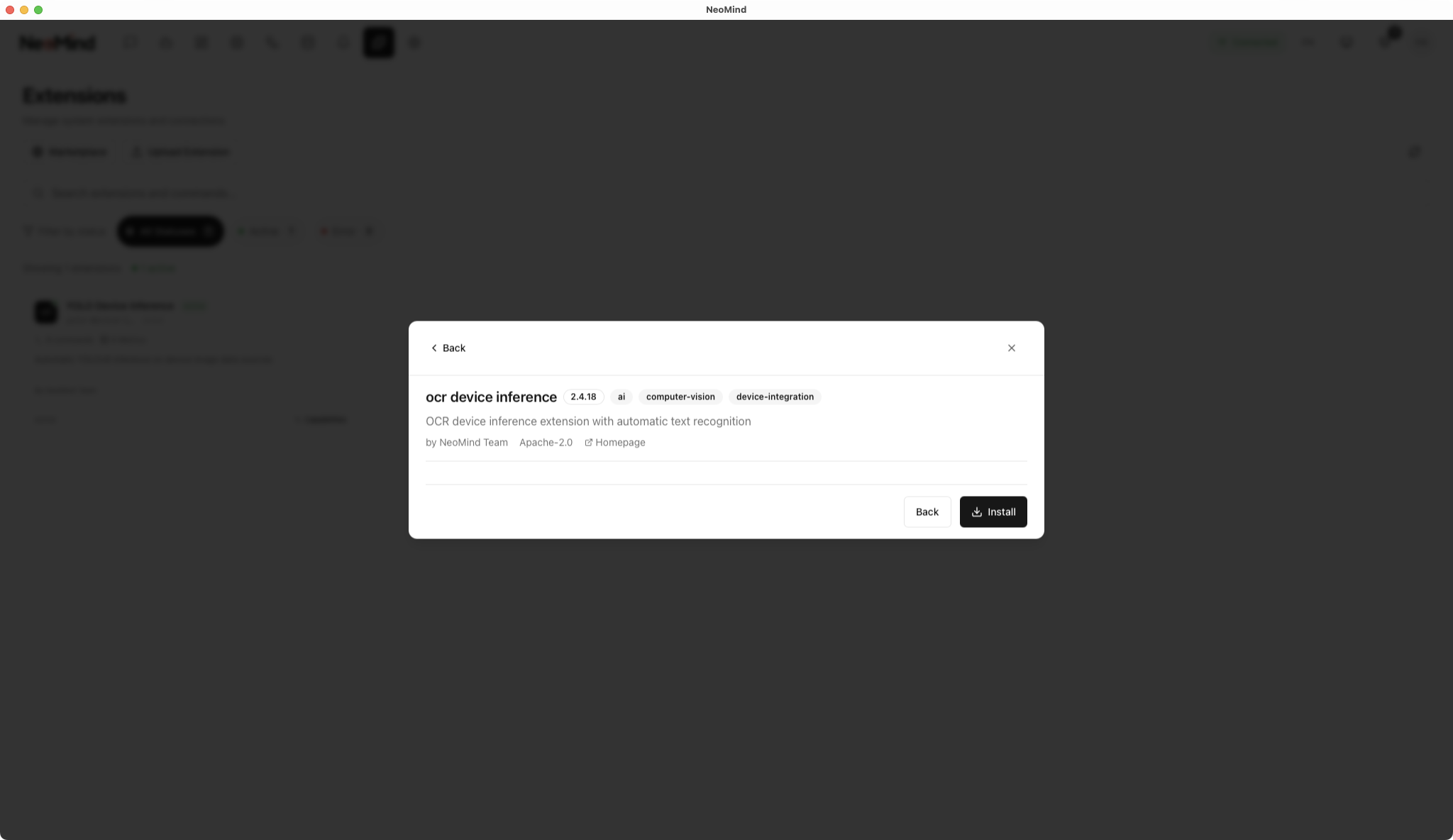
Step 2: Click Install — NeoMind automatically picks the .nep package matching your platform / ABI and installs it
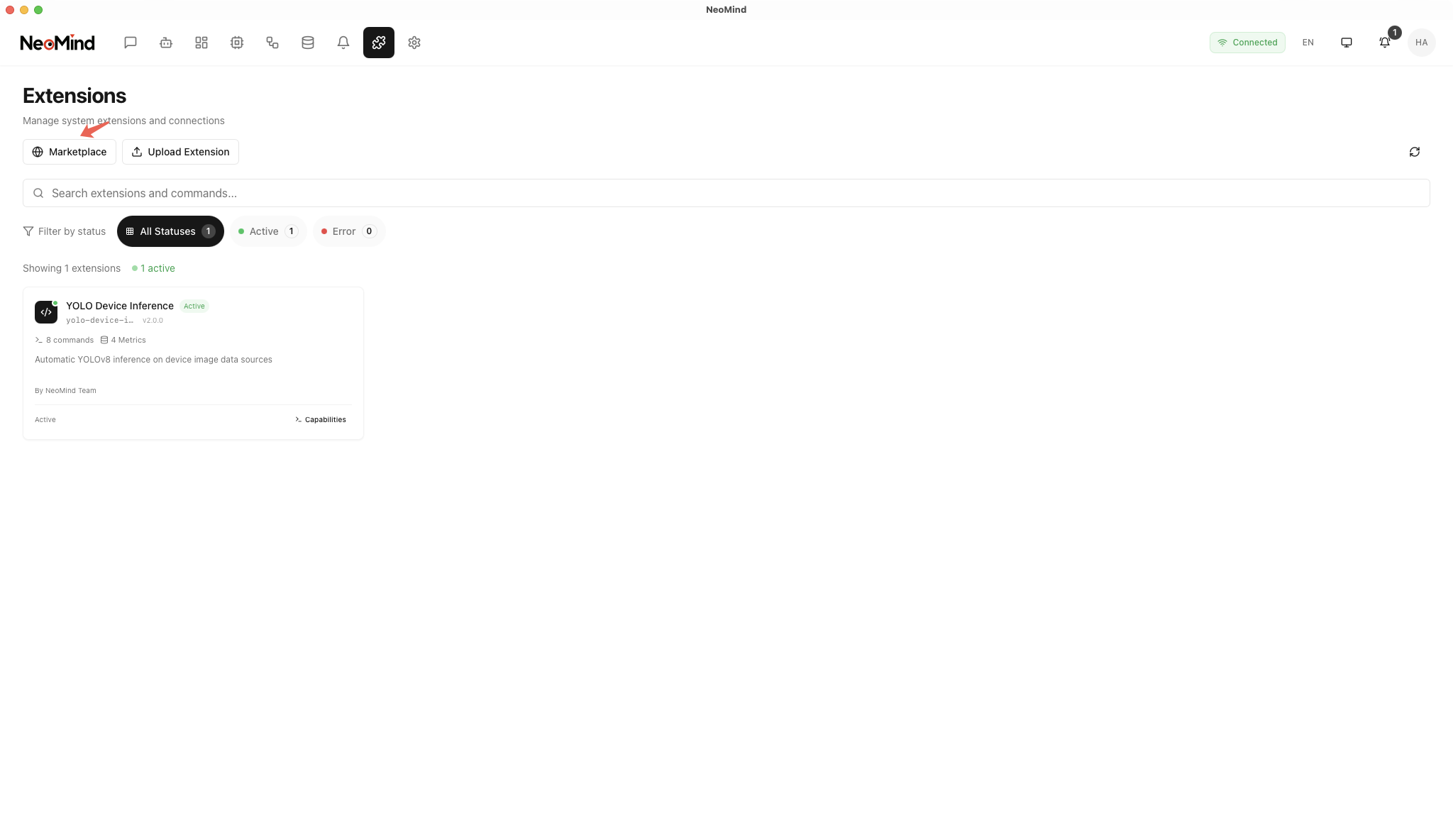
Step 3: After installation the extension appears in the extension list and starts automatically; confirm its status is Running
In addition, the extension marketplace offers two newer OCR extensions:
paddle-ocr-v6(PP-OCRv6 native ONNX inference with multi-tier models) andpaddle-ocr-vl(high-accuracy multilingual OCR with table and key-information extraction). For complex layouts / tables, prefer the latter — see the NE101 Camera OCR use case and the PaddleOCR-VL use case.
4.2 CLI Installation (Optional)
neomind extension market-list                          # List extensions available in the marketplace
neomind extension market-install ocr-device-inference  # Install from the marketplace (latest by default)
neomind extension market-install ocr-device-inference --version 2.12.0
4.3 Verify the Installation
- The extension card in the list and the top of the extension detail page should show Running (green dot).
- Open the extension detail page and confirm the Overview / Configuration / Commands / Metrics / Logs tabs exist.
- Switch to the Metrics tab: the extension-level metrics
bound_devices,total_inferences,total_text_blocks, andtotal_errorsshould be reporting (initially 0).
How to invoke commands: OCR binding and management can be done in the dashboard OCR widget (see 5.2) or via extension commands — either in the extension detail page Commands tab, or via the REST API
POST /api/extensions/:id/commandwith body{"command":"...","args":{...}}.
5. Dashboard Configuration and Device Binding
5.1 Create a Dashboard
Navigate to the Dashboard management page and click Create Dashboard.
5.2 Add OCR Panel and Bind Device
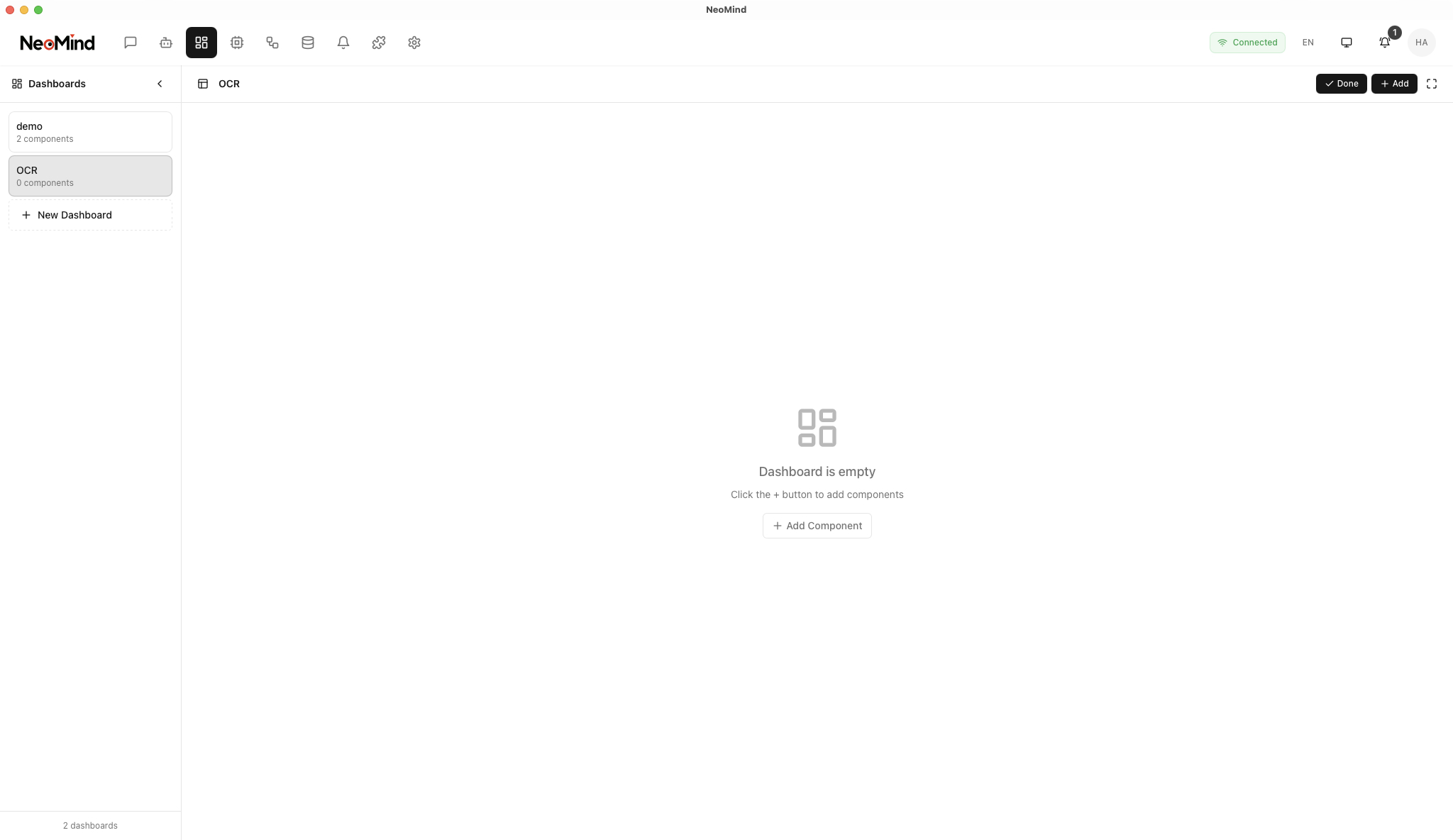
In the dashboard, click Add Panel, select the OCR component under the Extensions tab (provided by the ocr-device-inference extension), and bind the target device:
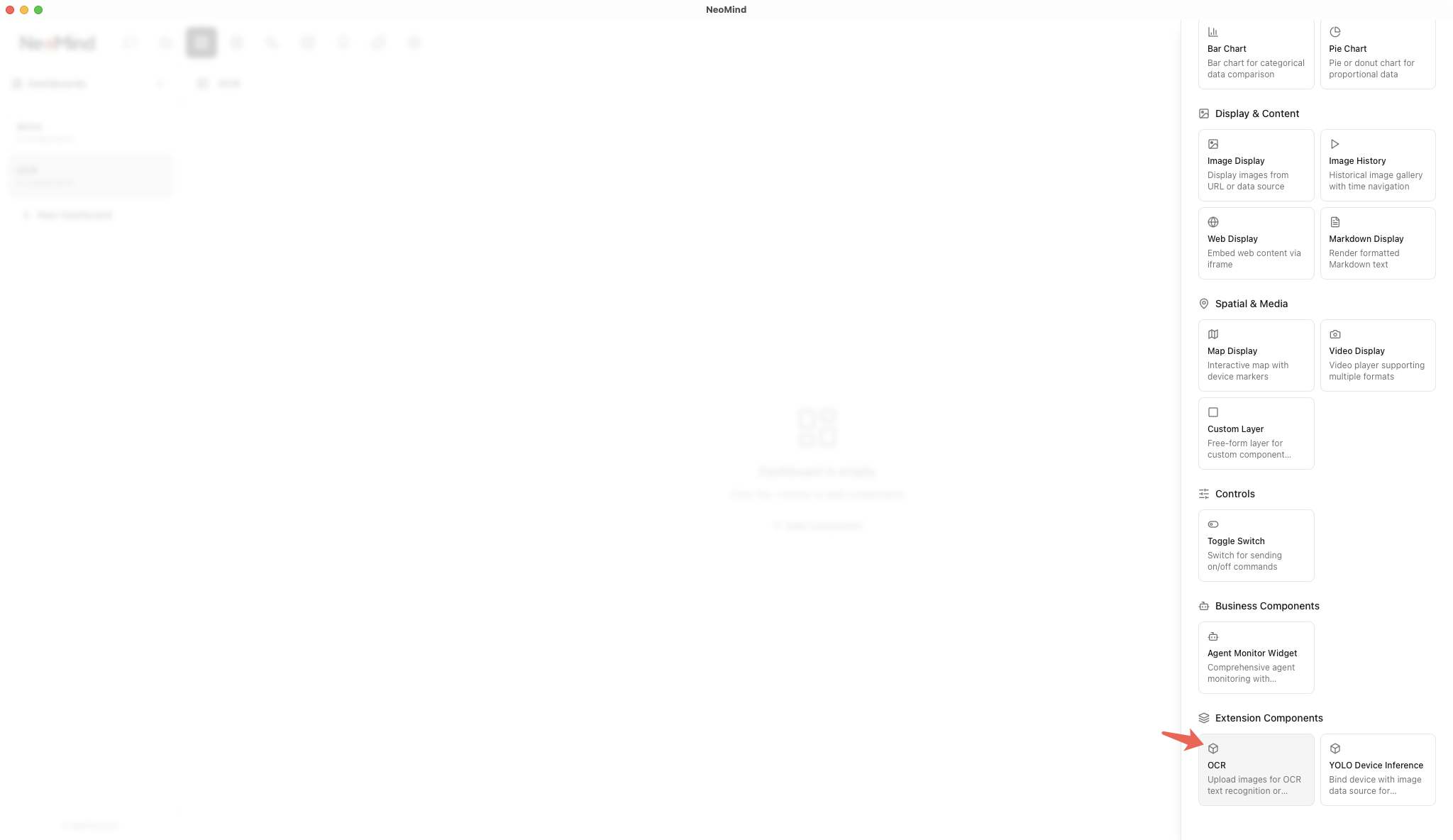
Once bound, the OCR panel will automatically receive and process images captured by the device:
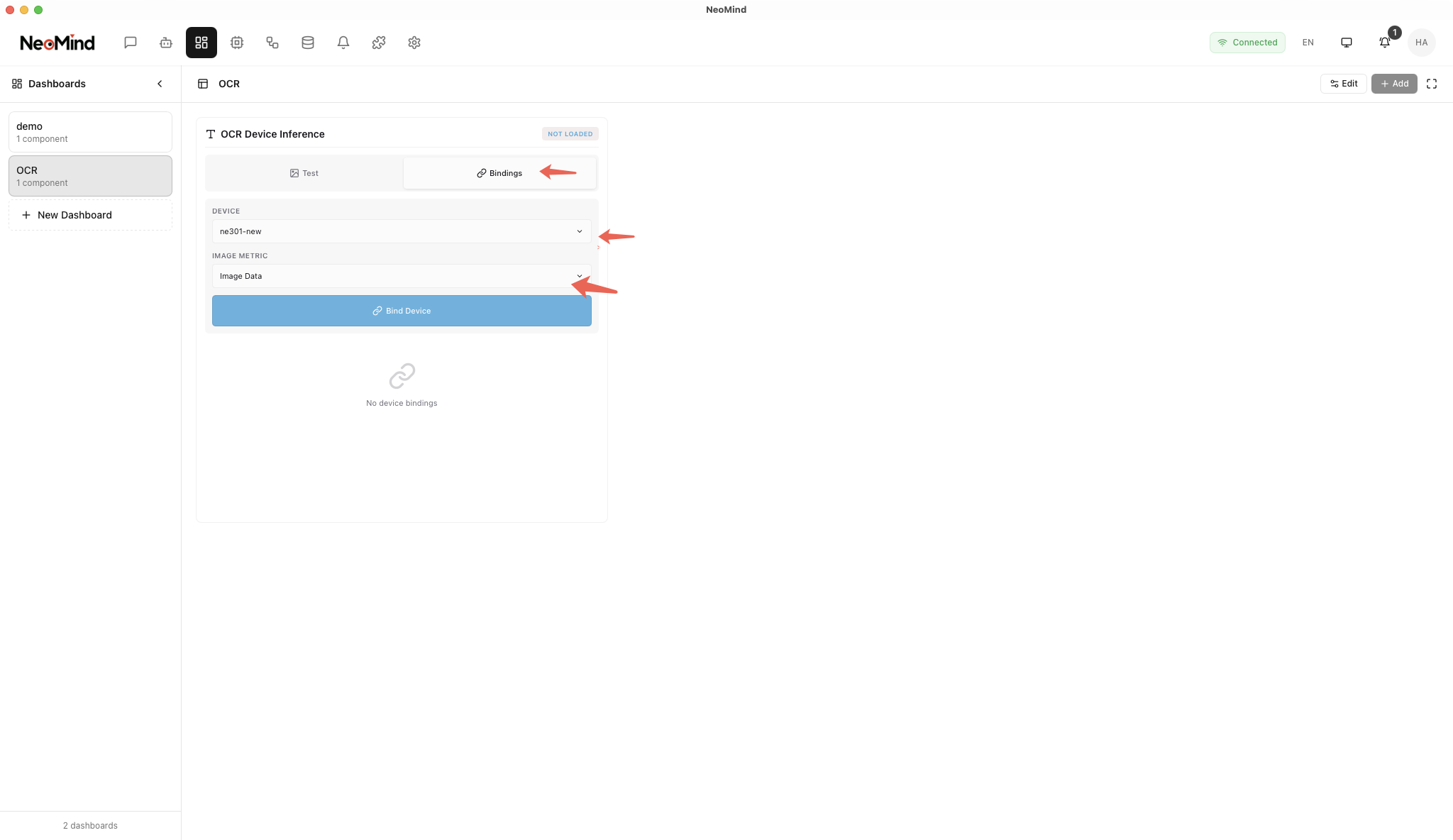
You can add other widgets to the Dashboard page for additional data and content display.
The OCR widget also supports one-shot recognition by uploading an image and device-binding management. You can enable drawBoxes (bounding-box drawing) and showPreview (result preview) in the widget configuration.
5.3 Command-Based Binding and Management (Optional)
The dashboard widget works well for configuring a single device; if you need to bind multiple devices via scripts / APIs, use the command channel instead. Bind via the bind_device command in the extension detail page Commands tab (or via REST):
{
  "command": "bind_device",
  "args": {
    "device_id": "ne301-new",
    "image_metric": "image",
    "draw_boxes": true,
    "language": "chinese"
  }
}
A successful execution returns:
{ "success": true, "device_id": "ne301-new" }
device_id is required; omitted parameters fall back to defaults (image_metric: image, draw_boxes: true, language: chinese). Bindings are persisted to the extension configuration and restored automatically after an extension restart — no need to re-bind. A successful bind is only the first step; confirm recognition is actually running per 5.4.
| Command | Key Parameters | Description |
|---|---|---|
bind_device | device_id, image_metric (default image), draw_boxes (default true), language (chinese / english) | Bind a device; OCR runs automatically on every image update |
unbind_device | device_id | Remove a binding |
toggle_binding | device_id, active | Enable / pause an existing binding |
get_bindings | — | List all bindings and their status |
update_roi | device_id, roi_regions, roi_overlap_threshold (default 0.5) | Set ROI polygon regions so only text inside them is recognized (vertices in 0.0–1.0 normalized coordinates) |
recognize_image | image (base64), language | One-shot OCR on a single base64-encoded image |
get_status | — | View extension status and statistics |
REST example (bind a device):
curl -X POST -H "X-API-Key: $NEOMIND_API_KEY" \
     -H "Content-Type: application/json" \
     -d '{"command":"bind_device","args":{"device_id":"ne301-new","image_metric":"image","draw_boxes":true,"language":"chinese"}}' \
     http://localhost:9375/api/extensions/ocr-device-inference/command
5.4 Verify the Binding
A success: true response from bind_device only means the arguments were accepted. The real acceptance criteria are three things: metrics start growing, get_status shows an active binding, and result metrics start being written.
- Extension detail page Metrics tab:
bound_devices≥ 1; after the device captures images,total_inferenceskeeps growing andtotal_errorsstays flat. - Run
get_bindingsin the Commands tab and confirm the binding is active; or runget_statusto get the model state, cumulative statistics, and per-binding status in one call:
{ "command": "get_status", "args": {} }
Response (fields can be asserted directly, no transformation needed):
{
  "success": true,
  "data": {
    "model_loaded": true,
    "model_error": null,
    "total_inferences": 128,
    "total_text_blocks": 342,
    "total_errors": 0,
    "bindings_count": 1,
    "bindings": [
      { "device_id": "ne301-new", "active": true, "total_inferences": 128 }
    ]
  }
}
How to read it: model_loaded: false is normal before the first inference (models load lazily), but if model_error also has a value, model loading failed — troubleshoot per section 10. In bindings, the target device should show "active": true with its total_inferences growing as captures come in.
- Each recognition writes
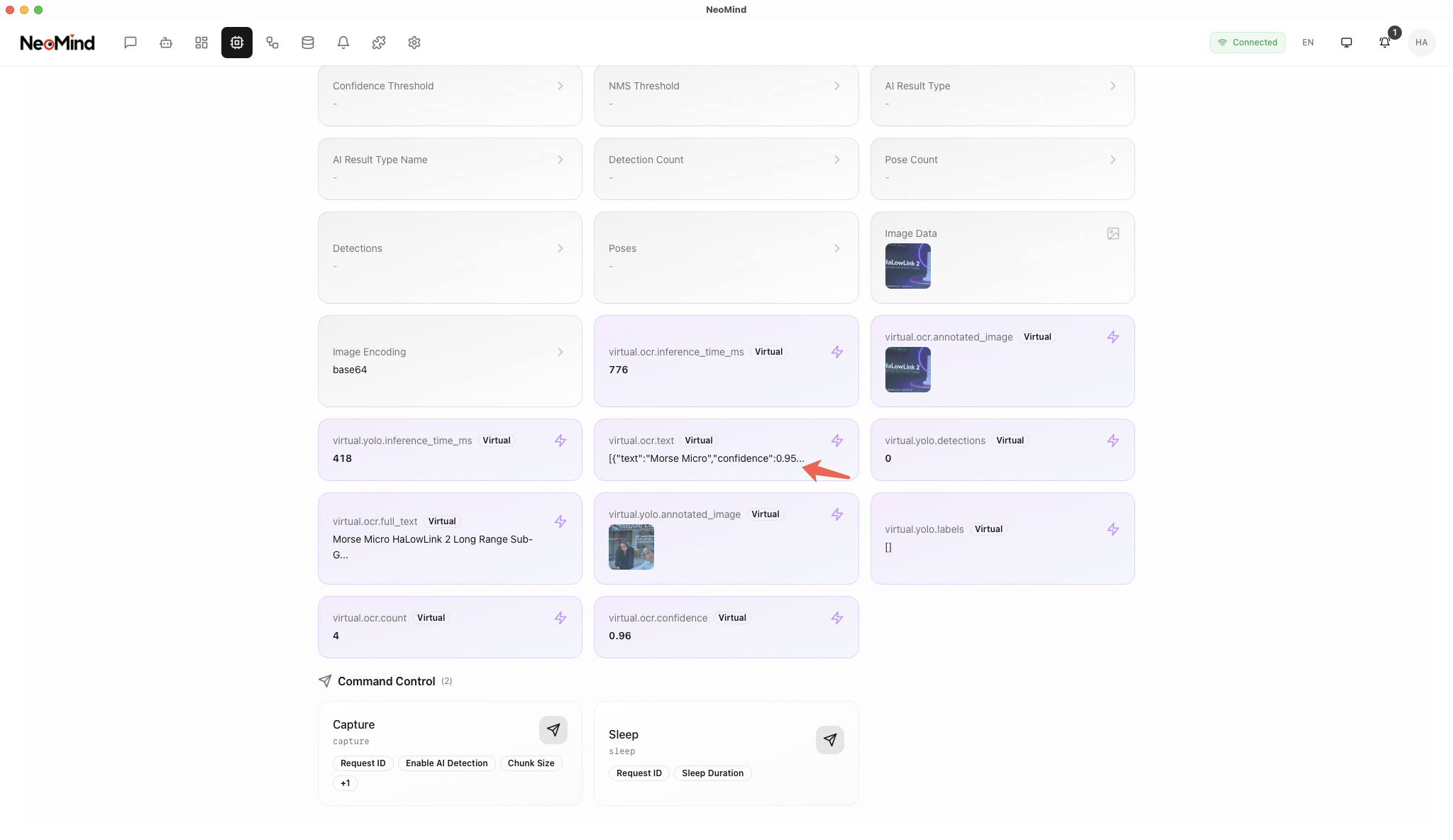
virtual.ocr.*result metrics to the device, with DataSourceIds such as:device:ne301-new:virtual.ocr.full_text(recognized full text)device:ne301-new:virtual.ocr.count(text block count)device:ne301-new:virtual.ocr.confidence(average confidence, 0.0–1.0)device:ne301-new:virtual.ocr.annotated_image(annotated image with bounding boxes)
About the annotated image: when draw_boxes: true (the default), the extension draws every recognized text box onto the original image, encodes it as JPEG, and writes it to virtual.ocr.annotated_image as a data:image/jpeg;base64,… data URI. Bind this metric to a dashboard image widget to see boxes follow the text — the most direct way to verify recognition positions and ROI regions.
6. Trigger Test and View Results
6.1 Trigger Capture Test
After binding the device, you can manually trigger a capture to verify OCR recognition. Once the device captures an image, the OCR extension will automatically perform text recognition.
6.2 View Recognition Results
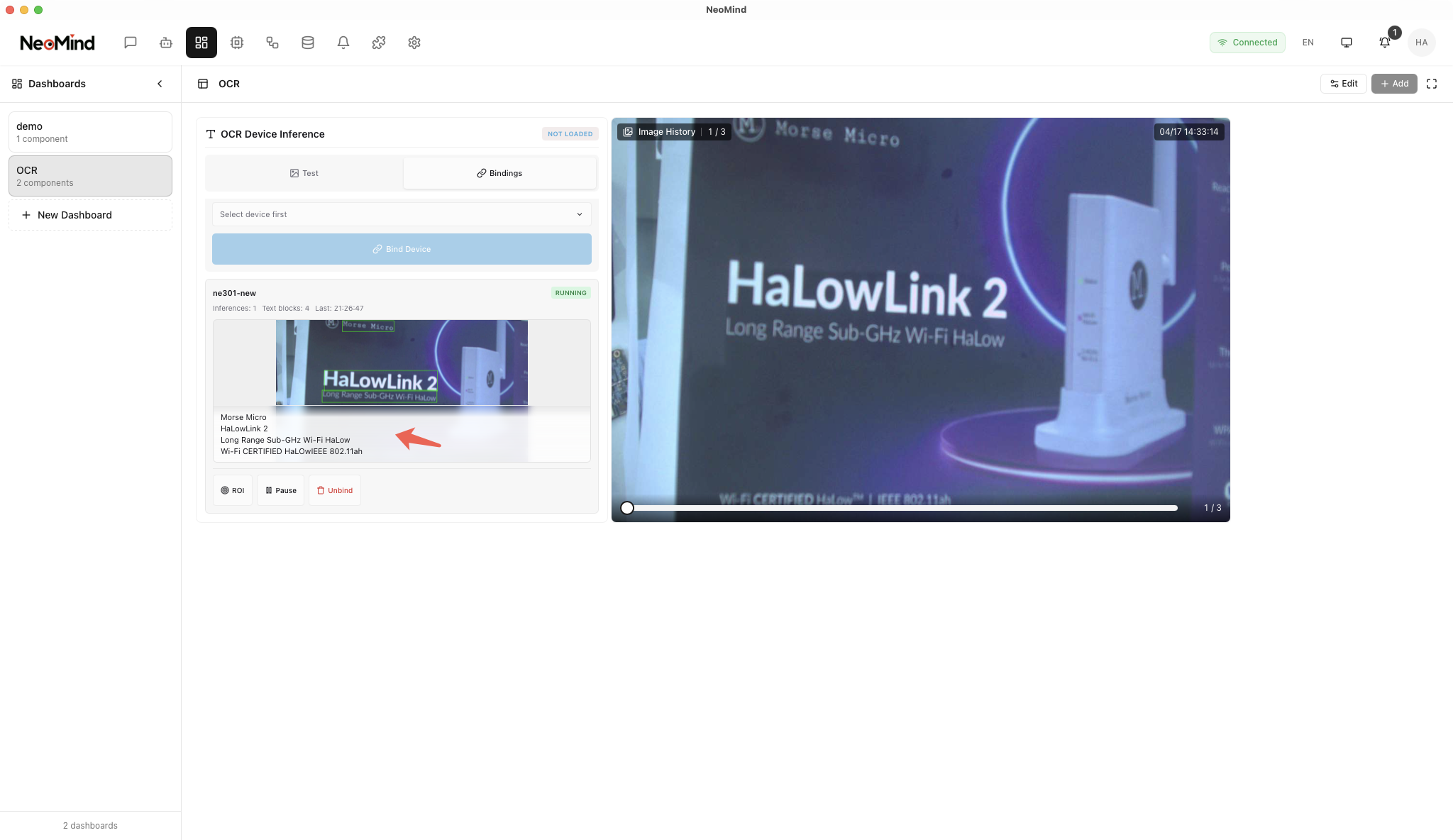
In the OCR panel on the dashboard, you can view real-time recognition results, including the original image and extracted text:
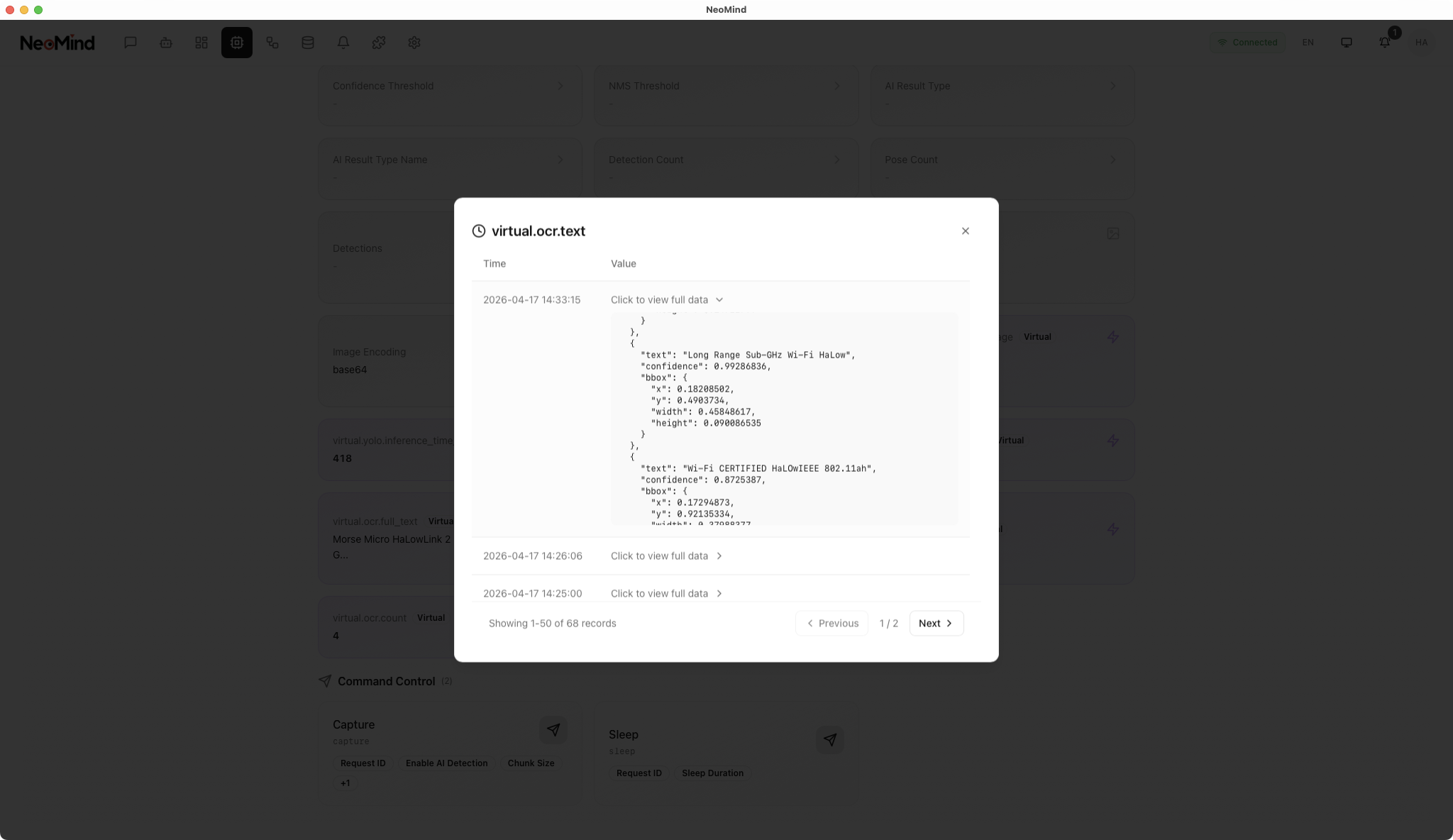
6.3 View Recognition History
In the device details, you can view all historical OCR recognition records, including the original image and extraction results for each recognition:
📷 Screenshot pending | Device details · historical OCR recognition list · suggested path
…/neomind/ocr-solution/device-history.png
7. AI Chat Query
Once OCR recognition results are stored, you can query recognized text content via AI Chat using natural language. For example:
Hello, what's the OCR result of my device ne301-new? Reply in English.
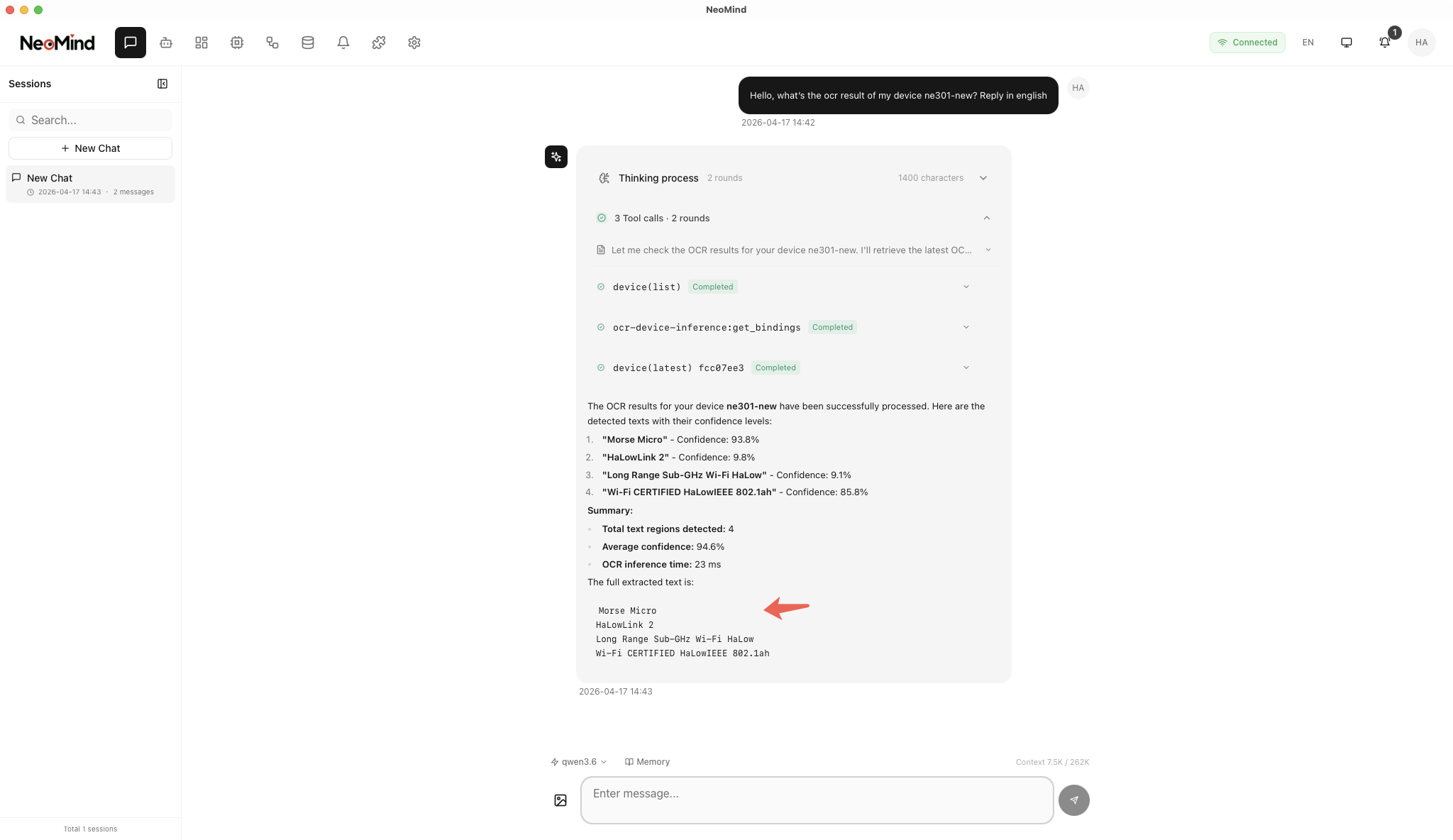
Tip: AI Chat requires an LLM backend (e.g., Ollama). For configuration, refer to NeoMind Quick Start or Configure LLM Backend.
8. Downstream Usage
OCR results enter the platform as device:<deviceID>:<metric>. Dashboards, rules, and AI Chat all reference this format:
| Result | Metric | DataSourceId Example |
|---|---|---|
| Full text | virtual.ocr.full_text | device:ne301-new:virtual.ocr.full_text |
| Text block count | virtual.ocr.count | device:ne301-new:virtual.ocr.count |
| Average confidence | virtual.ocr.confidence | device:ne301-new:virtual.ocr.confidence |
| Annotated image | virtual.ocr.annotated_image | device:ne301-new:virtual.ocr.annotated_image |
- Dashboard: Bind the DataSourceIds above to text / value / image cards to display the recognized text, block count, and confidence in real time (see Using the Dashboard).
- Automation rules: For example, "alert for manual review when confidence is too low" — set a threshold on
virtual.ocr.confidence(automation rules). Example rule JSON:
{
  "name": "OCR low-confidence alert",
  "trigger": { "trigger_type": "data_change" },
  "condition": {
    "condition_type": "comparison",
    "source": "device:ne301-new:virtual.ocr.confidence",
    "operator": "less_than",
    "threshold": 0.6
  },
  "actions": [
    { "type": "notify", "message": "Meter reading confidence too low ({value}), manual review required", "severity": "warning" }
  ]
}
- AI Chat: Natural language queries, e.g. "What text has ne301-new recognized in the last hour?"
9. Typical Scenarios
| Scenario | Recommended Configuration | How To |
|---|---|---|
| Meter reading (electricity / water) | ROI over the dial + chinese | Use update_roi with a polygon covering only the reading area (0–1 normalized coordinates) to filter out background text; add a low-confidence alert rule on virtual.ocr.confidence for timely manual review |
| Nameplate / label recognition | draw_boxes: true | Enable bounding-box drawing and verify recognition regions on the annotated image; validate a single clear image with recognize_image before enabling automatic binding |
| Document digitization | Resolution first | Increase capture resolution and focus — text that is too small causes misses; keep language consistent with the document language (currently chinese / english) |
| Complex layouts / tables / multilingual | Switch to the Paddle family | ocr-device-inference targets general text-line recognition; for table reconstruction and key-information extraction use PaddleOCR-VL, and for the end-to-end camera pipeline see the NE101 Camera OCR use case |
10. Troubleshooting
Locate issues with the trio: the extension detail page Logs tab for process output, the Metrics tab to check whether total_errors is growing, and the Commands tab running get_bindings / get_status for binding and statistics. Common issues:
| Symptom | Possible Cause | Solution |
|---|---|---|
total_inferences does not grow after binding; no recognition results | image_metric does not match the device's actual image metric name; binding is inactive | Confirm the device image metric name (default image) matches the bind_device parameter; check status with get_bindings and re-activate with toggle_binding (active: true) |
virtual.ocr.count is 0; no text recognized | Image resolution too low, text too small or blurry; language does not match the text language (default chinese, Chinese/English only) | Improve capture resolution and lighting; switch language to match the scene; validate with recognize_image on a single clear image first to rule out capture quality issues |
| Bounding boxes are offset, or irrelevant text is recognized | Full-frame recognition picks up background text; draw_boxes annotations do not match the expected region | Use update_roi to set polygons covering only the target area (vertices 0.0–1.0 normalized), and adjust roi_overlap_threshold as needed (default 0.5; higher requires more overlap between the text block and the ROI) |
total_errors keeps growing; inference fails | PP-OCRv4 model files (det_mv3_db.onnx / rec_svtr.onnx / rec_en.onnx) missing or corrupted; ONNX Runtime issue | Check the specific error in the Logs tab; reinstall the extension or re-download models per the extension README; the first inference loads models and is expected to be slower |
| Garbled / missing characters in mixed Chinese-English text | The extension recognizes a single language at a time (chinese or english) | Pick language by the dominant language; for mixed scripts, multilingual text, or tables, switch to paddle-ocr-v6 / paddle-ocr-vl (see the note in 4.1) |
virtual.ocr.confidence stays low | Blurry images, glare, or tilted shooting angle | Improve capture conditions (focus, lighting, shoot head-on); use ROI to focus on key text; add the low-confidence alert rule from 8. Downstream Usage as a safety net |
11. Appendix
Related Documentation
- Extension Management
- Using the Dashboard
- AI Chat
- Configure LLM Backend
- Face Recognition Solution (also an image-AI extension; can be combined with OCR)
- NE101 Camera OCR use case
- PaddleOCR-VL Document Understanding
- NE101 Quick Start
- NE301 Quick Start
- ocr-device-inference extension README
Last updated: 2026-09-08