Automation Rules
The rule engine lets NeoMind respond automatically without human intervention: device data crosses a threshold → auto-notify, send commands, trigger an AI Agent. Rules are defined in JSON and created via Web UI, CLI, REST API, or AI Chat.
The Automation page has two tabs: Rules and Transforms. This doc covers Rules; for data transforms see Data Transforms.
Prerequisites
- At least one device onboarded (rules reference device metrics as data sources)
- Notification channels configured (if using
notifyactions)
Interface Overview
Click Automation (branch icon) in the left nav to open the automation page. The default tab is Rules:
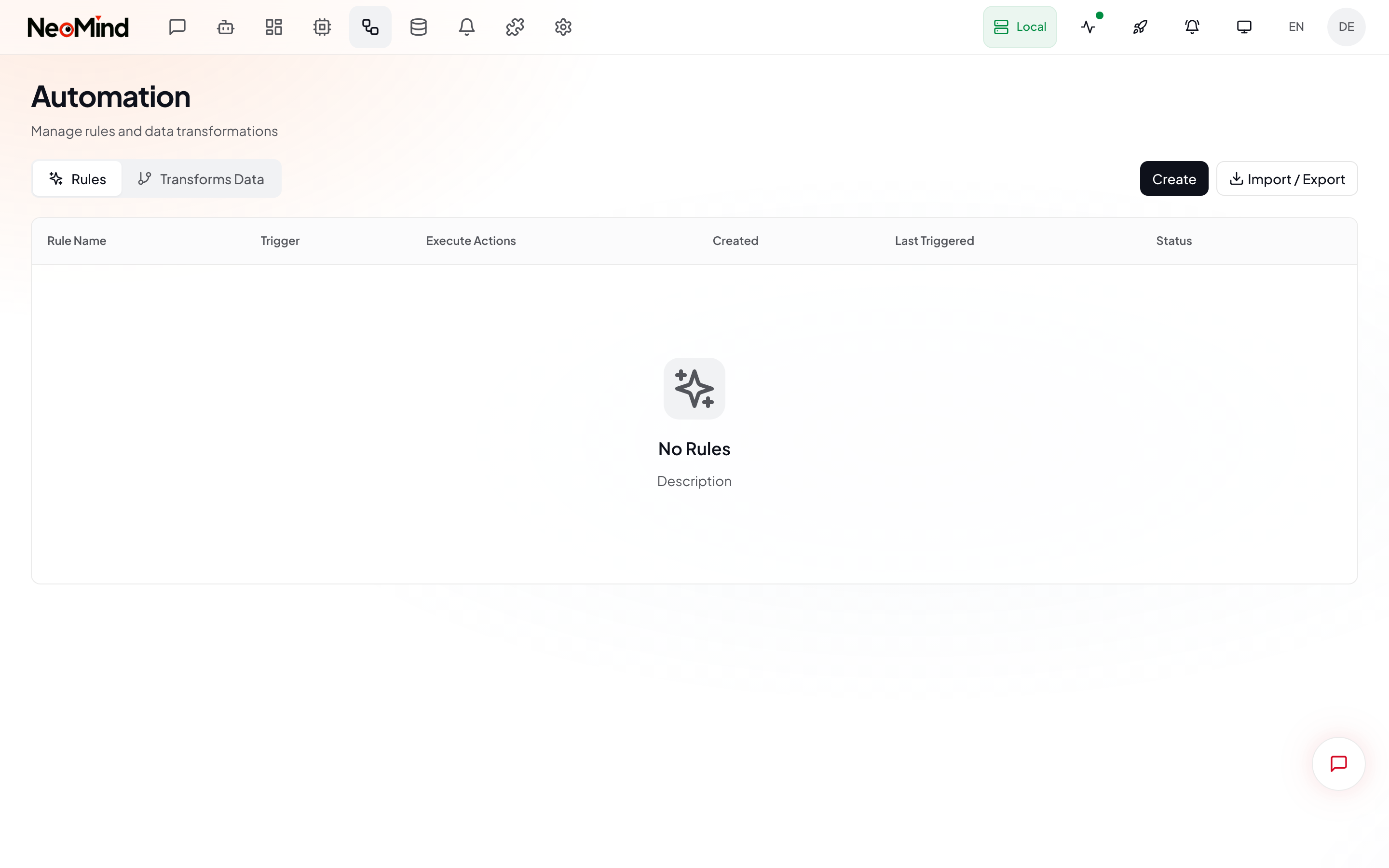
The page displays all rules in a table, each row containing:
| Column | Description |
|---|---|
| Rule Name | The name you set |
| Trigger | Data Change / Schedule / Manual |
| Condition | Text preview of the condition (e.g. temperature > 30) |
| Actions | List of actions in this rule (Notify / Execute / Trigger Agent) |
| Status Toggle | Enable / disable switch |
| Actions Menu | Edit, delete, execute now |
The Import / Export button in the top right lets you bulk import/export rule JSON.
Rule Structure
A rule has four parts — name, trigger, condition, and actions (optional duration and cooldown):
{
  "name": "High Temperature Alert",
  "trigger": { "trigger_type": "data_change" },
  "condition": {
    "condition_type": "comparison",
    "source": "device:sensor-01:temperature",
    "operator": "greater_than",
    "threshold": 30
  },
  "actions": [
    { "type": "notify", "message": "Temperature too high: {value}°C", "severity": "critical" }
  ]
}
Creating a Rule via Web UI
Step 1: Open the Rule Builder
In the Rules tab, click the Create button to open the full-screen rule builder:
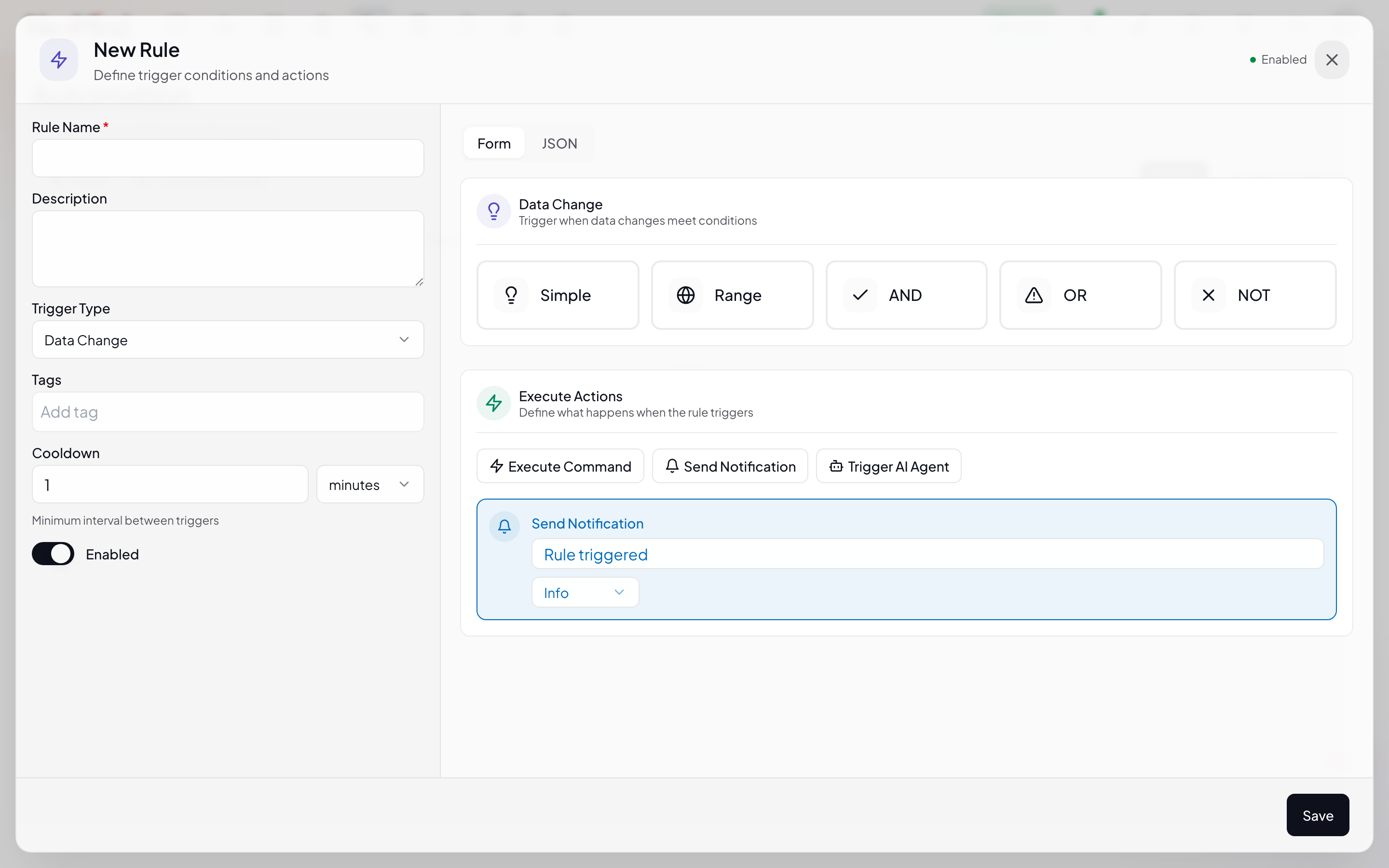
Fill in the top of the builder:
| Field | Description |
|---|---|
| Name | Display name for the rule |
| Description | Optional, explains the rule's purpose |
| Trigger | Select the trigger type (see below) |
Step 2: Configure the Trigger
| Trigger Type | Description | Use Case |
|---|---|---|
| Data Change | Auto-evaluates when referenced metrics have new data | Real-time alerts, threshold monitoring |
| Schedule | Triggers on a cron expression | Scheduled reports, periodic checks |
| Manual | Only triggered manually (API / CLI / UI button) | Debugging, on-demand execution |
Cron uses 6-field format:
sec min hour day month weekday."0 */5 * * * *"= every 5 minutes.
The data_change trigger automatically extracts referenced data sources from the condition — no need to specify sources manually.
Step 3: Configure the Condition
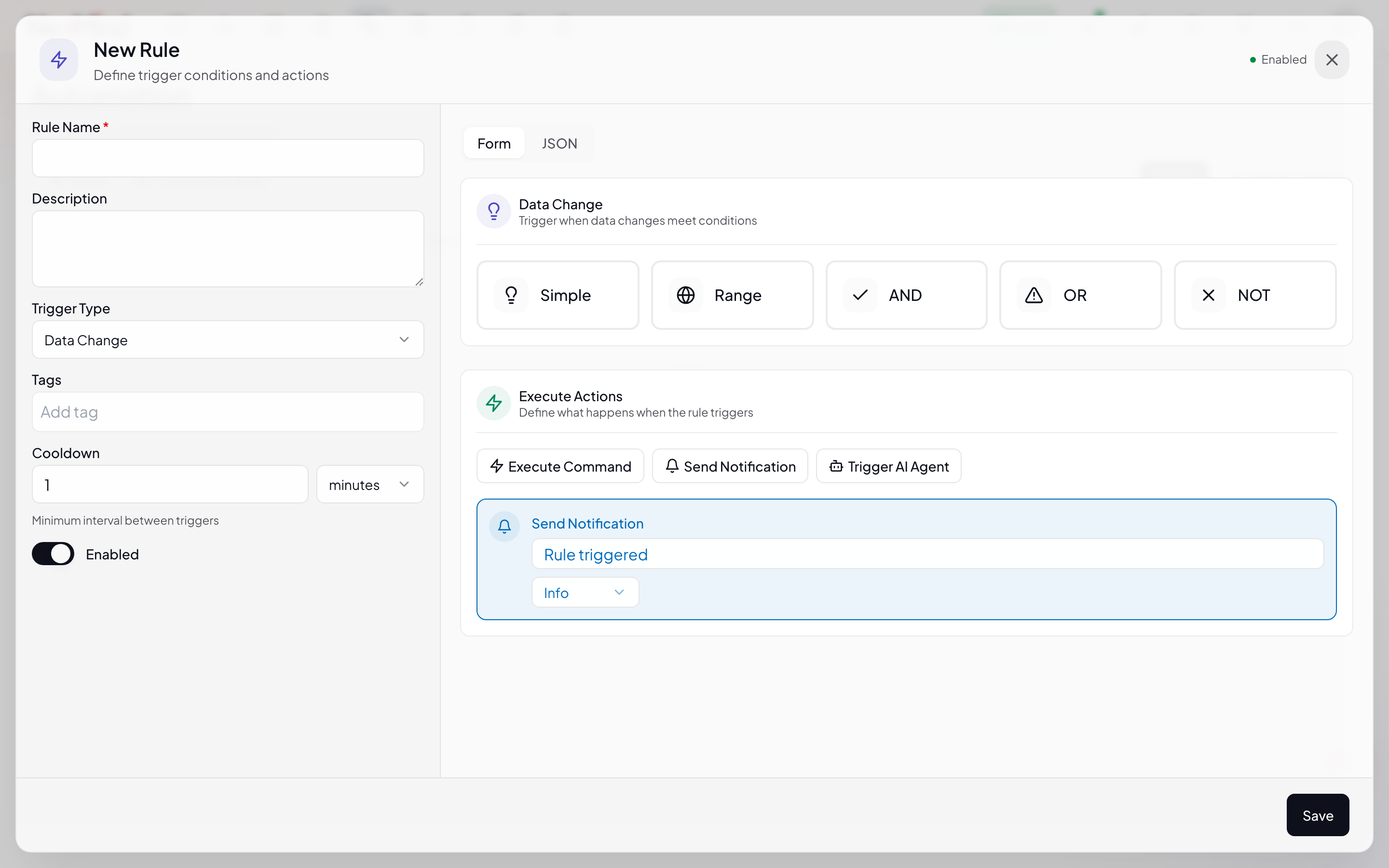
Conditions determine when a rule fires. Three types are supported:
Comparison condition — compares a value to a threshold:
| Operator | Meaning | Threshold Field |
|---|---|---|
greater_than | Greater than | threshold (number) |
less_than | Less than | threshold (number) |
greater_equal | Greater than or equal | threshold (number) |
less_equal | Less than or equal | threshold (number) |
equal | Equal | threshold (number/boolean) |
not_equal | Not equal | threshold |
contains | Contains (string) | threshold_value (string) |
starts_with | Prefix match | threshold_value |
ends_with | Suffix match | threshold_value |
regex | Regex match | threshold_value |
source uses DataSourceId format {type}:{id}:{field}, e.g. device:sensor-01:temperature.
Range condition — fires when value is within a range:
{ "condition_type": "range", "source": "device:sensor-01:temperature", "min": 20, "max": 25 }
Logical condition — AND / OR / NOT nesting multiple sub-conditions:
{
  "condition_type": "logical",
  "operator": "and",
  "conditions": [
    { "condition_type": "comparison", "source": "device:sensor-01:temperature", "operator": "greater_than", "threshold": 30 },
    { "condition_type": "comparison", "source": "device:sensor-01:humidity", "operator": "less_than", "threshold": 20 }
  ]
}
Step 4: Configure Actions
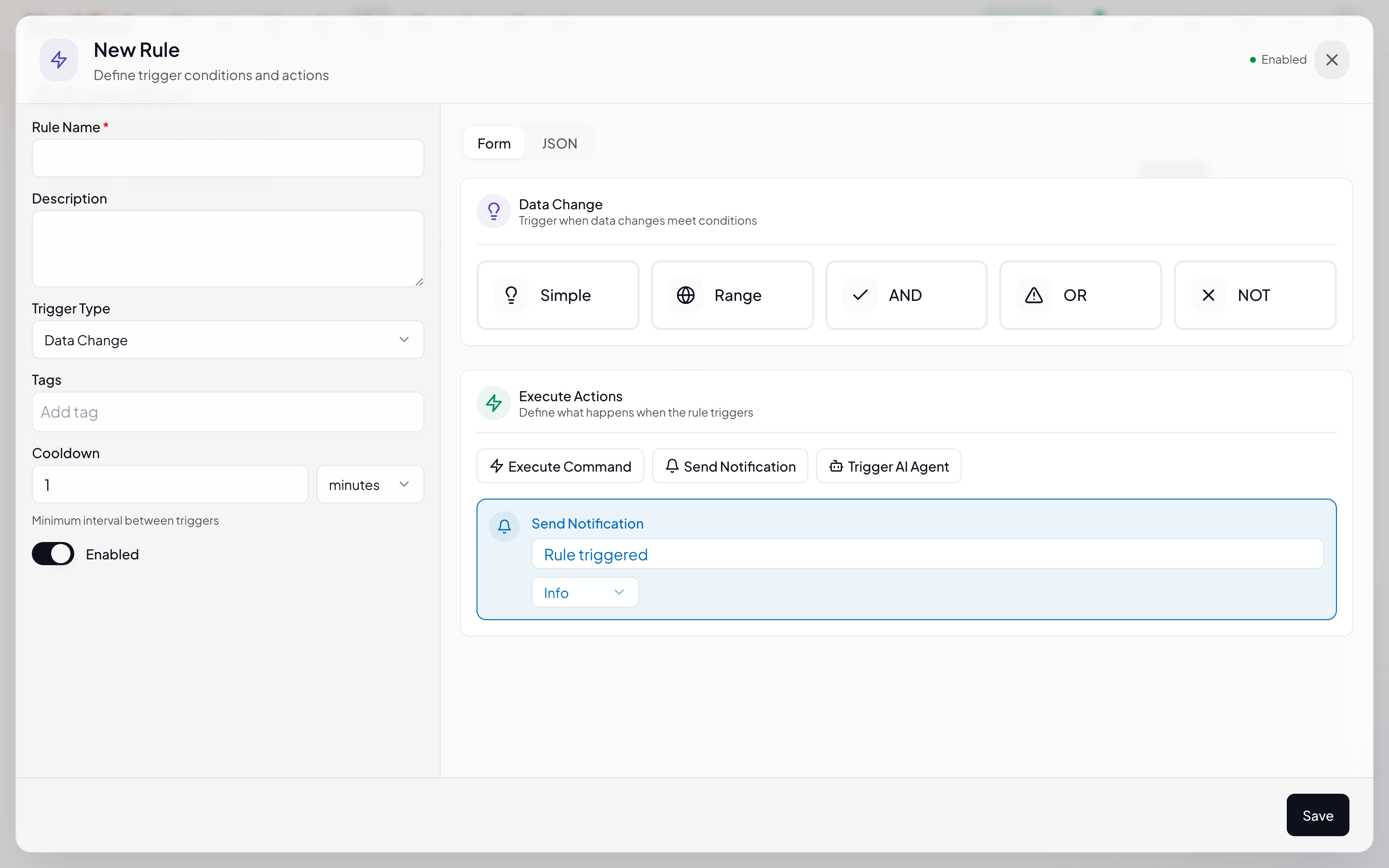
Actions execute when the condition is met. A rule can have multiple actions, executed in order.
| Action | type value | Description |
|---|---|---|
| Send notification | notify | Message template supports {value}, {source_id} interpolation |
| Execute command | execute | Send control command to a device or extension |
| Trigger Agent | trigger_agent | Call an AI Agent for deep analysis |
notify action — severity values: info, warning, critical, emergency
{ "type": "notify", "message": "Temperature too high: {value}°C", "severity": "critical" }
execute action — send a device control command:
{ "type": "execute", "target": "humidifier-01", "target_type": "device", "command": "power_on", "params": { "level": 3 } }
trigger_agent action — call an AI Agent:
{ "type": "trigger_agent", "agent_id": "diagnostic", "input": "sensor-03 is offline, please diagnose" }
Step 5: Duration and Cooldown
| Field | Description |
|---|---|
| For Duration (seconds) | Condition must be continuously met for this duration before firing, filtering out sensor jitter |
| Cooldown (seconds) | Minimum interval between triggers, default 60 seconds |
Click Save to save the rule.
JSON Structure Reference
Complete JSON field reference
{
  "name": "Sustained High Temperature",
  "trigger": { "trigger_type": "data_change" },
  "condition": {
    "condition_type": "comparison",
    "source": "device:sensor-01:temperature",
    "operator": "greater_than",
    "threshold": 30
  },
  "actions": [
    { "type": "notify", "message": "Temperature above 30°C for 5 minutes", "severity": "critical" }
  ],
  "for_duration": 300,
  "cooldown": 60
}
Other Creation Methods
CLI
# Create a rule (JSON format)
neomind rule create --json '{"name":"High Temp","trigger":{"trigger_type":"data_change"},"condition":{"condition_type":"comparison","source":"device:sensor-01:temperature","operator":"greater_than","threshold":30},"actions":[{"type":"notify","message":"Too hot"}]}'

# List all rules
neomind rule list

# Enable / disable
neomind rule enable <rule_id>
neomind rule disable <rule_id>

# Execute rule immediately (manual trigger)
neomind rule test <rule_id> --execute

# Delete rule
neomind rule delete <rule_id>
REST API
# Create rule (JSON body)
curl -X POST http://localhost:9375/api/rules \
  -H "Content-Type: application/json" \
  -d '{
    "name": "High Temp",
    "trigger": { "trigger_type": "data_change" },
    "condition": { "condition_type": "comparison", "source": "device:sensor-01:temperature", "operator": "greater_than", "threshold": 30 },
    "actions": [ { "type": "notify", "message": "Too hot" } ]
  }'

# View execution history
curl http://localhost:9375/api/rules/<rule_id>/history
AI Chat
Just tell AI Chat:
"Email me when the temperature goes above 30 degrees"
The LLM auto-generates and creates the rule.
Import / Export
The Import / Export button in the Rules tab supports bulk management:
| Operation | Description |
|---|---|
| Export | Export all rules to a JSON file (neomind-rules-YYYY-MM-DD.json) |
| Import | Upload a JSON file to bulk import rules, with incremental import (skips existing rules with the same name) |
Rule Validation
When creating a rule, NeoMind performs context-aware validation:
- Device/extension exists
- Metric name is valid
- Command parameters match the device type definition
- Agent ID exists (for trigger_agent actions)
Validation failures return detailed error messages listing which field has the problem.
Complete Examples
1. Temperature & Humidity Combined Alert
High temp + low humidity: notify and turn on humidifier:
{
  "name": "Temp-Humidity Combo",
  "trigger": { "trigger_type": "data_change" },
  "condition": {
    "condition_type": "logical",
    "operator": "and",
    "conditions": [
      { "condition_type": "comparison", "source": "device:sensor-01:temperature", "operator": "greater_than", "threshold": 30 },
      { "condition_type": "comparison", "source": "device:sensor-01:humidity", "operator": "less_than", "threshold": 20 }
    ]
  },
  "actions": [
    { "type": "notify", "message": "High temp low humidity: {value}°C", "severity": "critical" },
    { "type": "execute", "target": "humidifier-01", "target_type": "device", "command": "power_on", "params": { "level": 3 } }
  ]
}
2. Scheduled Energy Report
Trigger Agent at 8 AM daily to summarize energy:
{
  "name": "Daily Energy Report",
  "trigger": { "trigger_type": "schedule", "cron": "0 0 8 * * *" },
  "actions": [
    { "type": "trigger_agent", "agent_id": "energy-reporter", "input": "Summarize yesterday energy data and send report" }
  ]
}
3. Sustained Anomaly Triggers Agent
Device offline for 10+ minutes triggers diagnostic Agent:
{
  "name": "Device Offline Diagnosis",
  "trigger": { "trigger_type": "data_change" },
  "condition": { "condition_type": "comparison", "source": "device:sensor-03:online", "operator": "equal", "threshold": 0 },
  "for_duration": 600,
  "actions": [
    { "type": "notify", "message": "sensor-03 offline for 10 minutes", "severity": "critical" },
    { "type": "trigger_agent", "agent_id": "diagnostic", "input": "sensor-03 is offline, please diagnose" }
  ]
}
Execution History
Click the actions menu on any rule row to view execution history:
- Trigger time
- Whether the condition was met
- How many actions executed
- Result of each action (success/failure/reason)
- Evaluation duration
Integration with Other Modules
| Module | Description |
|---|---|
| Notifications | notify action routes to configured notification channels |
| AI Agent | trigger_agent action calls an autonomous agent for deep analysis |
| Devices | execute action sends device commands |
| Data Transforms | Rules can reference derived metrics from Transforms |
| AI Chat | Create rules in natural language, LLM auto-generates JSON |
Best Practices
- Add
for_durationfor debounce: Sensor data is noisy; use"for_duration": 120to filter transient spikes - Set
cooldownto prevent spam: High-frequency data sources need cooldown to prevent alert storms - Tiered notifications: Regular alerts
severity: "info", severe alertsseverity: "critical" - Prefer rules over Agents: Deterministic logic uses rules (millisecond evaluation), fuzzy judgment uses Agents (seconds of LLM analysis)
- Idempotent actions: Design device commands as idempotent (e.g.
power_onsafe to call repeatedly), preventing side effects from rule retries
Last updated: 2026-06-16