AI Chat
AI Chat is NeoMind's conversational interface — tell it what you want in natural language, the LLM understands intent, calls tools, and returns results. It can query device state, create rules, build dashboards, and trigger notifications.
Prerequisites
- At least one LLM backend configured (Ollama or cloud)
- At least one device onboarded (otherwise Chat is just small talk)
Interface Overview
Click AI Chat (chat icon) in the left nav to open the conversation view:
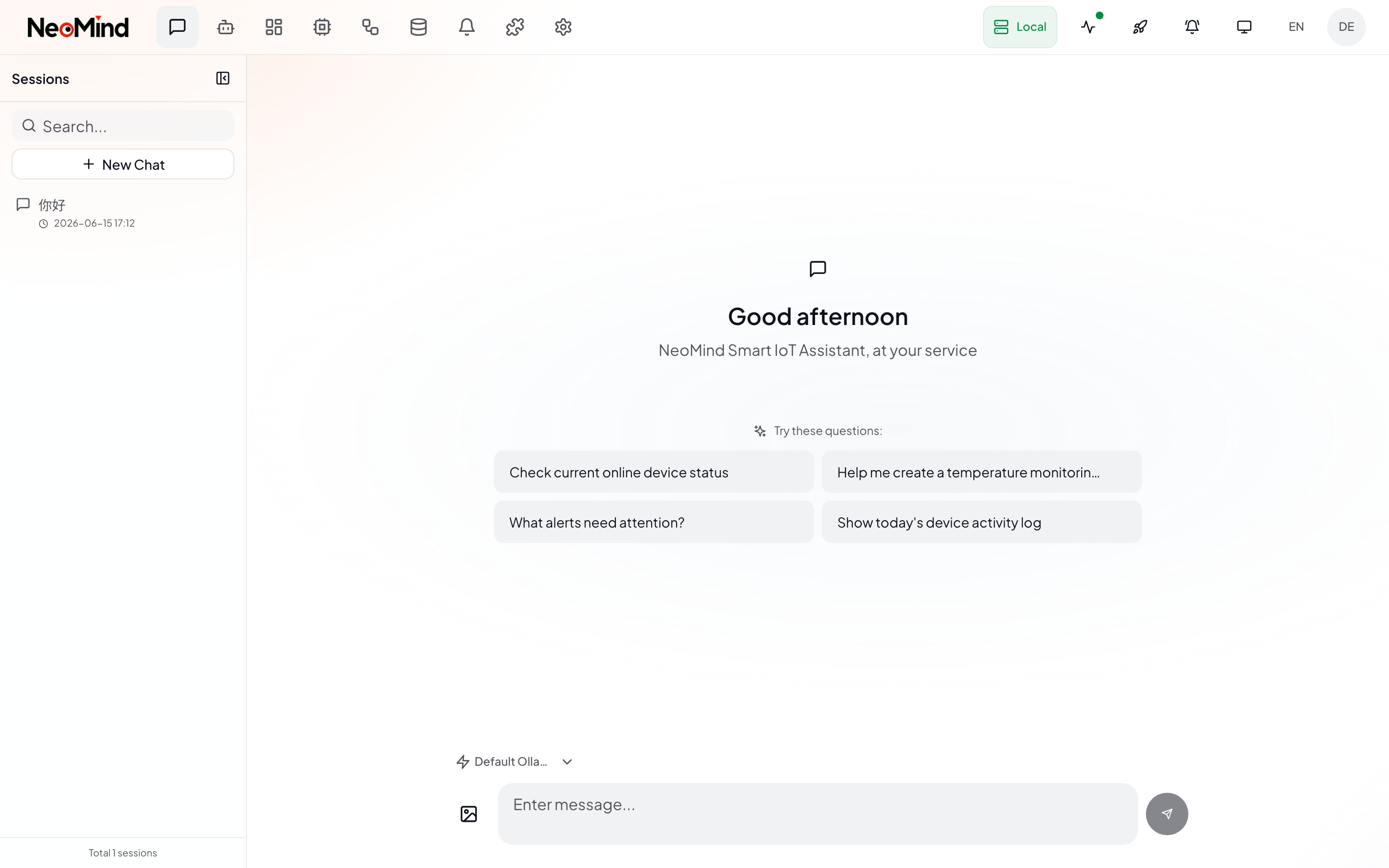
The interface has three areas:
| Area | Description |
|---|---|
| Left · Session List | Manage multiple sessions (create / switch / search / delete). Each session has independent context |
| Center · Conversation | Displays messages, tool call process, AI replies |
| Bottom · Input Area | LLM model selector, image upload button, text input, send button |
A new session initially shows suggested questions (e.g. "Check current online device status") — click to quickly start a conversation without typing.
Tool Call Mechanism
When you send a message, the AI doesn't answer directly — it understands intent → selects tools → executes → synthesizes results. The whole process is visible in the conversation:
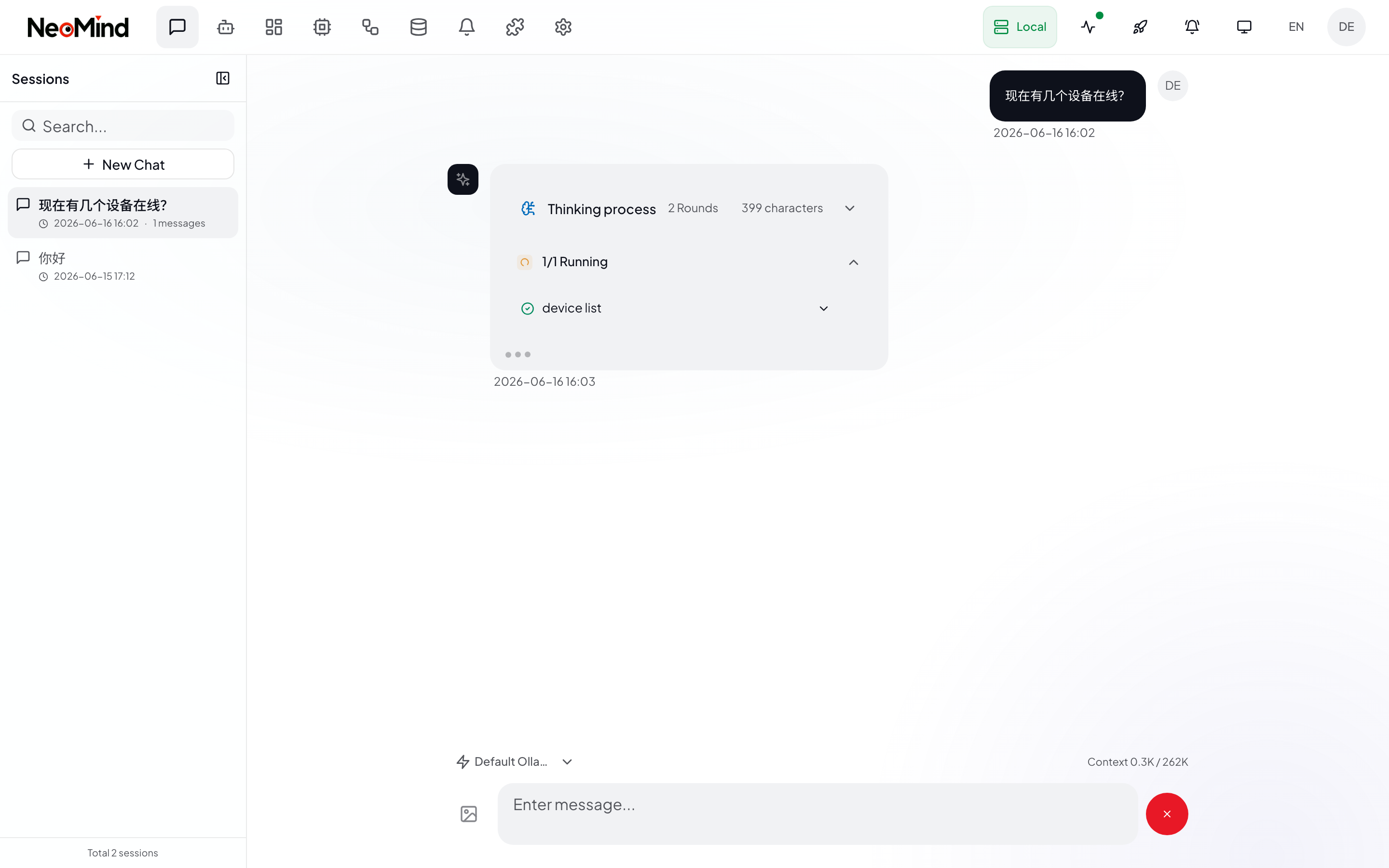
In the screenshot above, the user asked "How many devices are online right now?" and the AI's process was:
- Understand intent: Identify that device status needs to be queried
- Call tool: Execute the
device listcommand (green ✓ means success) - Synthesize answer: Generate a natural language reply based on the data returned by the tool
Thinking process display: Above the AI's reply, a "Thinking process" summary appears (rounds, character count) so you can see how many steps the AI reasoned through. Complex requests may chain multiple tool call rounds (NeoMind caps at 30 rounds per turn with a 5-minute timeout).
What You Can Ask
AI Chat has built-in tools covering nearly every NeoMind capability. Here are typical phrasings (Chinese or English both work):
Query & Control Devices
- "What's the temperature in the living room?" → latest telemetry
- "Set the AC to 26 degrees, cooling mode" → send a device command
- "Show me the humidity curve over the last 24 hours" → pull history, render a chart
- "How many devices are online right now?" → query device status
Dashboards & Visualization
- "Build me a dashboard showing real-time values from all temp/humidity sensors" → create dashboard + auto-add widgets
- "Change this chart's time range to 7 days"
Automation Rules
- "Email me when the temperature goes above 30°C" → create an automation rule and bind a notification channel
- "Report yesterday's energy use every morning at 8 AM"
Notifications
- "Send a Telegram message to the ops team that machine #3 is offline"
Extensions & Data
- "Call the weather extension — will it rain in Shanghai tomorrow?"
- "What was the last face recognition result?"
System & Diagnostics
- "How many devices are online right now?"
- "Why isn't this device reporting data?" → triggers a diagnostic flow
The LLM decides which tools to call and in what order. If the AI only ran query operations but didn't complete your actual request (e.g. you asked it to create a rule but it only checked), just follow up with "Please create it".
Switching LLM Backend
Use the dropdown on the left side of the input box to switch the LLM backend for the current session:
- Ollama local models: e.g.
qwen3.5:4b(default),granite4.1:3b, etc. - Cloud models: e.g. DeepSeek, Qwen Cloud, GPT-4o, etc. (must be added in LLM backend configuration)
Different backends have different capabilities (reasoning quality, speed, multimodal support). Choose based on the task:
- Simple queries → lightweight model (fast)
- Complex analysis / rule creation → stronger model (accurate)
Multimodal (Images)
If your LLM backend supports vision (see Configure an LLM Backend — Multimodal), you can upload images in Chat:
Click the image upload button on the right side of the input box. PNG / JPG / JPEG / WebP supported.
Typical use cases:
| Upload Content | How to Ask | Backend Call |
|---|---|---|
| Field photo | "What objects are in this image?" | Vision model or YOLO extension |
| Camera snapshot | "Read the digits on this meter" | OCR extension |
| Surveillance frame | "Identify the faces in this frame" | Face recognition extension |
Ollama users: You must pull a vision model (e.g.
qwen3.5:4b-vl/llava) first — otherwise uploaded images are silently dropped. NeoMind auto-detects backend capability. Text-only models (e.g.qwen3.5:4b, DeepSeek-V3) cannot process images.
Chat vs Agent: Two Modes
NeoMind's AI has two runtime shapes — easy to confuse at first:
| Dimension | AI Chat (this doc) | AI Agent (autonomous) |
|---|---|---|
| Trigger | You send a message, real-time | Scheduled or event-driven |
| Context | Conversation history | Memory system (journal + knowledge) |
| Best for | Ad-hoc queries, exploration, debugging | Long-running monitoring, periodic checks, event response |
| Configured in | Just open Chat | Create from the Agents tab |
Examples:
- Chat: "What's the temperature of machine #3 right now?" ← one-shot query
- Agent: Create an agent that checks machine #3 every hour and notifies you if it crosses a threshold ← long-running automation
For detailed agent configuration, see AI Agent. For automation rules, see Rules.
Session Management
- Multiple sessions: each has independent context. Switch / rename / delete from the left sidebar.
- Cross-session memory: NeoMind extracts key facts from conversations (your preferences, device aliases) into user memory, applied across sessions.
- History persistence: sessions are stored in
sessions.redb; restarting the server won't lose them. - Auto title: the first message of a new session automatically becomes the session title for easy identification in the list.
Mobile
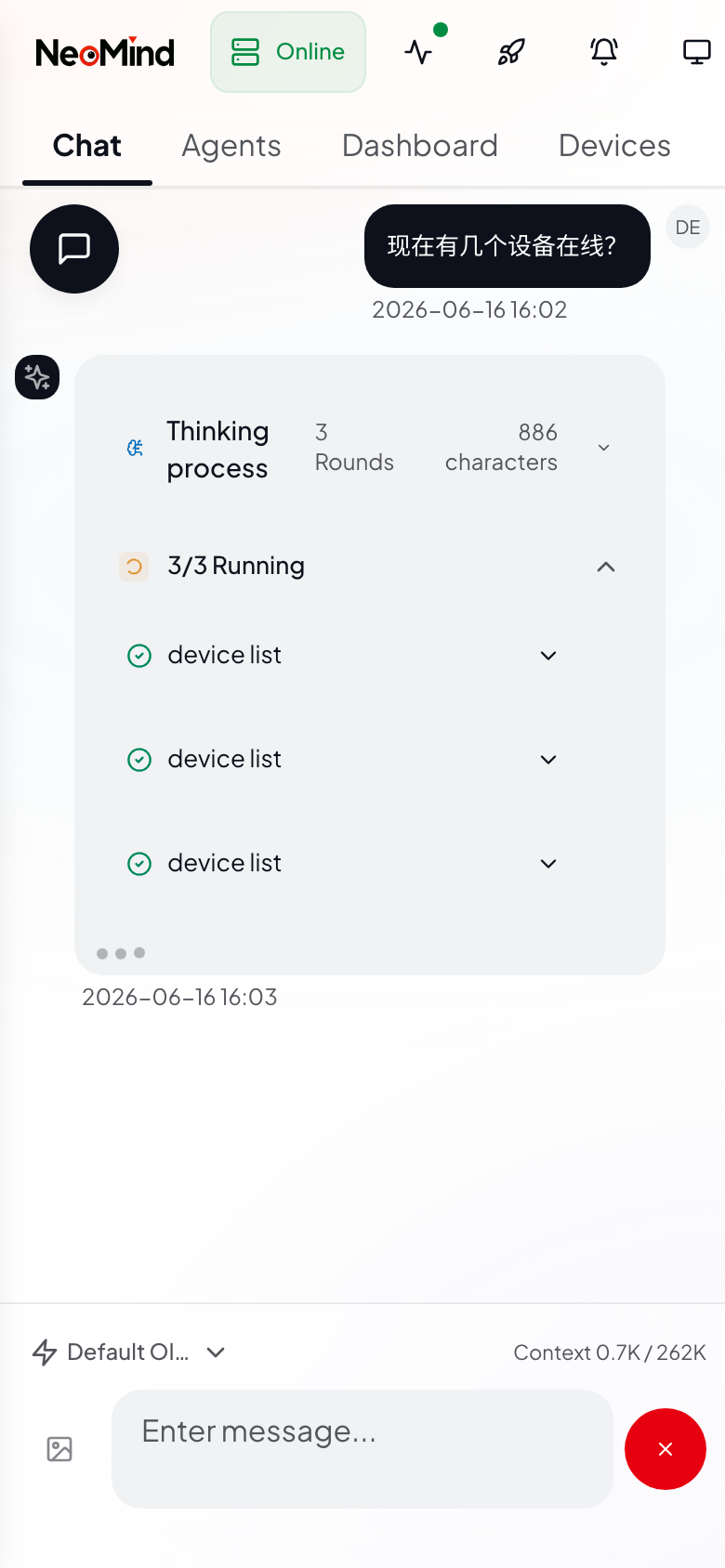
On mobile, the interface switches to a full-screen conversation mode. The session list is accessed via the menu in the top-left corner.
Tips
- Be specific about device identity: use the device name or ID ("the living-room temp/humidity sensor"). The LLM does fuzzy matching; if multiple devices share a name, use the ID.
- Break complex tasks into steps: "First check the humidity; if it's below 40%, turn on the humidifier" is more reliable than one giant instruction.
- Correct mistakes: if the LLM misreads your intent, just say "No, I meant machine #2" — no need to start a new session.
- Tool feedback: when an LLM tool call fails, it returns an error with a suggestion — follow the hint.
- Suggested questions: the questions shown on the new session page are clickable and a great way to explore AI capabilities.
Next Steps
- AI Agent — Upgrade from interactive chat to autonomous patrols
- Automation Rules — Create rules directly via Chat
- Extensions — Add vision / OCR capabilities to AI
Last updated: 2026-06-16