Extension Management
Extensions are NeoMind's pluggable capability modules — vision AI, OCR, weather forecasts, custom data sources, and more are all integrated as extensions. Extensions run in separate processes and communicate via FFI, so a crash in any single extension does not affect the main service, achieving true fault isolation.
What Are Extensions?
Extensions provide three types of capabilities to NeoMind:
| Capability | Description | Data form | Example |
|---|---|---|---|
| Metric | Time-series data produced by the extension, stored in telemetry.redb, viewable on dashboards | Stored as time series | temperature metric from a weather extension |
| Command | Callable operations invoked by AI Agent / API / rules, supporting parameters and return values | Input params → execute → return JSON | detect command from a YOLO extension |
| Component | Custom dashboard visualization components (provided by a frontend bundle shipped with the extension) | Dragged into the dashboard editor | Real-time annotated video frame from a video-stream extension |
A single extension can declare multiple capabilities. For example, yolo-video-v2 simultaneously provides metrics (detection counts), commands (single-frame detection), and components (live annotated video).
Official Extensions
The NeoMind-Extensions repository provides official extensions:
| Extension | Type | Capabilities | Description |
|---|---|---|---|
| Weather Forecast | Data Source | Metric + Command | Weather forecasts and real-time meteorological data (OpenWeather / QWeather) |
| YOLO Detection | Vision AI | Metric + Command | Object detection (YOLO models), supports images and video streams |
| OCR | Vision AI | Command | Image text extraction (PaddleOCR) |
| Face Recognition | Vision AI | Command + Component | Face detection and recognition |
| Video Stream | Streaming | Metric + Command + Component | RTSP/RTMP video stream ingestion and inference |
| Device Inference | Device AI | Metric | Edge AI camera (NE101/NE301) inference result ingestion |
For end-to-end examples, see Use Cases.
Interface Overview
Navigate to the Extensions tab in the left sidebar to see all installed extensions:
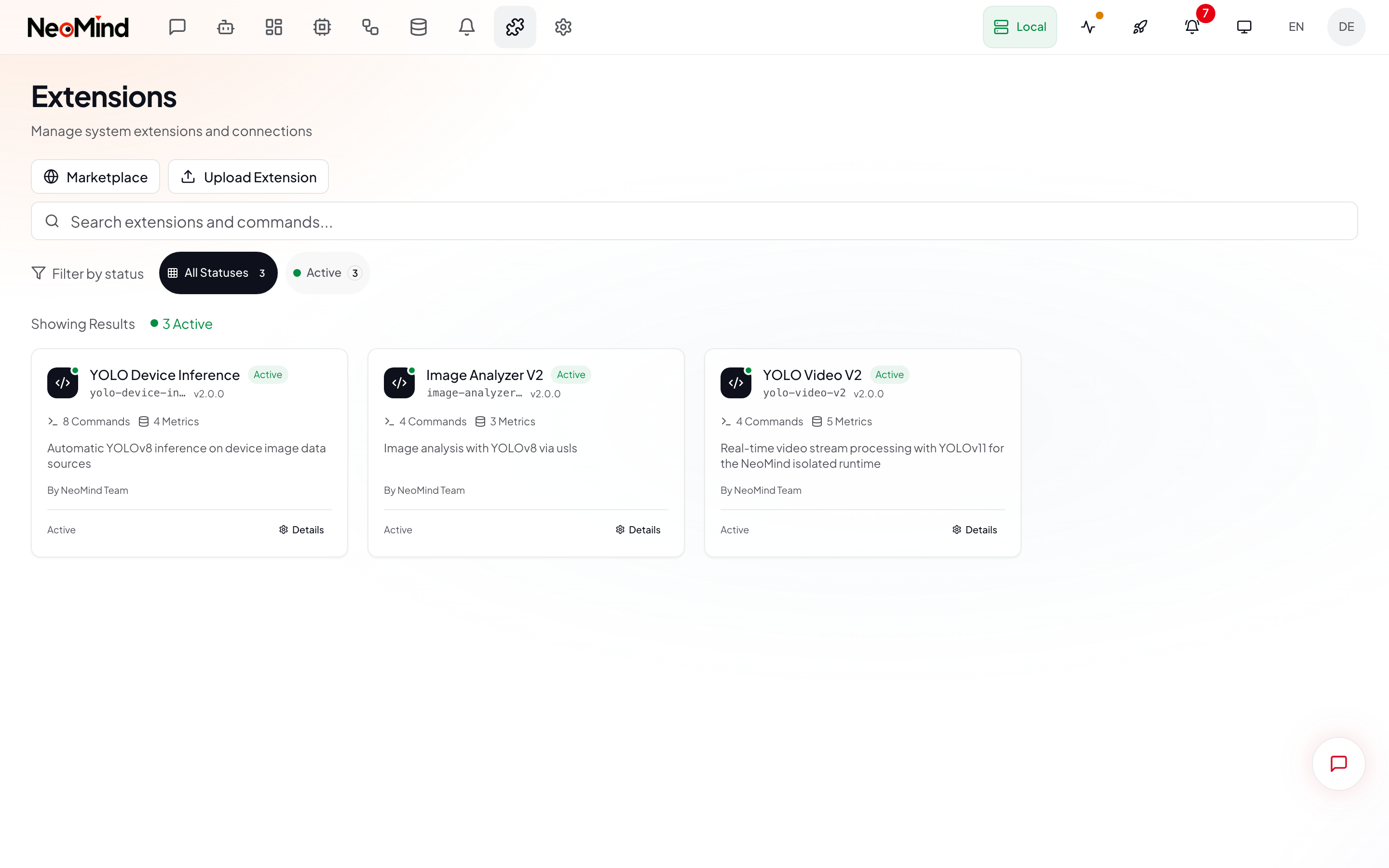
The toolbar at the top provides three actions:
| Button | Icon | Purpose |
|---|---|---|
| Refresh | RefreshCw (circular arrows) | Re-fetch the extension list to see the latest status |
| Upload | Upload | Open a local .nep package installation dialog |
| Marketplace | Globe | Open the official extension marketplace for one-click install |
Each extension card displays: extension name, version, current status (Running / Stopped / Error), and capability icons (metric / command / component). Click anywhere on a card to open the extension details dialog.
Installing Extensions
NeoMind supports four installation methods, ordered by recommendation:
Method 1: Marketplace (Recommended)
Click the Globe icon in the toolbar to open the marketplace dialog. NeoMind fetches the list of available extensions from the official repository:
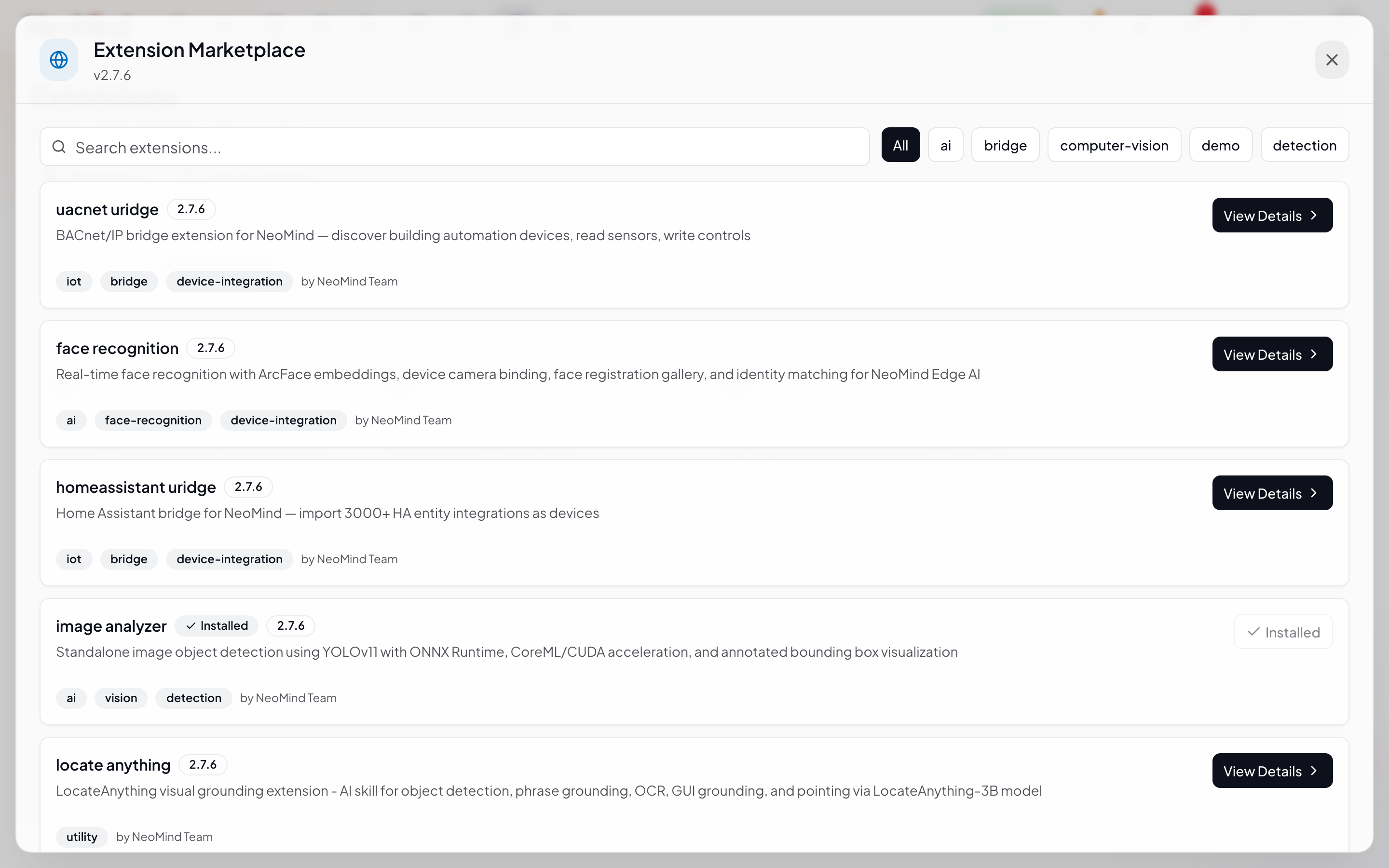
In the marketplace dialog:
- Browse available official extensions (name, version, description, size)
- Click Install to download and install in one click
- After installation, the extension automatically appears in the list and starts
Marketplace installation automatically selects the extension package matching the current main service's ABI version — no manual platform selection needed.
Method 2: Web UI Upload
If you already have a .nep package (self-developed or downloaded from Releases), use upload installation:
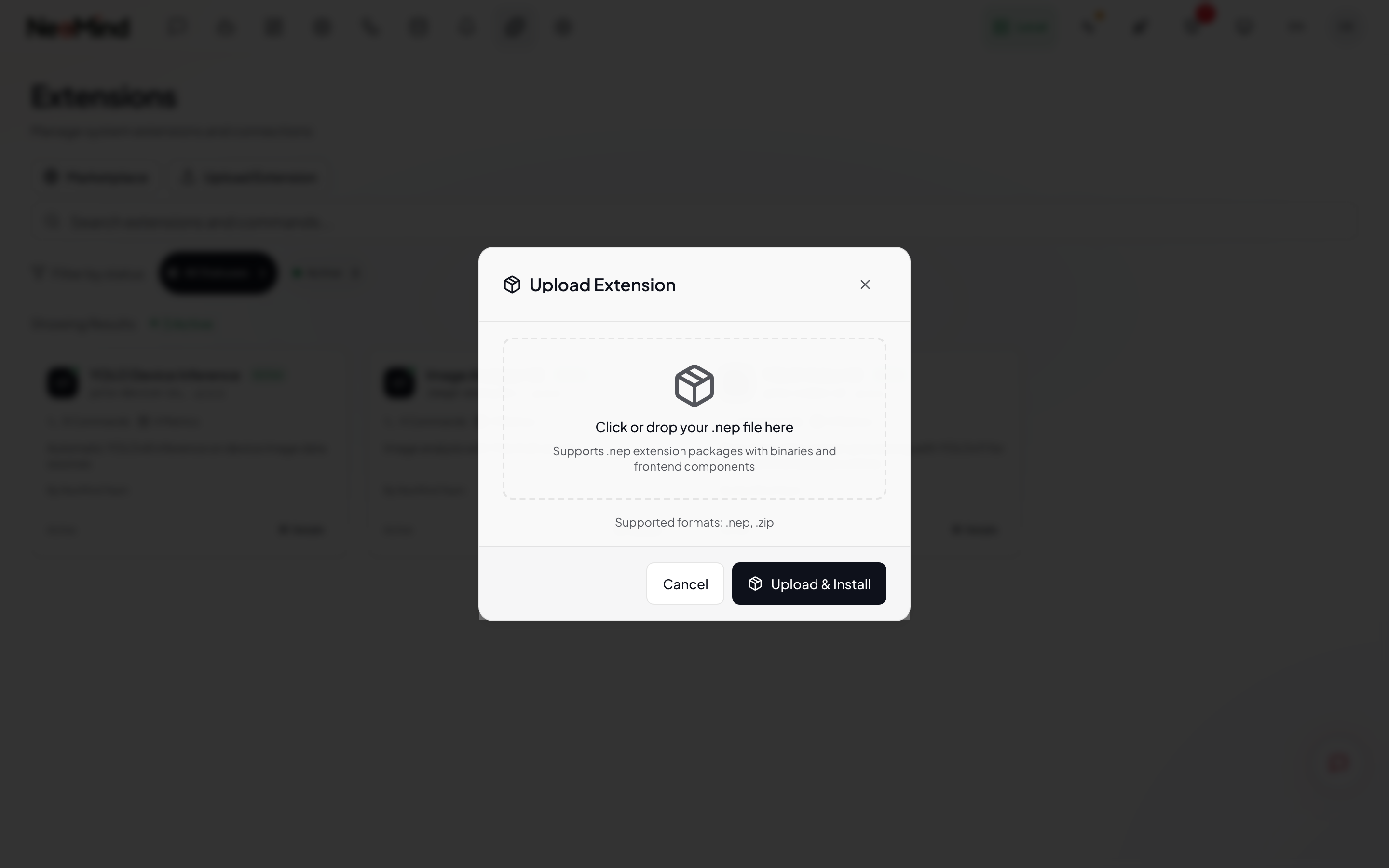
- Click the Upload button in the toolbar
- In the dialog, drag in or select a
.nepfile - NeoMind automatically validates package integrity, ABI version, and signature
- After validation, it unpacks, loads, and starts the extension
A .nep package contains multi-platform binaries (Linux .so / macOS .dylib / Windows .dll). NeoMind automatically selects the binary for the current platform. Cross-platform distribution requires no separate packaging.
Method 3: CLI
# Install a local .nep package
neomind extension install /path/to/weather-forecast.nep

# Install from URL (suitable for automated deployment)
neomind extension install https://github.com/camthink-ai/NeoMind-Extensions/releases/download/v0.6.1/weather-forecast-v0.6.1.nep

# List installed extensions
neomind extension list

# View extension details (metrics, commands, configuration parameters)
neomind extension info <extension_id>

# Uninstall
neomind extension uninstall <extension_id>
Method 4: AI Chat
Tell AI Chat directly:
"Help me install the weather extension"
The LLM guides you to upload a .nep package or provide a download URL, and automatically invokes extension install to complete the installation.
Extension Details and Configuration
Click any extension card to open the details dialog. The dialog uses a left-right layout: the left side has navigation for five sections, and the right side shows the corresponding content. Each section is described below.
1. Overview
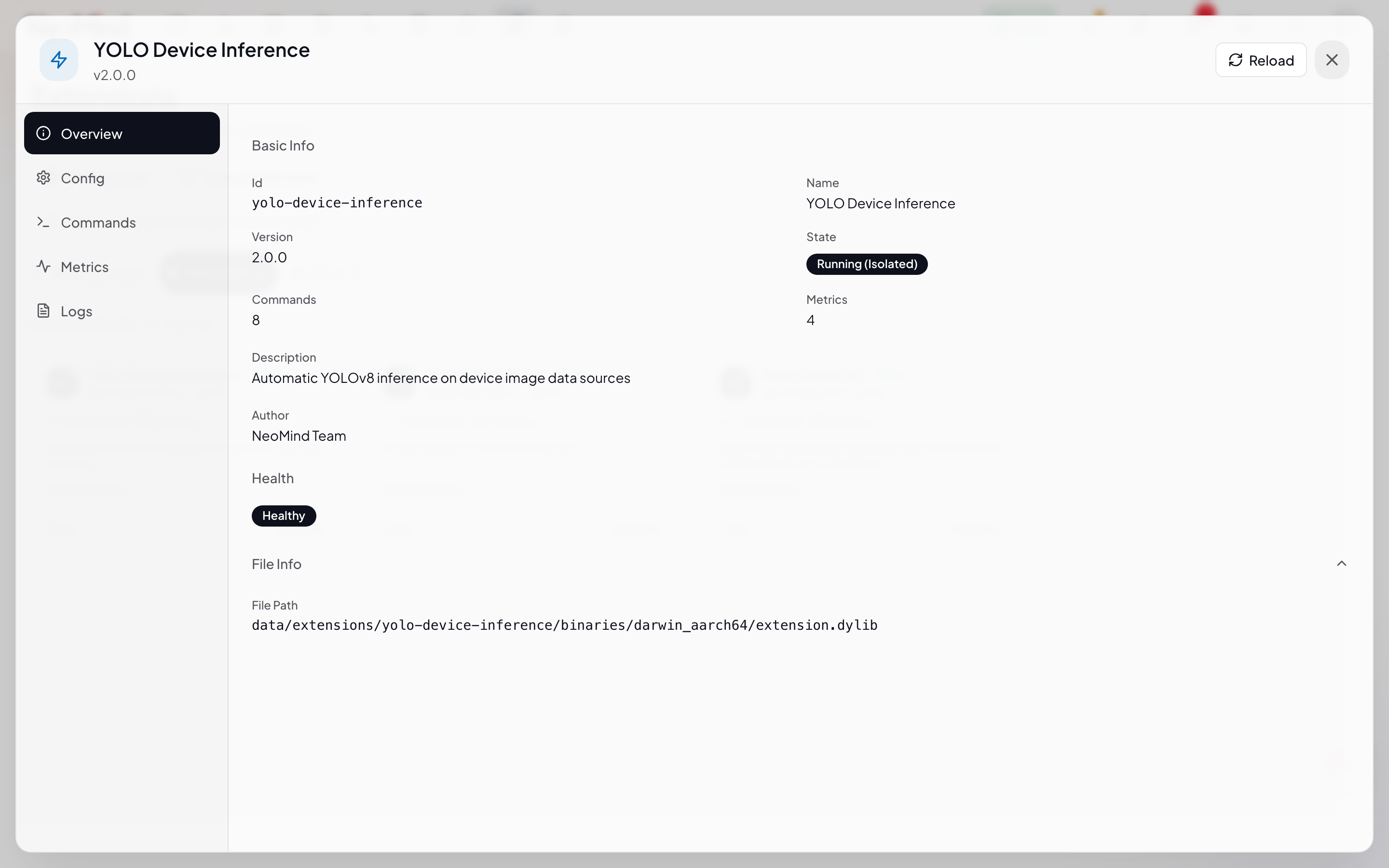
The Overview section displays basic information about the extension:
- Extension ID: Unique identifier (e.g.,
yolo-device-inference), used for API calls and data source binding - Name and version: Human-readable name + SemVer version
- Status: Current runtime status (Running / Stopped / Error / Crash Loop)
- Capability declaration: Types of capabilities provided (metric count / command count / component count)
- Description: Functional description of the extension
- ABI version: ABI version the extension was compiled against (must match the main service)
2. Configuration
Some extensions require configuration parameters to run (e.g., a weather extension needs an API key). Switch to the Configuration tab to configure:
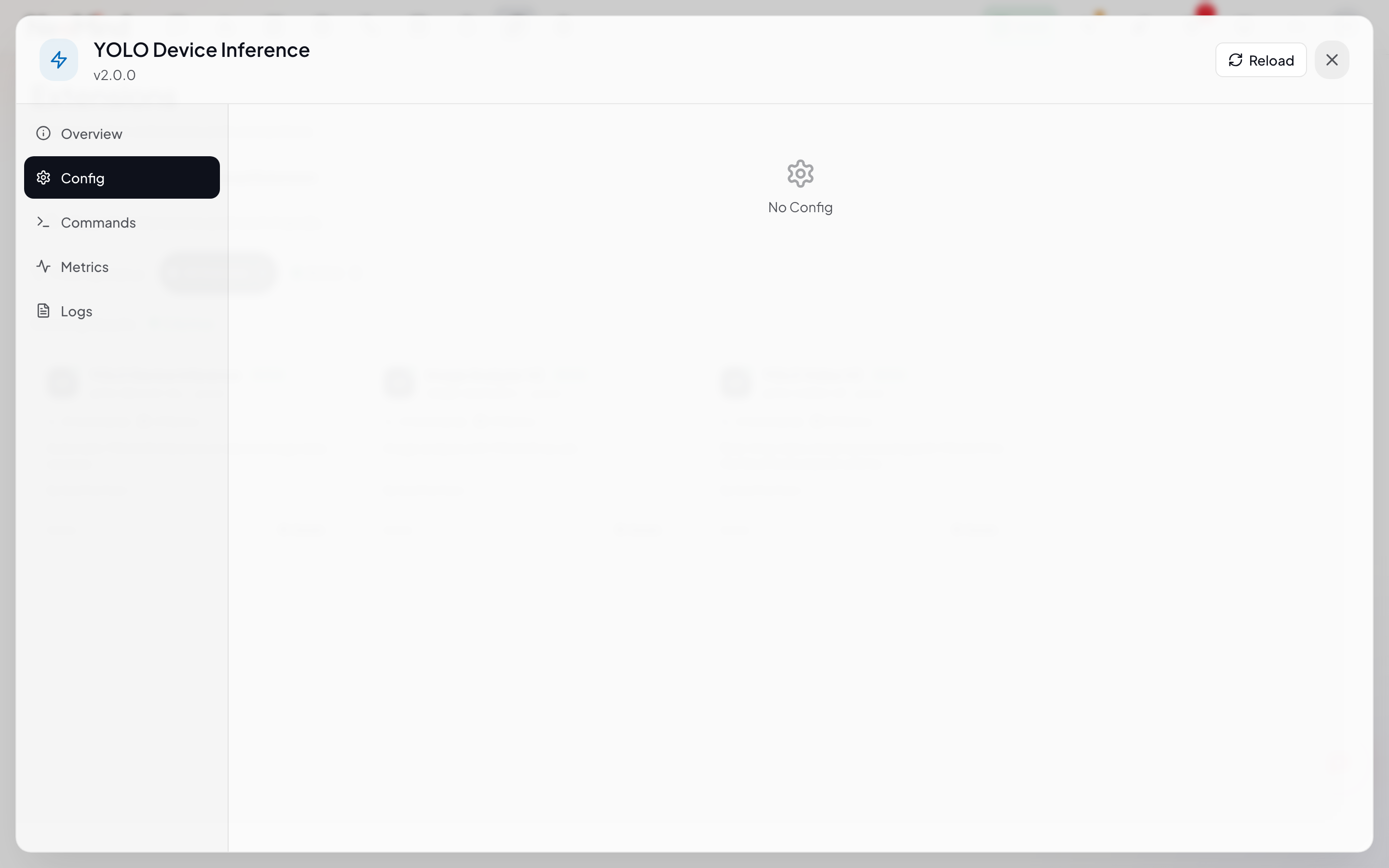
Configuration parameters are automatically rendered as appropriate input controls based on their type:
| Parameter type | Control | Validation rules |
|---|---|---|
string | Text input | Required check, max length |
string + password: true | Password input (masked) | Required check |
string + enum | Dropdown select | Must choose from predefined values |
integer / number | Number input | Min / max range |
boolean | Toggle switch | true / false |
After filling in the fields, click Save. The extension automatically restarts to load the new configuration. Invalid values (out-of-range numbers, missing required fields) cause an error on save and are not persisted.
Configuration changes trigger an extension process restart — in-flight commands will be interrupted. For production environments, modify configuration only during maintenance windows.
3. Commands
Commands are callable operations exposed by the extension. Switch to the Commands tab to see all commands:
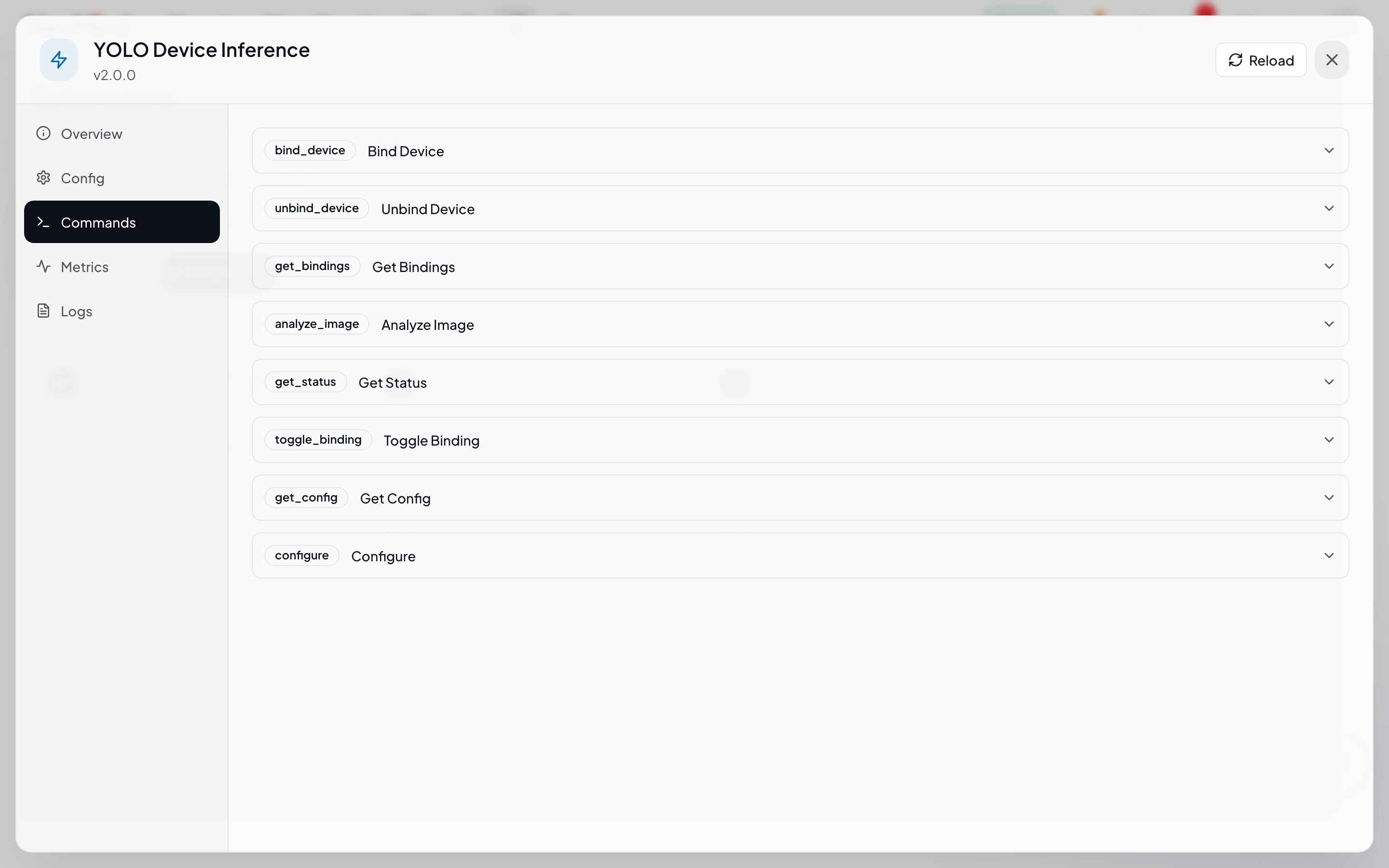
Each command card displays:
- Command name: e.g.,
detect,ocr_recognize - Description: What the command does
- Parameter form: Click the expand button to reveal the command's parameter input form
- Execute button: Fill in parameters and click to run; the result is returned as JSON and shown below
Commands can be executed manually for testing, and also invoked by AI Agents / REST API / automation rules. Manual testing is the fastest way to verify an extension is working correctly.
4. Metrics
Metrics are the time-series data produced by the extension. Switch to the Metrics tab to view historical data:
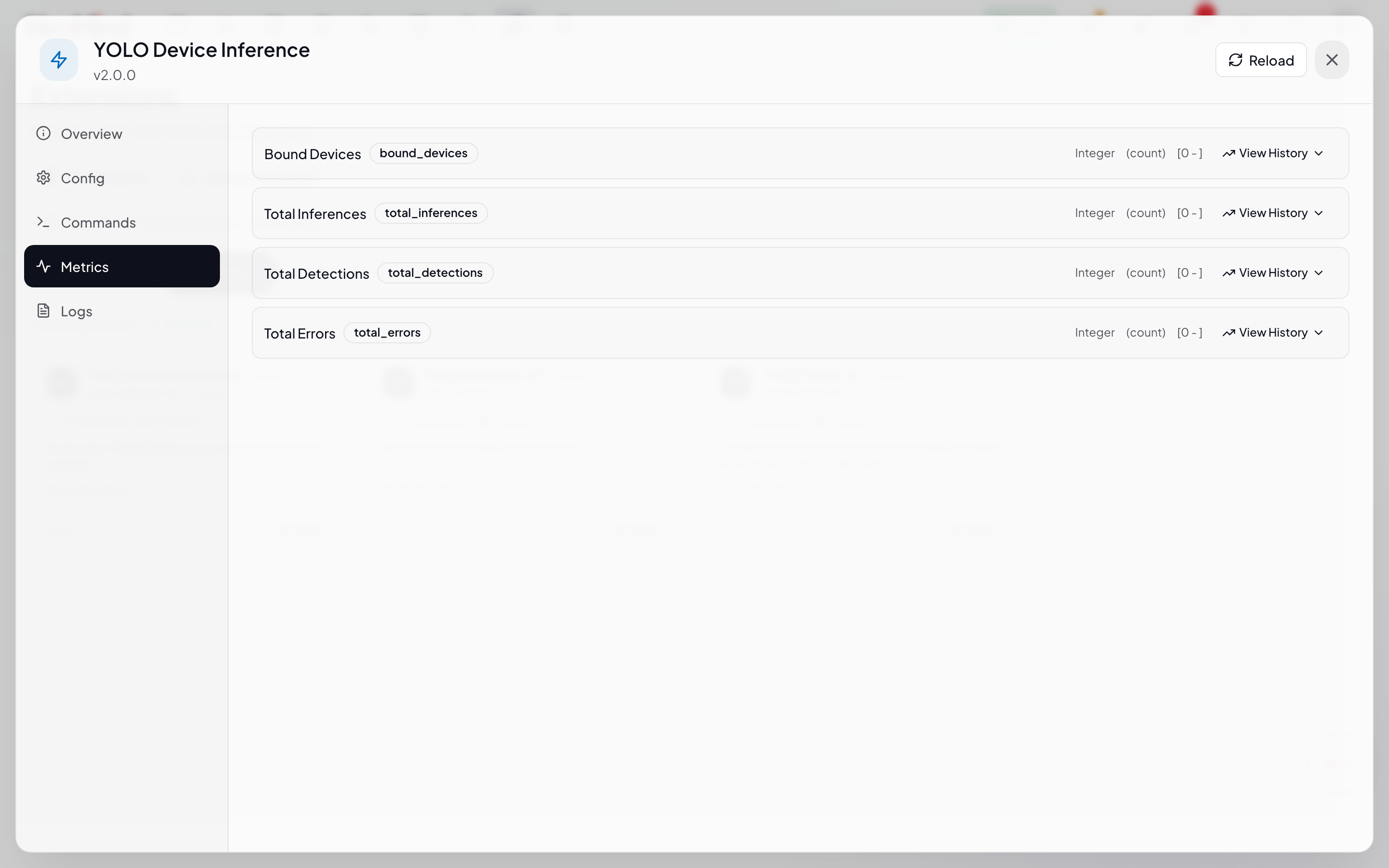
The Metrics section provides:
- Time range selector: 1 hour / 24 hours / 7 days / 30 days
- Metric list: All metrics produced by the extension (e.g.,
detection_count,avg_confidence) - Trend chart: Select a metric to display its historical curve
- Latest value: Current real-time value of the metric
Metric data source format: extension:<extension_id>:<metric_name>. This can be used as a component data source in dashboards.
5. Logs
The Logs section shows the extension process's standard output and error output in real time:
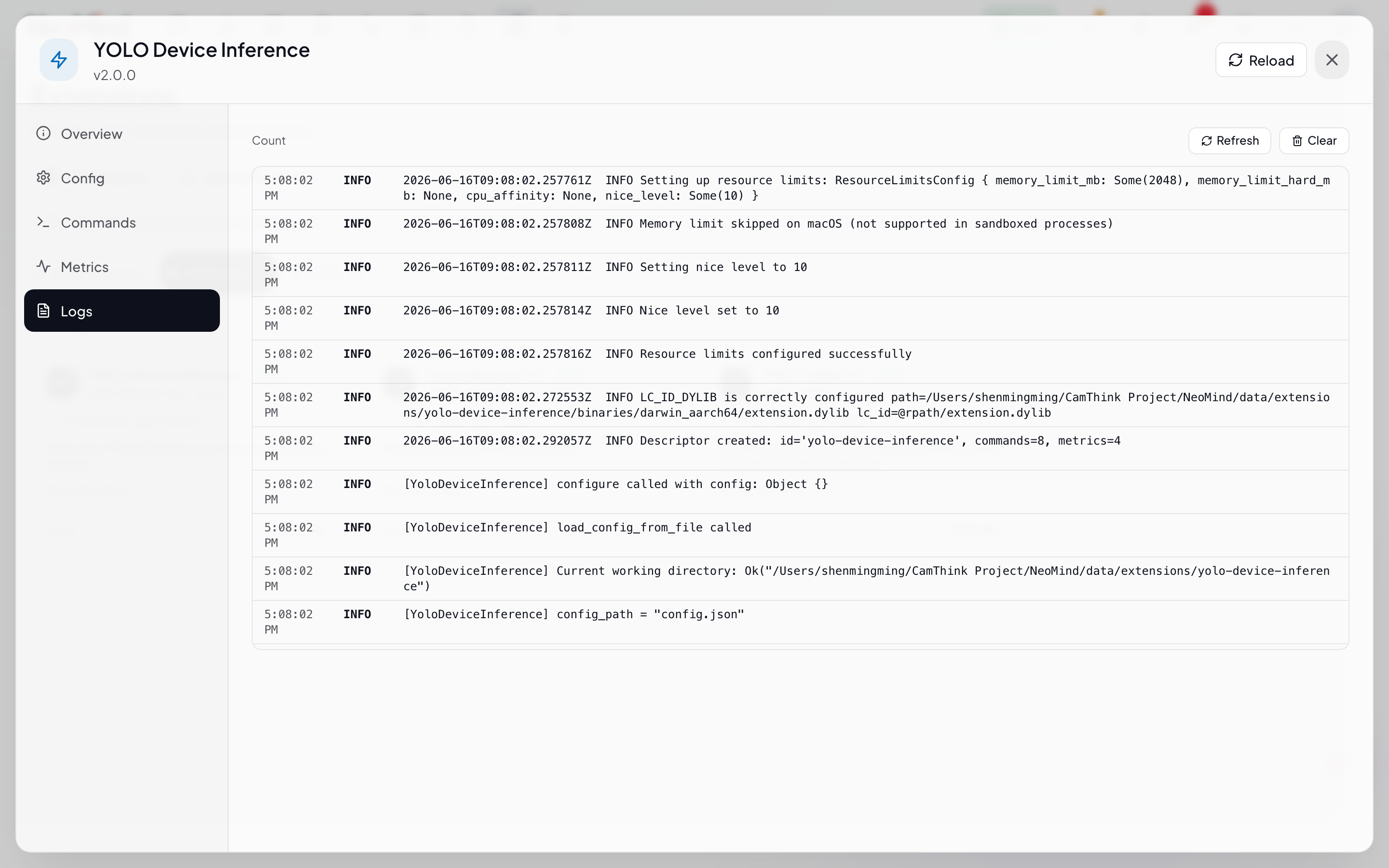
Features:
- Auto-refresh: Fetches new log lines every 3 seconds
- Auto-scroll to bottom: New logs automatically scroll into view
- Error highlighting:
ERROR/WARNlevel logs are highlighted in red / yellow - Retention: Keeps the most recent 500 lines by default
When troubleshooting extension issues, the Logs section is your first stop. If an extension is in Error or Crash Loop state, the logs usually show the panic stack trace or initialization failure reason directly.
Extension Status and Lifecycle
| Status | Icon | Description | Trigger |
|---|---|---|---|
| Running | Green dot | Extension is running normally | Install complete / manual start / auto-recovery |
| Stopped | Gray dot | Extension has been stopped | Manual stop / restarting after config change |
| Error | Red dot | Extension crashed or failed to load | Process exited abnormally / initialization failed |
| Crash Loop | Yellow dot | Crash loop detection triggered; auto-restart suspended | ≥ 3 consecutive crashes within 50 seconds |
Restart / Reload Extensions
# Restart an extension
neomind extension reload <extension_id>

# Check extension status
neomind extension status <extension_id>

# Start / stop
neomind extension start <extension_id>
neomind extension stop <extension_id>
You can also start / stop / restart / uninstall from the action menu on the extension details page.
Crash Protection
Extensions run in separate processes. NeoMind safeguards main service stability through multiple layers:
- Process isolation — An extension crash does not affect the API, MQTT, dashboards, or other extensions
- Auto-restart — An extension process that exits abnormally is automatically restarted, up to 3 attempts with a 5-second interval
- Crash loop detection — If ≥ 3 consecutive crashes occur within 50 seconds, the extension enters Crash Loop state, suspending auto-restart to prevent resource exhaustion
- In-app notifications — Crash events are written to the notification center, alerting operations staff
Crash Loop state requires manual intervention:
# View extension crash logs
ls data/logs/extensions/

# After fixing the root cause, manually restart
neomind extension start <extension_id>
Common crash causes: missing model files, invalid API keys, port conflicts, ABI version mismatches.
Using Extension Data
In Dashboards
Extension metrics are used exactly like device metrics. In the dashboard editor, when adding a component, select an extension metric as the data source:
- DataSourceId format:
extension:<extension_id>:<metric_name> - Example:
extension:weather:temperature - Extensions that ship components appear under the Extension Components category in the component library — just drag them in
In AI Chat
Tell AI Chat directly:
"Call the weather extension and check whether it will rain in Shanghai tomorrow."
The LLM automatically identifies the extension command, fills in parameters, invokes it, and interprets the returned result.
In AI Agents
Agents in Focused mode can bind:
- Extension metrics as data sources (for periodic analysis)
- Extension commands as tools (for LLM tool calling)
During execution, the Agent automatically invokes extension commands to close the reason-execute loop.
In Automation Rules
Automation rules can use extension metrics as conditions, or invoke extension commands as actions:
# Trigger a high-temperature alert when tomorrow's forecast temperature > 35°C
name: "High-temperature alert"
trigger:
  schedule: "0 18 * * *"  # Check every day at 18:00
condition:
  comparison:
    left: "extension:weather:tomorrow_temp"
    op: ">"
    right: 35
actions:
  - type: notify
    message: "High-temperature alert tomorrow — prepare for heat"
Extension Package Format (.nep)
.nep is the standard packaging format for NeoMind extensions — essentially a ZIP archive:
weather-forecast.nep
├── manifest.json      # Extension metadata (ID, name, version, ABI version, capabilities, config param definitions)
├── extension.so       # Linux shared library
├── extension.dylib    # macOS shared library
├── extension.dll      # Windows shared library
├── frontend/          # Optional: dashboard component bundle (manifest.json + bundle.js)
└── assets/            # Optional: model files, config templates
    └── model.onnx
Extensions must match the main service's ABI version (currently v3). Mismatched extensions are rejected at load time and display an "ABI version mismatch" error on the details page.
For detailed .nep structure and the development workflow, see Developer Guide - Extension Development.
CLI Reference
# Listing
neomind extension list                              # List all installed extensions
neomind extension list --json                       # JSON output (for scripting)

# Install / uninstall
neomind extension install <path-or-url>             # Install
neomind extension uninstall <extension_id>          # Uninstall

# Details and status
neomind extension info <extension_id>               # View metadata, metrics, commands, config params
neomind extension status <extension_id>             # View runtime status

# Lifecycle control
neomind extension start <extension_id>              # Start
neomind extension stop <extension_id>               # Stop
neomind extension reload <extension_id>             # Reload (restart process)

# Configuration
neomind extension config <extension_id>             # View current configuration
neomind extension config <extension_id> --set key=value  # Modify a config field
All commands support --json output for parsing in scripts. The CLI authenticates via the NEOMIND_API_KEY environment variable or --api-key flag.
REST API
Extension management also provides a REST API, for easy integration with external systems:
# List all extensions
curl -H "X-API-Key: $NEOMIND_API_KEY" http://localhost:9375/api/extensions

# Query a single extension's details
curl -H "X-API-Key: $NEOMIND_API_KEY" http://localhost:9375/api/extensions/<extension_id>

# Start / stop / reload
curl -X POST -H "X-API-Key: $NEOMIND_API_KEY" \
     http://localhost:9375/api/extensions/<extension_id>/start

curl -X POST -H "X-API-Key: $NEOMIND_API_KEY" \
     http://localhost:9375/api/extensions/<extension_id>/stop

curl -X POST -H "X-API-Key: $NEOMIND_API_KEY" \
     http://localhost:9375/api/extensions/<extension_id>/reload

# Invoke an extension command
curl -X POST -H "X-API-Key: $NEOMIND_API_KEY" \
     -H "Content-Type: application/json" \
     -d '{"image_url":"https://example.com/test.jpg"}' \
     http://localhost:9375/api/extensions/<extension_id>/commands/<command_name>
Full API documentation is available in Swagger UI at: http://localhost:9375/api/docs.
Troubleshooting
Quick Diagnosis
When you encounter extension issues, run these commands first to gather information:
# View all extension statuses
neomind extension list

# View a specific extension's metadata and recent errors
neomind extension info <extension_id>

# List extension process log files
ls data/logs/extensions/

# Check extension-related entries in the main service log
journalctl -u neomind.service | grep -i extension
You can also open the Logs tab on the extension details page to view process output in real time.
Common Issues
| Problem | Possible cause | Solution |
|---|---|---|
| Extension shows Error after install | ABI version mismatch / binary load failure | Upgrade the extension or main service to a matching ABI version (currently v3); check Logs on the details page for the specific error |
Install fails with Unsupported platform | The .nep package lacks a binary for the current platform | Verify the package contains the right platform directory (e.g., macOS arm64 needs darwin_arm64/); re-download the full package from the official source |
Install fails with Extension already registered | An extension with the same ID already exists | Run neomind extension uninstall <id> first, then install the new version |
| Extension startup times out (Error after 120s) | Large model files / blocking initialization | Check Logs to see which step is stuck; if model loading is slow, wait longer or use a smaller model |
| Extension enters Crash Loop | Initialization failure / missing model / port conflict | Triggered after 3 crashes within 50 seconds. Check Logs for the root cause, fix it, then run neomind extension start <id> |
| Extension metrics don't show on dashboard | Extension not configured / DataSourceId typo | Confirm the format is extension:<id>:<metric>; open details → Metrics to see actual metric names |
| AI cannot invoke extension commands | Extension is stopped | Start the extension from the Extensions tab; confirm status is Running |
| Command execution times out | Inference takes too long / input too large | Default timeout is 300 seconds; compress input images, reduce batch size, or check the network |
| No visualization components after install | The extension does not provide Component capability | Only extensions that declare a frontend bundle have dashboard components; check the capability declaration on the Overview tab |
| Extension doesn't restart after config save | Restart is triggered only when a value actually changes | Confirm the new value differs from the old; check Logs for reload confirmation |
Marketplace install fails / Checksum failed | Network interruption / corrupted package | Click Install again; check proxy settings; or use the CLI to download from GitHub Releases instead |
For more general troubleshooting tips, see Troubleshooting.
Developing Your Own Extension?
The complete extension development tutorial is in Developer Guide - Extension Development, covering:
- Creating a Rust extension project from scratch
ExtensionMetadata::new()builder usage- Exporting FFI entry points with the
neomind_export!()macro - Implementation patterns for the three capabilities (metrics / commands / components)
- Cross-platform packaging (6-platform matrix)
- ML model lifecycle management (lazy loading, keep-alive across sessions)
Next Steps
- Use Cases — See how extensions are used in real scenarios (object detection / OCR / face recognition)
- Dashboard — How to display extension-provided visualization components on dashboards
- AI Agent — Have Agents invoke extension commands for automated inspection
- Automation Rules — Use extension metrics as conditions to trigger alerts and actions
Last updated: 2026-06-16