Configure LLM Backend
NeoMind's AI Agent and AI Chat rely on an LLM backend to understand natural language and execute instructions. This guide covers configuring local or cloud LLMs via Web UI or CLI.
Backend Overview
NeoMind supports 10+ LLM backends in two deployment modes:
| Category | Backend | Default Model | Notes |
|---|---|---|---|
| Local (recommended) | Ollama | qwen3.5:4b | Default backend, fully offline |
| Local | llama.cpp | Loaded at startup | Self-hosted llama-server |
| Cloud | OpenAI | gpt-4o-mini | API Key required |
| Cloud | Anthropic | claude-3-5-sonnet | API Key required |
| Cloud | gemini-1.5-flash | API Key required | |
| Cloud | xAI | grok-beta | API Key required |
| Cloud | Qwen (Alibaba) | qwen-max-latest | DashScope Key required |
| Cloud | DeepSeek | deepseek-v3 | API Key required |
| Cloud | GLM (Zhipu) | glm-4-plus | API Key required |
| Cloud | MiniMax | m2-1-19b | API Key required |
| Cloud | Custom | Any | OpenAI-compatible endpoint |
Recommended: Ollama +
qwen3.5:4b(4B params, balances speed and quality, runs smoothly on 8GB RAM). Add cloud backends when you need more power or multimodal.
Option 1: Web UI Setup (Recommended)
Step 1: Install Ollama and Pull a Model (Local Backend)
Install from ollama.com. After install, Ollama listens on http://localhost:11434 by default.
# Install Ollama (macOS / Linux)
curl -fsSL https://ollama.com/install.sh | sh

# Recommended model (Chinese + tool calling + 128K context)
ollama pull qwen3.5:4b

# For vision capability (image input), also pull a vision model
ollama pull qwen3.5:4b-vl   # or llava / minicpm-v etc.
Note: Use
qwen3.5:4b. Earlier docs mentionedministral-3:3b/deepseek-r1:7b— these are no longer recommended (unstable tool calling / too large for edge hardware).
Skip this step if using a cloud backend (OpenAI / Anthropic / GLM, etc.).
Step 2: Open LLM Backend Settings
Navigate to Settings → LLM Backends:
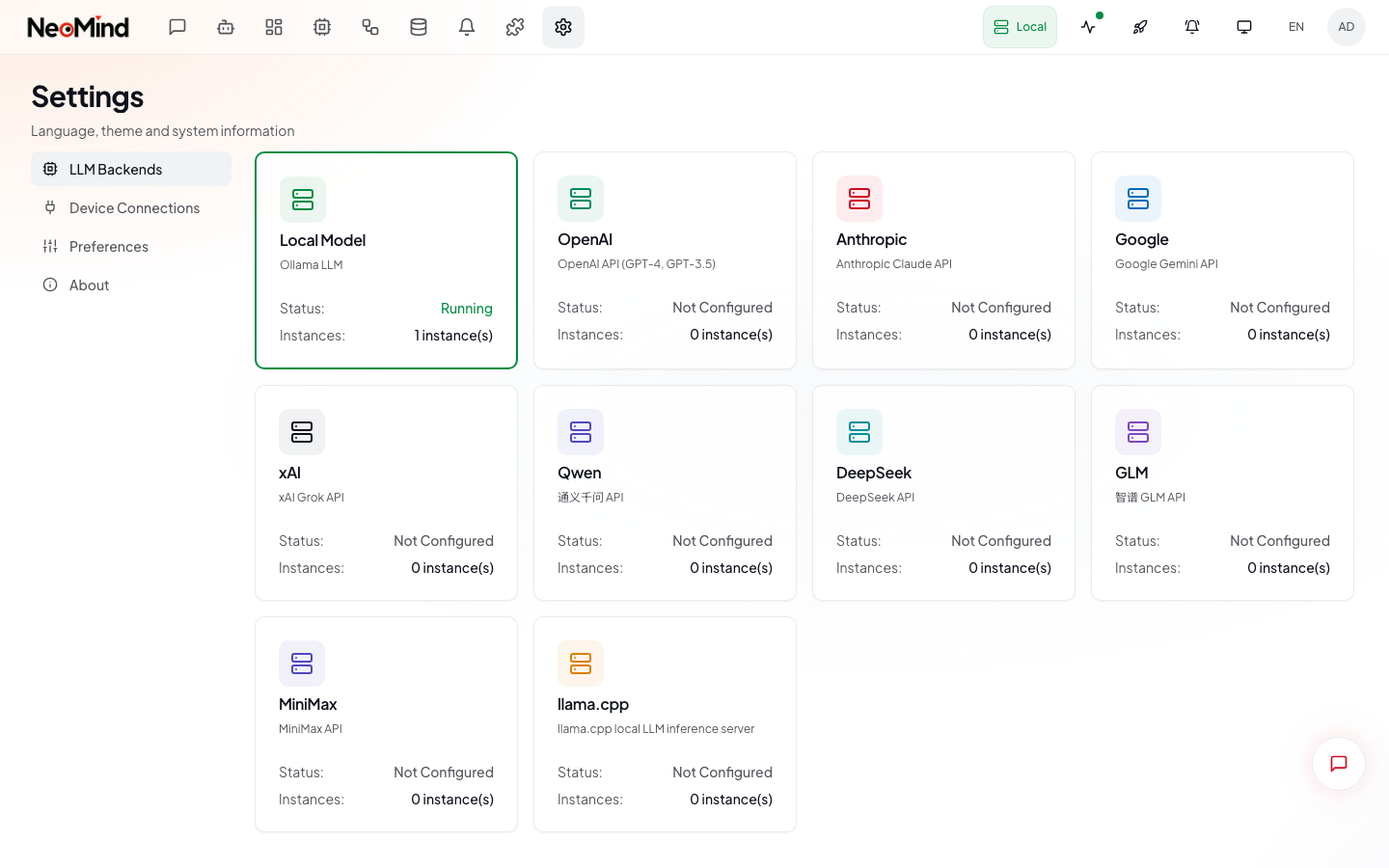
Click Add Backend to open the configuration form.
Step 3: Fill in Backend Details
Ollama (Local)
| Field | Value |
|---|---|
| Type | Ollama |
| Endpoint | http://localhost:11434 (default; use the host IP for remote) |
| Model | qwen3.5:4b (must match the ollama pull name) |
| Stream | Enabled (recommended for better UX) |
Cloud (OpenAI example)
| Field | Value |
|---|---|
| Type | OpenAI (or Anthropic / Google / Qwen / …) |
| API Key | Your API Key (e.g. sk-...) |
| Base URL | Leave empty for official; fill in for custom gateway |
| Model | gpt-4o-mini (or gpt-4o / gpt-4-turbo, etc.) |
Chinese providers: Qwen / DeepSeek / GLM / MiniMax all use OpenAI-compatible protocols. NeoMind has built-in default endpoints — just fill in the API Key and model name.
Custom (OpenAI-Compatible Endpoint)
If you use vLLM, Together AI, OpenRouter, or another self-hosted/third-party gateway, select Custom:
base_url: Gateway URL (e.g.https://api.openrouter.ai/v1)api_key: Gateway keymodel: Model name exposed by the gateway
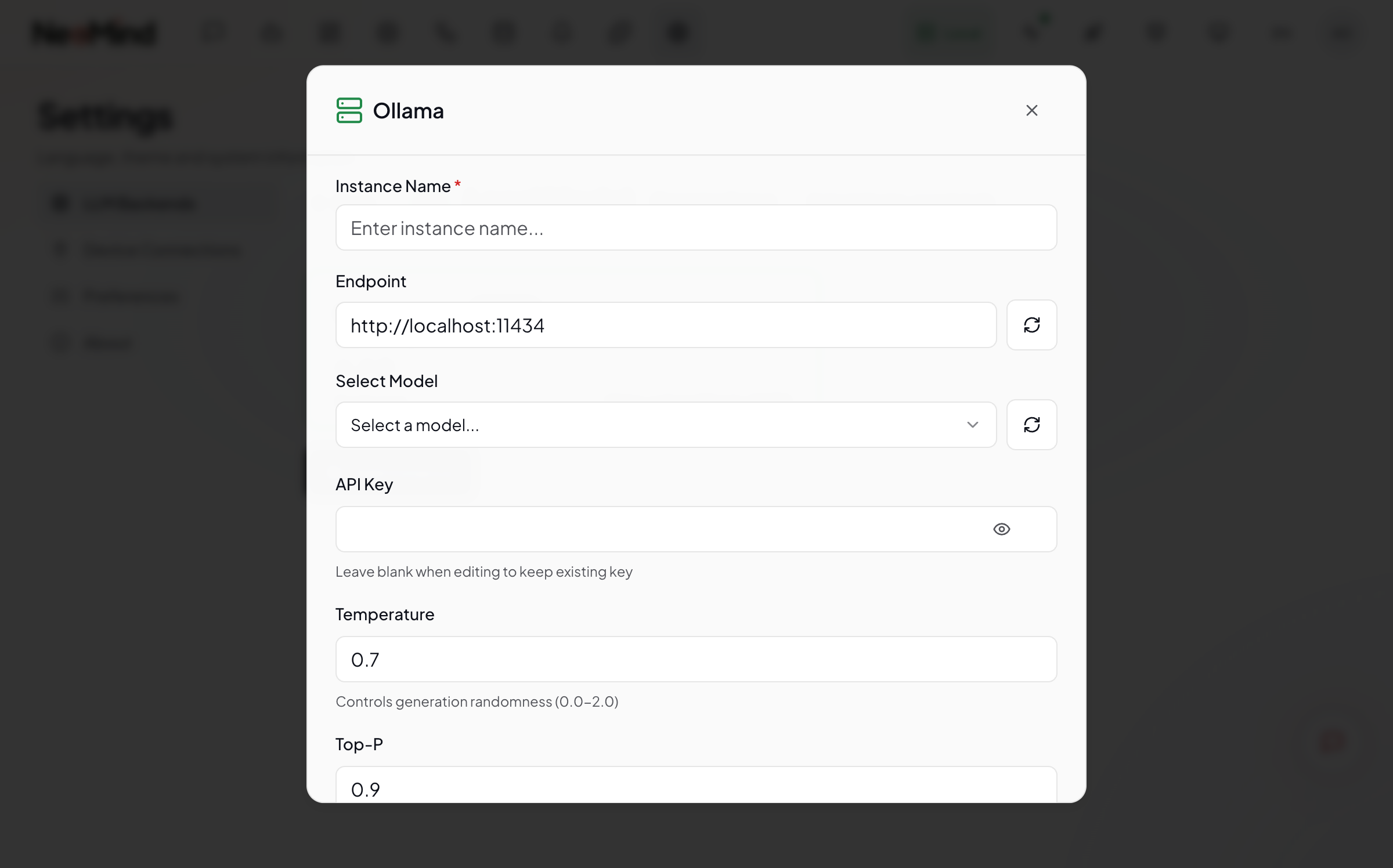
After saving, NeoMind probes the backend's capabilities (tool calling, multimodal, context window) and writes capability tags automatically.
Step 4: Set Default and Verify
Click Set Default in the backend list to make it the system default.
Then open AI Chat and send a greeting to verify:
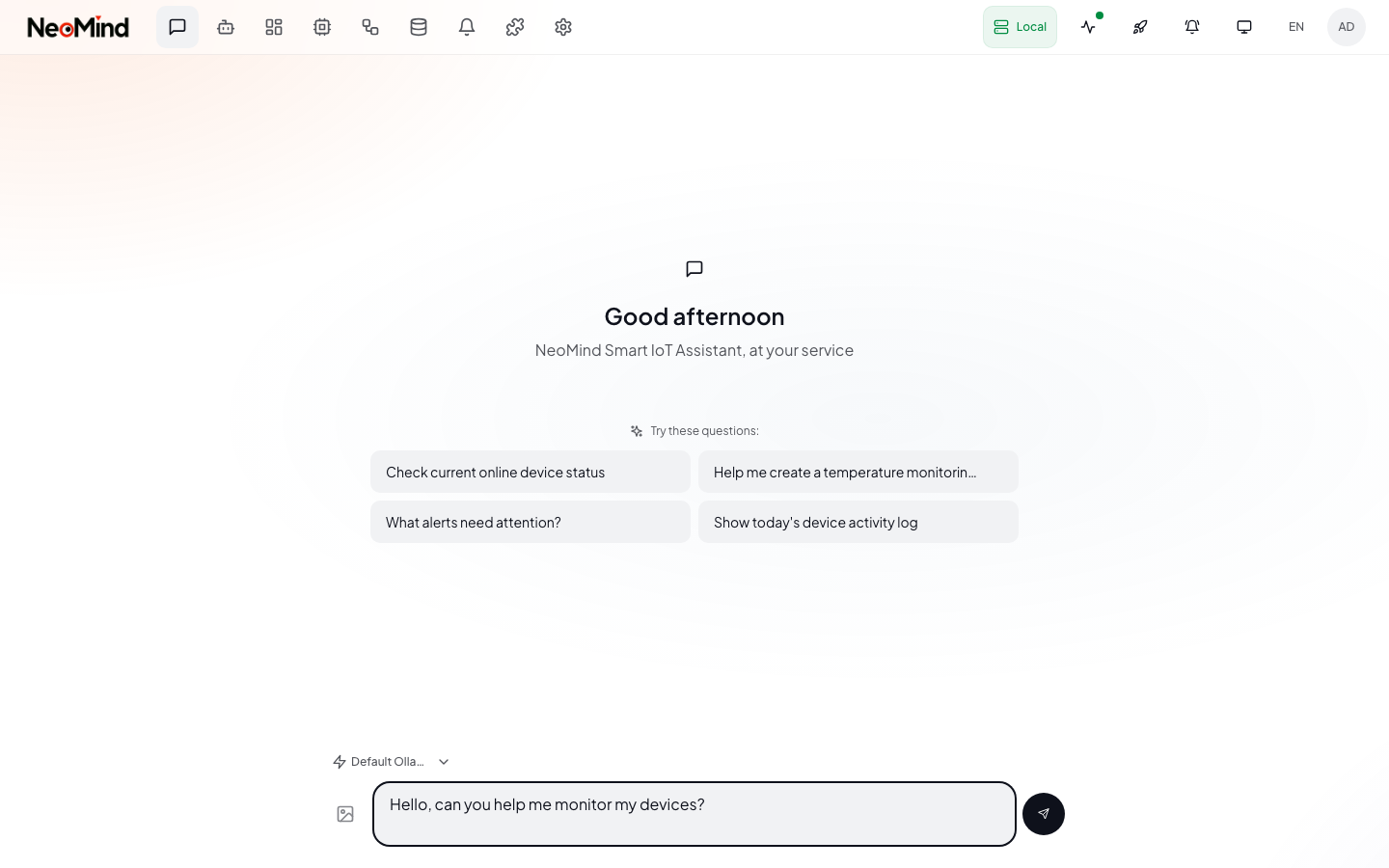
If AI Chat doesn't respond, check:
- Is Ollama running?
ollama listshould show pulled models- Cloud backend: Is the API Key valid? Is the network reachable?
- More in Troubleshooting
Option 2: CLI Setup
Prefer the terminal? These commands cover the full workflow from creation to activation.
1. List Existing Backends
neomind llm list
2. List Available Models (Ollama)
# List models pulled in Ollama
neomind llm models

# Or specify a remote Ollama
neomind llm models --endpoint http://192.168.1.100:11434
3. Create a Backend
# Ollama local
neomind llm create --name local --type ollama \
  --endpoint http://localhost:11434 --model qwen3.5:4b

# OpenAI cloud
neomind llm create --name openai --type openai \
  --endpoint https://api.openai.com/v1 \
  --model gpt-4o-mini --api-key sk-xxxx

# GLM cloud (OpenAI-compatible)
neomind llm create --name glm --type openai \
  --endpoint https://open.bigmodel.cn/api/paas/v4 \
  --model glm-4-flash --api-key xxx.xxx.xxx

# Custom gateway (OpenRouter etc.)
neomind llm create --name router --type custom \
  --endpoint https://openrouter.ai/api/v1 \
  --model anthropic/claude-3.5-sonnet --api-key sk-or-xxxx
A backend ID is returned on success (e.g. local or a random ID).
4. Test the Connection
neomind llm test local
Returns model info and response status = connection OK.
5. Activate as Default
neomind llm activate local
6. Other Common Commands
# View backend details (with capability tags)
neomind llm get local

# Update model or parameters
neomind llm update local --model qwen3.5:8b --temperature 0.5

# Delete a backend
neomind llm delete local
📖 CLI Command Reference
| Command | Description | Key Flags |
|---|---|---|
llm list | List all backends | --json for JSON output |
llm get <id> | View details | — |
llm models | List available Ollama models | --endpoint <url> |
llm create | Create a backend | --name --type --endpoint --model --api-key --temperature |
llm update <id> | Update config | --model --endpoint --api-key --temperature |
llm test <id> | Test connection | — |
llm activate <id> | Set as default | — |
llm delete <id> | Delete | — |
Ollama API Endpoint
NeoMind calls Ollama's native /api/chat endpoint (not /v1/chat/completions). This means:
- Supports the
thinkingfield (chain-of-thought for reasoning models like qwen3.x / deepseek-r1) - Supports native multimodal (image input)
- Streaming and tool calling use the Ollama native protocol
If you're testing with curl, use the correct endpoint:
curl http://localhost:11434/api/chat -d '{
  "model": "qwen3.5:4b",
  "messages": [{"role": "user", "content": "Hello"}],
  "stream": false
}'
Multimodal (Vision) Capability
NeoMind supports image input and visual analysis. Vision capability depends on the model:
- Ollama: After pulling a vision model (e.g.
qwen3.5:4b-vl/llava/minicpm-v), you can upload images in AI Chat. - Cloud:
gpt-4o/gpt-4o-mini/claude-3-5-sonnet/gemini-1.5-flash/qwen-vl/glm-4vnatively support vision.
NeoMind auto-detects multimodal capability (via LiteLLM registry + /api/show runtime probe + name heuristic matching). If auto-detection is inaccurate, manually toggle Multimodal in the backend detail page.
Setting the Default Backend
A NeoMind instance can have multiple LLM backends, but only one is marked as default. The default backend is used for:
- Initial AI Chat conversations
- Scheduled Agent executions
- LLM analysis in the rule engine
- Web UI: Backend list → click Set Default
- CLI:
# List all backends and see which is default
neomind llm list

# Set a backend as default
neomind llm activate local
Next Steps
- Onboard a Device — Start receiving telemetry data
- Use Dashboard — Visualize your device data
- AI Chat — Query device status in natural language
Last updated: 2026-06-15