Data Transforms
Data Transforms let NeoMind process telemetry data in real time, after arrival and before storage — using a JavaScript function to convert raw metrics into derived metrics. For example:
- Celsius → Fahrenheit
- Raw voltage + current → computed power
- Device online state → human-readable status text
- Invoke extension commands to process data (e.g. YOLO detection → extract confidence)
Derived metrics from transforms can be used just like regular device metrics in dashboards, rules, and AI Agents.
Rules vs Transforms
| Dimension | Rules | Transforms |
|---|---|---|
| Purpose | Condition evaluation → execute actions | Data processing → generate new metrics |
| Output | Notifications / commands / Agent calls | New telemetry metrics (bindable to dashboards/rules) |
| Logic | JSON conditions + actions | JavaScript code |
| Timing | Fires when condition is met | Real-time transform per data point |
Interface Overview
Switch to the Transforms tab in the Automation page:
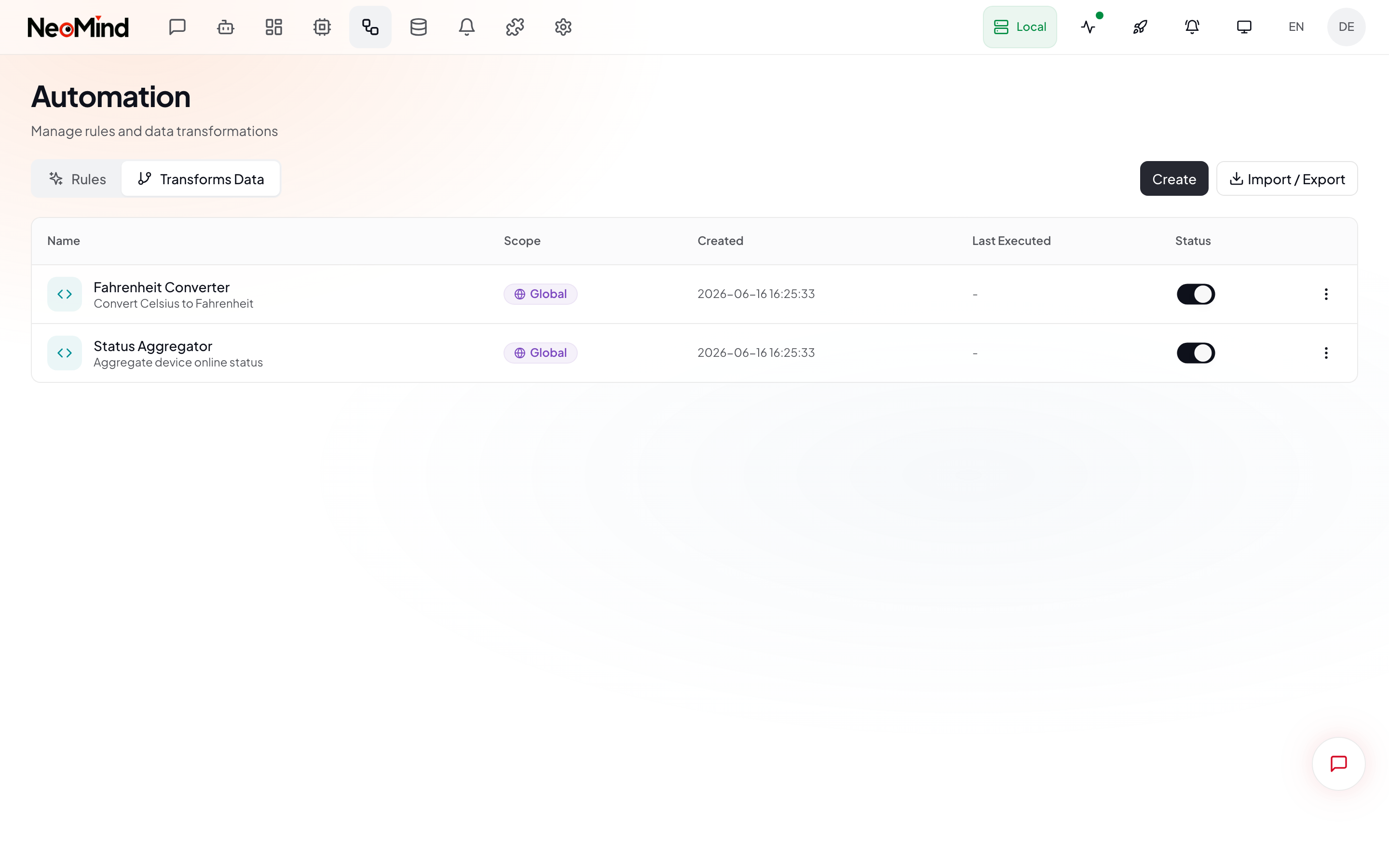
The page displays all transforms in a table, each row containing:
| Column | Description |
|---|---|
| Name | Transform display name |
| Scope | Global / Device Type / Device |
| Code Summary | JavaScript code snippet preview |
| Output Prefix | Naming prefix for derived metrics (e.g. converted) |
| Status Toggle | Enable / disable switch |
| Actions Menu | Edit, delete, export |
The Import / Export button in the top right lets you bulk import/export transform JSON.
Creating a Transform via Web UI
Step 1: Open the Transform Builder
In the Transforms tab, click the Create button to open the full-screen builder:
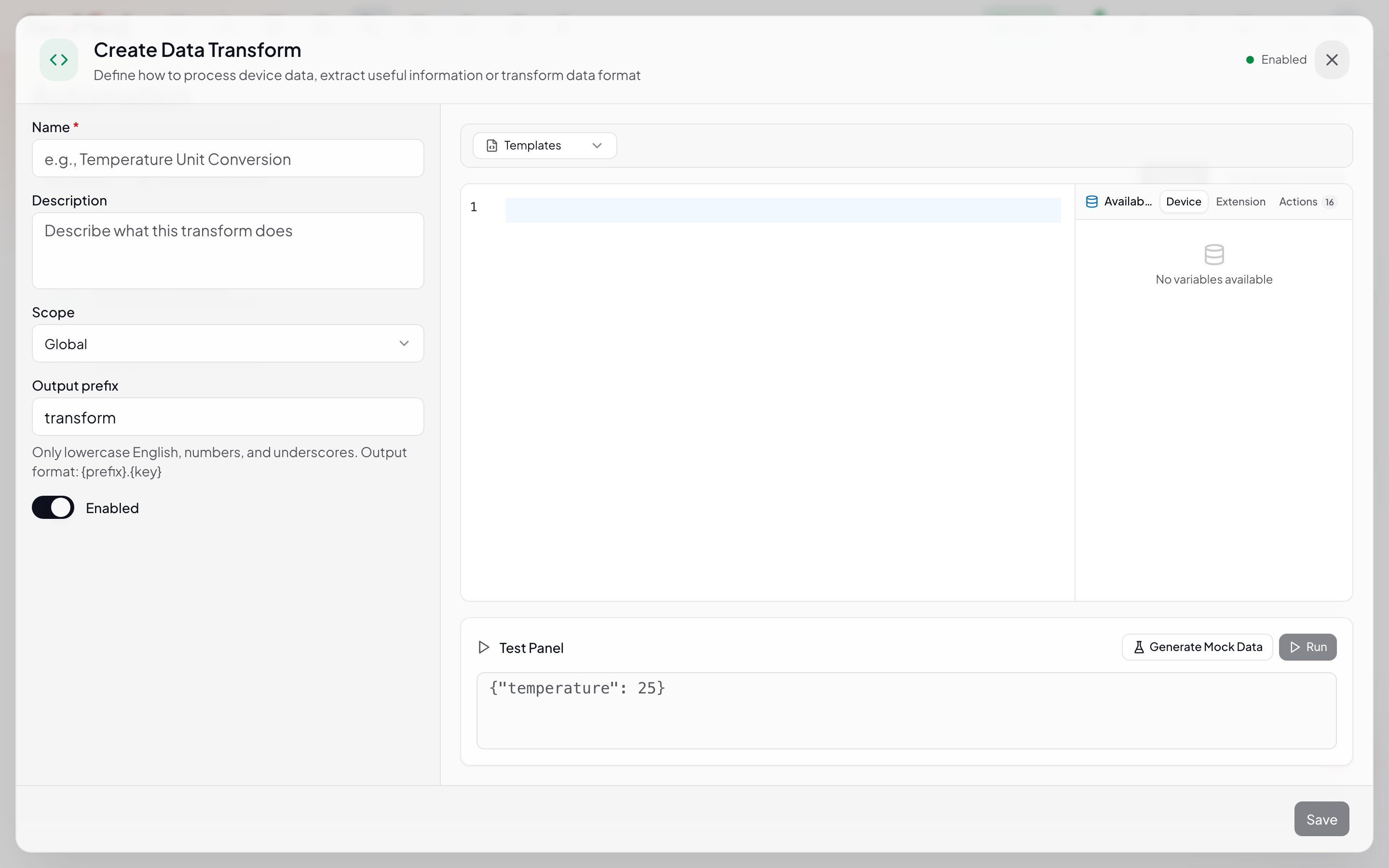
The builder uses a split-pane layout:
| Area | Description |
|---|---|
| Left · Config Rail | Name, description, scope, output prefix, complexity |
| Right · Code Workspace | JavaScript code editor + variables panel + test strip |
Step 2: Fill in Basic Info
| Field | Description |
|---|---|
| Name | Transform display name |
| Description | Optional, explains the transform's purpose |
| Output Prefix | Naming prefix for derived metrics. If set to converted, output metrics are named converted.temp_f |
| Complexity | Number 1–5, used for execution ordering (lower complexity executes first) |
Step 3: Select Scope
Scope determines which devices' data the transform processes:
| Scope | Description | Use Case |
|---|---|---|
| Global | Processes all devices' data | Universal transforms (e.g. unit conversion) |
| Device Type | Only processes data from a specified device type | Batch transforms for similar devices |
| Device | Only processes a single device's data | Custom transforms for a specific device |
Step 4: Write the Transform Code
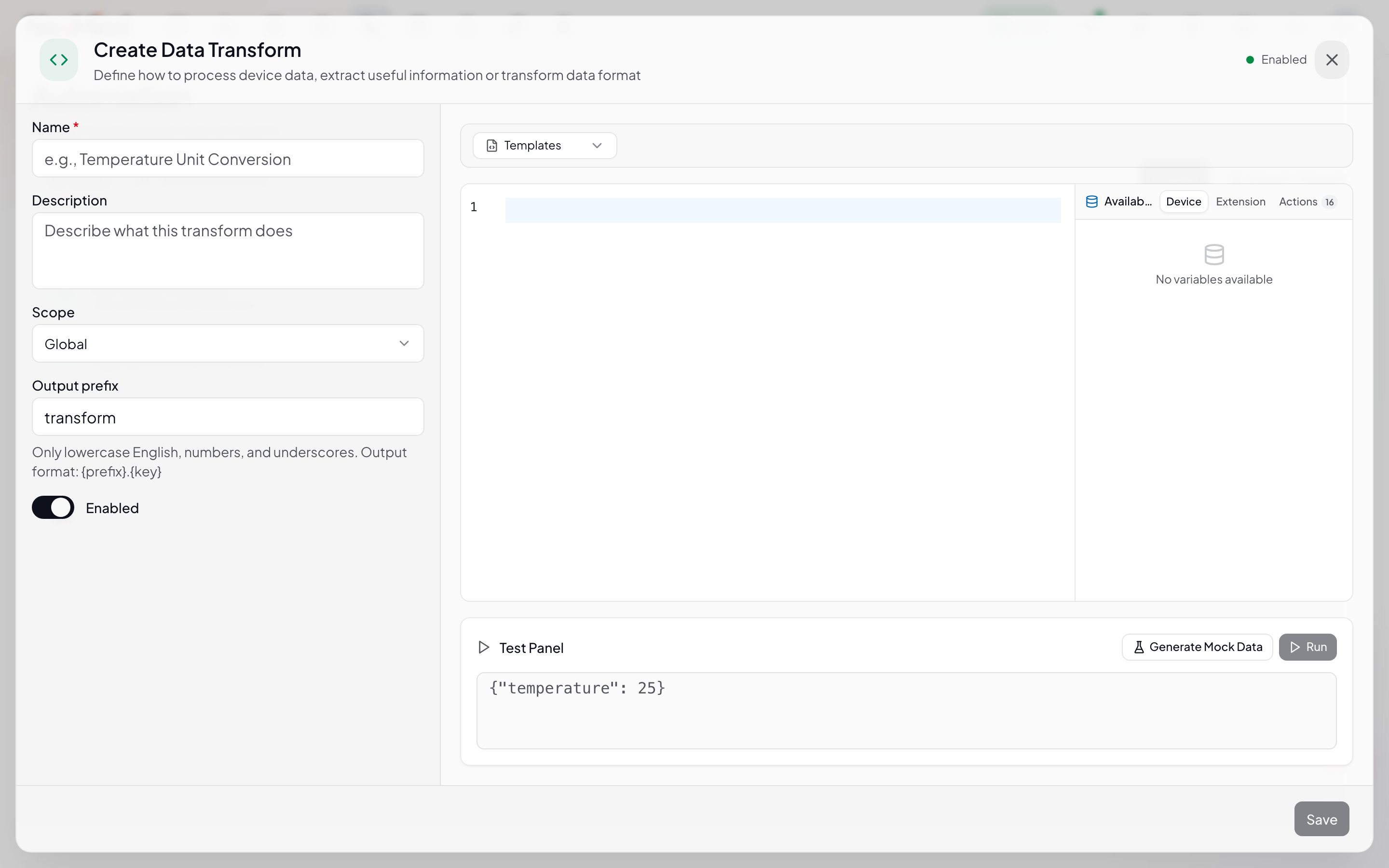
Write the transform function in JavaScript in the code editor. The value variable represents the input raw data value, and return an object as output:
// Celsius to Fahrenheit
return {
  temp_f: value * 9/5 + 32
}
Available variables:
| Variable | Description |
|---|---|
value | Current data point value |
input | Full input data object (includes timestamp, quality, etc.) |
extensions_invoke(ext_id, command, params) | Invoke an extension command |
Variables panel: The left panel lets you insert device metrics and extension data sources. After selecting a device type, all its metrics are listed — click to insert into code. You can also select extension commands from the extension panel to generate invocation code.
Step 5: Test the Transform
The test strip at the bottom of the builder lets you validate the transform with mock data:
- Enter a mock value in the test input (e.g.
25) - Click Test
- Check the output result
After testing, click Save to save the transform.
How Transforms Work
Derived metrics use DataSourceId format transform:<output_prefix>:<field>, e.g. transform:converted:temp_f. These metrics can be:
- Bound as data sources in dashboards
- Referenced in rule conditions
- Bound in Agent Focused mode
Transform Examples
1. Celsius to Fahrenheit
return {
  temp_f: value * 9 / 5 + 32
}
Output metric: converted.temp_f
2. Compute Power (Voltage × Current)
// Assume input contains voltage and current
return {
  power: input.voltage * input.current,
  power_kw: (input.voltage * input.current) / 1000
}
3. Device Status Text
return {
  status_text: value === 1 ? "Online" : "Offline",
  is_online: value === 1
}
4. Invoke Extension to Process Image
// Call YOLO extension for object detection
const result = extensions_invoke('yolo-detector', 'detect', {
  data: input
})

return {
  detections: result.detections,
  object_count: result.detections.length,
  has_person: result.detections.some(d => d.class === 'person')
}
5. Numeric Range Classification
let level = 'normal'
if (value > 80) level = 'critical'
else if (value > 60) level = 'warning'
else if (value > 40) level = 'notice'

return {
  level: level,
  level_value: { normal: 0, notice: 1, warning: 2, critical: 3 }[level]
}
CLI Management
# Create a transform
neomind automation create --json '{
  "name": "Fahrenheit Converter",
  "type": "transform",
  "enabled": true,
  "definition": {
    "scope": "global",
    "js_code": "return { temp_f: value * 9/5 + 32 }",
    "output_prefix": "converted",
    "complexity": 2
  }
}'

# List all transforms
neomind automation list

# Enable / disable
neomind automation status <id> --enabled true
neomind automation status <id> --enabled false

# Delete
neomind automation delete <id>
REST API
# Create transform
curl -X POST http://localhost:9375/api/automations \
  -H "Content-Type: application/json" \
  -d '{
    "name": "Fahrenheit Converter",
    "description": "Convert Celsius to Fahrenheit",
    "type": "transform",
    "enabled": true,
    "definition": {
      "scope": "global",
      "js_code": "return { temp_f: value * 9/5 + 32 }",
      "output_prefix": "converted",
      "complexity": 2
    }
  }'

# List all transforms
curl http://localhost:9375/api/automations

# Update transform
curl -X PUT http://localhost:9375/api/automations/<id> \
  -H "Content-Type: application/json" \
  -d '{"name": "Updated Name", "definition": {"scope": "global", "js_code": "...", "output_prefix": "converted", "complexity": 2}}'
Import / Export
The Import / Export button in the Transforms tab supports bulk management. You can also select Export from an individual transform's actions menu to export a single transform.
Export file format: neomind-transforms-YYYY-MM-DD.json.
Integration with Other Modules
| Module | Description |
|---|---|
| Dashboards | Transform output metrics can be bound as dashboard widget data sources |
| Automation Rules | Rule conditions can reference transform output transform:<prefix>:<field> metrics |
| AI Agent | Agent Focused mode can bind transform output metrics |
| Devices | Transforms process raw telemetry published by devices |
| Extensions | Transform code can call extensions_invoke() to execute extension commands |
Best Practices
- Use Output Prefixes wisely: Set different prefixes for different transforms (e.g.
converted,status,aggregated) to avoid metric name collisions - Test before saving: The builder's Test feature quickly validates code logic without waiting for real data
- Complexity ordering: Transforms that depend on other transforms' output should have higher complexity to ensure correct execution order
- Minimize scope: Use Device Type instead of Global when possible to reduce unnecessary transform overhead
- Keep code lightweight: Transforms execute on every data point — keep code simple (avoid complex loops/recursion)
Mobile
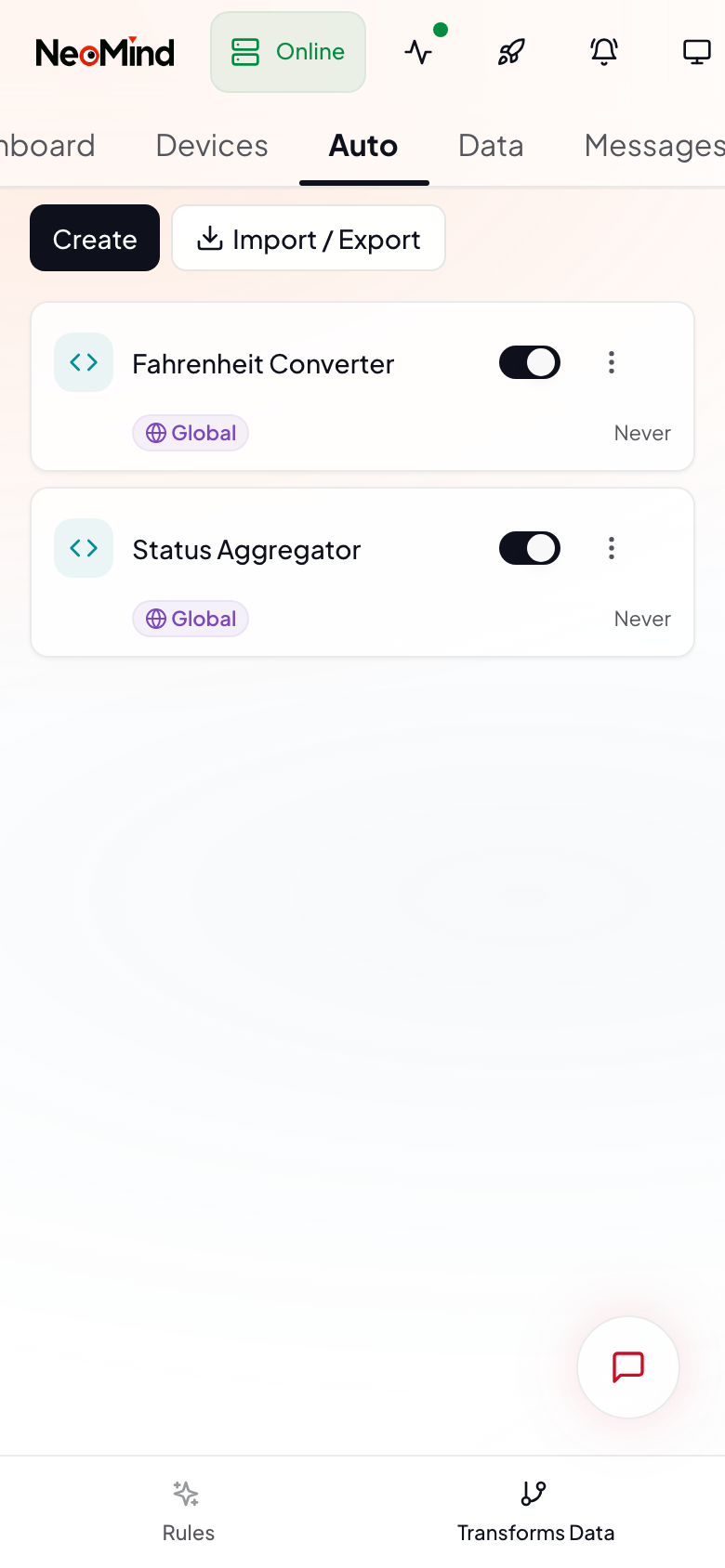
On mobile, the interface switches to a single-column layout supporting list viewing and status toggling. Edit transforms on desktop (the code editor needs screen space).
Last updated: 2026-06-16