Use Dashboards
The dashboard is NeoMind's core visualization surface. Drag widgets onto a canvas, bind them to device data sources, and watch telemetry, AI inference results, and device state update in real time.
Overview
Each dashboard is a responsive grid that can hold multiple widgets:
- Real-time updates: Data changes are pushed via WebSocket / SSE — widgets update within seconds
- Responsive layout: Drag-and-drop editing on desktop; auto-stacked single column on mobile
- Shareable: Generate public links with expiry times — no login required to view
- Multi-backend: One dashboard can display data from multiple NeoMind instances simultaneously
Creating a Dashboard
- Click the Dashboards icon in the left navigation to open the dashboard list
- Click the + (New Dashboard) button
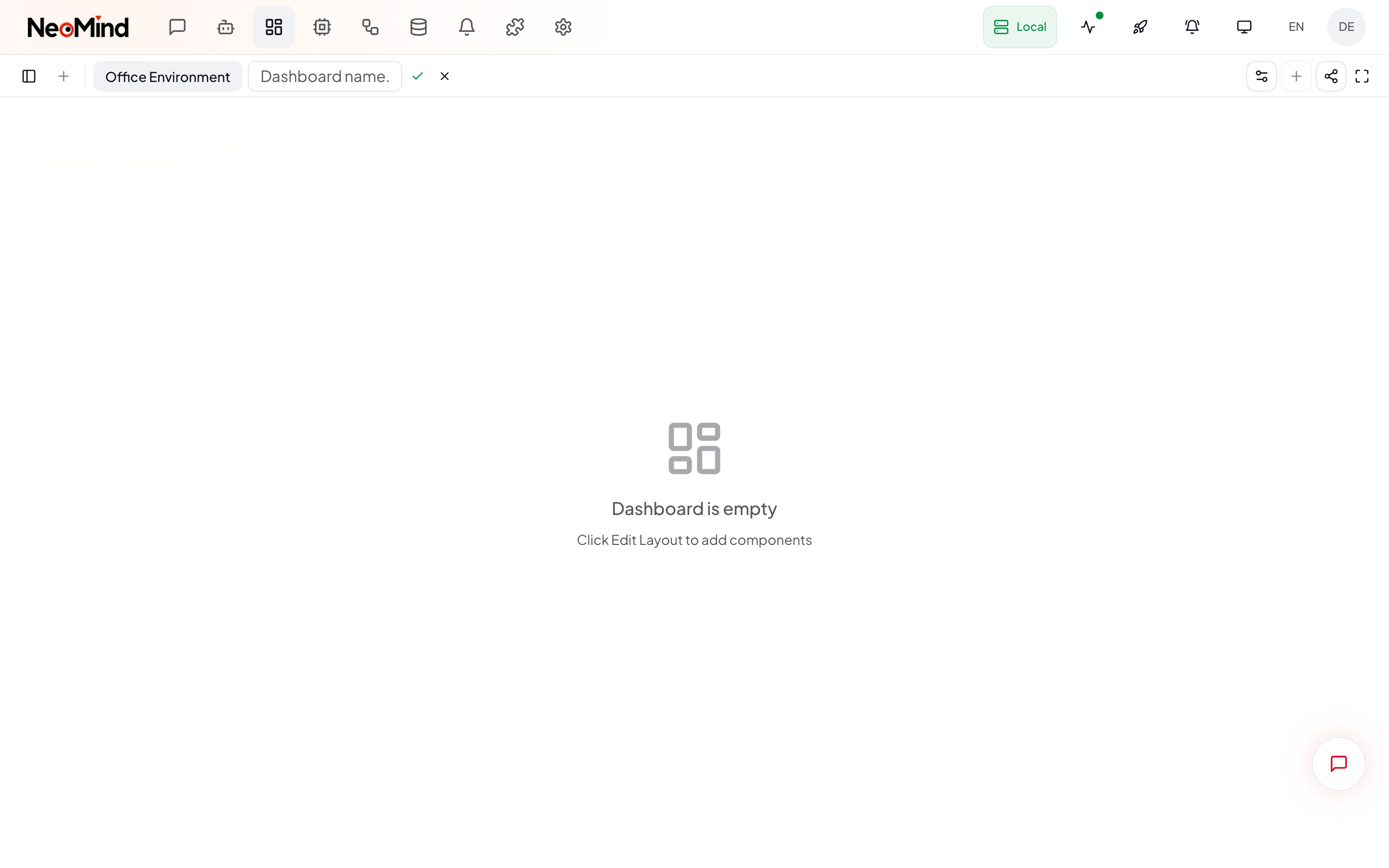
- Enter a name (required) and description (optional), then click create
- The new dashboard enters edit mode automatically with an empty canvas
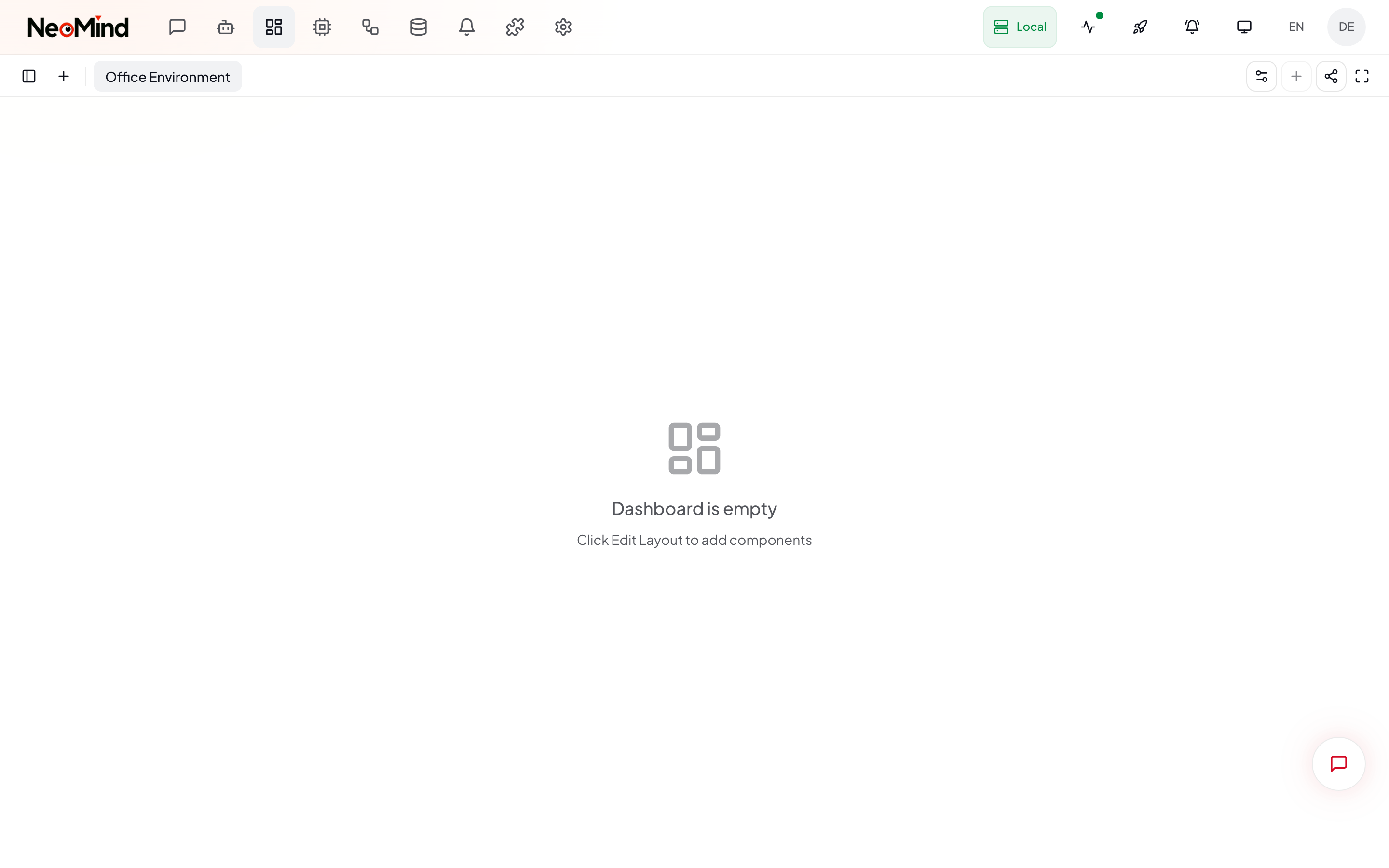
The dashboard list shows all created dashboards — click any name to view it:
View Mode vs Edit Mode
Dashboards have two modes, toggled via the gear / checkmark icon on the left side of the toolbar:
| Mode | Description | Icon |
|---|---|---|
| View Mode (default) | Layout locked, shows real-time data only. This is what regular users and share link visitors see | Gear icon (Settings2) |
| Edit Mode | Drag widgets to reposition/resize, add/delete widgets, edit configurations. Grid supports snap-to-align | Checkmark icon (Check) |
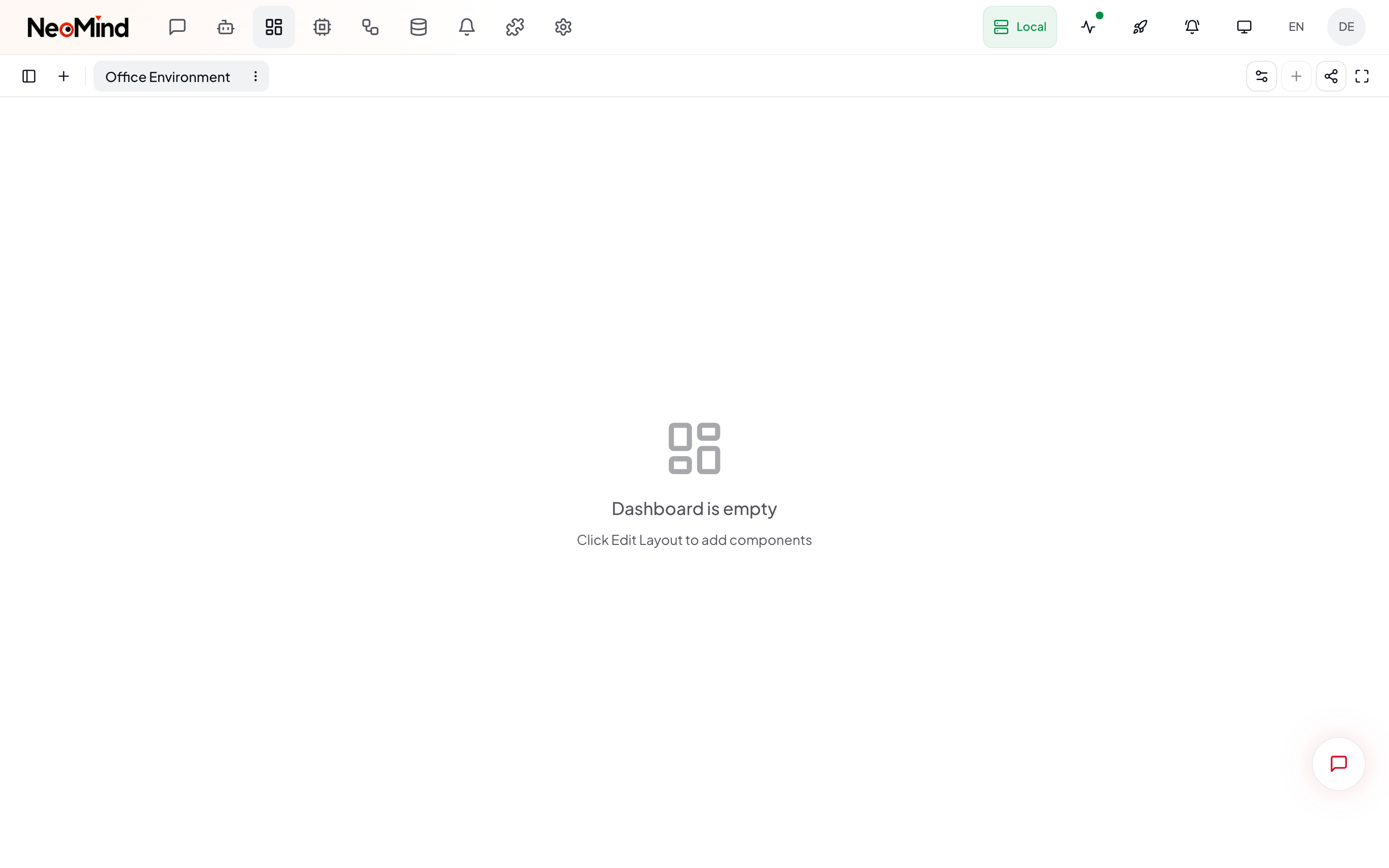
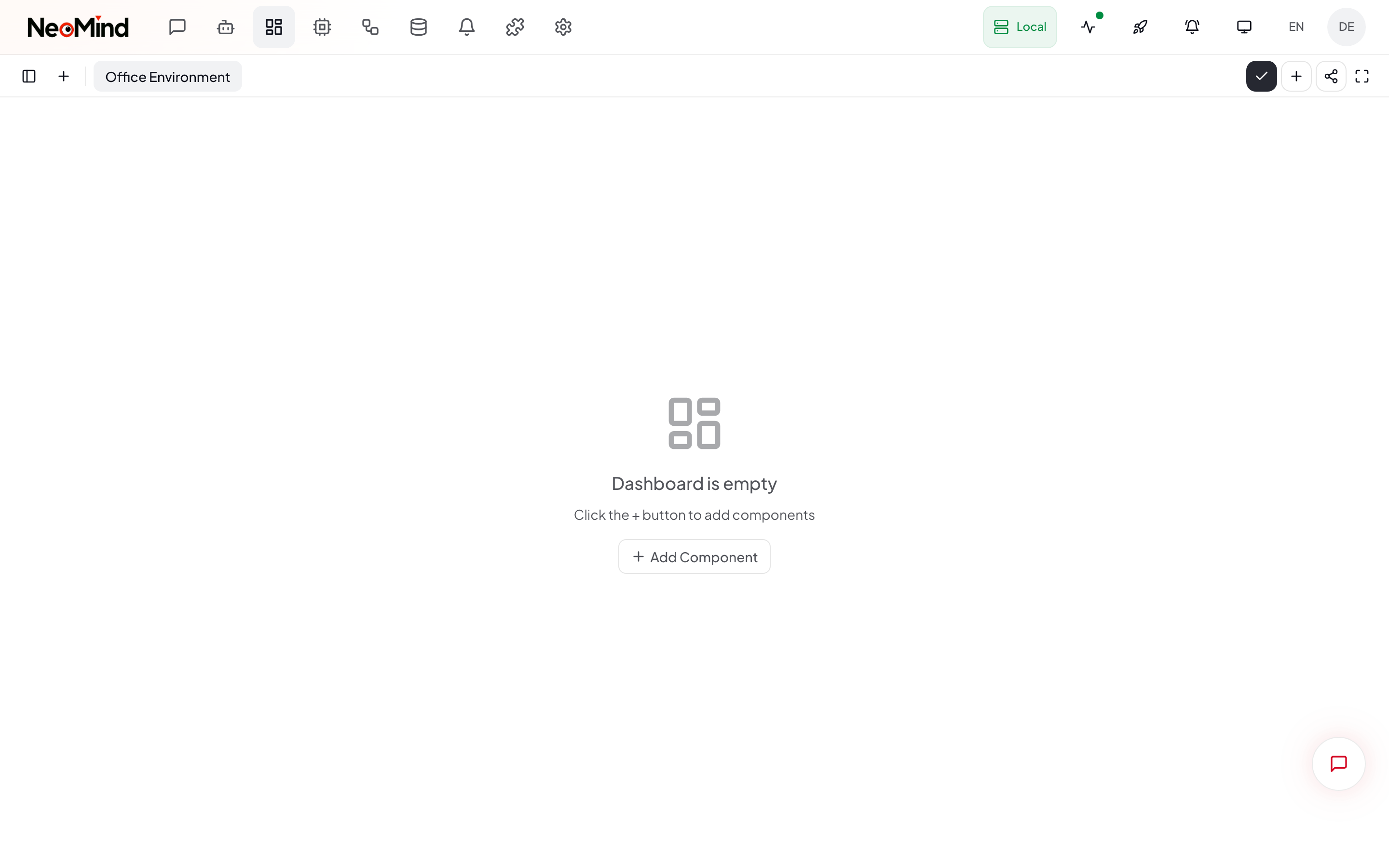
An empty dashboard in view mode shows "Click Edit Layout to add components". Click the gear icon to enter edit mode, which reveals the Add Component button.
Adding Widgets
Component Library
In edit mode, click Add Component to open the component library panel. Components are organized by category:
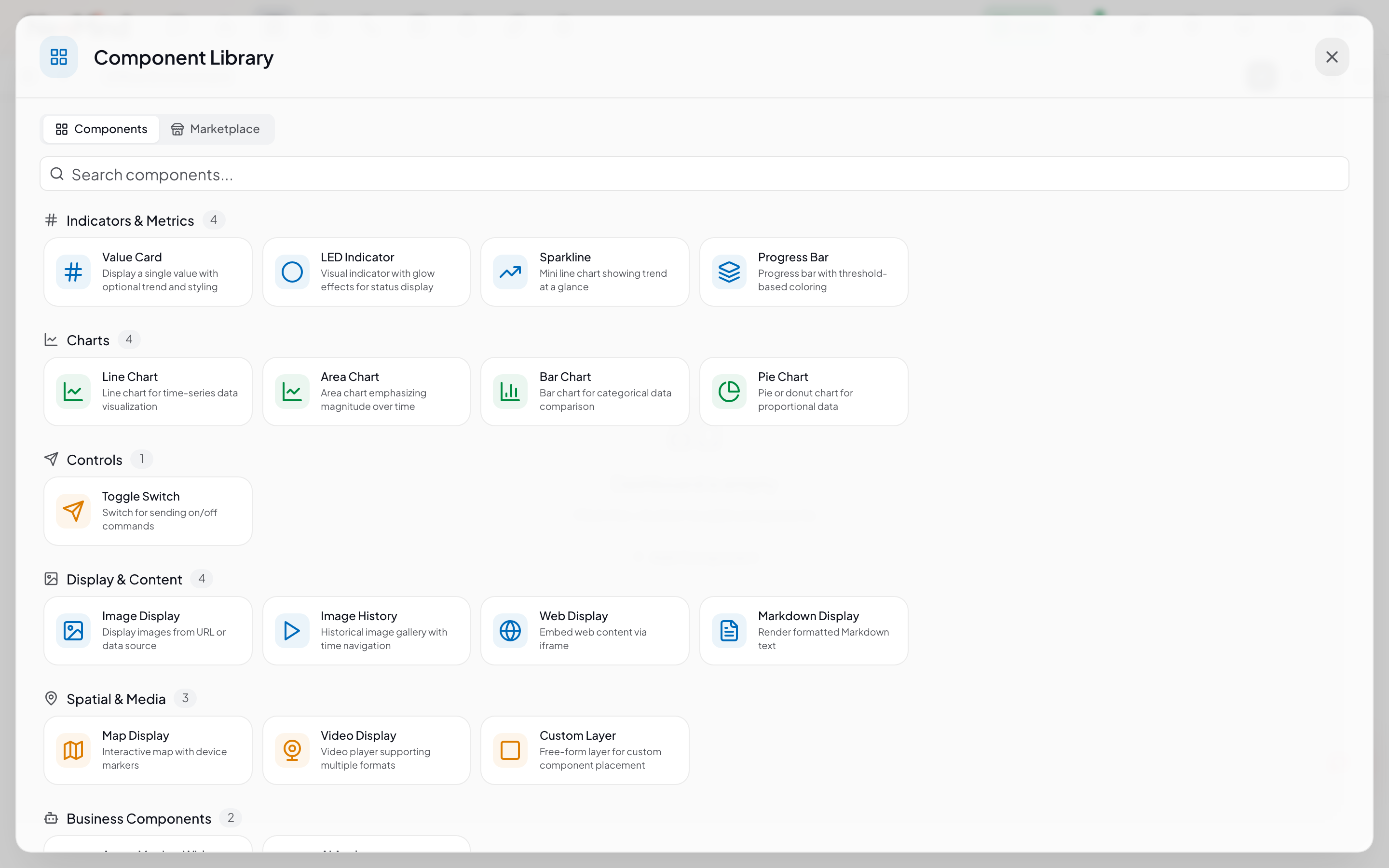
Indicators & Metrics
| Widget | Purpose | Typical Use |
|---|---|---|
| Value Card | Large-font single value display with unit and threshold coloring | Temperature, humidity, counters |
| LED Indicator | On/off status indicator light | Device online status, valve open/closed |
| Sparkline | Mini trend line for compact layouts | Quick trend preview |
| Progress Bar | Horizontal/vertical progress bar | CPU usage, storage utilization |
Charts
| Widget | Purpose | Typical Use |
|---|---|---|
| Line Chart | Time-series line trend | Temperature history, flow trends |
| Area Chart | Filled time-series chart | Cumulative volume, inventory levels |
| Bar Chart | Discrete data comparison | Production output by line, weekly stats |
| Pie Chart | Proportion distribution | Device type breakdown, alert categories |
Controls
| Widget | Purpose | Typical Use |
|---|---|---|
| Toggle Switch | Send on/off commands to devices | Remote control lights, pumps |
Display & Content
| Widget | Purpose | Typical Use |
|---|---|---|
| Image Display | Show latest image frame + AI annotation boxes | YOLO detection results, camera snapshots |
| Image History | Browse historical images by time | Security playback, event tracing |
| Web Display | Embed external webpage via iframe | Third-party panels, documentation |
| Markdown Display | Rich text notes | Dashboard title, instructions |
Spatial & Media
| Widget | Purpose | Typical Use |
|---|---|---|
| Map Display | GPS coordinates + trajectory | Vehicle tracking, asset distribution |
| Video Display | RTSP / RTMP / HLS live video stream | NE301/NE101 live camera feed |
| Custom Layer | Community or custom-built widgets | Any extension |
Beyond built-in widgets, you can install more from the Marketplace tab in the component library, sourced from the community marketplace.
Configuring Widgets
After selecting a widget type from the library, it's added to the canvas and a configuration panel opens. Key configuration areas:
① Data Source Binding
Each widget needs a data source to display data. In the config panel, select:
| Selection | Description |
|---|---|
| Instance | Choose a NeoMind backend instance (local or remote) |
| Device | Choose which device's data to display |
| Metric | Choose the specific metric (e.g. temperature, humidity) |
After selection, a DataSourceId is auto-generated in the format {type}:{id}:{field}:
| Type | Example | Meaning |
|---|---|---|
device | device:esp32-01:temperature | A device metric |
extension | extension:weather:temp | An extension metric |
agent | agent:guard-01:last_result | An agent execution result |
DataSourceId is auto-generated — no need to write it manually.
② Display Options
Depending on widget type, you can configure:
- Title / Unit: Name and unit shown above the widget
- Color / Threshold: Change color when value exceeds threshold (e.g. temp > 30°C turns red)
- Time Range: For chart widgets — last 1h / 24h / 7d / custom
- Refresh Interval: Data pull frequency (doesn't affect real-time push)
③ Layout Adjustment
- Drag: Hold and drag a widget to reposition — grid auto-aligns
- Resize: Drag the bottom-right corner to resize
- Delete: Select a widget, then press Delete key or click delete in the config panel
Real-time Data Flow
NeoMind pushes device data to the frontend via WebSocket / SSE:
- Device publishes MQTT data → backend event bus → subscribed widgets refresh
- End-to-end latency typically < 1 second (same datacenter)
- On disconnect, the frontend auto-reconnects and backfills recent data
For historical data queries, use the widget's "Time Range" setting (last 1 hour / 24 hours / 7 days / custom).
Sharing Dashboards
You can generate public links to share dashboards with unauthenticated users:
- Click the Share icon in the dashboard toolbar
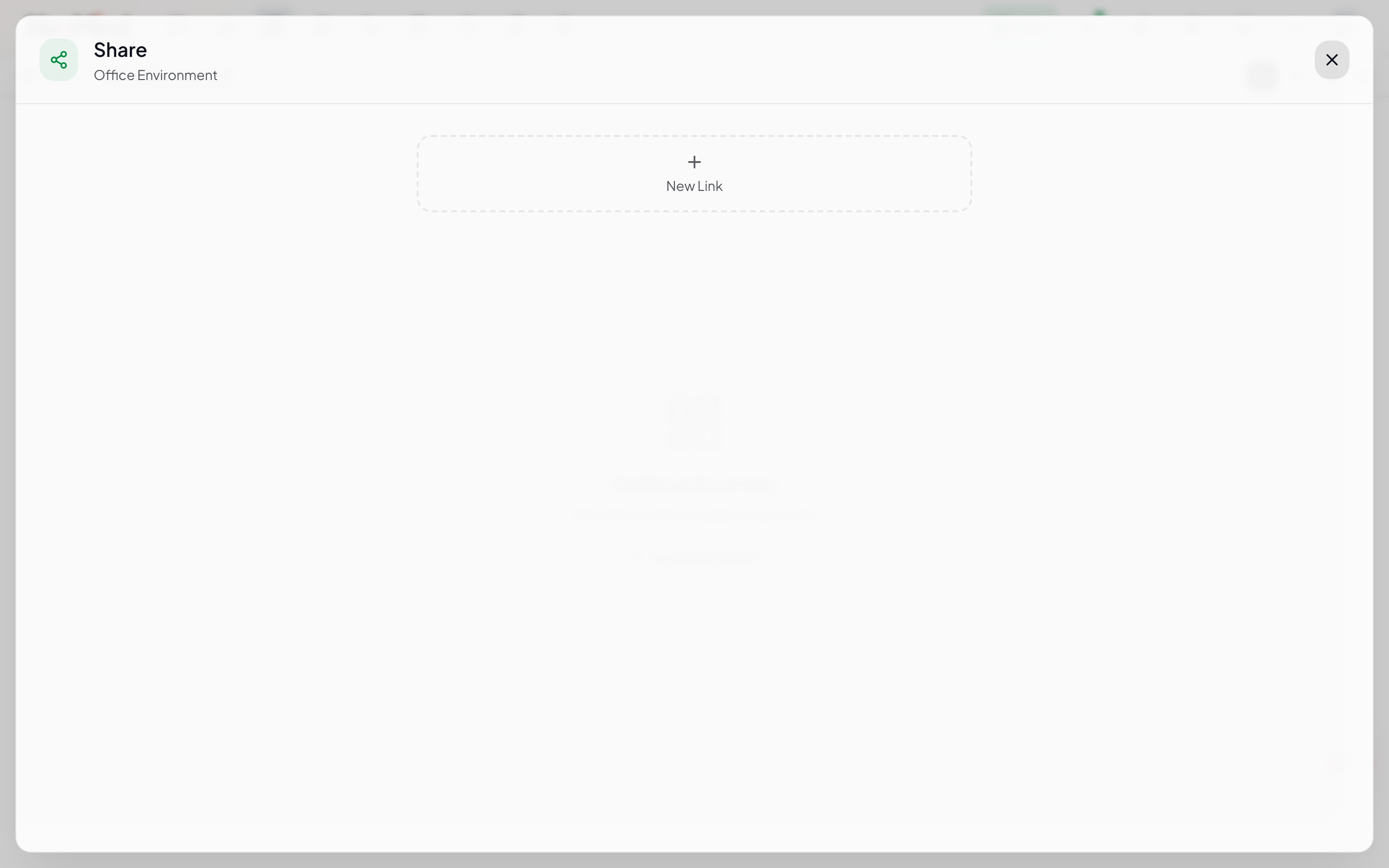
- Click New Link to generate a new link
- Set the expiry time (1 hour / 1 day / 7 days / permanent)
- Copy the generated link (e.g.
https://your-host/share/<token>) - Recipients can view without an account (read-only)
Note: Share links only expose a read-only view of that specific dashboard. They do not expose API keys, device controls, or other dashboards. Links automatically expire after the set duration.
Mobile Experience
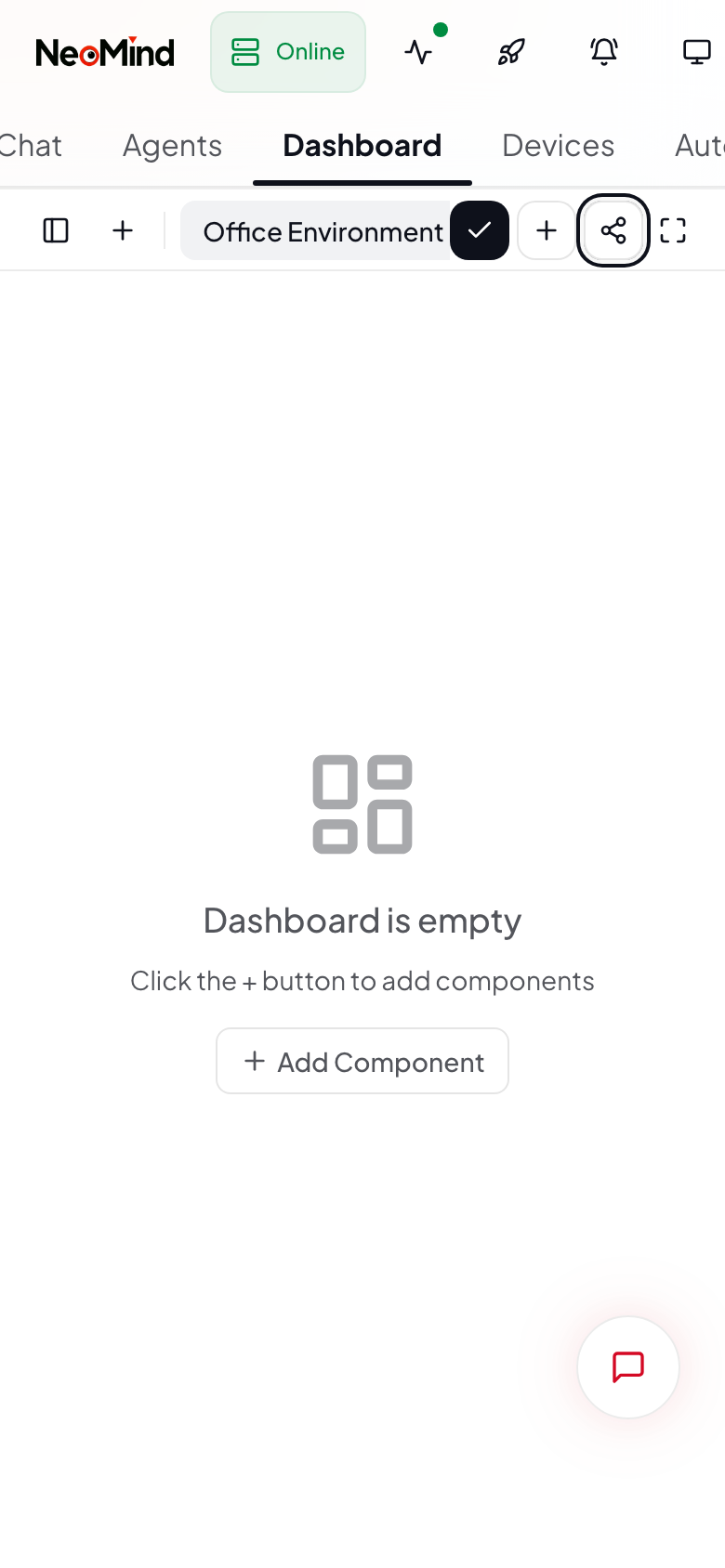
- Responsive breakpoint: < 768px switches to single-column stacked layout
- Edit mode: Drag-and-drop editing is disabled on mobile (screen too small) — edit on desktop
- Touch interaction: Charts support pinch-to-zoom and swipe-to-pan
- Mobile web: Access
http://your-host:9375directly in browser — no app install needed
Multi-Instance Dashboards
If you manage multiple NeoMind backends (e.g. multiple edge servers in a factory), you can register them under Settings → Instances. Once registered, you can select cross-instance data sources when editing widgets — one dashboard can display device data from multiple backends simultaneously.
Community & Custom Widgets
Built-in widgets cover common IoT visualization needs. For more widgets, NeoMind offers two ways to extend:
Option 1: Install from Marketplace
Switch to the Marketplace tab in the component library to browse the community widget marketplace:
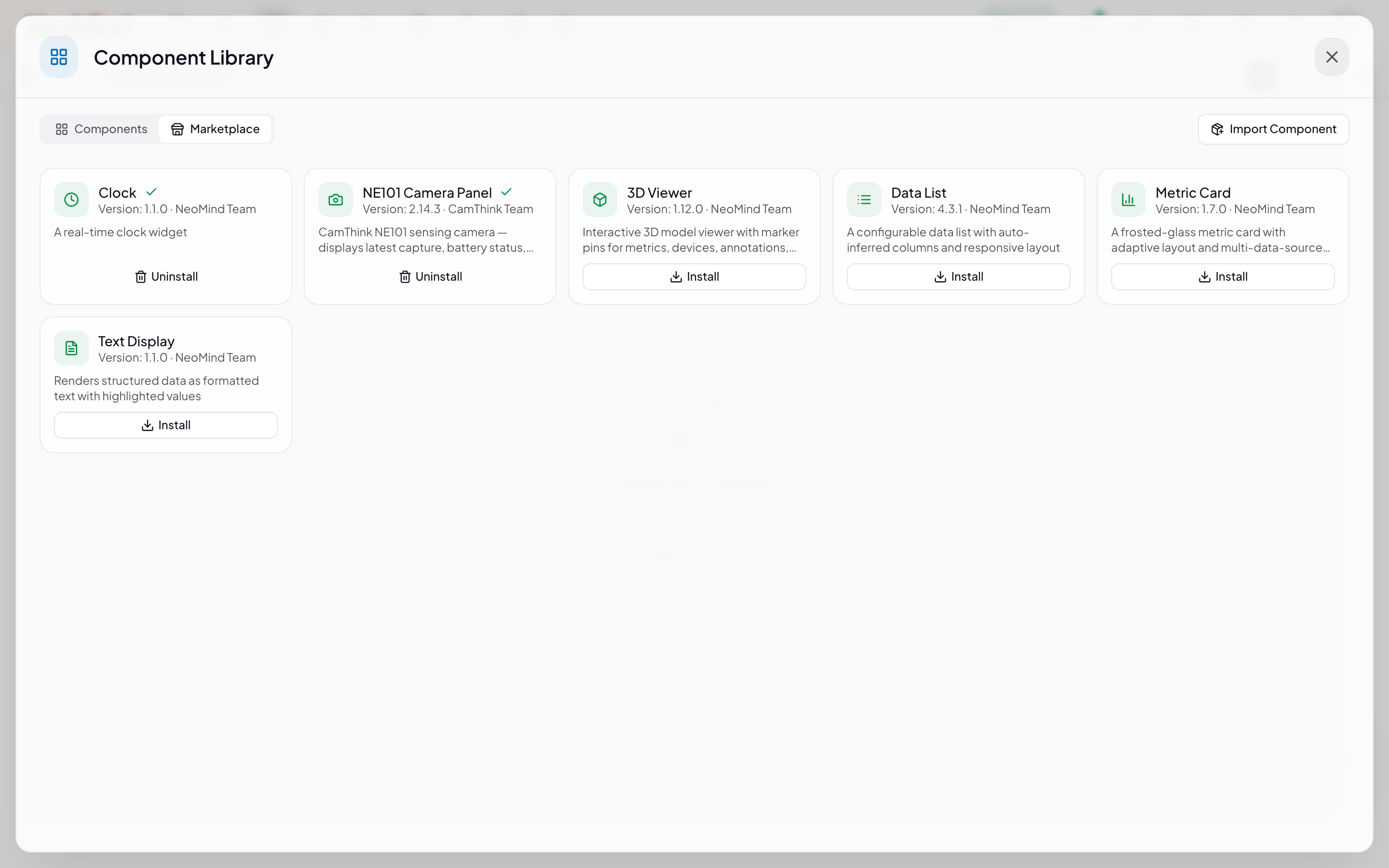
Each widget card shows:
| Info | Description |
|---|---|
| Widget name + icon | Widget identifier |
| Version | e.g. v1.1.0 |
| Author | e.g. NeoMind Team, CamThink Team |
| Description | Brief summary of widget functionality |
| Install / Uninstall | One-click install or remove |
Click Install to add a widget. Once installed, it appears in the Components tab and works just like built-in widgets. Installed widgets show an Uninstall button for easy removal.
Marketplace widgets come from the NeoMind-Dashboard-Components community repository, continuously updated.
Option 2: Import via ZIP Upload
If you've developed your own widget or obtained a widget package from another source, you can upload it via Import Component:
- In the Marketplace tab, click the Import Component button in the top right
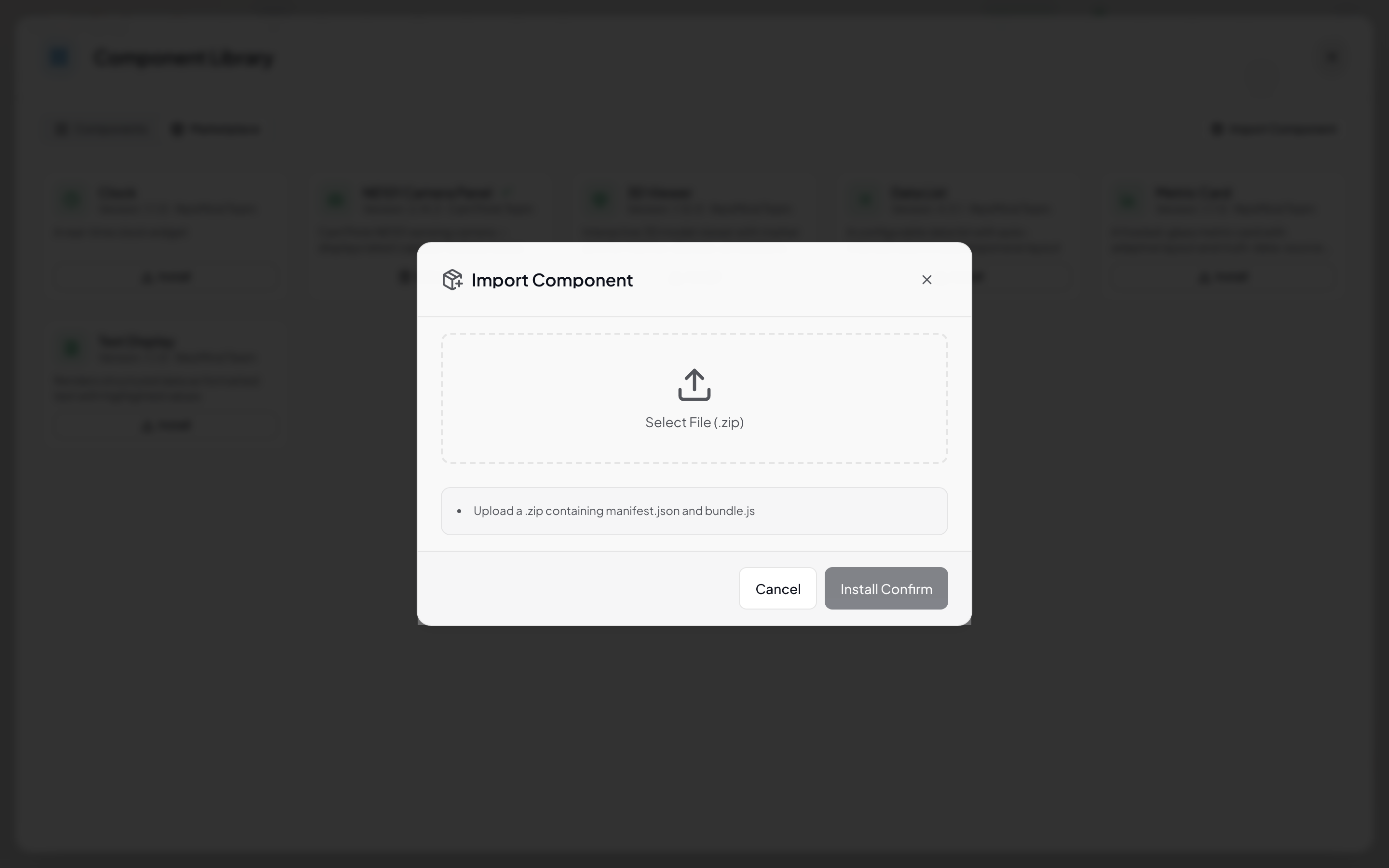
- Click the upload zone to select a
.zipfile (or drag a file onto the zone) - The ZIP must contain
manifest.json(widget metadata) andbundle.js(widget code) - Click Install Confirm to complete the installation
See Developer Guide — Dashboard Component Development for the ZIP package structure.
You can also install via CLI:
# List available marketplace widgets
neomind widget list

# Install a marketplace widget
neomind widget install <widget-name>

# Install from a local ZIP file
neomind widget install /path/to/widget.zip
Building Custom Widgets
Want to build your own? A NeoMind widget is essentially a ZIP package (manifest.json + bundle.js) written in React and bundled as an IIFE. Once built, upload it via Import Component to start using.
See Developer Guide — Dashboard Component Development for the full development workflow.
Next Steps
- AI Chat — Query device data in natural language
- AI Agent — Scheduled / event-triggered autonomous monitoring
- Automation Rules — Automatic alerts when data crosses thresholds
Last updated: 2026-06-16