Notifications & Messages
NeoMind's message system routes device alerts, rule triggers, AI Agent analysis results, and system events to the channels you configure. It supports 9 message channels (2 built-in + 7 external) with simultaneous multi-channel fan-out and per-channel message filtering.
The message system lives under Messages (bell icon) in the left nav. Two tabs: Messages (notification center, browse alert history) and Channels (channel configuration).
Supported Channels
| Channel | Type | Use Case | Auth | Disable |
|---|---|---|---|---|
| Console | Built-in | Print to server log, debugging | None | No (built-in) |
| Memory | Built-in | Write to AI Agent long-term memory, lets Agent learn from alerts | None | No (built-in) |
| Webhook | Generic HTTP | Forward to any HTTP endpoint (custom systems, IFTTT, n8n, AlertManager) | URL + 5 auth types | Yes |
| SMTP | Standard email notifications | SMTP username / password | Yes | |
| Telegram | Bot API | Real-time alerts for global teams | Bot Token | Yes |
| WeCom | Group Bot | China enterprise collaboration | Group Bot Webhook Key | Yes |
| DingTalk | Custom Bot | China enterprise collaboration | Access Token + signing | Yes |
| Slack | Incoming Webhook | International team collaboration | Webhook URL | Yes |
| Feishu | Custom Bot | China enterprise collaboration | Hook ID + signing | Yes |
NeoMind does not support SMS. For SMS alerts, use a Webhook channel to bridge to a third-party SMS gateway (e.g. Twilio, Alibaba Cloud SMS).
Interface Overview
Messages Tab (Notification Center)
Open the Messages page — the default view is the notification center:
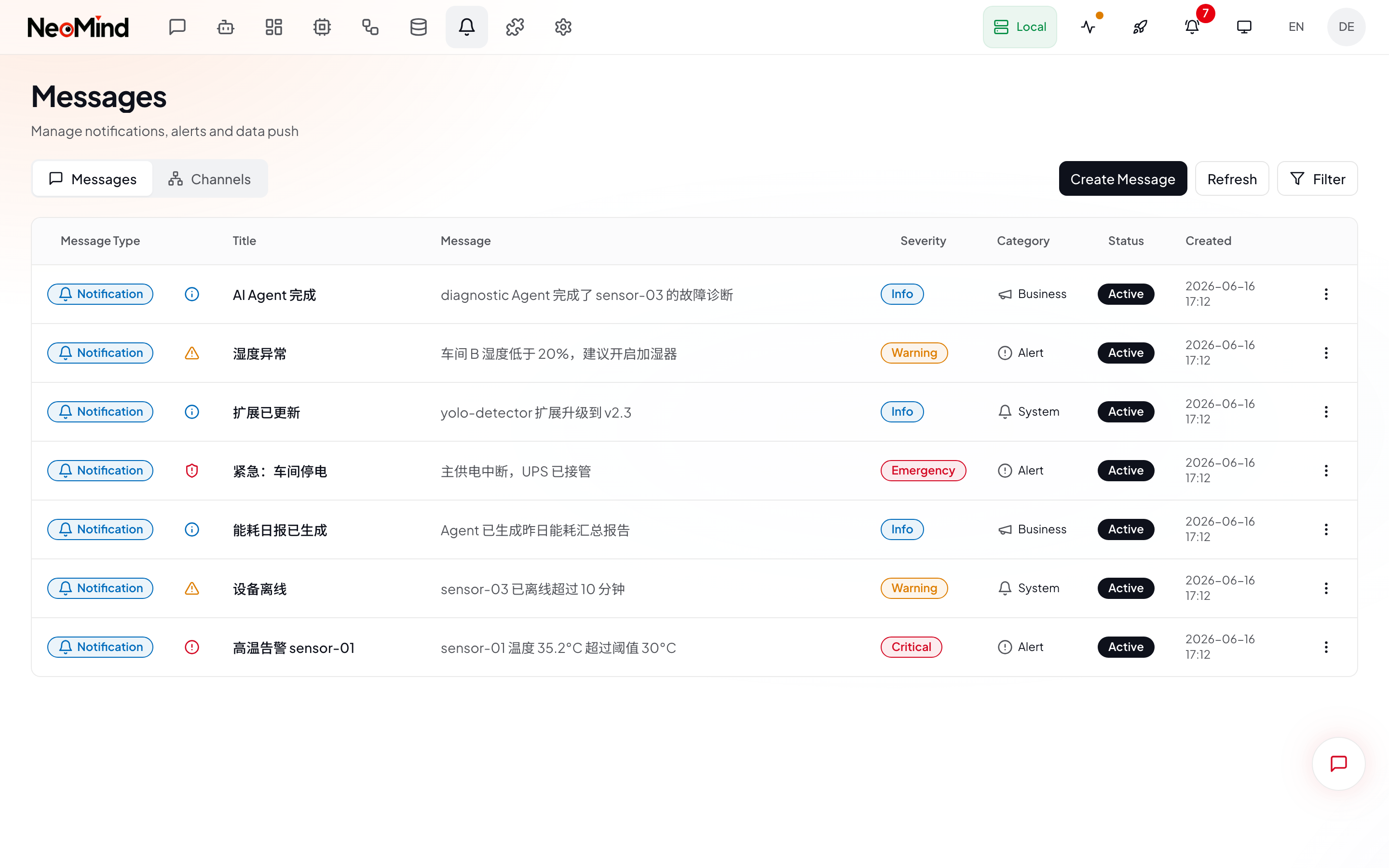
Each message contains:
| Field | Description |
|---|---|
| Severity | info / warning / critical / emergency (color coded light → dark) |
| Title | Message title |
| Body | Message content (click row to expand full content) |
| Category | alert / system / business / notification + backend-extensible arbitrary categories |
| Source | Triggering source: device / rule / telemetry / schedule / llm / system |
| Status | active / acknowledged / resolved / archived / false_positive |
| Time | Created and last-updated timestamps |
| Actions | Acknowledge / Resolve / Archive / Delete |
Filtering: Click Filter in the toolbar to open the filter Popover. Filter by severity (multi-select), status (multi-select), and category (multi-select). Active filters appear as chips in the toolbar.
Channels Tab (Channel Management)
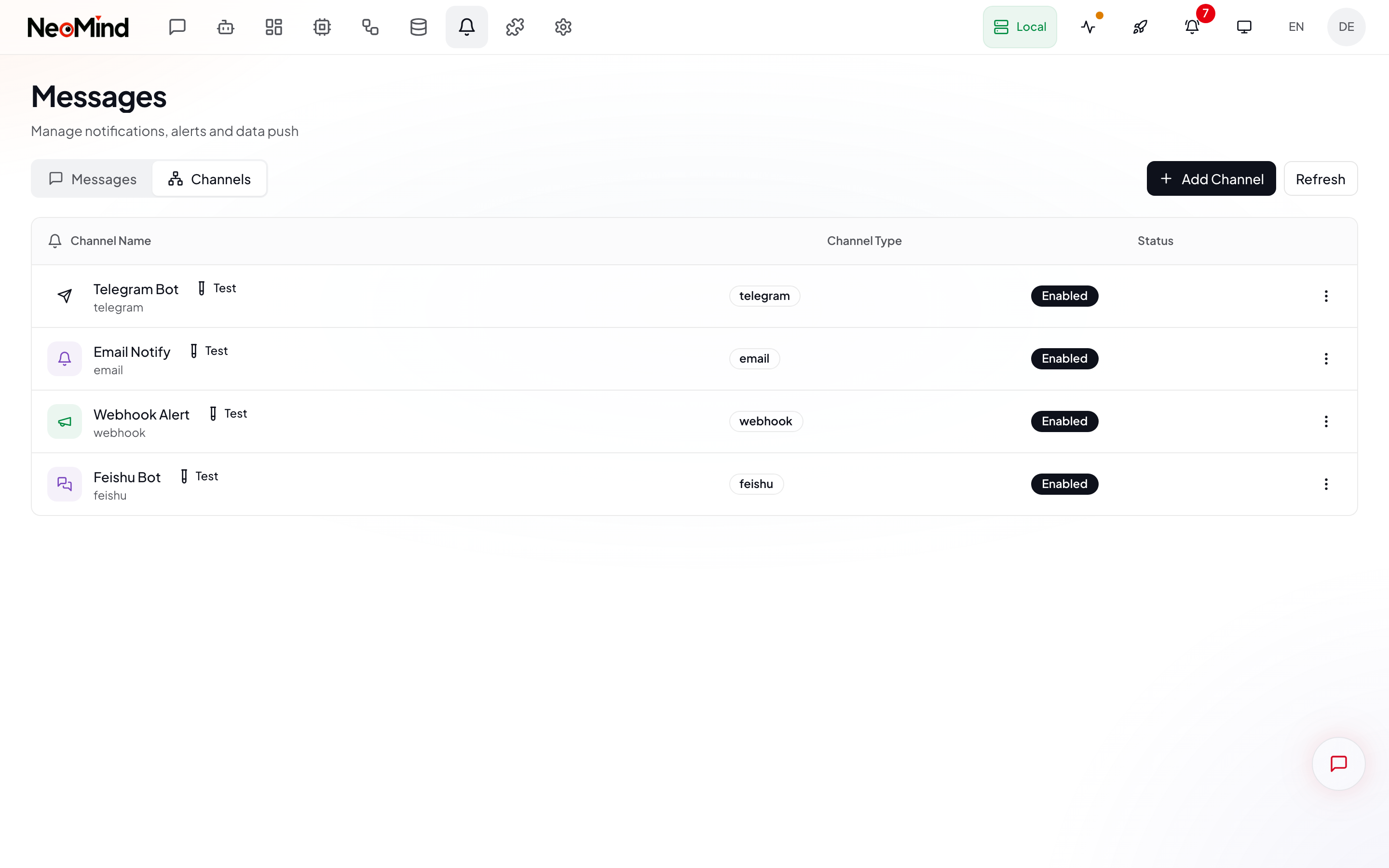
Switch to the Channels tab to see all channels:
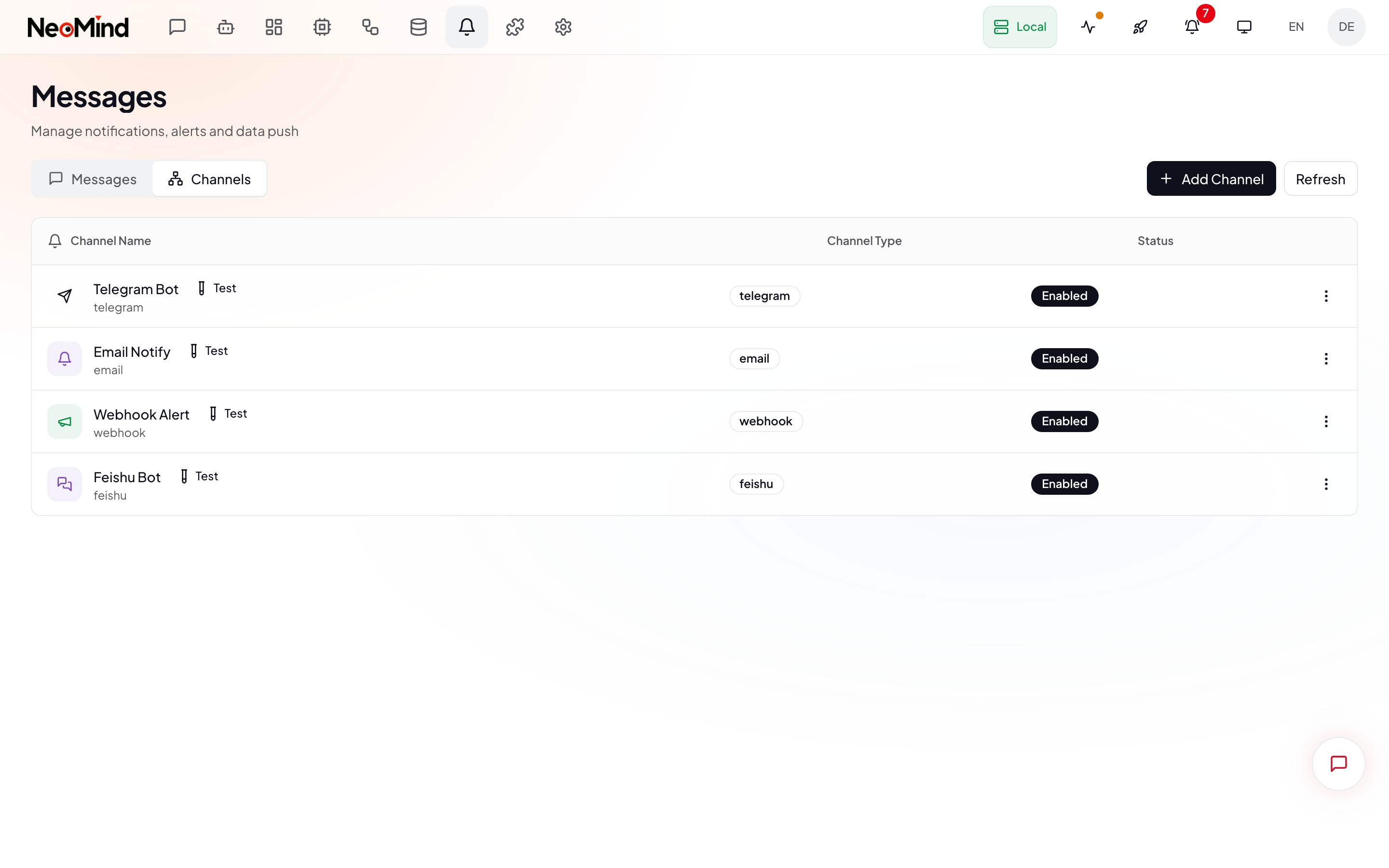
The top shows summary cards (Total channels / Enabled / Channel type count). Below is the channel list. Each channel card shows:
- Name + type icon: Channel identity
- Enable switch: Toggle channel on/off in one click
- Test button: Inline test result (success / failure + reason)
- Action menu: View / Edit / Configure Filter / Manage Recipients (Email only) / Enable | Disable / Delete
Configuring a Channel
Click Create to open the full-screen channel editor:
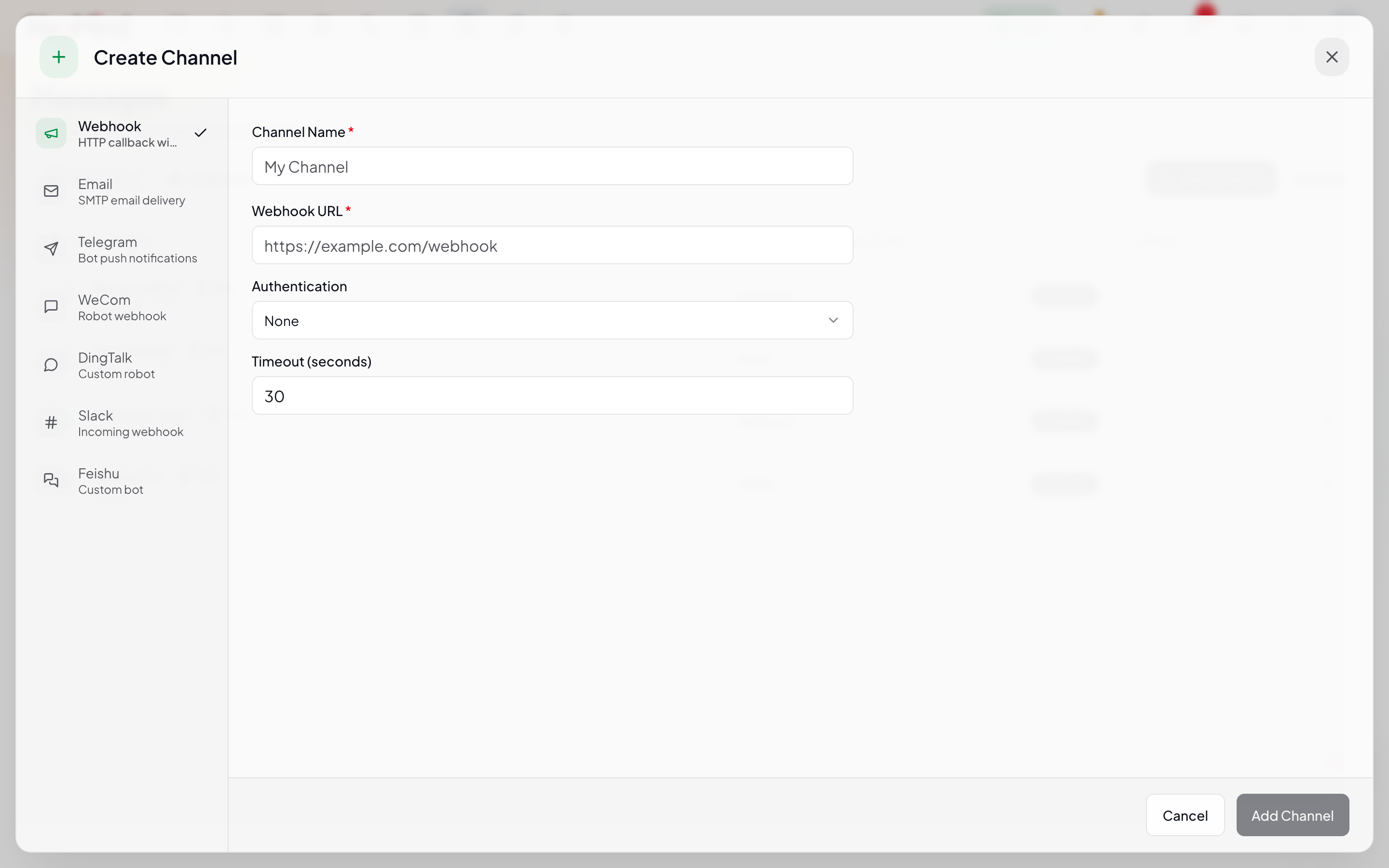
The editor uses a split-pane layout:
- Left sidebar: Lists the 7 external channel types; click to switch
- Right form: Shows config fields for the selected type
Built-in channels (Console, Memory) require no configuration and cannot be disabled or deleted.
Common Fields
All external channels need:
| Field | Description |
|---|---|
| Name | Unique identifier used by rules and Agents. Use lowercase-hyphenated names (e.g. ops-feishu) |
| Enabled | Whether the channel is active. Disabled channels receive no messages |
Webhook Channel
The most flexible channel — bridges to any HTTP endpoint.
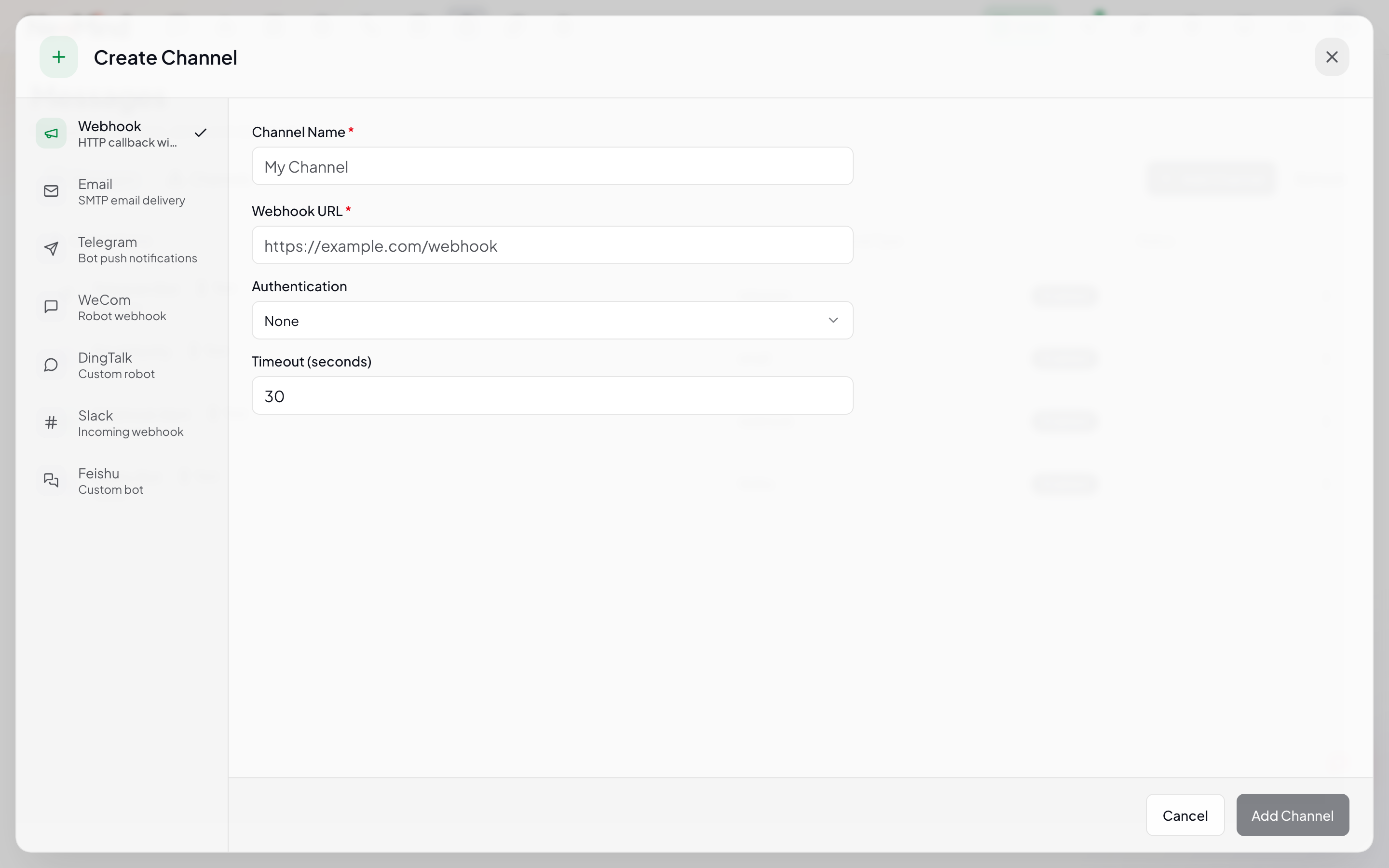
| Field | Description | Example |
|---|---|---|
| URL | HTTP(S) endpoint receiving messages | https://api.example.com/alerts |
| Method | HTTP method (default POST) | POST / PUT |
| Authentication | Auth type: none / bearer / basic / apikey / custom | See table below |
| Headers | Custom request headers (used with custom auth) | {"X-Tenant": "factory1"} |
| Timeout (secs) | HTTP timeout, default 30, max 300 | 30 |
Auth types in detail:
| Type | Extra Fields | Use Case |
|---|---|---|
| none | None | Public endpoints, intranet without auth |
| bearer | Bearer Token | OAuth 2.0, JWT |
| basic | Username + Password | HTTP Basic Auth |
| apikey | API Key + Header Name (default X-API-Key) | Third-party API gateways |
| custom | Custom Headers key-value table | Custom signatures, multi-header combos |
Email Channel
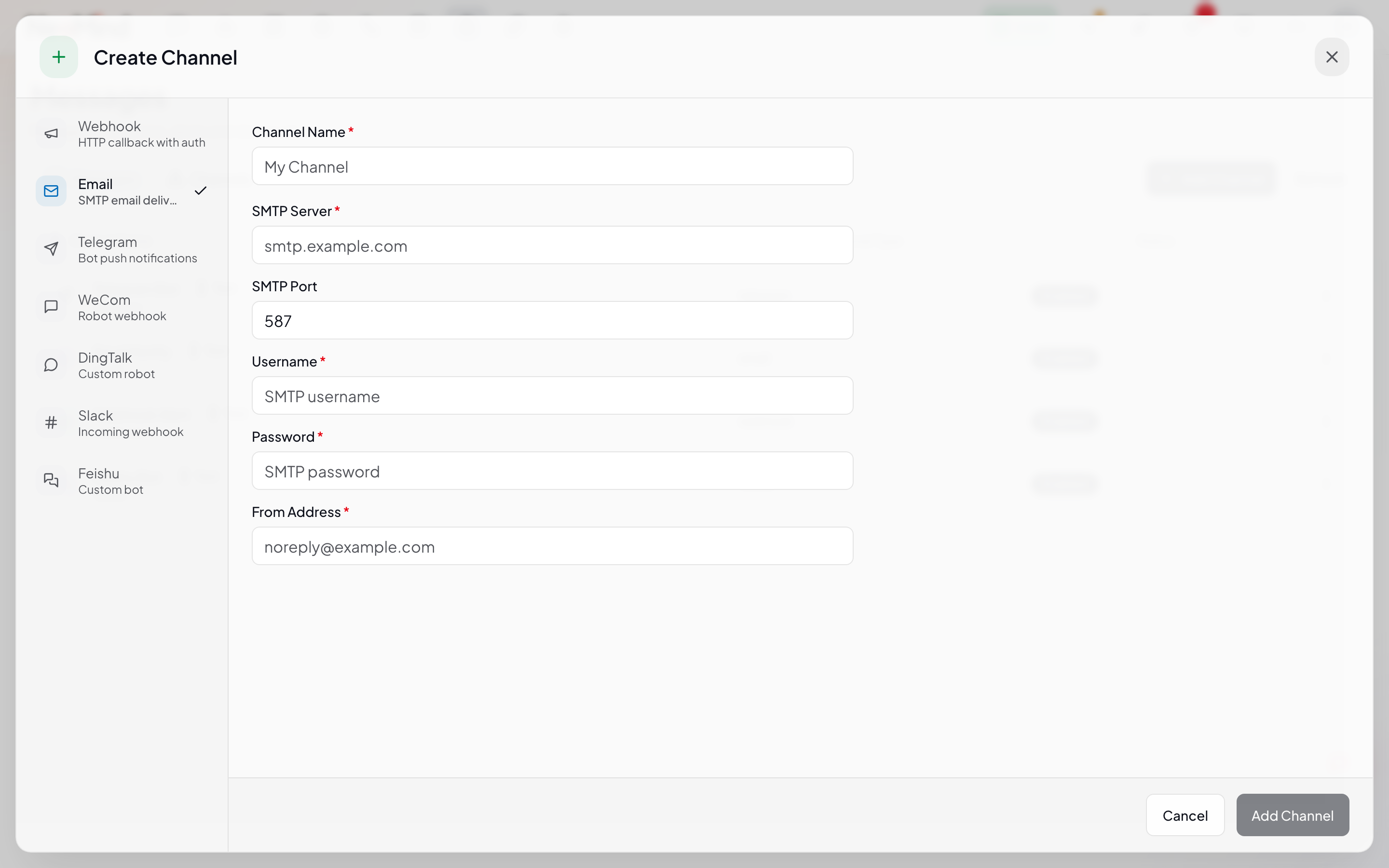
| Field | Description | Example |
|---|---|---|
| SMTP Server | SMTP server host | smtp.gmail.com |
| SMTP Port | Port (default 587, STARTTLS) | 465 (SSL) / 587 (STARTTLS) |
| Username | SMTP login username | alert@example.com |
| Password | SMTP password or app-specific password | •••••••• |
| From Address | Sender address (usually same as Username) | alert@example.com |
Recipients are managed separately: After saving the Email channel, use Manage Recipients in the channel action menu to add/remove recipient addresses — no need to reopen the channel editor.
Telegram Channel
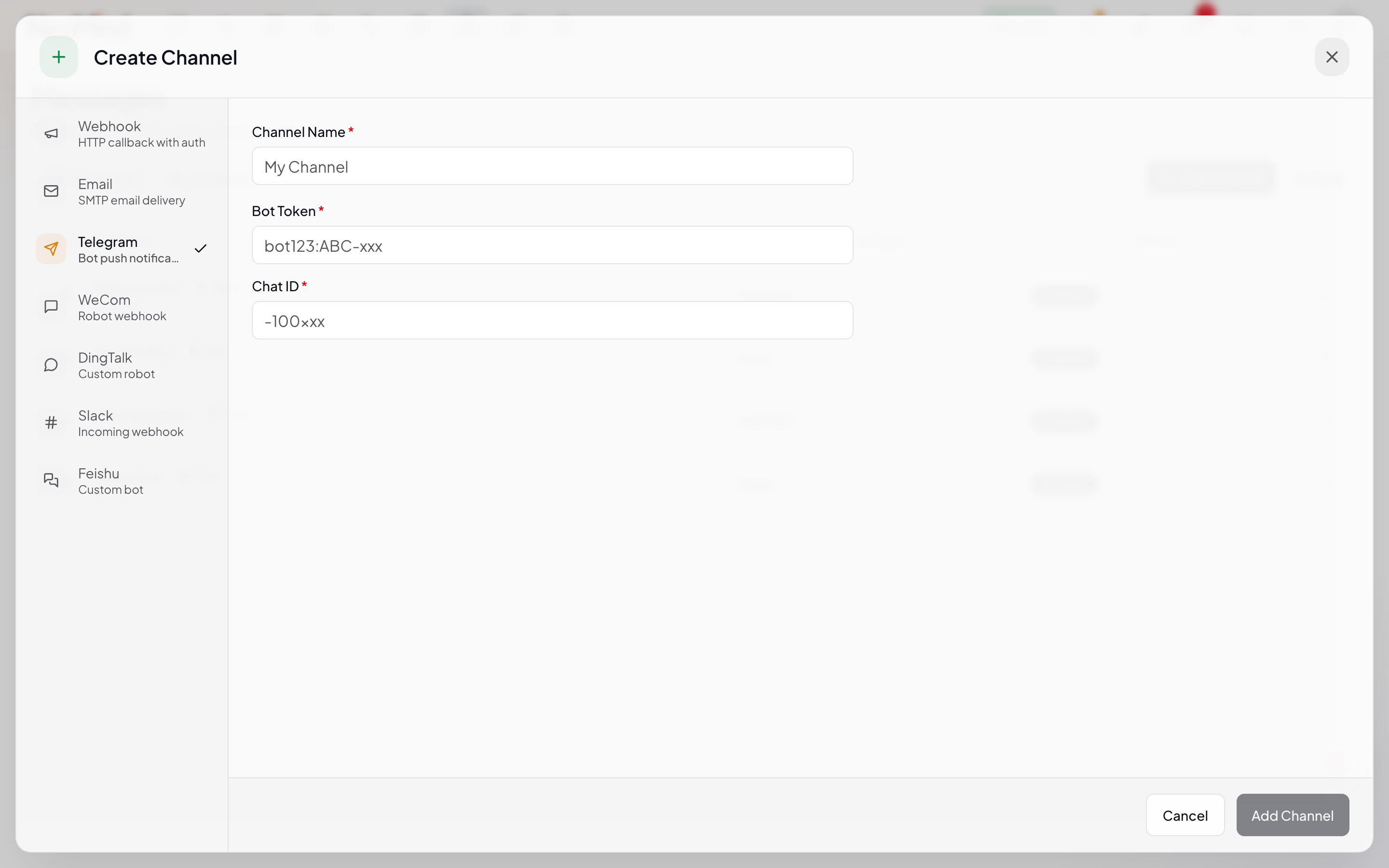
| Field | Description | How to Get |
|---|---|---|
| Bot Token | Telegram Bot access token | Create a Bot via @BotFather, format 123456:ABC-DEF... |
| Chat ID | Conversation ID receiving messages (group or DM) | Add the Bot to a group, then visit https://api.telegram.org/bot<TOKEN>/getUpdates to read it |
DM Chat IDs are pure numbers (your user ID). Group Chat IDs typically start with
-(e.g.-1001234567890).
WeCom Channel
| Field | Description | How to Get |
|---|---|---|
| Key | The key portion of the group bot Webhook URL (not the full URL) | Group Settings → Add Group Bot → copy Webhook URL, take the value after key= |
NeoMind internally reconstructs
https://qyapi.weixin.qq.com/cgi-bin/webhook/send?key=<KEY>, so fill in only the Key.
DingTalk Channel
| Field | Description | How to Get |
|---|---|---|
| Access Token | The access_token portion of the group bot Webhook URL | Group Settings → Smart Group Assistant → Add Custom Bot → copy Webhook URL, take the value after access_token= |
| Secret (optional) | Signing secret | Bot security settings → choose "Sign" → copy the Secret. Strongly recommended — otherwise the bot can be invoked maliciously |
When signing is enabled, NeoMind computes an HMAC-SHA256 signature and appends
timestampandsignto the URL per DingTalk protocol.
Slack Channel
| Field | Description | How to Get |
|---|---|---|
| Webhook URL | Full Slack Incoming Webhook URL | https://api.slack.com/apps → Create New App → Incoming Webhooks → enable → copy URL |
URL format:
https://hooks.slack.com/services/T000/B000/XXXX.
Feishu Channel
| Field | Description | How to Get |
|---|---|---|
| Hook ID | The hook_id portion of the bot Webhook URL (not the full URL) | Group Settings → Group Bots → Add Custom Bot → copy Webhook URL, take the UUID after open.feishu.cn/open-apis/bot/v2/hook/ |
| Secret (optional) | Signing secret | Bot security settings → choose "Signature Verification" → copy the Secret |
When signing is enabled, NeoMind computes
timestampandsignfields per Feishu protocol and includes them in the request body.
Testing a Channel
After saving, click Test in the channel list. NeoMind sends a test message and shows the result inline:
- ✅ Success: HTTP status code or channel response
- ❌ Failure: Error reason (connection timeout, auth failed, Chat ID not found, etc.)
Always Test before enabling in production to avoid silent alert failures.
Channel Filters
Each channel can have its own message filter deciding which messages get forwarded. Click Configure Filter in the channel action menu to open the filter dialog:
Filters have three groups:
1. Source Types
Multi-select, deciding which triggering sources get forwarded:
| Source | Description |
|---|---|
device | Device events (online / offline / data anomaly) |
rule | Rule engine triggers |
telemetry | Telemetry threshold alerts |
schedule | Scheduled task triggers |
llm | AI Agent / Chat triggers |
system | System events (extension crashes, storage alerts) |
Empty = receive all sources (default).
2. Categories
Multi-select message categories:
alert— Alerts (device anomaly, threshold breach)system— System (service status, extension events)business— Business (orders, workflows)notification— General notifications
Empty = receive all categories (default). The backend can extend with custom categories which will also appear here.
3. Minimum Severity
Single-select dropdown, filtering out messages below the chosen level:
| Value | Severities Received |
|---|---|
| (empty) | All (info / warning / critical / emergency) |
info | All |
warning | warning / critical / emergency |
critical | critical / emergency |
emergency | emergency only |
Typical usage:
- Email channel: min
warning(filter out info noise) - Feishu / DingTalk group: min
critical(only important alerts) - Webhook → monitoring dashboard: All (preserve full data)
No filter configured = receive all messages. Newly created rule notifications enter all enabled channels by default; use filters for tiered routing.
Triggering Notifications
Messages don't appear in isolation — they are triggered by other modules:
1. Rule Engine (Most Common)
Configure a notify action in an Automation Rule:
{
  "name": "AlertHighTemp",
  "condition": {
    "type": "comparison",
    "source": "device:sensor-01:temperature",
    "operator": ">",
    "value": 30
  },
  "actions": [
    {
      "type": "notify",
      "config": {
        "title": "High Temperature Alert",
        "message": "sensor-01 temperature {{value}}°C exceeded threshold 30°C",
        "severity": "critical",
        "category": "alert"
      }
    }
  ],
  "trigger": "state_change",
  "cooldown": 60
}
A notify action generates a message that enters all enabled channels — each channel's filter then decides whether to forward. So after creating a rule, make sure to configure filters on the channels that should carry it.
2. AI Agent
Let an AI Agent decide whether to notify after analysis:
- Free-mode Agent: Write in the prompt "notify the ops group via email when an anomaly is detected" — the Agent calls the
messagetool - Focused-mode Agent: Automatically decides whether data is anomalous and triggers alerts
3. AI Chat (Manual)
Just say in Chat: "Send a Feishu message to the group telling them device 3 is offline" — the LLM invokes the message tool.
4. System Events
Some system events (device offline, extension crash, low storage) automatically enter the notification center. You can toggle whether to forward them to external channels in Settings.
Message Lifecycle
Messages have 5 statuses forming a complete handling workflow:
active → acknowledged → resolved → archived
   ↓            ↓            ↓
   └──────── false_positive ────┘
| Status | Description | Action |
|---|---|---|
| Active | New message, pending handling | Automatic |
| Acknowledged | Ops staff have seen it and are working on it | Click Acknowledge |
| Resolved | Issue fixed | Click Resolve |
| Archived | Archived, no longer active | Click Archive |
| False Positive | Marked as a false alarm, used to train rules / Agents | Click Mark as False Positive |
Actions:
- Single message: click the corresponding button on the message row
- Bulk: filter a batch via the filter Popover, then bulk-act
- Delete: Delete removes from the database (irreversible — prefer Archive)
Value of false-positive marking: Messages archived as
false_positiveare referenced by the rule engine and Agents for learning, helping reduce similar future false alarms.
CLI Management
The NeoMind CLI provides message subcommands for managing messages and channels:
# List the last 20 messages
neomind message list --limit 20

# Create a message (for testing channels)
neomind message create --json '{
  "title": "Test Alert",
  "content": "Manually created test message",
  "severity": "warning",
  "category": "alert",
  "source_type": "system"
}'

# List all channels
neomind message channels

# Create a channel
neomind message channel create --json '{
  "name": "ops-feishu",
  "channel_type": "feishu",
  "config": {
    "hook_id": "xxxxxxxx-xxxx-xxxx-xxxx-xxxxxxxxxxxx",
    "secret": "secxxxxxxxx"
  },
  "enabled": true
}'

# Enable / disable a channel
neomind message channel enable ops-feishu
neomind message channel disable ops-feishu

# Test a channel (send a test message)
neomind message channel test ops-feishu

# Configure channel filter
neomind message channel filter ops-feishu --json '{
  "source_types": ["rule", "device"],
  "categories": ["alert"],
  "min_severity": "critical"
}'

# Manage email recipients
neomind message channel recipients ops-email --add "ops@example.com,oncall@example.com"
neomind message channel recipients ops-email --list
neomind message channel recipients ops-email --remove "ops@example.com"

# Acknowledge / resolve / archive a message
neomind message acknowledge <message_id>
neomind message resolve <message_id>
neomind message archive <message_id>

# Delete a channel
neomind message channel delete ops-feishu
REST API
All features are accessible via HTTP API (default port 9375):
# List messages
curl http://localhost:9375/api/messages?limit=20 \
  -H "X-API-Key: $NEOMIND_API_KEY"

# Create a message
curl -X POST http://localhost:9375/api/messages \
  -H "X-API-Key: $NEOMIND_API_KEY" \
  -H "Content-Type: application/json" \
  -d '{
    "title": "High Temperature Alert",
    "content": "sensor-01 temperature 35°C exceeds threshold",
    "severity": "critical",
    "category": "alert",
    "source_type": "rule"
  }'

# List channels
curl http://localhost:9375/api/messages/channels \
  -H "X-API-Key: $NEOMIND_API_KEY"

# Create a channel
curl -X POST http://localhost:9375/api/messages/channels \
  -H "X-API-Key: $NEOMIND_API_KEY" \
  -H "Content-Type: application/json" \
  -d '{
    "name": "ops-webhook",
    "channel_type": "webhook",
    "config": {
      "url": "https://api.example.com/alerts",
      "method": "POST",
      "_authType": "bearer",
      "bearer_token": "xxx"
    },
    "enabled": true
  }'

# Update a channel
curl -X PUT http://localhost:9375/api/messages/channels/ops-webhook \
  -H "X-API-Key: $NEOMIND_API_KEY" \
  -H "Content-Type: application/json" \
  -d '{"enabled": false}'

# Test a channel
curl -X POST http://localhost:9375/api/messages/channels/ops-webhook/test \
  -H "X-API-Key: $NEOMIND_API_KEY"

# Enable / disable
curl -X POST http://localhost:9375/api/messages/channels/ops-webhook/enable \
  -H "X-API-Key: $NEOMIND_API_KEY"

# Configure filter
curl -X PUT http://localhost:9375/api/messages/channels/ops-webhook/filter \
  -H "X-API-Key: $NEOMIND_API_KEY" \
  -H "Content-Type: application/json" \
  -d '{
    "source_types": ["rule"],
    "categories": ["alert"],
    "min_severity": "warning"
  }'

# View filter
curl http://localhost:9375/api/messages/channels/ops-webhook/filter \
  -H "X-API-Key: $NEOMIND_API_KEY"

# Email recipients management
curl -X POST http://localhost:9375/api/messages/channels/ops-email/recipients \
  -H "X-API-Key: $NEOMIND_API_KEY" \
  -H "Content-Type: application/json" \
  -d '{"recipients": ["ops@example.com", "oncall@example.com"]}'

curl http://localhost:9375/api/messages/channels/ops-email/recipients \
  -H "X-API-Key: $NEOMIND_API_KEY"

# Change message status
curl -X POST http://localhost:9375/api/messages/<message_id>/acknowledge \
  -H "X-API-Key: $NEOMIND_API_KEY"

# Delete a channel
curl -X DELETE http://localhost:9375/api/messages/channels/ops-webhook \
  -H "X-API-Key: $NEOMIND_API_KEY"
Delivery Tracking & Retry
NeoMind records the delivery status of each message on each channel:
- Pending: Queued
- Sent: Accepted by the channel
- Delivered: Channel returned success
- Failed: Channel returned an error or timed out
Retry & dedup:
- Exponential backoff retry: up to 5 attempts on failure (1s → 2s → 4s → 8s → 16s)
- Dedup window: the same (channel, title, content) is sent at most once within the default 60-second window, preventing notification storms from high-frequency rule triggers
- Batch merging: multiple similar alerts can be merged into a digest (advanced)
Typical Scenarios
Scenario 1: Multi-Channel Redundancy for Critical Alerts
- Email channel: filter min_severity =
critical, recipientsoncall@example.com - Feishu channel: filter min_severity =
critical, signing enabled - Webhook channel: forward to AlertManager for secondary routing
When a critical alert fires, all three channels receive it — no missed alerts on single-point failure.
Scenario 2: Tiered Notifications
| Channel | Filter | Use Case |
|---|---|---|
min_severity = warning | Ops mailing list | |
| Feishu | min_severity = critical | 24/7 ops group |
| Slack | source_types = ["llm"] | Agent analysis channel |
| Webhook | categories = ["alert"] | Forward to monitoring dashboard |
Scenario 3: In-App Only (Silent)
- Create no external channels; all messages default to the in-app notification center
- Check history via the top-right bell icon in the Web UI
- Suitable for dev / test environments
Best Practices
- Test before enabling: After creating a channel, always test to catch config errors before they silently swallow alerts
- Multi-channel redundancy for critical alerts: Configure both email + Feishu / DingTalk to avoid single-point failure
- Tiered filtering: Use channel filters for severity-based routing — Info goes only to in-app, Critical fans out to email / group notifications
- Enable signing: DingTalk and Feishu bots should always enable signing to prevent malicious calls if the URL leaks
- Sensible dedup: Set
cooldownin rules to prevent sensor jitter storms; high-priority alerts may use a shorter dedup window - Mark false positives: Tag false alarms as
false_positiveto help rules and Agents learn - Manage recipients separately: Use Manage Recipients for Email channel add/remove — no need to reopen the channel editor
- Bridge via Webhook for unified alerting: Point a Webhook channel at AlertManager, Home Assistant, n8n, etc., and let the platform handle secondary routing and silencing rules
Integration with Other Modules
| Module | Description |
|---|---|
| Automation Rules | notify action triggers a message routed by channel filters |
| AI Agent | Agent invokes the message tool after analysis |
| Device Management | Device online / offline / data anomalies trigger messages automatically |
| Extensions | Extension crashes and other system events enter the notification center |
| Data Push | Data Push handles data streams; the message system handles alert streams |
Next Steps
- Automation Rules — Rule
notifyaction routed to notification channels - AI Agent — Agent decides whether to notify after analysis
- Data Push — Push data to external systems (vs. the message system)
- Extensions — Bridge to external systems via the Webhook channel
Last updated: 2026-06-16